Read time: 8 minutes
Virgilio Mail, a popular email service in Italy, has been managing people’s emails for more than two decades. But, still to this day in 2025, the online service portal does not offer an easy method to download or export emails for backup. To backup Virgilio mail, users have to use IMAP (Internet Message Access Protocol) settings and connect the account to an external application (email client). Then, use the application to download and save data locally.
Compared to other popular email services like Gmail, Exchange, etc., the Virgilio Mail backup process is complex. But this is the only free manual method available as of today. We will walk you through the complete backup process using the manual method and will also discuss a professional IMAP backup tool that can do the same job but effortlessly.
However, before that, let’s discuss why users require to take Virgilio mail backup.
Why You Must Backup Virgilio Mail Account?
Check out the top reasons, reported by IT professionals, why you, as a user, must immediately back up emails from Virgilio.
Offline Data Access: Export your Virgilio emails to local systems and access them whenever you need, with or without internet.
Data Migration: When you have to switch email clients, a backed-up mailbox will make the data transfer super easy for you.
Protection Against Cyber Attacks: The recent rise in cyber-attacks has raised the need to always have a second copy of your crucial data, like emails.
Storage Management: Over time, the accumulation of thousands of emails will fill up your mailbox storage quota. In such scenarios, you can export them safely to a hard drive and free up space on your cloud storage.
Data Compliance: In case you need to submit a specific set of emails associated with a few senders or receivers, you have to take help from external tools to download them.
Things to Do Before Virgilio Mail Backup
Make sure to do the following steps for a smooth and secure backup process:
- Generate an App-specific Password
If your Virgilio mail account is protected with a Two-Factor Authentication (2FA), you must create a new application password. It’s necessary because when connecting to an external email client, your standard password will likely be rejected. - Gather IMAP Connection Details
You will need the correct IMAP server settings to configure the account in any email client.
Setting Detail Incoming Mail (IMAP) Server imap.virgilio.it IMAP Port 993 Security/Encryption SSL/TLS Outgoing Mail (SMTP) Server smtp.virgilio.it SMTP Port 465 or 587 SMTP Security SSL/TLS - Choose the Email Client
As I said above, for Virgilio Mail backup, we will have to use a third-party email application. I will use Outlook for the tutorial; you can choose your email client of choice. A few points to keep in mind when you select the email client:- It must support IMAP email servers
- Have the option to export the complete mailbox to your local system.
- Should strictly follow data security guidelines and policies.
Methods for Virgilio Mail Backup – Manual & Professional
Let’s start with the backup methods. First, we will see the manual method to backup Virgilio Mail, and then we will use the advanced IMAP backup tool.
Method 1: Backup with Outlook (or any IMAP Supported Email Client)
If you have ever used Outlook before, then this will be a super easy job for you. We will first add the Virgilio Mail account to Outlook and then export it to PST. If you have chosen a different email client, don’t worry. The process will be mostly the same. Still, if you are confused, check out the official Virgilio Mail account setup tutorial for your specific email client.
Part 1: Add Virgilio Email in Outlook
Step 1: Open Outlook. Go to File and click the Add Account button.
Step 2: Enter the Virgilio email address, click the Advanced options button and tick the “Let me set up my account manually” option. Then, click Connect. 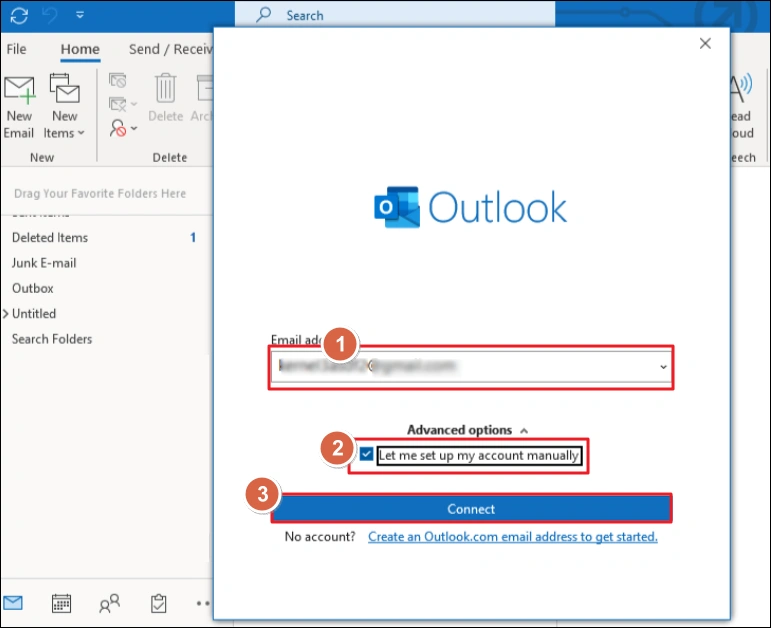
Step 3: Click on the IMAP option. Enter the IMAP account details and click Connect. 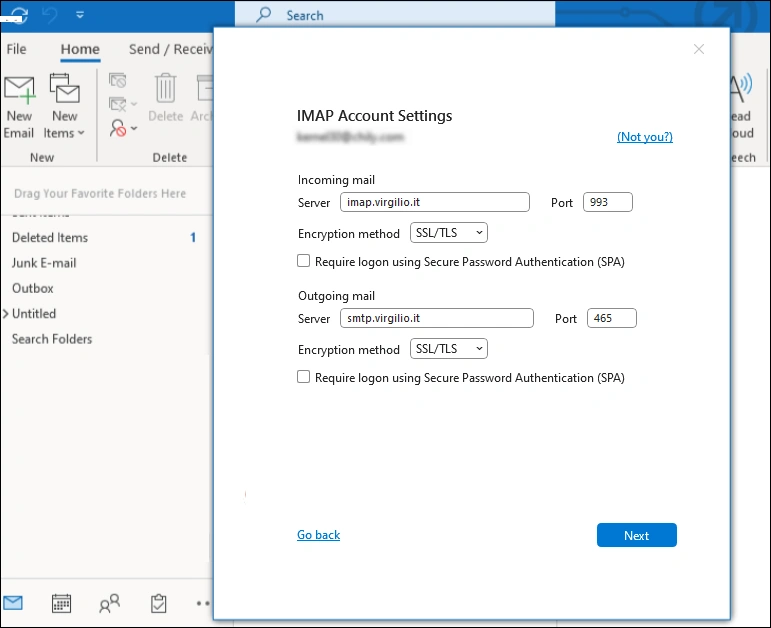
Part 2: Export the Outlook emails to PST using the Import/Export feature.
Step 1: Go to the File menu and select Open & Export. Then choose Import/Export.
Step 2: Choose Export to a file > Outlook Data File (.pst) and click Next.
Step 3: Select the root folder of your Virgilio email address and make sure the “Include subfolders” box is checked. Click Next. 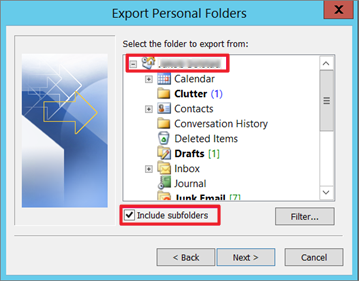
Step 4: Click Browse to choose a location to save the Virgilio Mail backup PST file. Give it a name and click Finish.
Note: You can also set a password for the PST file for added security.
Drawbacks of the Manual IMAP Client Method:
- Manual Effort: You have to add the account and then export the emails to PST. The method is time-consuming.
- Risk of Data Loss: Large exports can sometimes face interruptions or corruption if the Virgilio Mail server or internet connection fails.
- Format Limitation: For Outlook, data is saved in PST. While for Thunderbird, the output format will be MBOX. You may not get your desired output file format.
Method 2: Backup Virgilio Mail with Advanced IMAP Backup Tool
Users who require easy and error-free Virgilio mail backup must use the Kernel IMAP Backup and Restore tool. It’s a dedicated IMAP email backup tool that offers significant advantages over manual client exports:
- Universal IMAP backup tool: The tool helps users backup mailboxes from every IMAP-supported email server, like Exchange Server, Thunderbird, GoDaddy, Gmail, Zoho, etc.
- Incremental backup: After the first full backup, the tool only saves new or modified emails. This feature helps to reduce backup time and storage usage.
- Multiple formats: Allows you to backup Virgilio emails to a variety of file formats like PST, EML, MSG, or MBOX.
- Filter options: Perform selective data backup with the smart built-in filters, like folder selection, choose date range, etc.
- Restoration Capability: The tool also allows you to restore the backed-up emails (PST/OST) to the original or a different IMAP server.
How to Back up Virgilio Mail with IMAP Backup Tool – Quick Steps
Step 1: Download, install, and open the tool.
Step 2: Click the Backup option and add the Virgilio Mail account.
Note: Use the app-specific password for login. A standard password may fail.
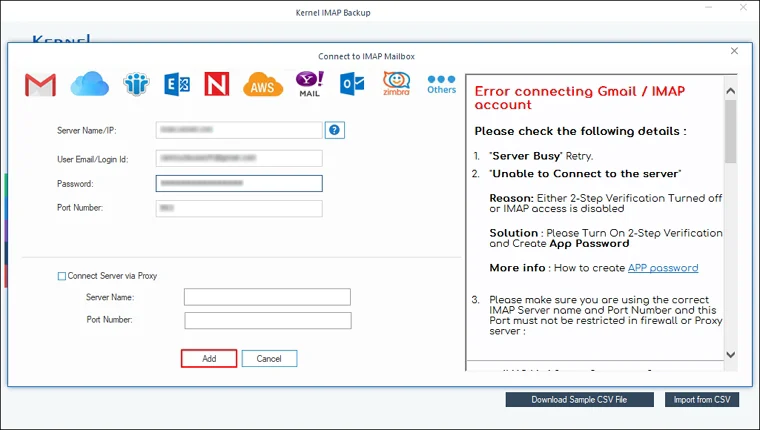
Step 3: Apply required filters and choose the output format as per your choice.
Note: You can also split the output PST file based on size. 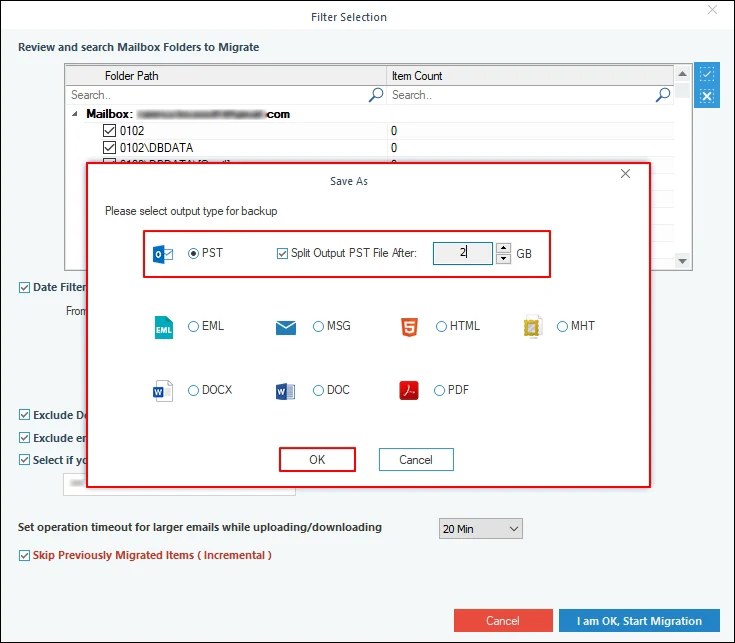
Step 4: Choose where to save the output file and the software will start Virgilio mail backup.
Conclusion
Be it data safety or data archiving, email backup is your best solution. If you only want to back up a single account and have time to spare, then go with the manual method. Here, I have chosen Outlook to save emails and folders. You can choose any IMAP-supported email client that allows you to export the mailbox.
However, for a quick Virgilio Mail backup of multiple accounts, try the recommended IMAP backup tool. The software backs up your email, attachments, contacts, important entries, etc., and provides all-around protection. You can even save your data folder-wise (separate PST for each folder) for easy data organization or management.
Frequently Asked Questions
Answer: Unfortunately, No. While the app provides several basic webmail features, it lacks the ability to download or export emails from mailbox to your system.
Answer: When you configure Virgilio Mail in Outlook and backup the data in PST, you can select the folders that you want to backup. For more granular backup, you can use dedicated IMAP backup tools like Kernel for IMAP Backup and Restore. It comes with several smart built-in filters like date selection, folder selection, skip empty folders, etc.
Answer: 3-2-1 backup rule is an industry-standard way for data backup. It means:
1. Always have three copies of your data (one at Virgilio cloud and another two offline)
2. Use two different storage types, like store one copy on a hard drive and another one on a USB.
3. Keep one copy of the mailbox on a trusted cloud platform like Amazon, Google, or Microsoft.
Answer: You can add both Virgilio and Gmail accounts to Outlook (or any IMAP-supported email client). Then, select the emails from Virgilio and move them to a folder in the Gmail mailbox. The emails will be copied easily. However, the manual drag-and-drop approach is time-consuming. A better alternative would be to try an IMAP to IMAP migration tool.
Answer: Yes, with the help of Kernel IMAP Backup and Restore, you can easily import your Virgilio emails back to the original location without disturbing the folder structure.