Read time: 9 minutes
Outlook is an email manager which is used by millions of users to keep their personal information well managed and organized. It is a one-stop destination for all your email accounts as it adds multiple emails and manages all emails, contacts, appointments, schedules, tasks, notes, and much more. You can easily add your GoDaddy email account to your Outlook profile along with others. However, if you are working on Outlook 2016, you may encounter some technical hitches, which may result in GoDaddy email not syncing with Outlook. These problems are a result of certain contradictory settings on Outlook or in the server. In this article, we will be discussing in detail all the feasible solutions for the issue of GoDaddy email not working with Outlook 2016.
Why is GoDaddy email not syncing with Outlook 2016?
The syncing problem could be the outcome of several factors. Most common ones are:
- Incorrect Port Settings & DNS Settings: If your current account was configured years ago in Outlook, you might be using the outdated ports. Furthermore, incorrect or missing Autodiscover CNAME in GoDaddy DNS settings can also cause the issue.
- GoDaddy Server Side Issue: The problem could be from the source. If your GoDaddy subscription is suspended or ended, you will not receive new emails either in GoDaddy or Outlook. The same problem can also happen if your GoDaddy mailbox storage is full.
- Outlook Profile Corrupted: The Outlook profile stores your account configuration settings, port numbers, etc., details. A virus attack or improper shutdown may damage the profile. This will prevent Outlook from connecting to the GoDaddy domain and getting new emails.
- Outdated Outlook Application: If you are still using the initial release version of Outlook 2016, the modern auth (OAuth) will not work, making it hard to connect to GoDaddy. You need to use the updated Outlook patch that supports the modern auth mechanism.
- Antivirus Interference: Sometimes users use very strict firewall or anti-malware program settings, which may scan and list your Outlook connection as suspicious. Your computer firewall has total control over the ports. If the IMAP ports are blocked, emails will not sync in Outlook.
Quick Troubleshoots to Fix GoDaddy Email Not Syncing with Outlook
Before we start changing the internal settings of Outlook or GoDaddy, try these common fixes to solve the problem.
- Check Internet: Make sure Outlook is connected to the internet. Open and use other applications to confirm if there is any network issue. In Outlook you can also check the bottom Status bar for any issue.
- Restart Outlook: Reboot your Outlook to see if it works. Furthermore, you can also restart the computer to close any background task that may be preventing Outlook from getting new emails from server.
- Disable Antivirus: Antivirus may be blocking an Outlook port. Allow the port or disable the antivirus in your system (temporarily).
- Use OWA: You can also try using Outlook Web Access (OWA). This issue is mostly seen in Outlook 2016, using the web version will allow you to read latest emails from GoDaddy.
- Delete Outlook Rules: If you have any rules to move the incoming emails to a folder (other than the Inbox), delete them. In Outlook 2016, you will find the ” Manage Rules ” option in the ribbon, and you can find and remove the problematic rule.
Methods to resolve GoDaddy email not working with Outlook 2016
If the above-mentioned troubleshoots are not working for you, try these methods to fix the issue permanently.
Method 1: Check port in Outlook configuration
Verify if the GoDaddy account is configured with the correct port number and server details. Follow these steps to check the configuration:
Step 1: Go to Control Panel and click on Mail (Microsoft Outlook). Then, click on Email Accounts option.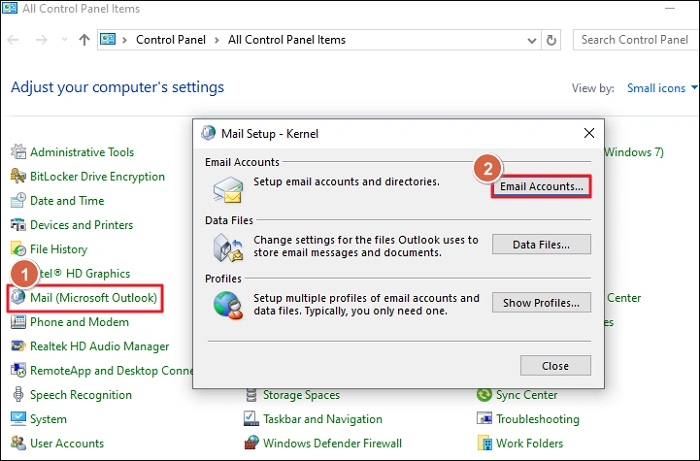
Step 2: Select the GoDaddy email account and click on Change button.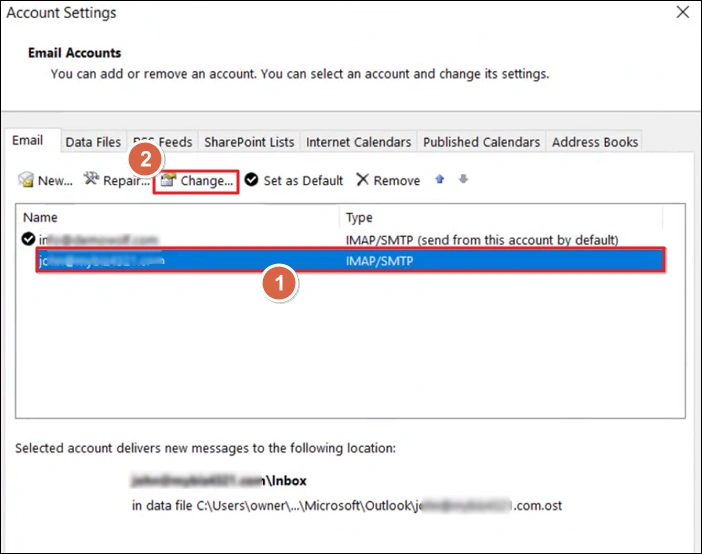
Step 3: Verify all the details. The server details for GoDaddy account are:
- Incoming mail server: imap.secureserver.net/
- Outgoing mail server:secureserver.net
To check the port, click on More Settings button.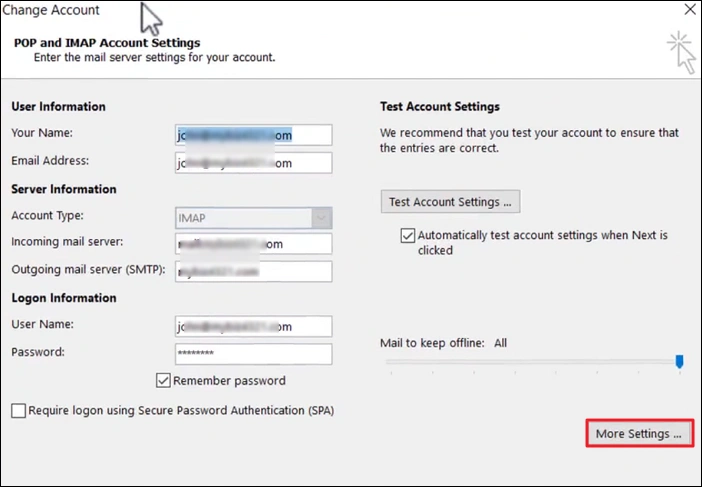
Step 4: Make sure the ports in your Outlook are the same as the ones shown in the image. 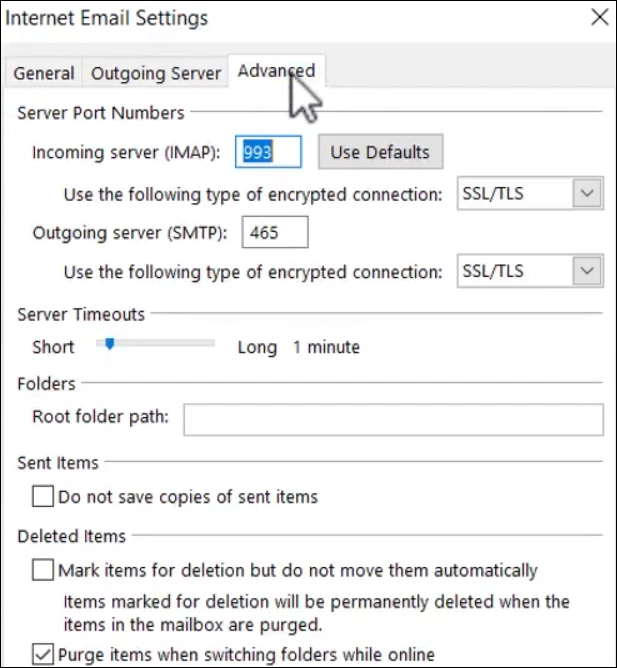
Step 5: After making the change, click OK.
Step 6: Then, in the Change Account window click Next to test the connection with the new settings (if you have made any changes).
Method 2: Update Outlook/Repair Outlook
As I said earlier, Outlook 2016 needs to use the latest release patch, which supports Microsoft 365 modern auth. Check for updates in Outlook with the following steps:
Step 1: Open Outlook, click on File.
Step 2: Select the Office Account option. Then, click on the Update Options button and select Update New.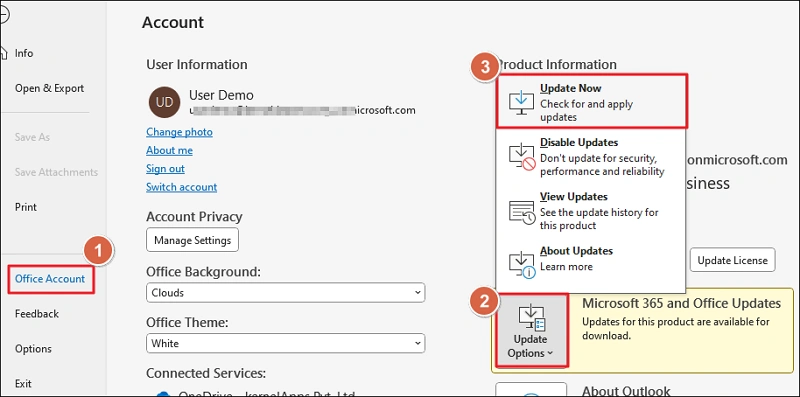
Method 3: Update the MX records in GoDaddy
If your emails are not updated after a GoDaddy to Office 365 migration job, you must add the Office 365 address to the MX records. Additionally, outdated MX records can also cause the GoDaddy email not syncing with Outlook issue. Fix it to make sure all the new emails sent to your GoDaddy account are received on the Office 365 account.
Step 1: Login to your GoDaddy account. Choose the domain from which you want to move the emails.
Step 2: Below the domain name, click on the DNS tab and select the DNS Records section.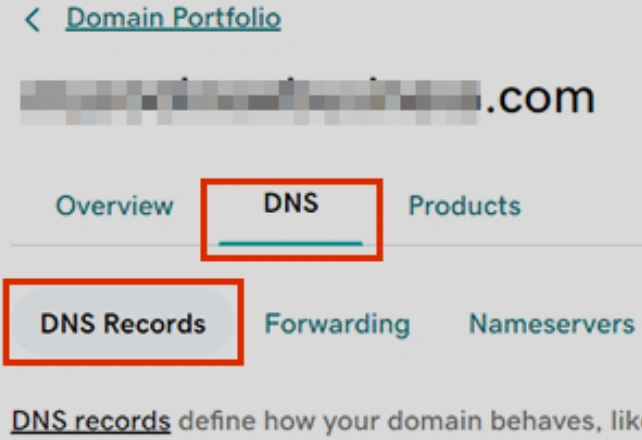
Step 3: Verify if the records are correct with respect to Office 365. The MX records for O365 are:
- Record Type: MX
- Priority: Set to the highest value available, typically 0.
- Host Name: @
- Points to address: <Get the token from the admin center and paste it here>
- TTL: 3600
If they are outdated, click on the Edit button next to the MX records to change them.
Step 4: Click Save to finalize the changes.
Method 4: Check auto-forwarding in GoDaddy
Some users use the forwarding emails feature of GoDaddy when they want to receive GoDaddy emails in Office 365 account with migration. If that’s the case, you should verify if the destination email address is correct and update it if required using these steps:
Step 1: Go to GoDaddy webmail login page and login using the email credentials.
Step 2: On the top-right corner, click Settings. Then select All Settings.
Step 3: Select Mail and click on Rules.
Step 4: From the expanded menu, select Auto forward option.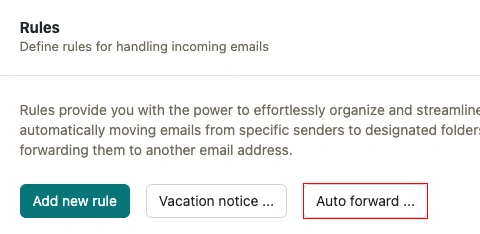
Step 5: Make sure the Auto forward is enabled. Also, check the forward email address. If it is incorrect, update it. Finally, save the changes.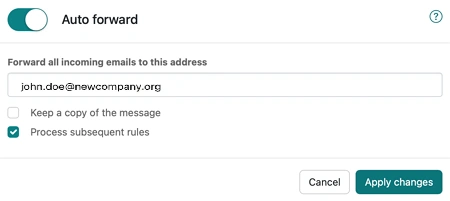
Method 5: Create new Outlook profile
Create a new Outlook profile if the current one is corrupt. Make sure to use the above given port and server details when configuring the GoDaddy account. Furthermore, if two-factor authentication is enabled in your GoDaddy account, log in using the standard password may fail. In that case, create and use the app-specific password. After creating the profile, make sure to set it as default.
How to safeguard your mailbox?
Emails contain important information. From confidential contracts details to your personal work report. Losing access to them, even for a few hours, can result in heavy loss. Therefore, IT professionals follow a strict rule of backing up emails. You can either use the built-in add-on or use Outlook to backup GoDaddy emails. But these native backup solutions are time-taking and expensive.
A better alternative is to use a dedicated IMAP backup tool. Kernel IMAP Backup and Restore software allows bulk email backup without data loss. Save your email (with attachments), contacts, calendar, etc., data items, along with all the folders with original hierarchy.
A few key points about the IMAP backup tool.
- It has the potential to take the backup of single as well as multiple IMAP mailboxes at the same time.
- It supports various email clients which deal with IMAP servers, including Outlook, Yahoo, Gmail, Zimbra, AOL, Amazon WorkMail, Office365.com, etc.
- All the users have the freedom to save mailbox data into a file format of their choice.
- The filters provided can make the selection of mailbox data easier.
- The Kernel IMAP Backup tool ensures the utmost accuracy and security of the data and maintains its integrity throughout.
- It has a simple and straightforward process where you need to add the desired IMAP server account, select the filter, and GoDaddy email backup process will begin.
- The tool works well with all versions of the Windows systems.
Conclusion
Many users have encountered issues like GoDaddy email not working with Outlook 2016. From simple network issues to Outlook profile corruption, anything can cause it. Refer to the solutions we talked about above to fix GoDaddy email not syncing with Outlook issue. Moreover, to guarantee a 100% mailbox availability, always keep your emails backed up using recommended GoDaddy email backup tool.
Frequently Asked Questions
A. When you want to sync your mailbox data between multiple devices, IMAP is the best. Avoid POP because it could result in data loss, in case your current device is lost or corrupt.
A. This could be due to your outdated Outlook version, antivirus interference, or a corrupt Outlook profile.


![How to Export Outlook Mac to PST? [2 Easy Methods]](https://www.nucleustechnologies.com/blog/wp-content/uploads/2026/08/outlook-mac-to-pst.webp)