There are many situations where you need only a few pages instead of the complete PDF document. For example, you may need to share an invoice, medical report, bank statement, legal document, or project pages without sending the entire file. If you’re wondering how to extract pages from a PDF document, then this blog is for you.
Here we are exploring some of the free methods that can help you to easily extract specific pages from your entire PDF file.
Quick Answer: You can extract pages from a PDF document by using:
- Your web browser (Print ? Save as PDF)
- Online PDF splitter tools
- Kernel Extractor for PDF (bulk extraction)
Why Do You Need to Extract Pages from a PDF?
There are many situations where you need to extract specific pages despite of complete PDF files:
- When you need to share only the required pages with clients or colleagues.
- To save individual invoices, receipts, or other documents.
- Submit selected pages for academic or government documentation.
- Create separate medical reports from lengthy PDF files.
- Archive only necessary pages instead of the complete document.
How to Extract Pages from PDF?
Let’s dive into the process of securely extracting a specific page from PDF file. We will discuss 4 ways to achieve the page extraction. We have tried our best to keep the procedure as easy and comprehensive as possible. Still, some methods may require users to be technically sound.
Method 1. Extract Pages from a PDF Document Using a Web Browser
Most of the web browsers, including Google Chrome, Microsoft Edge, Mozilla Firefox, and Brave, come with a built-in PDF viewer. You can use the Print option to create a new PDF that contains only the pages you need.
This is one of the easiest ways of how to extract pages from a PDF document without installing additional software.
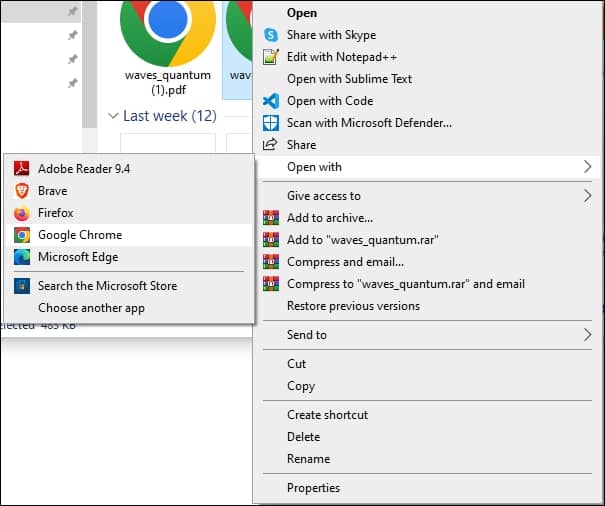
- Navigate to the PDF file and right-click on it.
- Select the option Open with and select any browser.
- When the PDF file is opened, press Ctrl + P. In the new window, define Destination as Save as PDF, set Pages value to Custom, and enter the page number or range of paper to include in the new PDF as required.
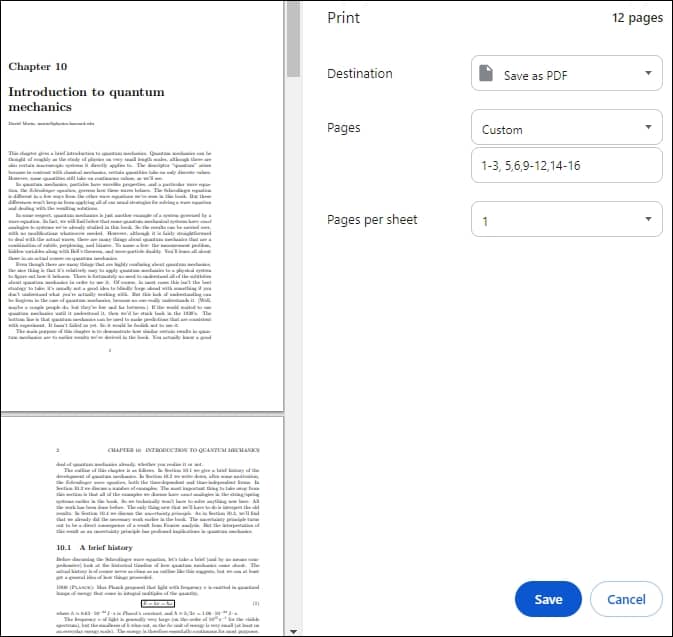
- Click Save to generate a new PDF with your specified page or pages.
Method 2. Extract a Page from a PDF Using Adobe Acrobat Reader
Adobe Acrobat Reader is one of the most trusted PDF readers. With its advanced editing features, a paid subscription or the free version allows you to create a new PDF by printing specific pages.
- Open Acrobat Reader & load the PDF file.
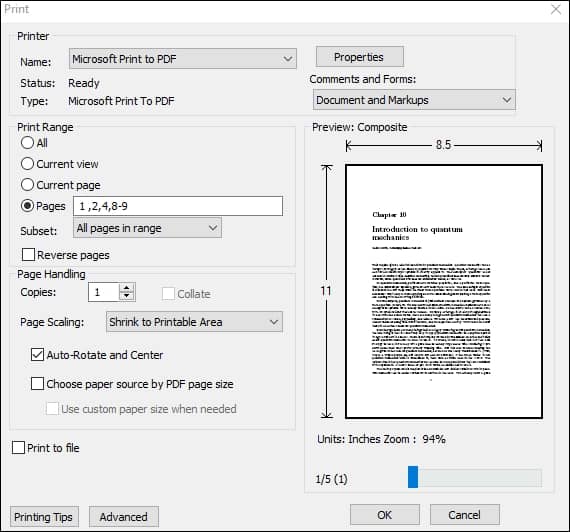
- Click File > Print, and for the Name field, choose Microsoft Print to PDF.
- Under Print Range section, specify the details as per convenience. You can specify a single page, a range of pages, or both.
Note: The tool also features a paid version that lets you perform numerous operations on a PDF file, like editing PDF, encrypting confidential PDFs, and many more.
Use Online PDF Tools to Extract Pages from a PDF
If you need to extract pages from a PDF occasionally and don’t want to install software, online PDF tools can be a convenient option. There are multiple web applications that let you upload a PDF, choose the pages you need, and download a new PDF within minutes.
Note: Use this method for small or non-confidential documents. However, if your PDF contains sensitive information, make sure to use a trusted solution to protect your vulnerable data from online theft.
Also, in case you are extracting pages from an encrypted PDF file, these tools won’t be able to split the pages unless you provide the correct password at the time of page splitting. Therefore, if you cannot find the password to the PDF file, try unlock your PDF file and try the page extraction again.
Automated Tool to Extract Pages from PDF in Bulk
If you frequently work with PDF documents, then manual methods become slow and repetitive. They are suitable but only for a few small PDF files. Despite extracting, these methods cannot offer bulk PDF extraction, filters, or support for password-protected PDF files.
To cope with all these scenarios, you can easily rely on professional’s recommended Kernel PDF Extractor tool to extract a specific page from your entire PDF files. It can easily extract images, text, bookmarks, hyperlinks, comments, attachments, and other PDF components from one or multiple PDF files.
Let’s explore other extensive features of this tool:
- Extract images, text, bookmarks, and other contents from bulk PDF files.
- It also extract pages from password-protected PDF files.
- Maintains original data quality.
- Easily extract images from PDF in JPEG, PNG, GIF, TIFF, and BMP formats.
- Generates detailed reports in a TXT file for every PDF extraction.
- Easy interface and compatible with all Windows.
Extract Pages from PDF Files using this Software?
Below is the effortless and straightforward step-by-step procedure of Kernel Extractor for PDF tool to extract pages in a PDF file seamlessly:
Step 1: Download and install the Kernel Extractor for PDF software.
Step 2: Click the File(s) button to select your PDF file for extraction. You can add single or multiple files at once.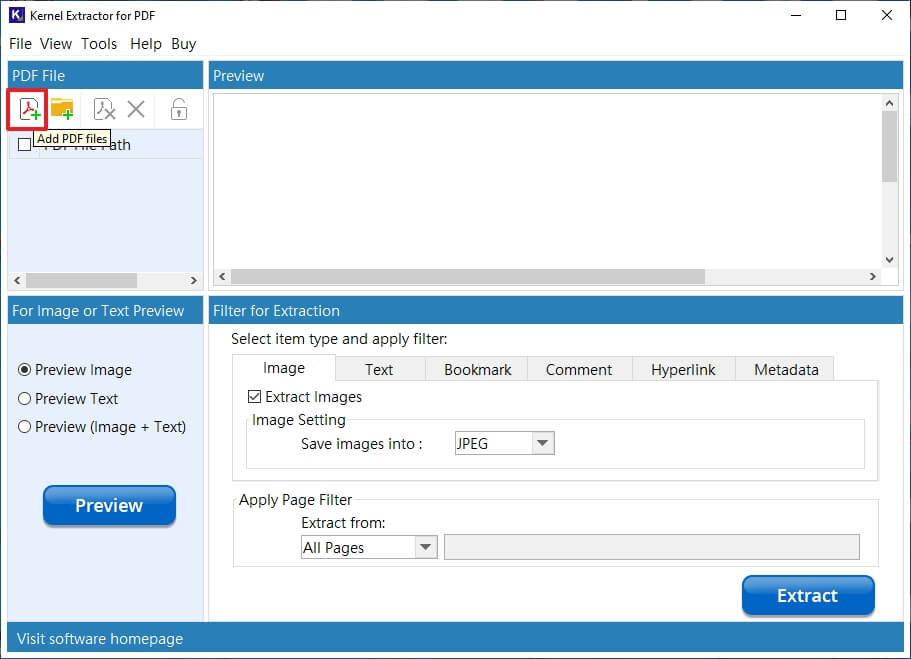
Step 3: Choose a PDF file and click on Preview to view the images in the PDF file.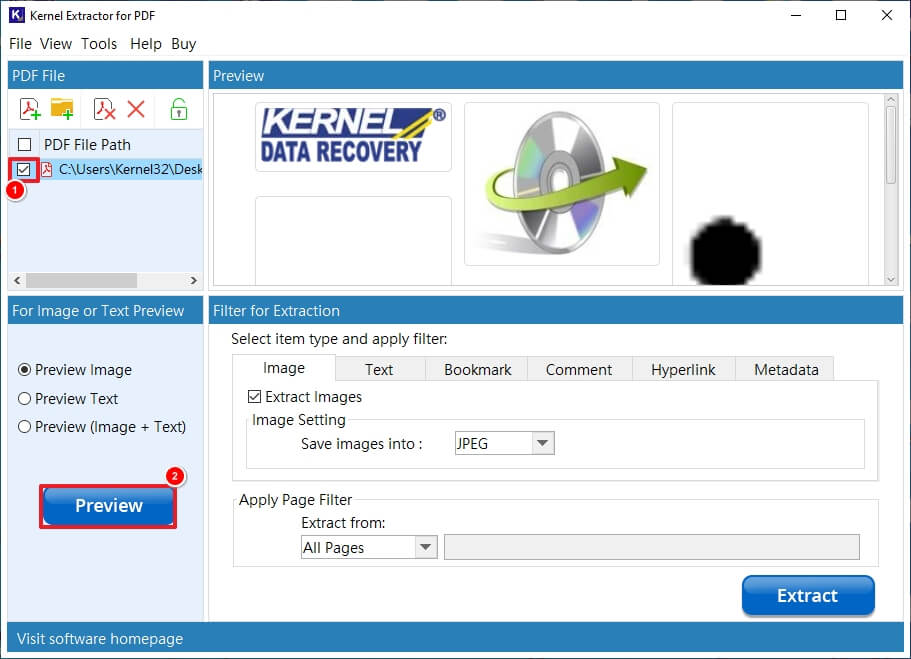
Step 4: In the Filter for Extraction section, choose the item type you want to extract from the PDF file. Now, select the page you want to extract from the Page Filter. Click on Extract.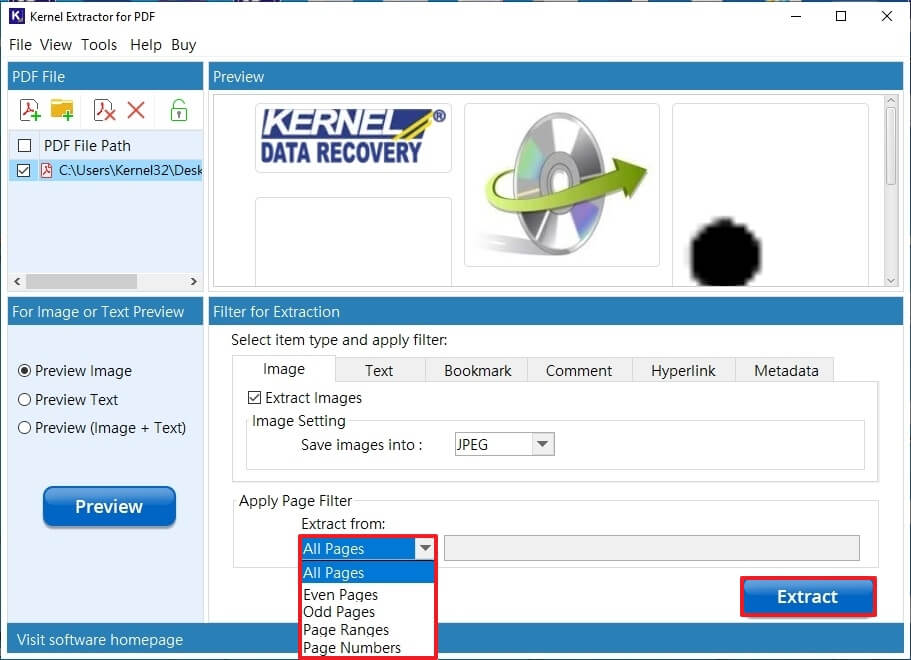
Step 5: Select a saving location to save the extracted pages from PDF files.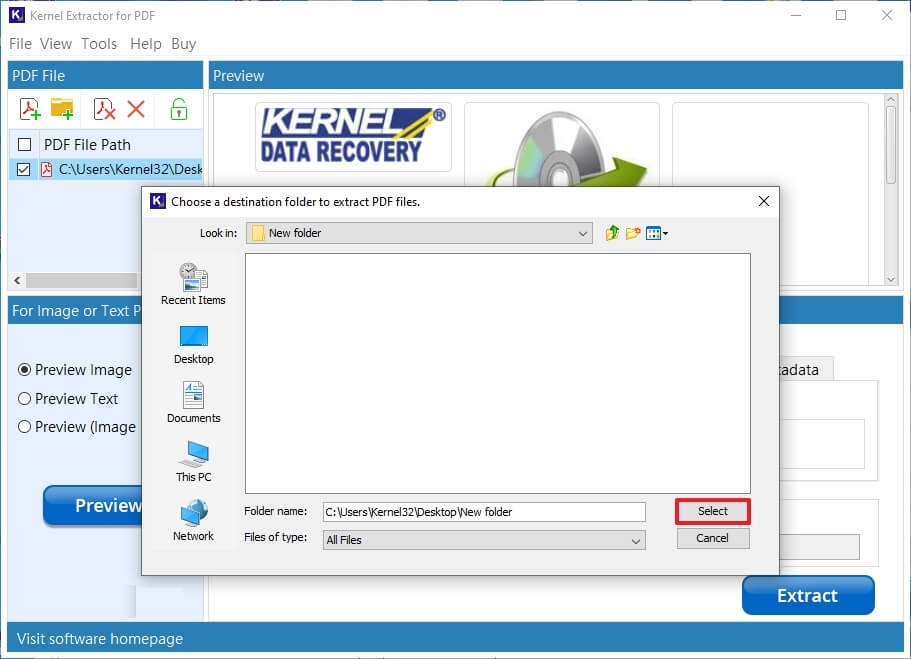
Step 6: After completion, you will get a pop-up with the saving location to access the extracted pages.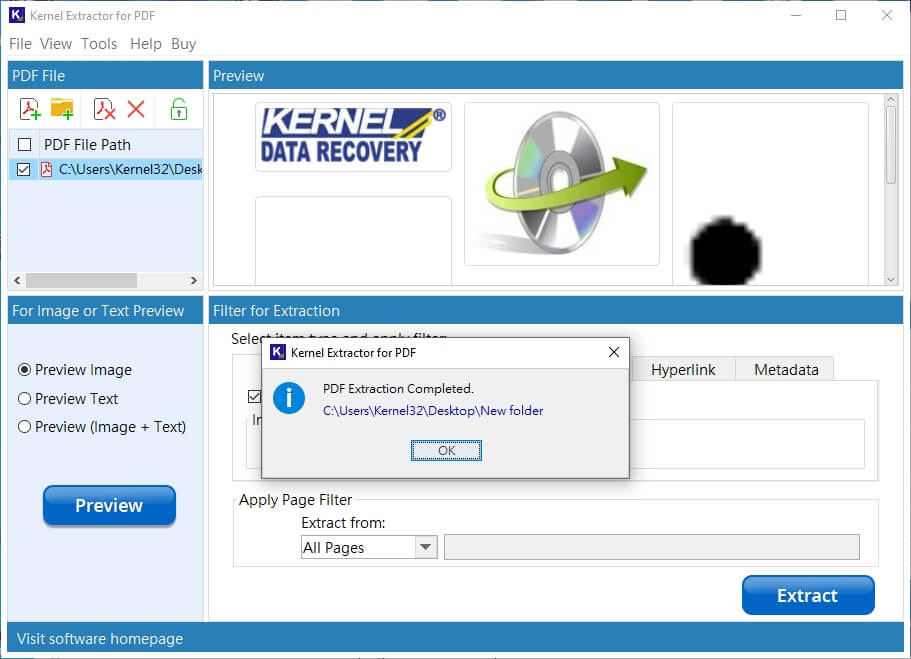
Conclusion
Selecting the appropriate manual method depends on your requirements. If you only need to extract a page occasionally, then you can open the PDF via a browser or Adobe Acrobat Reader and extract your specific pages. However, if you regularly work with multiple PDF files, password-protected documents, or extracting text, large files, then use the Kernel Extractor for PDF tool.
People Also Ask!
A.The kernel PDF extractor tool can effortlessly export specific pages from PDF files with images, hyperlinks, metadata, bookmarks, and comments. Furthermore, you can choose to extract Even Pages, Odd Pages, Page Numbers, Page Ranges, and All Pages from the PDF.
A. Our tool is capable of handling extraction of pages from multiple PDF files. Open the software & load the PDF files in bulk, define the filters, and start the extraction.
A. To extract every single page from the PDF, try the following steps:
1. Open the file in the software.
2. Under the Filter for Extraction section, look for Apply Page Filter
3. Then, select All Pages for the Extract from field.
A. Our tool supports extraction of pages from secured PDF files. After adding the file to the tool, click the unlock button and enter the password to unlock it. Now, define the filters and extract the pages per your requirements.