Most Important: If the PDF requires a password, enter the correct password before you extract pages.
From eBooks to invoices and school notes, PDFs are the most common format that everyone uses. But sometimes, the user gets an error message saying, “Page extraction not allowed in source PDF” file while sharing or pulling out a specific page. It is quite frustrating because it prevents you from unauthorized copying, editing, or separating individual PDF pages.
The good news is that you can first check the PDF permissions and then choose a suitable method based on the type of restriction. Before getting into the direct methods, let’s look at the prime reasons for this error.
Why Does Page Extraction Not Allowed Error Occur in PDF?
Explore some of the common causes that include:
- PDF Permission Restrictions: When the PDF owner disables page extraction and other editing rights in the file.
- Password-protected PDF files:Your PDF file must have an open password or a permissions password that limits certain actions.
- Document Security Policies: Business and institutional PDFs may have additional security controls that restrict access to their content.
- Application Limitations: Some PDF viewers do not provide page extraction features even when the PDF itself permits extraction.
- Digital Rights Management:Many firms and organizations protect PDF files under DRM to prevent the duplicity of their data, which causes Page extraction not allowed in source PDF error during extraction.
After understanding the common reasons, let’s see if the page extraction feature is allowed or not.
How to Check Whether PDF Page Extraction Is Allowed or Not?
Before you try to remove restrictions, check the PDF’s permission status in Adobe Acrobat Reader.
Step 1. Open your PDF in the Adobe Acrobat Reader application.
Step 2. Click on the Menu and tap on the Document Properties option.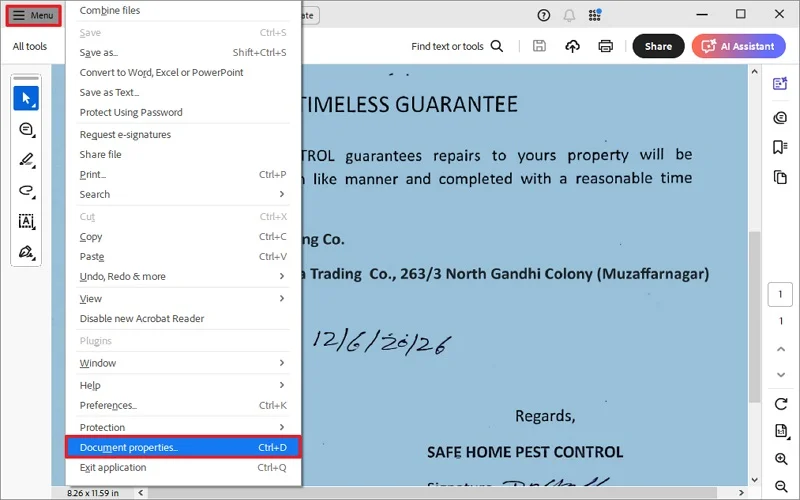
Step 3. Go to the Security tab to verify the permissions in the Document Restrictions Summary section. Also, check the Page Extraction status.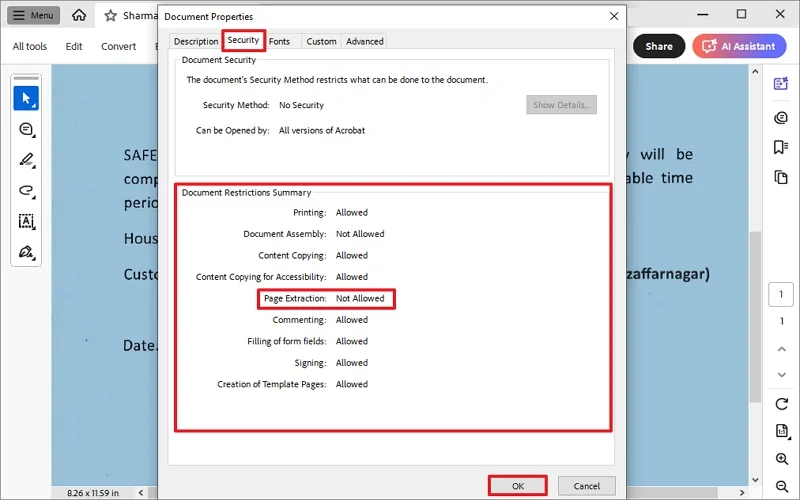
You will either see Allowed or Not Allowed. If mentioned Not Allowed, you need to check out how to allow page extraction in PDF files.
Methods to Fix Page Extraction Not Allowed Error Effectively
Fixing page extraction not allowed in source PDF file issue is possible with manual methods. Here are some proven manual solutions that will help you to unlock PDF for page extraction: Understand each and choose them at your convenience:
Method 1: Unlock PDF for Page Extraction using Microsoft Word
Microsoft Word is a popular application for creating, altering, and editing documents. It also helps to remove PDF page extraction effectively. Here are the steps to follow:
Step 1. Open your required PDF file in Microsoft Word. Click Yes in the confirmation wizard [if prompted].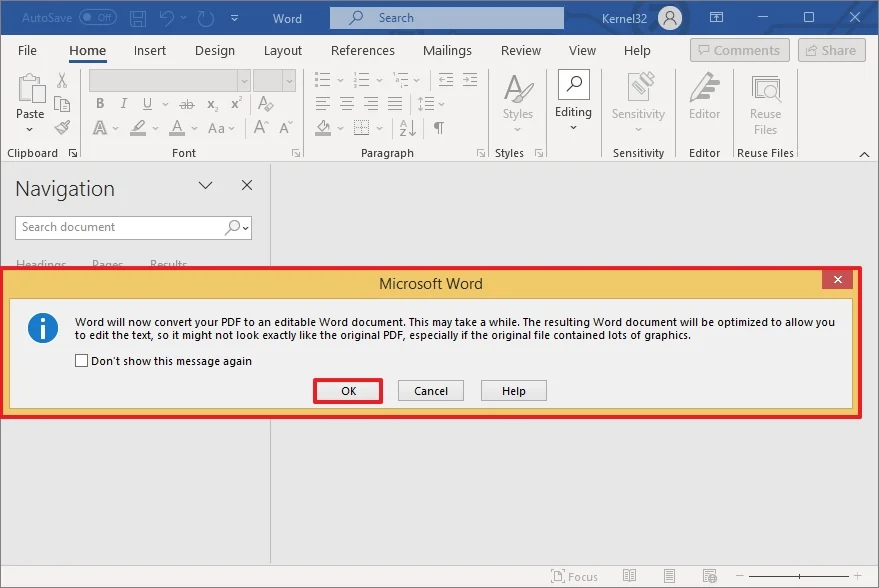
Step 2. Tap on the File tab and choose the Print option.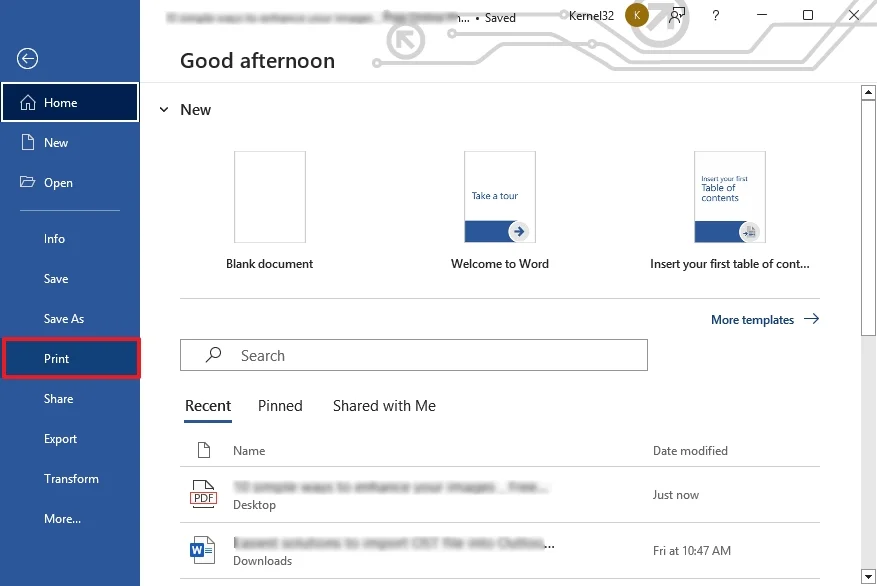
Step 3. Select Microsoft Print to PDF in the Printer section and click Print.
Note: You can also select specific pages for printing then in PDF format.
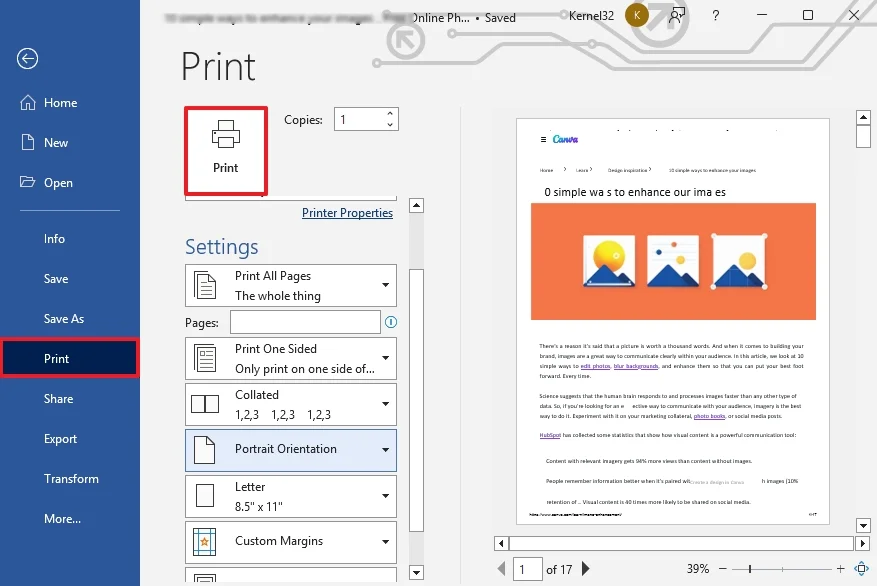
Your PDF pages will be extracted successfully.
Important Note: Word is not a dedicated PDF permission removal tool. PDF layouts with complex tables, images, forms, or advanced security may not convert correctly.
Method 2. Unlock PDF for Page Extraction using Adobe Acrobat Pro
Adobe Acrobat Pro is a widely used application that allows users to view, create, modify, print, and manage PDF files. You can also remove PDF file restrictions with this application. Follow the below steps:
Step 1. Open the restricted PDF file in Adobe Acrobat Pro. Click All Tools and tap on Organize pages.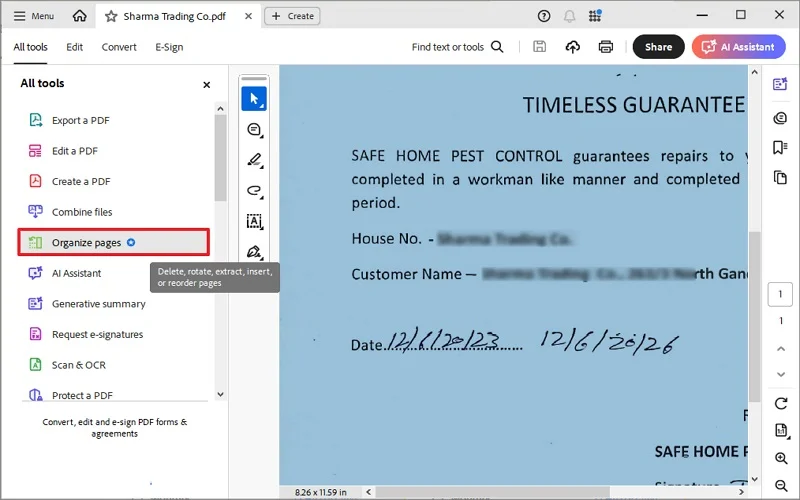
Step 2. Use Ctrl (Windows) or Command (Mac) and choose the pages you want to extract.
Step 3. Right-click on the selected pages and tap Extract pages.
Step 4. Select OK to save the extracted PDF file.
If Acrobat does not allow page extraction because of document permissions, you need the appropriate password or authorization from the PDF owner.
Method 3: Unlock PDF for Page Extraction Using Online Tools
Online tools are also helpful in extracting pages from restricted PDF files. These tools are very quick and give results in a few minutes. You just need to pick a secure and reputable online tool to remove PDF page extraction not allowed issue effectively. Just upload your PDF file and follow the tool’s instructions to remove the password protection. When issue is fixed, download the PDF files in your system.
Is It Safe to Use Online PDF Tools?
Use online tools only for documents that do not contain confidential, personal, financial, or business-sensitive information. Make sure to review your service’s privacy policy, file retention policy, and security practices before extracting your PDF files.
For sensitive PDFs, an offline desktop application is generally a better choice because the document does not need to leave your computer.
Recommended: Alternatively, you can also use Kernel for PDF Restriction Removal tool for a secure, easy and quick resolution.
Remove Owner Password Fix Page Extraction Not Allowed Error
While accessing password-protected PDF files, you may also face Page extraction not allowed in source PDF file error. Thus, you need to remove PDF password to enable page extraction in PDF files. Go through the below methods for removing PDF file passwords:
Method 1. Remove PDF password using Google Drive
Google Drive is a primary solution to remove PDF file password and is one of the most reliable methods to opt for. Before moving towards the solution, make sure that you have a Google Drive account. Let us see the steps:
Step 1. Open Google Drive and log into your account.
Step 2. Upload your password-protected PDF file to Google Drive.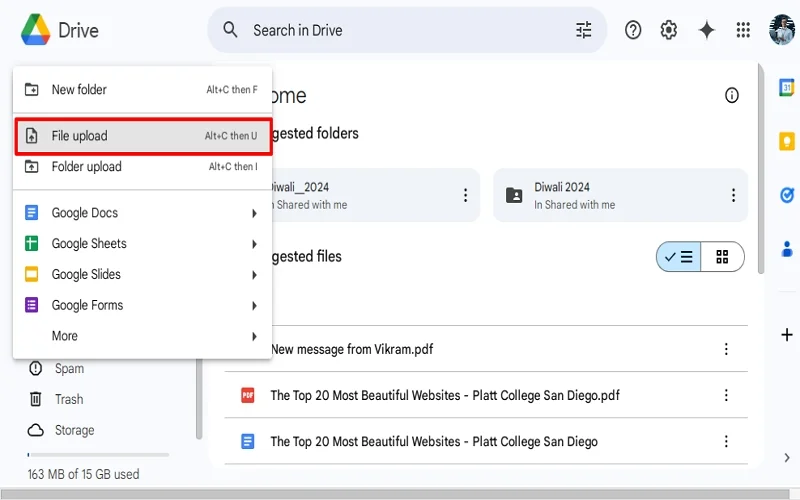
Note: Alternatively, you can also drag and drop your file in Google Drive.
Step 3. Select the uploaded password-protected PDF file, click Open with and select Google Docs.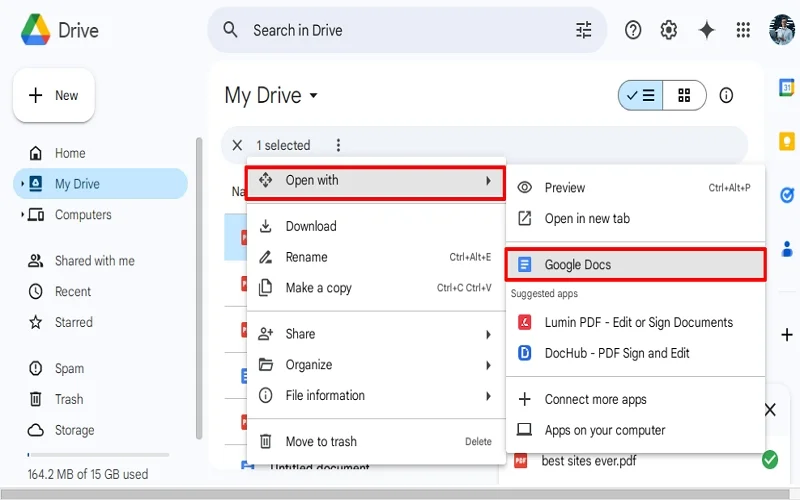
Step 4. Now, click File, tap the Download option, and choose PDF.
If this process works for you, that is fine; if not, move to the next method.
Method 2. Remove PDF Password using Google Chrome
Using Google Chrome is the most common way to remove the password from a PDF file. Here are the steps to follow:
Step 1. Open your PDF file with Google Chrome. It will notify ‘that the file is encrypted. So, enter the password and proceed.
Step 2. Look for the Print icon and click on it.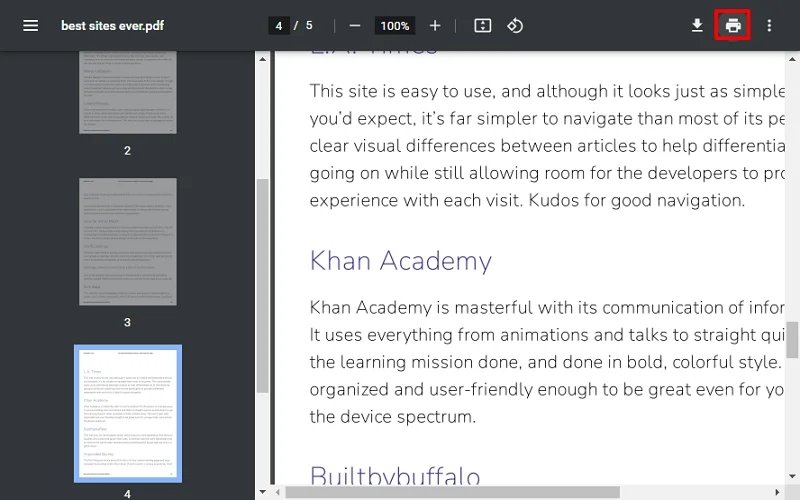
Step 3. Select Save as PDF. Click on the Save button.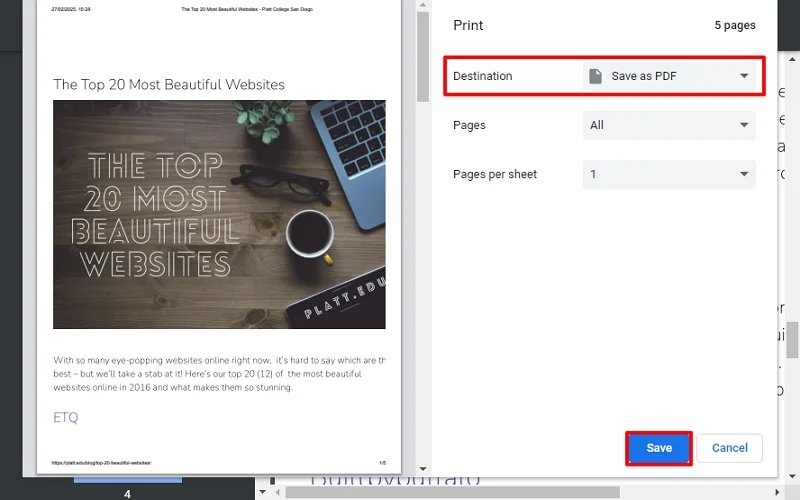
Step 4. Provide a saving location and a name for the file to save the password-free PDF file.
Your newly saved PDF file will be free from password.
Since PDF files are crucial, many users protect them with passwords and several restrictions. However, many instances compel users to remove that security and permissions, but facing error messages is annoying. However, manual approaches to fix page extraction not allowed in source PDF file error, and extracting PDF pages is a little bit complex and error-prone. Therefore, you can opt for reliable PDF extractor software for easy and efficient resolution.
Which One is the Best Automated Tool to Unlock and Extract PDF Pages?
There are a lot of PDF extractor utilities available on different platforms, but when it comes to the most reliable, smooth and handy tool, Kernel Extractor for PDF Tool stands out. It easily extracts images, text, bookmarks, hyperlinks, comments, and metadata from a PDF file
With the tool, you can preview your PDF data, including images, text, etc., separately without hassle before extraction. You can also extract items from password-protected PDFs quickly.
Additional Features of the Tool are:
- Extract PDF files in bulk without any size restriction.
- Selective data extraction such as images, text, bookmarks, etc.
- Extract data from all pages, even pages, odd pages, specific page ranges, etc.
- User-friendly interface to extract PDF without any core technical skills.
Final Thoughts
Hence, we hope you’ve understood the complete procedure to appropriately fix Page Extraction Not Allowed in Source PDF error. If you have the required authorization, then go with the manual methods. But if your PDF contains valuable information, equipped with a secure password, then opt for the professional Kernel PDF Extractor tool and extract the necessary pages from your PDF files.
Frequently Asked Questions
A. To remove PDF file passwords, you can use applications like Google Chrome or Google Drive. Once you’ve removed the password, use extraction tools like Kernel Extractor for PDF to easily extract pages from PDF files.
A. You can easily extract specific PDF pages using applications like Adobe Acrobat Pro, Microsoft Word, Google Chrome, or online tools.
A. When the PDF file creator secures PDF files with passwords or restrictions like editing limitations, you can’t extract pages from PDF files. Therefore, you need to remove passwords and restrictions using a manual or automated solution for extraction.
A. Open the file in Adobe Reader, go to File > Properties > Security tab. Now, view the Document Restrictions Summary for page extraction status.
A. Yes, extracting PDF pages is safe if you use a trusted online tool with good reviews and secure HTTPS encryption.