Read time: 6 minutes
Outlook is a professional email client that allows users to send and receive email message with attachments attached to them. Users can easily send multiple attachments via email in Outlook. Have you ever wondered how you can extract attachments from Outlook emails? It can be done either with some simple methods or with some technical methods.
But before jumping to the methods, you must properly know why you need to extract attachments from Outlook.
Why Extract Attachment from Outlook?
Extracting attachments from Outlook helps in various ways, some of which are:
- Easy to share attachments and collaborate
- Better Outlook mailbox size management
- Improved Outlook’s performance
- Secure attachments archiving and backup
- Protection against malware and loss
- Easy offline attachments accessibility
- Attachments can be accessed without Outlook
Manual Methods to Extract Attachment from Outlook
There are a few manual methods available to extract email attachments from Outlook. We will discuss them one-by-one in detail. You can choose any of the methods as per your requirements:
Before heading to the manual methods, we suggest using a Kernel Outlook Attachment Extractor tool for bulk email attachments extraction without data loss. Start with free trial!
Method 1. Using Outlook’s Save All Attachments option (For Multiple Attachments)
If an email message contains multiple attachments in it, then you can follow the below mentioned steps to save them at once:
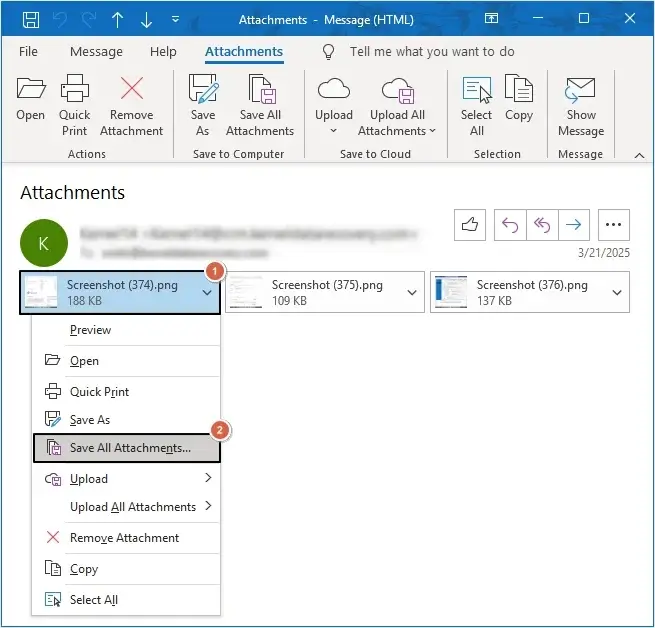
- Launch Outlook and open the email containing attachments.
- Right-click on the attachments or click on the arrow icon, then select the Save All Attachments.
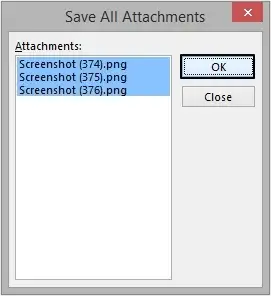
- Click OK.
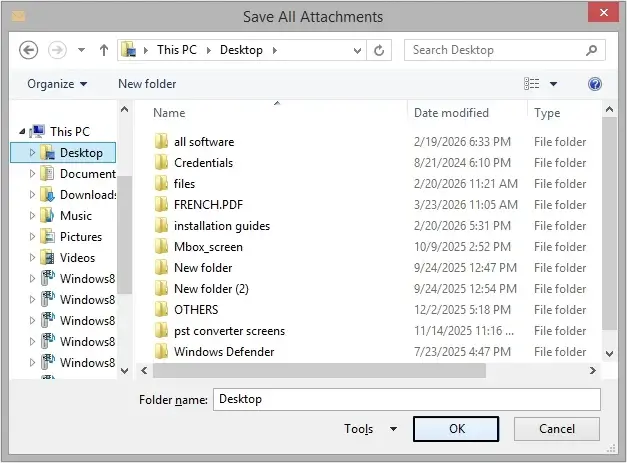
- Browse location and click Save.
Method 2. Using Outlook’s Save As option (For Single Attachment)
To save a single email attachment, follow the steps mentioned below:
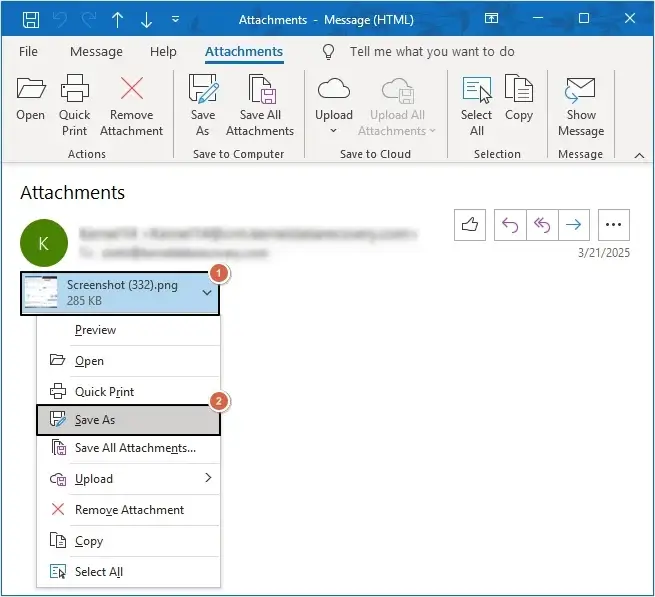
- Open Outlook, then open the required email with attachment.
- Right-click on it and select the Save As.
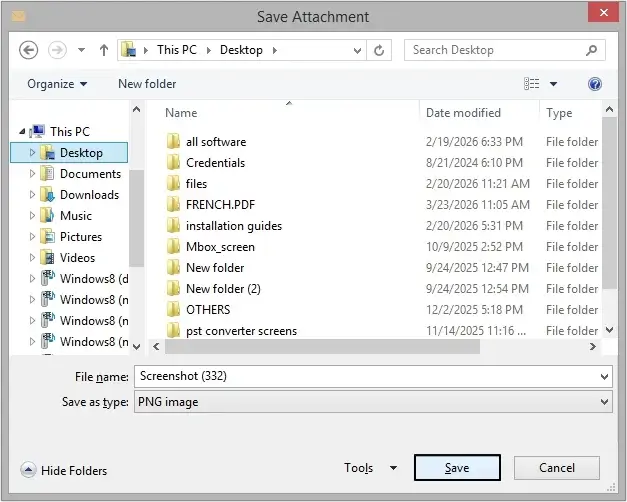
- Provide destination and click Save.
Method 3. Extract Outlook Attachments with Drag and Drop Feature
You can even extract attachment from Outlook emails using the drag and drop feature. Here is how you can do it:
- Open the desired email in Outlook with attachments.
- Drag the attachment and drop it on your local system.
Note: If an email contains multiple attachments, then you can save all attachments at a time.
Method 4. Setting Rules for automatic attachment downloads
You can even automate the attachments extraction process by setting up rules in Outlook. With rules you can download multiple email attachments in bulk. Here is how you can do it:
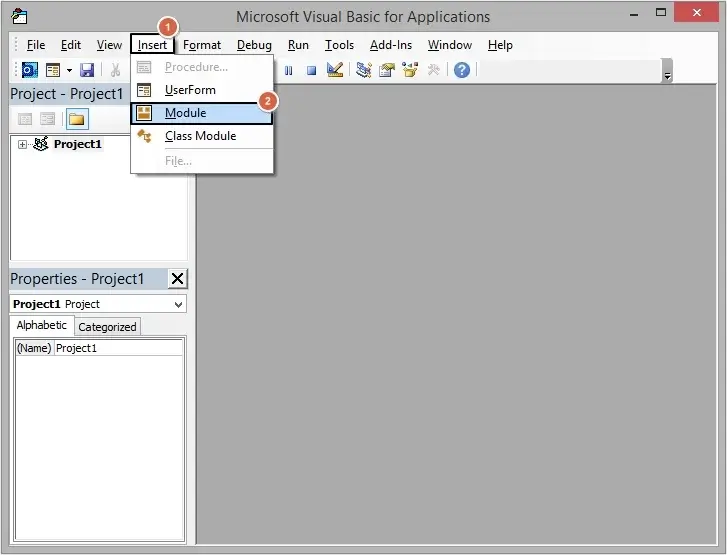
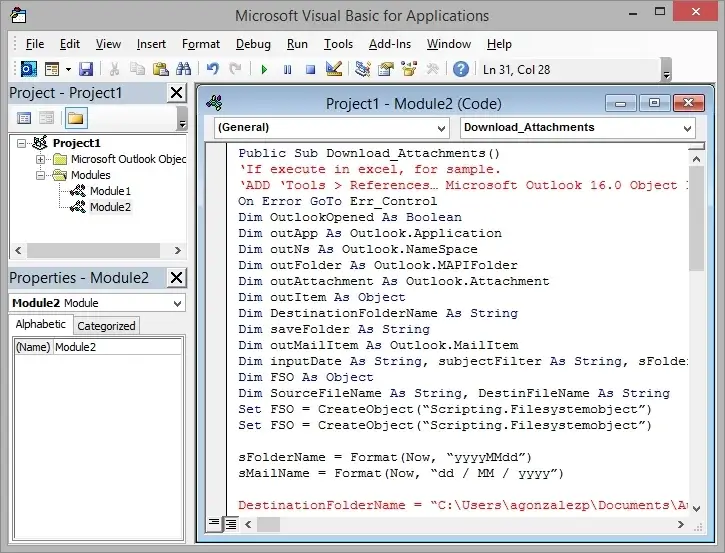
- Launch Outlook, then press Alt+F11 keys to open Microsoft Visual Basic for Applications.
- Click Insert, then Module.
- Paste the below mentioned VBA Script.
- Save the script and close the window.
- In Outlook, click on File > Manage Rules & Alerts.
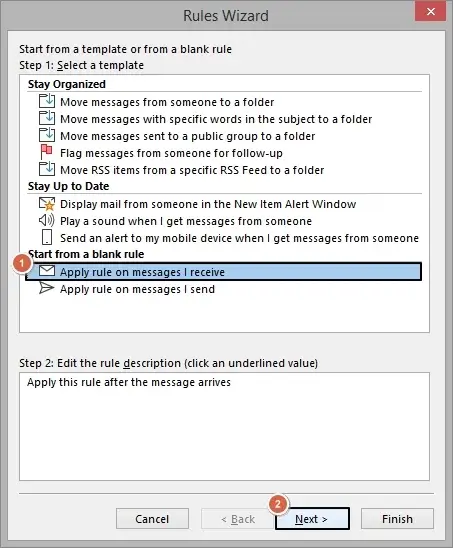
- Then click on New Rule.
- Select Apply rule on messages I receive and click Next.
- Select which has an attachment and click Next.
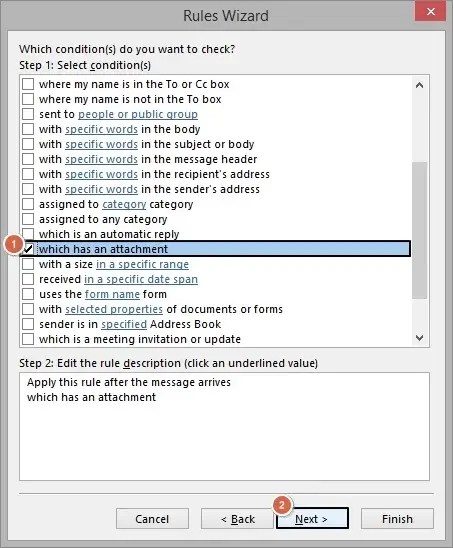
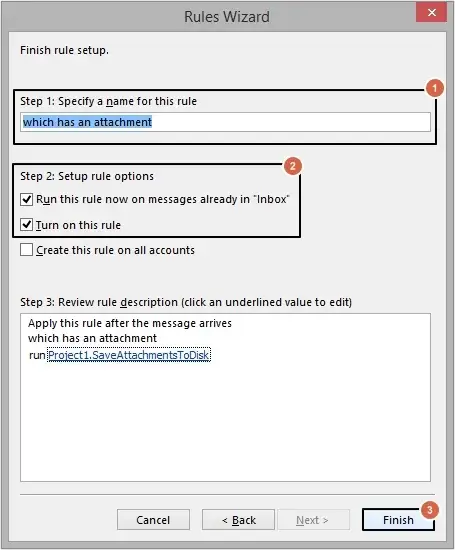
- Select run a script, then click on a script and choose the script which we saved earlier and hit OK.
- Specify a name for the rule, select run this rule now on messages already in Inbox and click Finish.
Public Sub Download_Attachments()
‘If execute in excel, for sample.
‘ADD ‘Tools > References… Microsoft Outlook 16.0 Object Library
On Error GoTo Err_Control
Dim OutlookOpened As Boolean
Dim outApp As Outlook.Application
Dim outNs As Outlook.Namespace
Dim outFolder As Outlook.MAPIFolder
Dim outAttachment As Outlook.Attachment
Dim outItem As Object
Dim DestinationFolderName As String
Dim saveFolder As String
Dim outMailItem As Outlook.MailItem
Dim inputDate As String, subjectFilter As String, sFolderName As String
Dim FSO As Object
Dim SourceFileName As String, DestinFileName As String
Set FSO = CreateObject(“Scripting.FileSystemObject”)
Set FSO = CreateObject(“Scripting.Filesystemobject”)
sFolderName = Format(Now, “yyyyMMdd”)
sMailName = Format(Now, “dd/MM/yyyy”)
DestinationFolderName = “C:\Users\agonzalezp\Documents\Automatizaciones”
saveFolder = DestinationFolderName & “\” & sFolderName
subjectFilter = “NUEVA” & ” ” & sMailName ‘REPLACE WORD SUBJECT TO FIND
OutlookOpened = False
On Error Resume Next
Set outApp = GetObject(, “Outlook.Application”)
If Err.Number <> 0 Then
Set outApp = New Outlook.Application
OutlookOpened = True
End If
On Error GoTo Err_Control
If outApp Is Nothing Then
MsgBox “Cannot start Outlook.”, vbExclamation
Exit Sub
End If
Set outNs = outApp.GetNamespace(“MAPI”)
Set outFolder = outNs.GetDefaultFolder(olFolderInbox)
If Not outFolder Is Nothing Then
For Each outItem In outFolder.Items
If outItem.Class = Outlook.OlObjectClass.olMail Then
Set outMailItem = outItem
If InStr(1, outMailItem.Subject, subjectFilter) > 0 Then ‘removed the quotes around subjectFilter
For Each outAttachment In outMailItem.Attachments
If Dir(saveFolder, vbDirectory) = “” Then FSO.CreateFolder (saveFolder)
outAttachment.SaveAsFile saveFolder & ” – ” & outAttachment.fileName
Set outAttachment = Nothing
Next
End If
End If
Next
End If
SourceFileName = “C:\Users\agonzalezp\Documents\Automatizaciones\*.xlsx”
DestinFileName = saveFolder
FSO.MoveFile SourceFileName, DestinFileName
If OutlookOpened Then outApp.Quit
Set outApp = Nothing
Err_Control:
If Err.Number <> 0 Then
‘MsgBox Err.Description
End If
End Sub
Best Automated Approach: Outlook Email Attachment Extractor
Extracting multiple attachments from Outlook at once can be a bit challenging due to technicalities required in applying manual methods. To surpass them, we suggest using a professional Outlook email attachment extractor tool. And when we talk about an advanced tool, Kernel Outlook Attachment Extractor stands as the best fit. This Outlook Attachment Extractor tool offers multiple benefits, such as:
- It allows users to add offline OST/PST files and directly connect to the Outlook profile.
- Extract attachments from Outlook profile, OST, and PST files at once.
- Extract attachments from MSG files, specific folder or from an individual email message.
- Saves all types of attachments such as images, videos, documents, spreadsheets, etc.
- Focuses on folder hierarchy retention throughout the extraction process.
- There is no file size restriction on adding the PST or OST file.
- Equipped with unique filters like skip empty folders, save attachments having no extension, open folder after export is done, and more.
- It comes with a free trial version which allows to extract 10 attachments per folder.
Final Verdict
We discussed four manual methods to extract attachments from Outlook, but they have some limitations, such as being time-consuming, not ideal for bulk extraction, and risk of data loss, etc. To let go of these limitations, we recommend using our Outlook Email Attachments Extractor Tool. It puts forward a wide range of advanced features to automate the entire process.
Frequently Asked Questions
A. Yes, you can extract attachment from Outlook 365 with the help of manual methods.
A. You need a professional tool to extract bulk attachment from Outlook simultaneously.
A. Kernel Outlook Attachment Extractor is the best Outlook email attachment extractor tool for quick and hassle-free extraction.