Read time 5 minutes
To export Microsoft 365 distribution group members to CSV, you can use either the Exchange Admin Center (GUI-based) or PowerShell (Command-line based) at your convenience.
- In EAC, go to Recipients > Groups > Distribution list tab > Select Group > Export > Export Group Members.
- In PowerShell, connect to Exchange Online PowerShell and run Get-DistributionGroupMember with Export-Csv. Use -ResultSize Unlimited if you want to retrieve all members.
In Microsoft 365, a distribution group allows you to send an email to multiple recipients using a single email address. Admins may need to export its members to CSV for reporting, auditing, migration, or record-keeping.
You can view, manage, as well as export Microsoft 365 distribution group members to CSV from the admin center. Moreover, if you have expertise in command-line prompts, you can also use PowerShell to export Office 365 distribution group members to CSV. It can be a better option when you need a complete CSV export, especially for large groups.
Prerequisites for Exporting Office 365 Distribution Group Members to CSV
Before you initiate any method, be it using Exchange Admin Center or Exchange Online PowerShell to export Office 365 group members to CSV, make sure you have:
- Access to the Microsoft 365 organization
- Exchange Admin Center login credentials
- Necessary permission to view the distribution group
- Exchange Online PowerShell
- The name or email address of the distribution group
How to Export Office 365 Distribution Group Members from the Exchange Admin Center?
With access to the Exchange admin center, you can also export distribution list members to CSV. It is a quick, GUI-based export. Here are the steps to follow:
- Sign in to the Exchange admin center with an account that has permission to manage distribution groups.
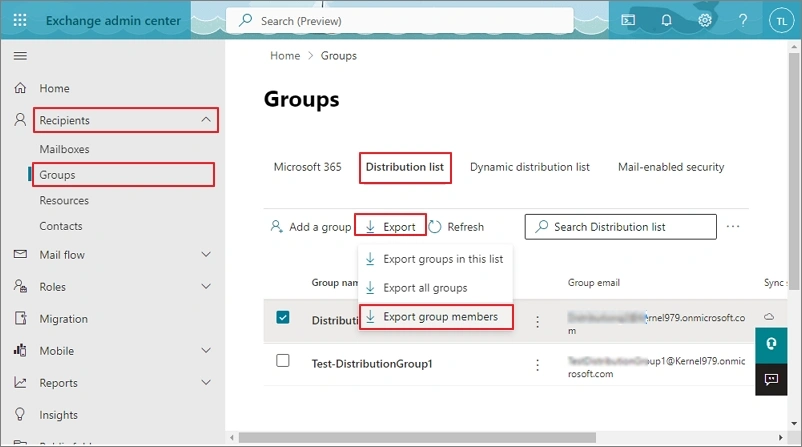
- Go to Recipients, then Groups, and tap on the Distribution list tab.
- Select the distribution group whose members you want to export, then tap Export > Export Group Members.
- Tap on
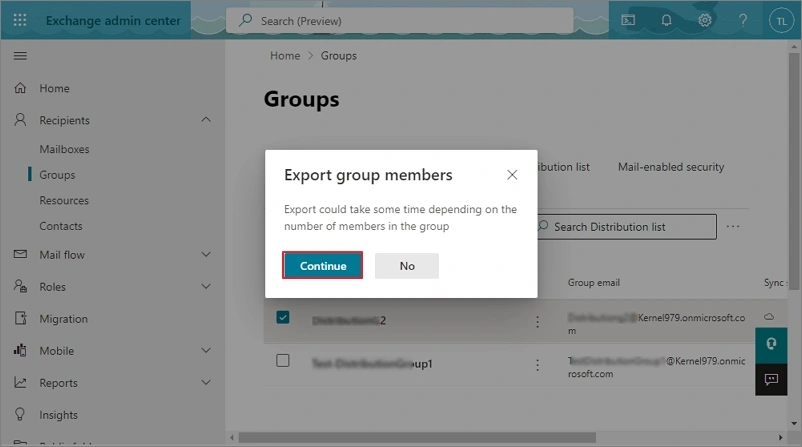
Your Microsoft 365 distribution group member list will be downloaded in CSV files.
Important: The EAC interface and available export options can vary by tenant and Microsoft 365 updates. If you don’t see an Export option, or the export does not contain all members, use Exchange Online PowerShell instead. For large groups, PowerShell with -ResultSize Unlimited is the more reliable approach.
How to Export Office 365 Distribution Group Members using Exchange Online PowerShell?
With Exchange Online PowerShell, you can also export distribution list members to CSV. However, you need to be an expert with command-line scripts. This method is best for large groups, complete exports, custom fields, and exporting multiple groups. Here is the set of commands you need to follow:
- Install the Exchange Online Management module:
Install-Module ExchangeOnlineManagement
- Now import the module:
Import-Module ExchangeOnlineManagement
- Connect to Exchange Online:
Connect-ExchangeOnline
- To find the distribution group, run:
Get-DistributionGroup -ResultSize Unlimited |
Select-Object DisplayName,PrimarySmtpAddressNote: If you know the group’s email address, you can use it directly.
For example:
Get-DistributionGroup -Identity “YourDistributionGroupName” - Run the command below to view the group members:
Get-DistributionGroupMember -Identity “YourDistributionGroupName”
- To create a useful CSV report containing names, email addresses, and recipient types, run:
Get-DistributionGroupMember -Identity “YourDistributionGroupName” -ResultSize Unlimited |
Select-Object DisplayName,PrimarySmtpAddress,RecipientType |
Export-Csv -Path “$env:USERPROFILE\Desktop\Distribution-Group-Members.csv” -NoTypeInformation -Encoding UTF8
The CSV file containing Office 365 distribution group members will be saved to your Desktop.
Note: Replace “YourDistributionGroupName” with the actual name or email address of your distribution list.
Why Use -ResultSize Unlimited?
This parameter is important when working with large distribution groups.
Without specifying -ResultSize, Exchange Online may return up to the default number of results. Microsoft’s Exchange Online Admin API documentation also notes that the default is up to 1,000 results for its distribution group member endpoint.
For a complete export, use:
-ResultSize Unlimited
For example:
Get-DistributionGroupMember -Identity “LargeDistributionGroup” -ResultSize Unlimited
This tells Exchange Online to return all available members rather than stopping at the default result size.
Which Method to Use to Export Distribution List Members?
As per different needs, you should opt for the most suitable method to export Microsoft 365 distribution group members to CSV. For that, understand the table below:
| Requirement | Best Suited Method |
|---|---|
| View members manually | Microsoft 365 admin center |
| Export in CSV easily | Microsoft 365 admin center |
| Export one distribution group | Exchange Online PowerShell |
| Export a large distribution group | PowerShell with -ResultSize Unlimited |
| Export several groups effectively | PowerShell |
| Export all distribution groups at once | PowerShell |
| Export custom member information | PowerShell |
Read Also: Migrate Distribution Lists to Office 365 Groups in Outlook
Need More than a Distribution Group Member in CSV?
Exporting distribution group members creates a CSV containing group membership details, but it does not back up the actual Microsoft 365 mailbox data, emails, contacts, calendars, or other mailbox items.
If your requirement extends beyond exporting group membership and you need to back up the actual Microsoft 365 Group or mailbox data for backup, migration, compliance, or recovery purposes, Kernel Export Office 365 to PST, a dedicated tool, can be considered. It helps to backup Office 365/Exchange Primary, Archive & Shared mailboxes, Exchange Groups, and Public Folders to PST, MSG, DOC, HTML, MHT, PDF, EML, or more.
Concluding Words
We hope you are well-through with the step-by-step process for both methods (EAC and PowerShell) to export Microsoft 365 distribution group members to CSV. Both methods can be used to carry out different needs. For lesser data, EAC can be ideal, while PowerShell helps to export bulk distribution group members in CSV.
Often, only having distribution group members in CSV is not enough; you must have a complete Office 365 backup for extra security of your data too. So, follow data backup strategies and consider backing up using a reliable solution so that you can restore your data whenever the need arises.
Frequently Asked Questions
A: Use Exchange Admin Center for an easier GUI-based process, or use Get-DistributionGroupMember and transport the results to Export-Csv in PowerShell.
A: Yes. You can export a large distribution group to CSV either with EAC or PowerShell. However, PowerShell can be more helpful because you can use -ResultSize Unlimited and control exactly which fields are included in the CSV.