Read time: 4 minutes
When your Exchange data becomes inaccessible due to unfortunate events like Server crashes or disasters, you will have to rely on the last backup taken. Exchange backups (if not that old) act as a savior for the administrators. So, we will discuss how Exchange mailboxes can be backed up.
The article explains how to export Exchange mailboxes backup to PST files manually using PowerShell commands. It includes a detailed step-by-step guide to ease the export process. Also, the users get information about an automated tool to export Exchange mailboxes backup.
Prominent reasons to export Exchange mailboxes
Here are all the legit reasons behind exporting Exchange mailboxes to PST are:
- Data Backup & Archiving: When you want to create independent, local copies of mailboxes in a PST file for safekeeping, records, or disaster recovery.
- Compliance & Legal Holds: Archive data for regulatory requirements or eDiscovery, ensuring data is preserved for specific periods outside active Exchange policies.
- Mailbox Size Reduction: Exporting older or inactive data to PSTs frees up space on the Exchange server to enhance performance and reduce database size.
- User Offboarding: Archive a user’s mailbox when they leave the company for future reference or compliance, then remove the live mailbox.
- Server Migration/Decommissioning: Export mailboxes before migrating to a new Exchange version or cloud (like Microsoft 365), ensuring historical data isn’t lost.
- Data Portability: PST files are easily manageable in Microsoft Outlook, allowing users or administrators to access specific emails, contacts, or calendars outside the server environment.
How to backup Exchange mailboxes?
Administrators can back up all the Exchange data using PowerShell commands to export Exchange mailboxes from different versions, including 2016, 2013, and 2010. Let’s explore all the commands to backup single/multiple Exchange mailboxes
PowerShell commands to export mailboxes (for Exchange 2016, 2013, 2010)
As we have mentioned, both single and multiple Exchange mailboxes can be backed up with PowerShell commands. So, we are going to discuss them one by one. But, before that, the necessary prerequisites must be met.
Things to know before exporting an Exchange mailbox.
- A shared folder must be taken as the destination location for exporting mailboxes.
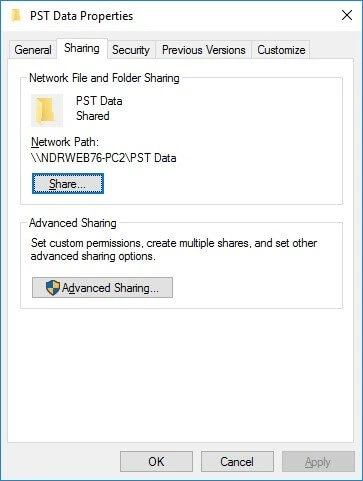
- The user must have Mailbox Import Export permissions. This can be done by executing the following cmdlet:
“New-ManagementRoleAssignment -Role “Mailbox Import Export” -User < user name or alias >”
PowerShell cmdlets to export single mailbox
Let us directly see the syntax for exporting a single Exchange mailbox to PST:
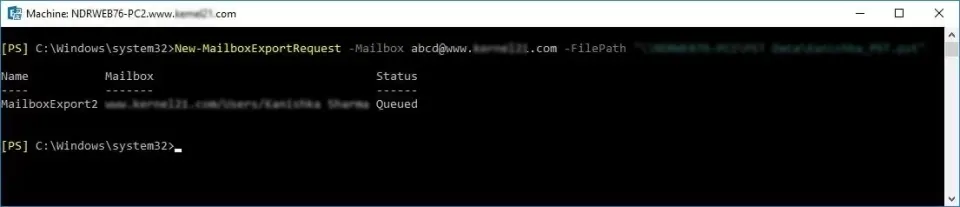
In the above syntax, File Path defines network share path of PST file where data is to be exported. And Mailbox refers to the mailbox name.
Filter: Filters allow to export mailbox data with a filter. E.g., Export items before a specific date (01/05/2018) and emails starting from a particular word or letters (re).
Export specific folder like Inbox, sent items: The syntax to move only specific folders (like Inbox and SentItems) is given below:
PowerShell cmdlets to Export Multiple Mailboxes
As mentioned earlier, pre-requisites for this method are also same as that for exporting single mailbox.
After fulfilling required conditions, execute the following cmdlet.
As understood, this cmdlet is for exporting all mailboxes to PST files. Just like in a single mailbox migration method, you can migrate mailboxes with additional parameters using respective cmdlets.
Limitations of these PowerShell commands
The manual method seems easy, but in actuality, it has some minus points as well.
- Requires good technical expertise
- Lacks preview facility for users
- No guarantee of data security
- Not feasible for corrupt files
- Chances for manual errors
- No scheduling facility is available
- No easy-to-read reports
- Methods may vary for different versions
So, it is hard to rely solely on this PowerShell method to export Exchange backup files to PST. But a trusted EDB to PST solution can easily export Exchange mailbox to PST without any limitations. Let’s find out all the advantages of a professional solution, and then we will delve into the solution.
What are the advantages of exporting Exchange Server with tool?
Let’s know the key advantages of exporting Exchange Mailbox to your local system:
- It is absolutely free of cost and saves up to 25 items per folder without any cost.
- You can easily backup single/bulk mailbox with complete data integrity.
- Offers multiple filters to export selective Exchange mailboxes data.
- Suitable for brick-level backups and Exchange Database Recovery.
- Exchange administrators can perform a backup of the mailbox data in a PST file.
These advantages will boost your confidence and trust in professional software. Let’s know more about the robust Kernel for Exchange Server software.
A complete solution to export Exchange 2010/2013/2016 mailboxes
If you face any issues mentioned above and fail to export Exchange mailboxes to PST, do not worry. There is a complete solution for Exchange data backup and recovery – Kernel for EDB to PST converter tool. Some plus points of the tool are:
- Backs up or repair corrupt or healthy Exchange database
- Simple user interface for clean backup, recovery & migration
- Shows Preview of each mailbox item before migration
- Exports multiple mailboxes to PST files at a time
- Includes filters like date range and item type
- Foolproof migration without affecting data integrity
- Same export process for all Exchange versions
- Saves data to PST and other destinations (like Office 365)
Conclusion
The use of PowerShell commands to export and backup mailbox data to Outlook PST file has many pros and cons. To avoid the issues related to this cmdlets method, an efficient and simple Exchange EDB Recovery tool is available. It supports all Exchange versions, including 2016, 2013, & 2010 mailboxes.
Frequently asked questions
Ans. Yes. PowerShell supports mailbox export for these Exchange versions. You run simple commands to create PST files. The process works for both single and multiple mailboxes.
Ans. You need the Mailbox Import Export role. Without this role, PowerShell blocks export commands. Admin users can assign this role before the export task.
Ans. Yes, our software supports offline EDB files. You can even add corrupt, damaged, and inaccessible databases and repair EDB files without facing any issues.