


Read time: 6 minutes
- Emails exported from Outlook for Mac are saved in OLM format.
- The built-in Export feature of Mac Outlook helps to export all the mailbox data as an archive file.
- OLM file can be easily viewed in Outlook for Mac, but they’re not supported by Microsoft Outlook.
- You will have to convert OLM files to PST in order to view them in a Windows environment.
Users export Outlook emails from Mac to create a copy of their mailbox data that can be used either as a backup, or when migrating data to a new location. Outlook for Mac has a built-in option to import and export data easily with the Export option present in Legacy Outlook. Now, if you plan to export OLM files and migrate them to a new location, particularly a Windows environment, you’ll have to convert them to a format that’s supported by Microsoft Outlook. In this blog, we’ll go over all the reasons to export Outlook Mac emails, the steps to do this, and how to access this data in a Windows environment.
Why You Should Export Emails From Outlook Mac?
Before we get into the process to export Outlook emails from Mac, let’s talk about why you might want to export your emails. Here are the reasons:
- Keep Your Emails Safe: If you’re worried about losing important emails, exporting them to local files is a better way to keep them safe.
- Easy Sharing: Keeping mailbox data in a local file is helpful when sharing for professional tasks or compliance-related purposes.
- Free Up Space: If you need to clear up the storage in Outlook for Mac, but you want to keep the data, exporting is helpful.
- Stay Organized: Exporting emails helps to keep your inbox neat, organized, and free from unnecessary emails.
- Move to Another Program: If you want to switch to a different email application/service or program, exporting your emails is necessary.
Easy Steps to Export Emails from Outlook Mac
Here is a complete process to export emails from Outlook Mac. Follow our guidance and perform the steps accordingly.
Step 1. Open your Mac Outlook, go to the File menu, and tap on Export.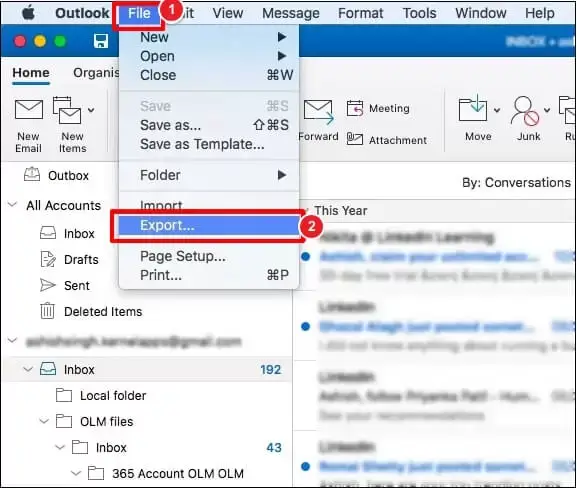
Step 2. Select the Emails option in the ‘Items of these types’ section. Click Continue.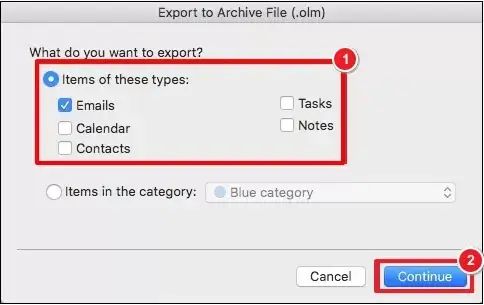
Step 3. Specify the file name and its saving location. Click Save.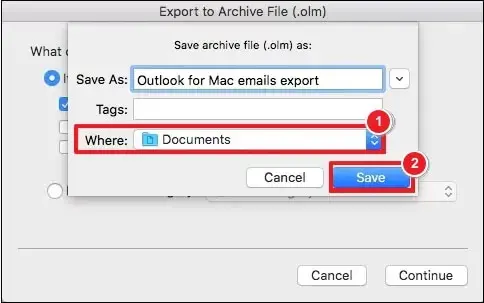
Step 4. The email export process will start in Outlook for Mac.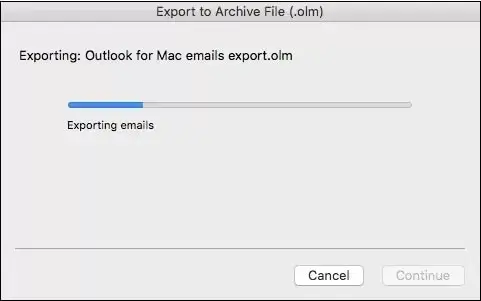
Step 5. Once exported successfully, click Finish.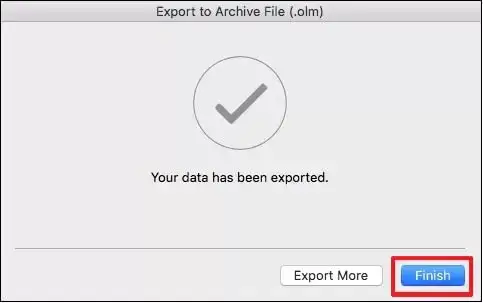
All your Outlook emails are saved in OLM at your preferred location.
How to View the Exported Emails from Outlook for Mac?
If you’ve taken a backup of your OLM files and want to view them on your Mac device, then you can easily view your emails with the help of Outlook for Mac. But, if you’ve exported your emails for the purpose of migrating them to a Windows environment, then you will have to convert them into PST format first.
You can use OLM to PST Converter tool that can help in simplifying the conversion process, as it extracts Mac mailbox data such as emails, contacts, calendars, tasks, etc. and saves them in PST format to easily export them into Windows Outlook.
Final Thoughts
Exporting your emails from Outlook on Mac is easy, and it’s a great way to keep your data safe or migrate it to another email client. We hope you have understood the complete step-by-step process to export Outlook emails from Mac effectively. Make sure that you backup all your important data before exporting it to another location so that you don’t lose any of it.
Frequently Asked Questions
A. To export emails from Outlook for Mac, go through the steps below:
1) Open Outlook on your Mac, go to File, then Export.
2) Choose the Emails option. Click Continue.
3) Input file name and saving location in the Outlook for Mac Data File (.olm) wizard. Save the file to your computer.
Your Outlook emails will be saved at the provided location on your computer.
A. No, Microsoft Outlook doesn’t support OLM files. Users will have to convert OLM files to PST in order to access them in Windows Outlook.
A. If you’re using New Outlook for Mac, then you won’t find export option in your email client. This is because New Outlook currently doesn’t support the native import/export feature of Outlook for Mac.
A. No, it doesn’t. Exporting emails from Mac Outlook’s mailbox simply creates a copy of them at the new location.




![How to Export Outlook Mac to PST? [2 Easy Methods]](https://www.nucleustechnologies.com/blog/wp-content/uploads/2026/08/outlook-mac-to-pst.webp)
