Read time: 10 minutes
Whether you are a data analyst managing data sets, a bank manager combining the sales report, or a company’s accountant merging the last 5-year expenses, dealing with Excel is a daily chore. And often you need to merge these spreadsheets. To combine all Excel sheets into one, you can use Excel’s built-in Power Query, VSTACK formula, run Macros, or move all sheets into a single large workbook.
The need to merge multiple Excel files into a single sheet can arise due to several factors, such as data backup or training a Large Language Model (LLM) as processing a single file is easier than multiple files for AI. In the upcoming sections, we will discuss all the working methods to safely merge Excel Sheets into a single workbook without losing any rows or columns.
Things to Do Before You Combine All Excel Sheets into One?
In my field of work, I have to merge Excel sheets multiple times a month. And based on my experience, you should perform the following tasks to avoid data loss or irregular results:
- Backup Excel Sheets: Merging multiple spreadsheets together involves combining thousands or even more rows and columns. A single step of failure, by you or by the system, may result in loss of crucial information. Therefore, make sure to copy each Excel file before any merge operation.
- Check the Rows: Make sure to remove empty rows from the sheets; such rows can trick Excel into thinking your dataset has ended and may stop merging prematurely. Also, Excel has a 1,048,576 row limitation, so don’t merge a big dataset that contains millions of records.
- Check for Damaged Excel Files: Verify if all source Excel files are accessible, repair corrupt Excel files to avoid errors. Also, check if the headers in all the sheets are exactly the same. Even an extra character or an empty space can force Excel to create new columns, destroying the original structure.
- Data Type Consistency: If you are merging similar type sheets, make sure a number column in one sheet is not a text column in another. You can also standardize the casing of text to avoid wrong merging.
Choose the Best Method to Combine All Excel Sheets into One
Refer to the table below to quickly get an idea of which method is best for which situation.
| Method | Why Choose | Data Auto-Refresh | Method Complexity | Supported Excel Versions |
| VSTACK | Instant merge and simple stacking of sheets within one workbook. | Yes (Automatic) | Low | Microsoft 365/Excel 2024/ Excel Online |
| Power Query | Can handle massive data, messy cleaning, and external files. | Yes (1-Click Refresh) | Moderate | Excel 2016+ |
| VBA Macros | Allows you to write highly custom logic to merge sheets | Manual | High | All Versions |
| Consolidate | When you need to carry out mathematical totals (Sum/Avg) | No | Low | All Versions |
| Manual / Copy | One-time moves of entire tabs, good for small sets. | No | Low | All Versions |
Methods to Combine all Excel Sheets into One
Let’s begin merging your Excel files with these methods:
Method 1: Using VSTACK
It’s the fastest and simplest method if you are familiar with the Excel formulas and all your sheets are in the same Excel Workbook (all sheets are in the same file).
Step 1: Open the Excel file and create a new blank worksheet.
Step 2: Enter the formula VSTACK().
Step 3: Enter your sheet 1 name with the data range like, Sheet1!A2:D10. Do this for all the sheets.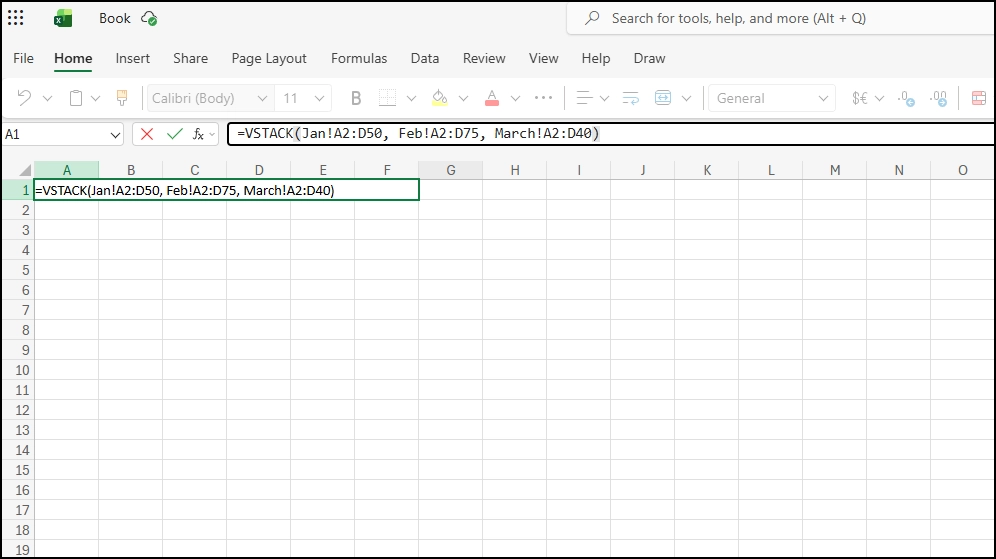
Note: Make sure to separate the sheet’s name with a comma (,). Your final output will be something like this: =VSTACK(Sheet1!A2:D10, Sheet2!A2:D15, Sheet3!A2:D20)
Step 4: The Excel will fill in the cells automatically. When the process is finished, save the file.
Method 2: Merge Excel Sheets with Power Query
When you have multiple Excel sheets with massive datasets in different files, using Power Query is best. Follow these steps to combine all Excel sheets into one:
Step 1: Open a new Excel file. Go to Data tab, click Get Data > From File > From Folder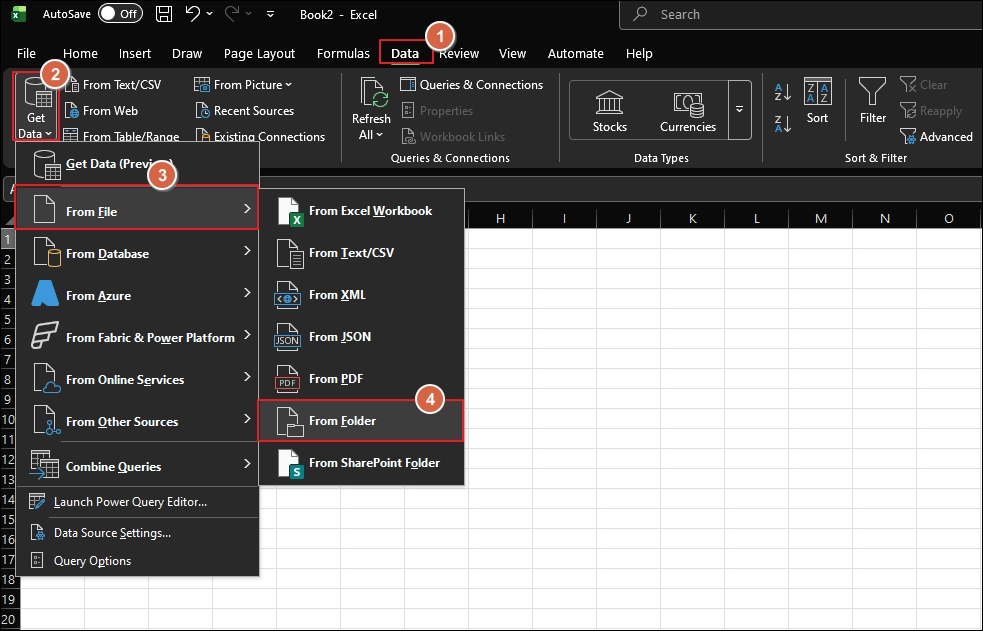
Step 2: Select the folder containing your Excel files and Open.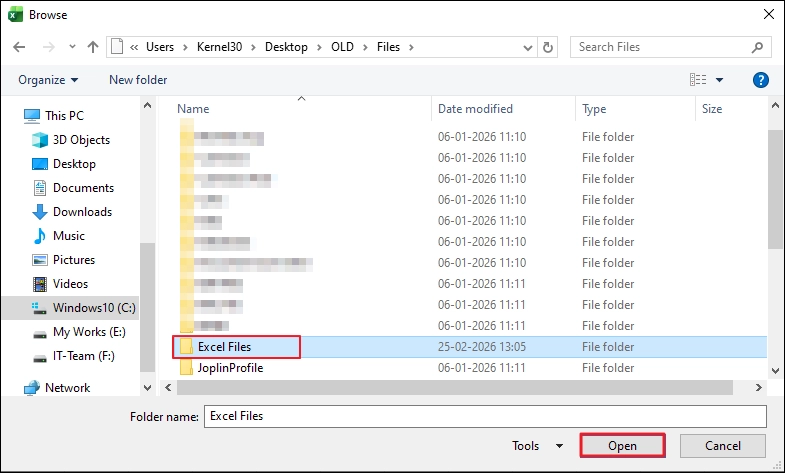
Step 3: Click Combine button, select Combine & Transform Data.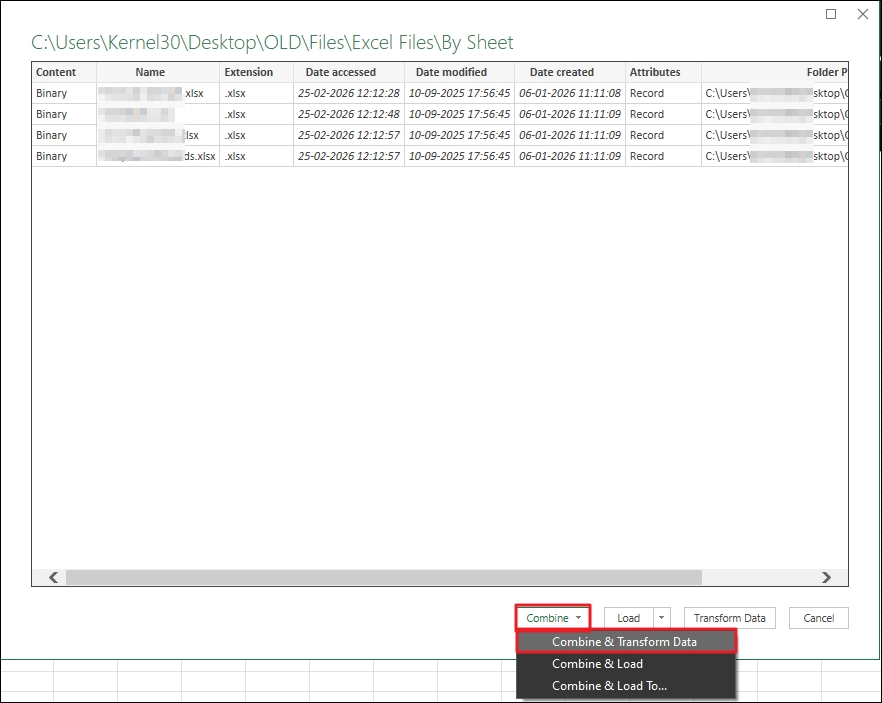
Step 4: Select a sample file to allow Power Query to learn the structure of the data and click OK.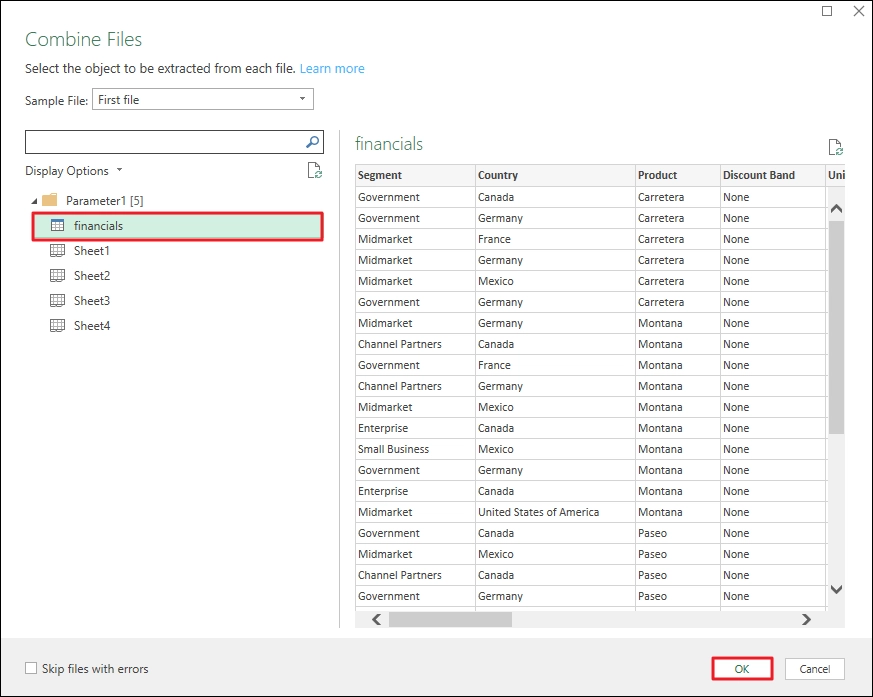
Step 5: Power Query window will open. Here you can filter and transform the sheets as per your requirement.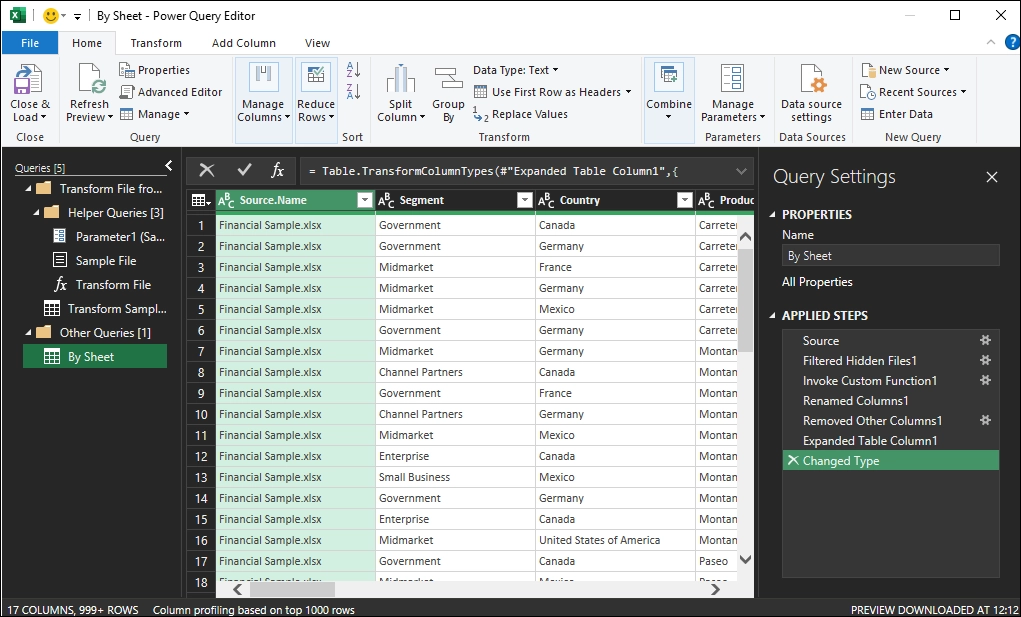
Step 6: After transformation, click Close & Load to combine all Excel sheets into one.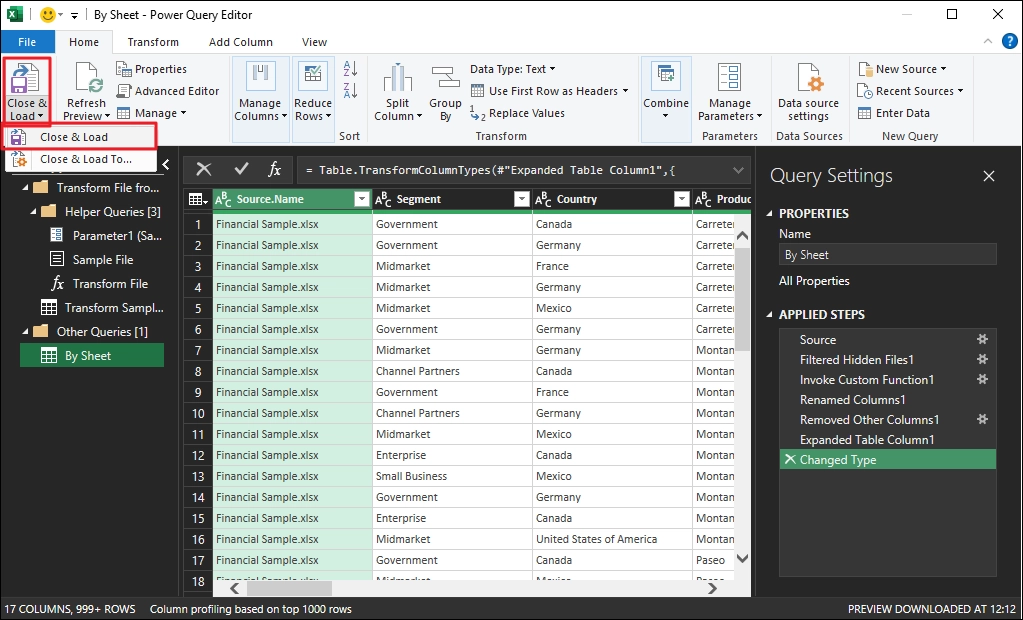
Step 7: All sheets are merged. Click File > Save as and save the file.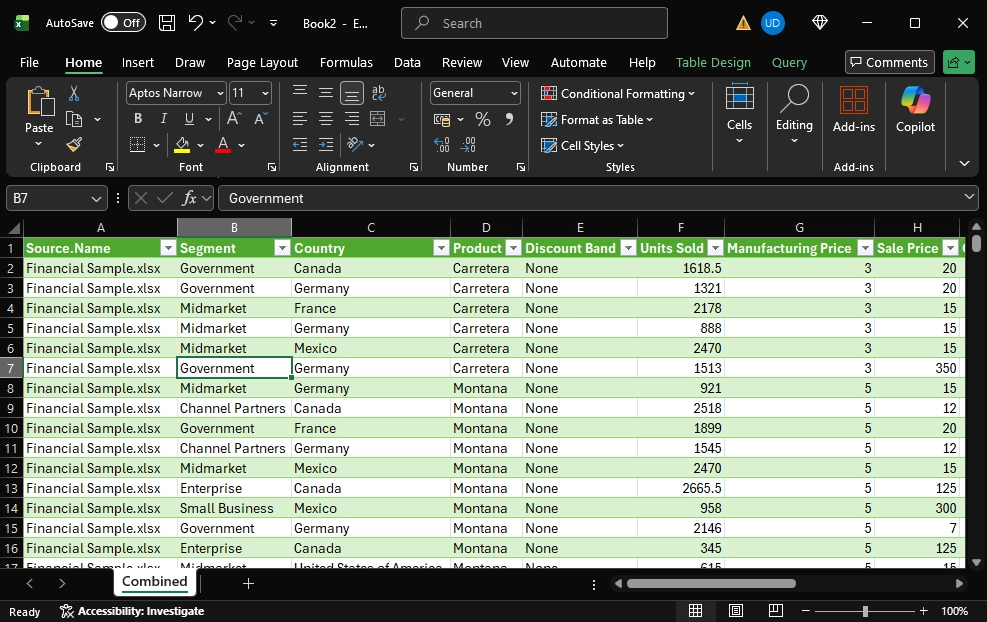
Method 3: Create and Run a VBA Macros Script
If you need more control, along with your own customizations, go with Macros. Plus, they are supported in all versions of Excel and are not limited, like the VSTACK.
Step 1: Open the new Excel Workbook. Double clicks the sheet name at the bottom and change it to “Master”.
Step 2: Press ALT + F11 key to open VBA. Then, click Insert > Module.
Step 3: Paste the following code:
Sub MergeWorkbooks()

    Dim wb As Workbook, ws As Worksheet

    Dim fPath As String, fName As String

    Dim masterWS As Worksheet

    Dim lastRow As Long

    Dim isFirstFile As Boolean

    Set masterWS = ThisWorkbook.Sheets("Master")

    isFirstFile = True

    fPath = "C:\YourFolderPath\"

    fName = Dir(fPath & "*.xlsx")

    Application.ScreenUpdating = False

    Do While fName <> ""

        If fName <> ThisWorkbook.Name Then

            Set wb = Workbooks.Open(fPath & fName)

            For Each ws In wb.Sheets

                lastRow = masterWS.Cells(masterWS.Rows.Count, 1).End(xlUp).Row + 1

                If isFirstFile Then

                    ws.UsedRange.Copy masterWS.Cells(1, 1)

                    isFirstFile = False

                Else

                    Dim rowCount As Long

                    rowCount = ws.UsedRange.Rows.Count

                    If rowCount > 1 Then

                        ws.UsedRange.Offset(1, 0).Resize(rowCount - 1).Copy _

                            masterWS.Cells(lastRow, 1)

                    End If

                End If

            Next ws

            wb.Close False

        End If

        fName = Dir

    Loop

    Application.ScreenUpdating = True

    MsgBox "All files merged into Master sheet!"

End Sub
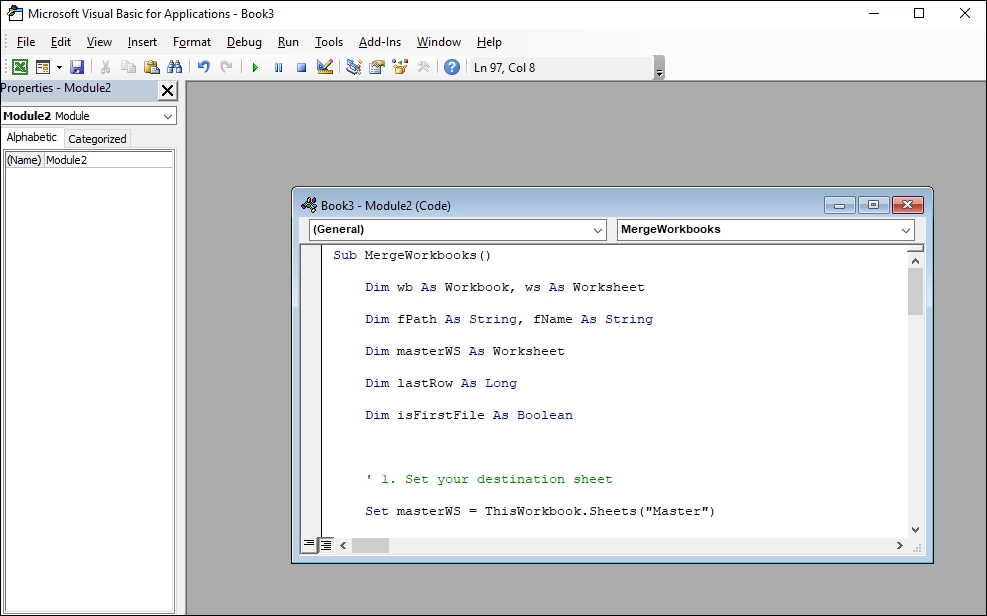 Note: In the code, replace the “C:\YourFolderPath\” to the actual location where your files are stored carefully to avoid VBA runtime error 400.
Step 4:Press Alt + F8, select MergeWorkbooks from the list, and click Run.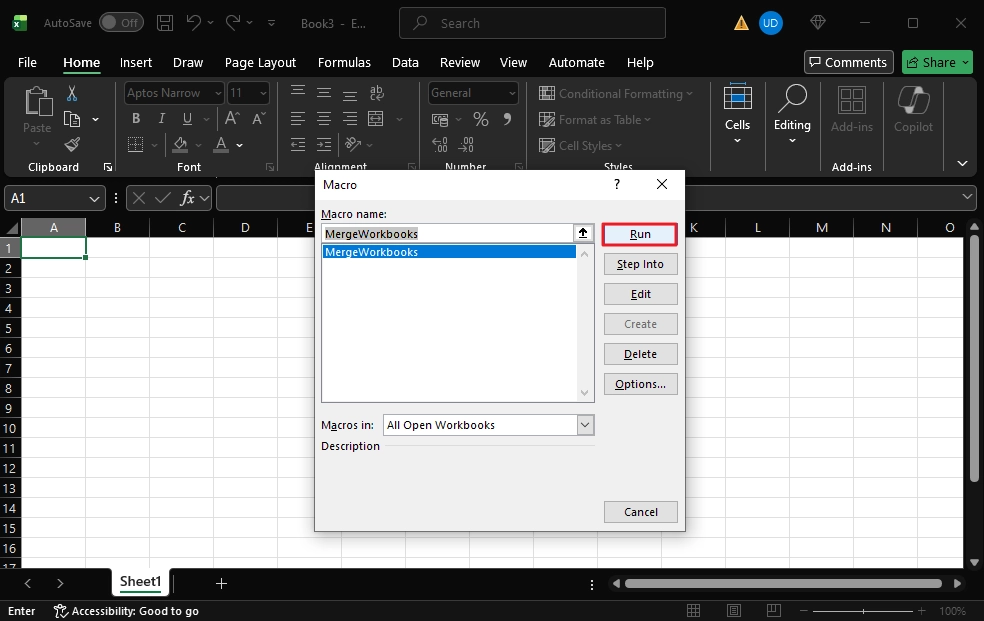
Step 5:After the merging of sheets is finished, save the Excel file with Excel Macro-Enabled (.xlsm) extension.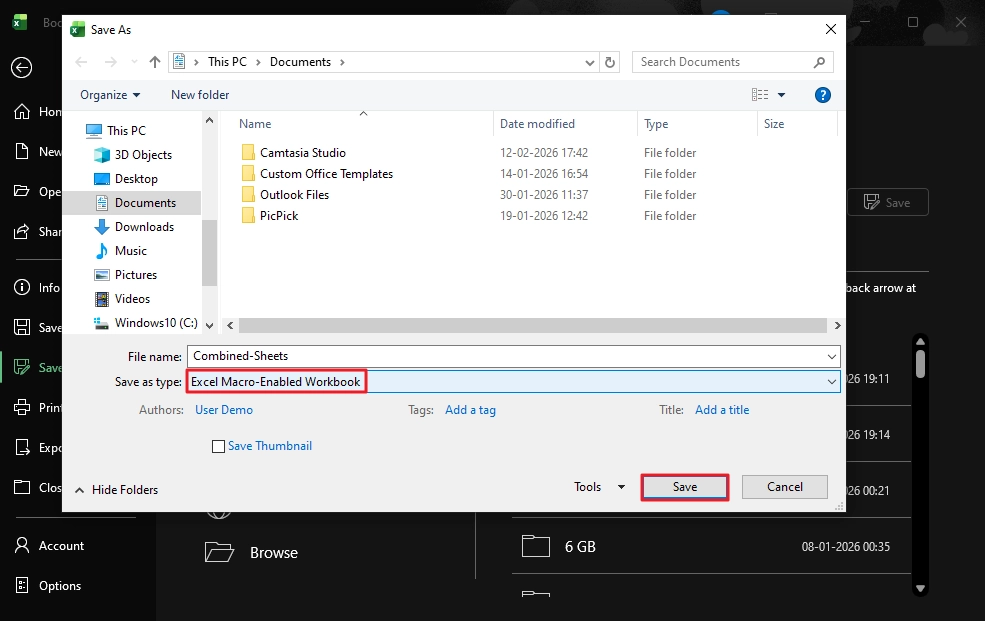
Method 4: Copy and Paste Sheets Data
Another simple method that I personally use when I need to combine all Excel sheets into one for very small datasets is to directly copy all the rows from different sheets and paste them into a single sheet. The steps to do this are:
Step 1: Open a new Excel workbook.
Step 2: Open and copy data from sheet 1 and paste it to the new workbook.
Step 3: Repeat Step 2 for all the sheets. Then, save the final Excel file.
Note: Only copy header from sheet 1. Don’t copy-paste the headers from all the sheets/file.
Method 5: Consolidate
This method is beneficial when the source Excel files contain only the numeric data, and you need to perform a mathematical operation on it. Mostly used in events like getting a sum or average of different month’s sales report.
Step 1: Create a new workbook, select Data tab, and click on the Consolidate button/icon (depending upon your Excel version).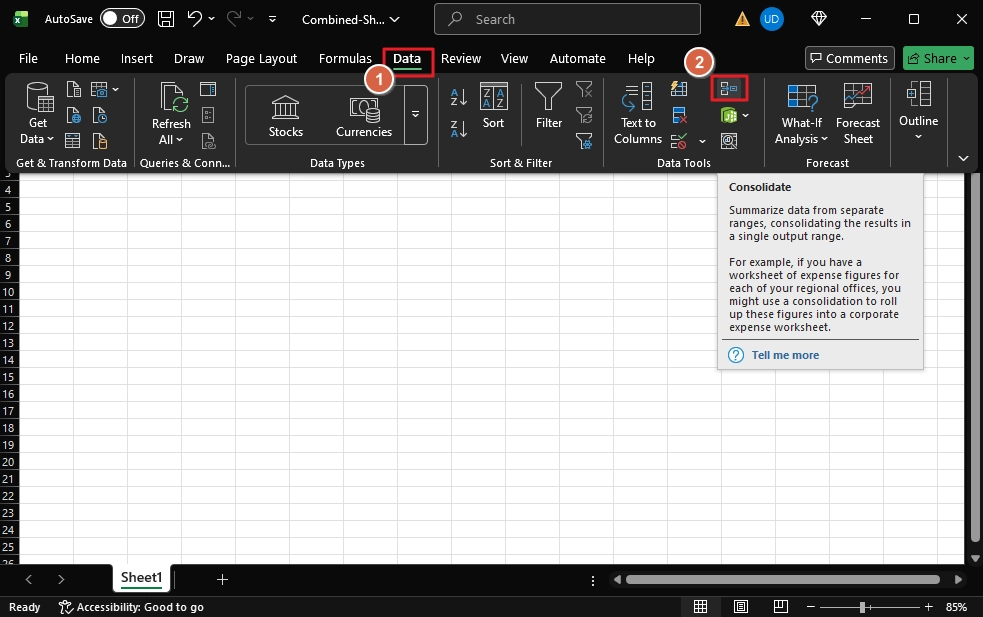
Step 2: Choose the type of Function you want, Sum, Average, Max, Min etc.
Step 3: Click Browse and select the sheet, then click Add.
Step 4: Add all the sheets. Tick the Top Row and Left Column option and click OK.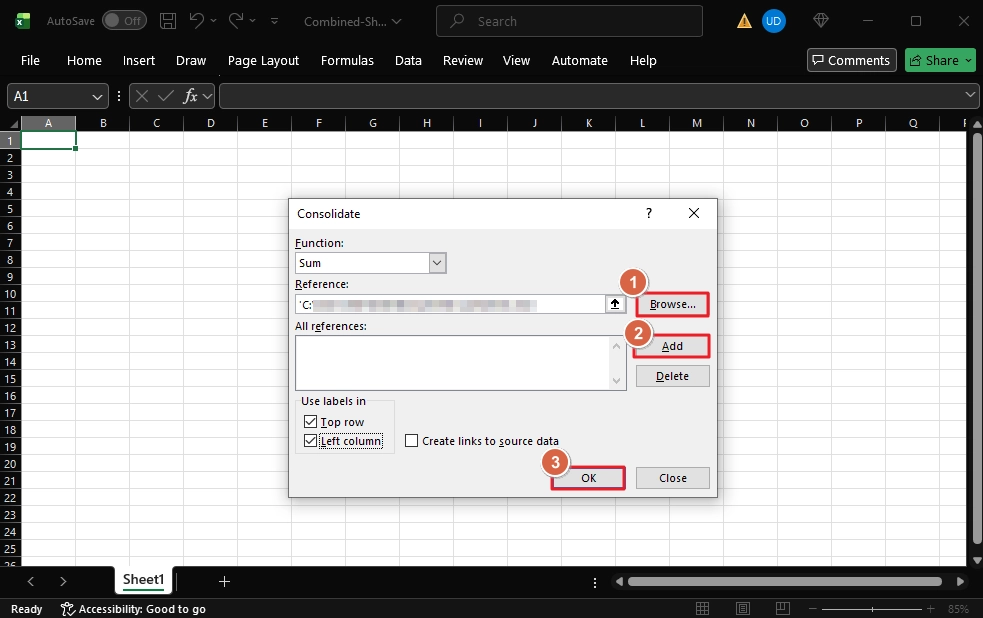
Powerful Tool to Merge Unlimited Excel Sheet in One Go
For a few sheets, the manual methods are just fine. But if you have more than 1000 sheets with different structures, you have to take help from a professional Excel Merge tool. Our Kernel for Excel Merge is a specially designed software that can scan and combine any version of Excel file without errors.
The tool can:
- Add and combine small or large datasets with complete data integrity.
- Keeps the original cell formatting, type, and formulas.
- Auto-generate a sheet merging report for data validation.
- Works without Outlook and is compatible with all versions or Excel files.
- Free trial version is available that can merge 25 items per sheet for free.
Conclusion
Multiple methods exist to combine all Excel sheets into one. However, make sure to create backup of your Excel sheets before merging them. For small dataset merging, VSTACK and copy-paste will do the job. For large data sets, you can rely on Power Query, but transforming the data is a complicated task. The easiest and most reliable way to combine Excel sheets in bulk is to use the Kernel Excel Merge tool. It accurately stacks up the rows and columns with original cell properties & data type.
Frequently Asked Questions
Ans. No, if your data is confidential, then uploading it to an unknown server is risky. For data security purposes, you must use the manual method or try a dedicated offline Excel merge tool.No, if your data is confidential, then uploading it to an unknown server is risky. For data security purposes, you must use the manual method or try a dedicated offline Excel merge tool.
Ans. Using Power Query, you can do this. However, the process is technical, but it will give you the desired result.
Ans. For older Excel versions, you can use the Macro to merge multiple Excel sheets. However, if you have small datasets, you can use a simple copy-paste job.