Related Posts
Resolve SQL Server Error 18456 [100% Working Solutions]

Written By
Aftab Alam


Updated On
April 15, 2025
Read time 7 minutes
“We have been using SQL Server to manage our databases for a long time and update it with the latest version as soon it gets updated. However, one of our team members started getting the login failed SQL Serve Error 18465. We always use SQL Server authentication and provide valid credentials. But the user is not able to connect with the server.”
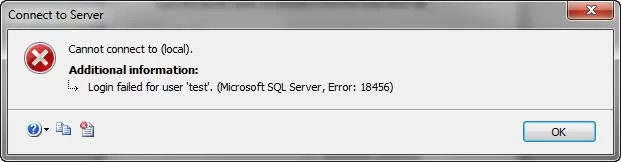
The SQL Server login failed error prevents users from connecting and accessing the SQL Server database. This error indicates a failed login attempt, which can happen if you input invalid login credentials (username or password). Users can also see the “Login Failed for user” error if they choose wrong authentication mode (Windows Authentication or SQL Server Authentication).
To fix the issue and help users connect to the SQL Server, try the following methods:
For some users, the default authentication mode is Windows Authentication mode. This mode may be selected by default or configured by your admin. If you try to login with the SQL Server Authentication with username and password, you will receive the SQL Server Error 18456.
To fix it, follow the steps given below:
Step 1: Open SSMS tool and select the Authentication type as Windows Authentication, and click Connect.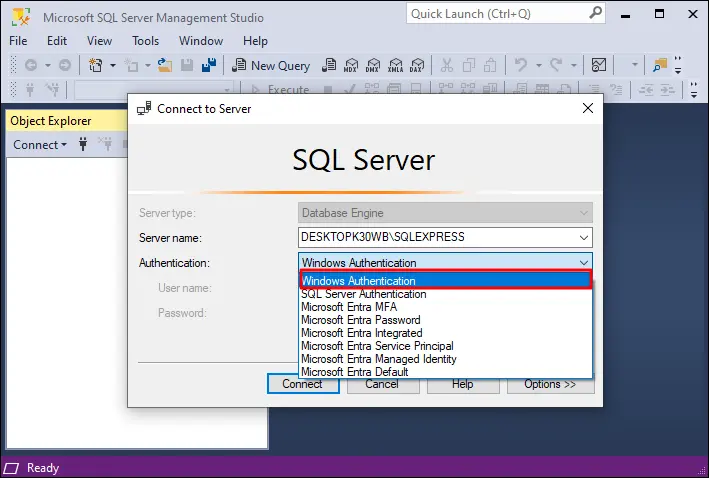
Step 2: After connecting to the database, right-click on the server’s name and select the Properties option.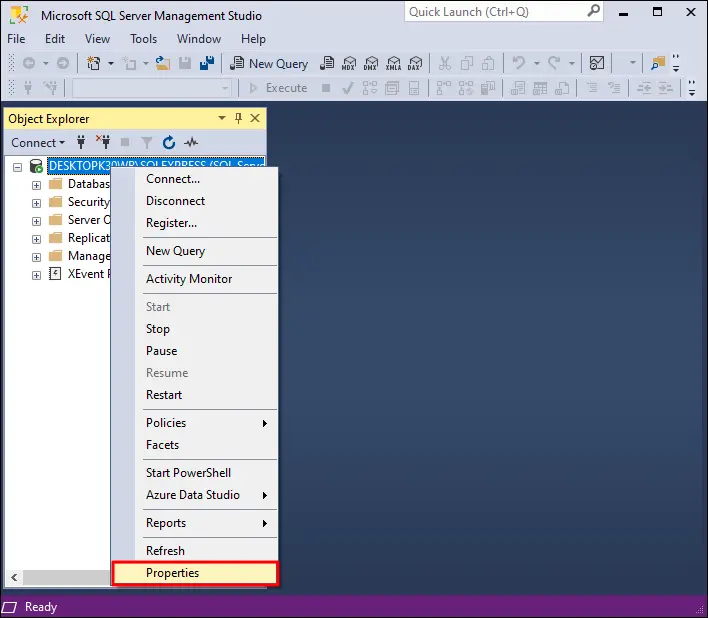
Step 3: In the Select a page section, click on the option Security. In the right-side pane, select SQL Server and Windows Authentication mode. Then click OK to save the changes.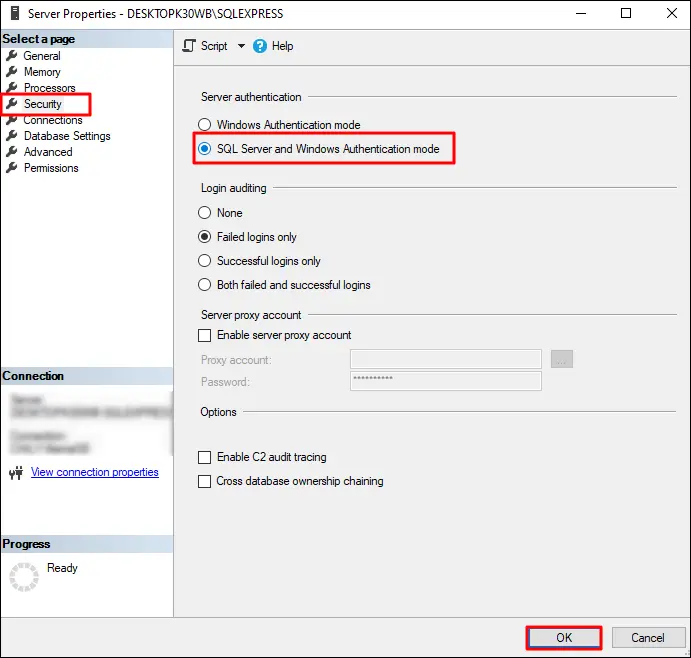
Step 4: The SSMS tool will ask you to restart the Server to apply the changes. To restart SQL Server right click the Server name in the Object Explorer section and select Restart. When asked for confirmation, select Yes to begin the restarting process.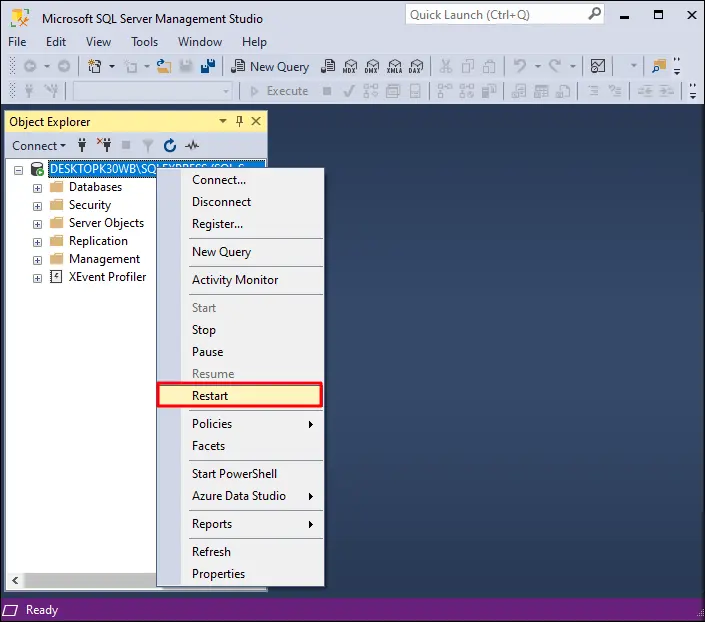
Step 5: After you have enabled the SQL Server authentication, you must also enable the login for System Admin (sa). To do so, go to the Object Explorer section again. Expand the Security option, then expand the Logins option. Select and right-click sa and click on Properties.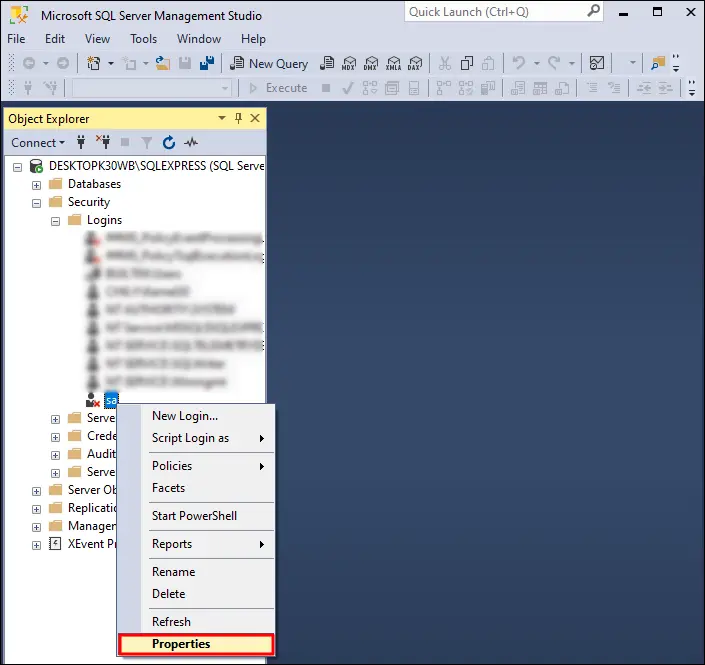
Step 6: In the left side pane, under the Select a page section, click Status. Under Settings, select Enabled for the Login option and click OK to save the changes.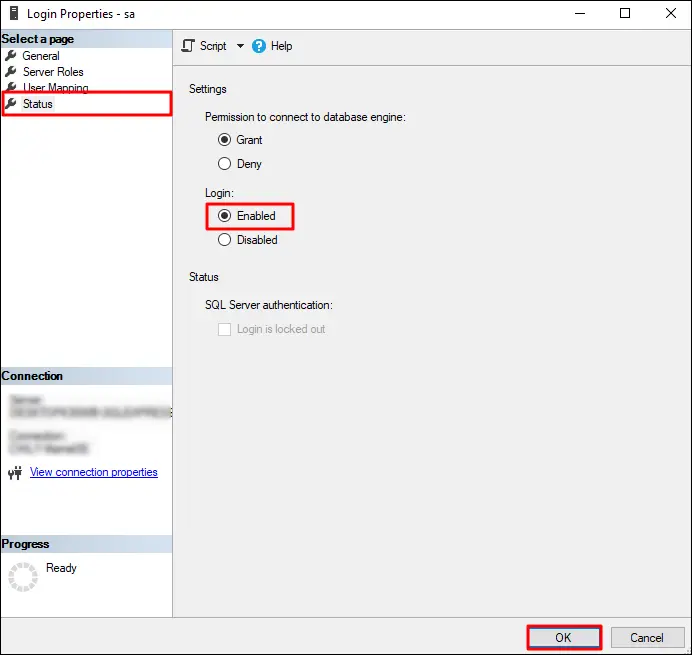
Step 7: The sa user will still be showing a red cross sign. To remove the sign and let SQL Server know about the login status update, refresh the user. Right-click sa again and select Refresh to update the status of the user.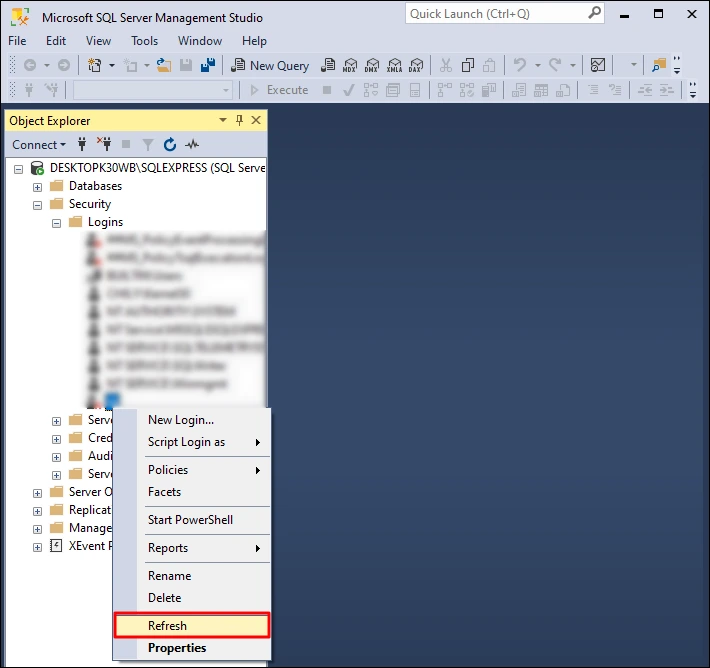
Step 8: After refreshing the user, the red cross sign will disappear, and the SQL Server Error 18456 will be resolved.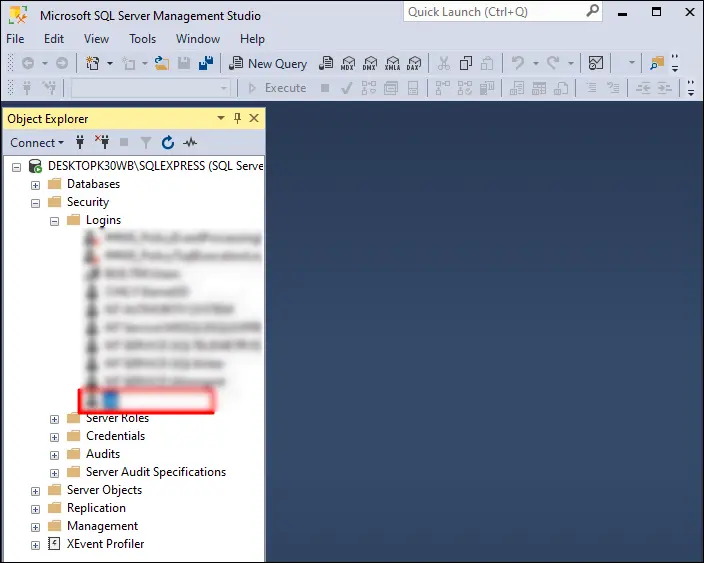
If you have already enabled the SQL Server authentication in SSMS tool and are still getting the SQL Server Error 18456, then verify the password. As mentioned above, an incorrect username and password can also cause the “Login failed for user” error.
Ask your admin for the correct credentials or you can try to update the password yourself. To update the password, follow these steps:
Step 1: In the Object Explorer section, expand the Security option, then expand Login and select your user.
Step 2: Right-click the user and select Properties.
Step 3: In the right-side pane, remove the old password. Provide a new password and confirm password.
Step 4: Click OK and restart the server to apply the change.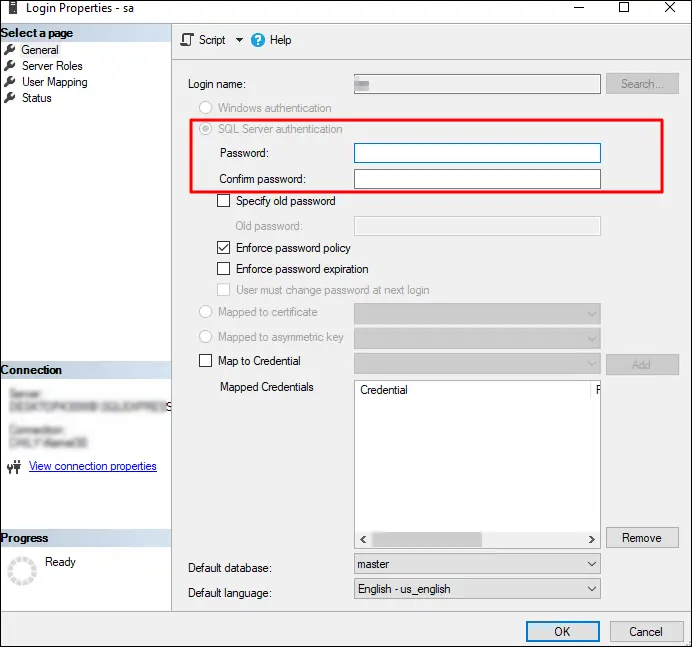
Sometimes, a user is only allowed to use Windows Authentication to connect to the SQL Server. But if you are getting the “Login failed for user” error, then maybe you don’t have the permission to access the server. In this case, to remove SQL Server error 18456 you must grant System Admin permissions to the user getting the error. Steps to give admin permissions as follows:
Step 1: In the Object Explorer section, go to Security, then Logins.
Step 2: Select and right-click the user. Choose the Properties option.
Step 3: In the left-side pane select the option Server Roles. Then, in the right-side pane check the option sysadmin.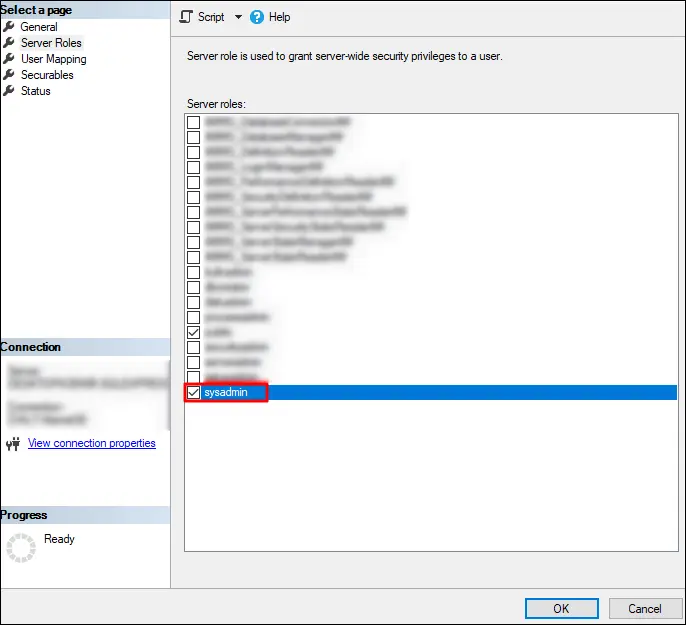
Step 4: Click OK to save the changes.
The “Login failed for user” error can occur due to the following reasons:
Use the methods discussed in this blog to safely fix SQL Server error 18456 and connect to server. Changing authentication mode, updating password, and granting system admin status, we discussed every possible method to help you connect to the server.
In case the “Login failed for user” error is due to a damaged MDF file, use a professional SQL database recovery tool. The software repairs minor to major corruption and performs data recovery to live SQL Server.