

You searched for an important email in Thunderbird, but received no results even with the correct keyword? Or does the application take too long to display search results, show incomplete emails, or fail to open the found message?
Such problems can make it difficult to locate important conversations, attachments, and other mailbox information. They may occur due to incorrect search settings, damaged folder indexes, an incomplete global search database, or other application issues.
Luckily, Thunderbird provides several built-in settings and repair options for resolving search-related problems. Here, we will cover these different methods to fix Thunderbird search not working issues and improve slow searches.
- Why is Thunderbird Search Not Working or Running Slow?
- Understanding the Different Search Options in Thunderbird
- How to Resolve the Thunderbird Search Not Working Problem
- When Thunderbird Search Won’t Work Even After Fixes
- Tips to Prevent Thunderbird Search Problems in the Future
- Concluding Thoughts
Why is Thunderbird Search Not Working or Running Slow?
Thunderbird application uses different search features and indexing mechanisms, so the cause depends on which search option is affected. Here are the most common ones:
- Damaged folder index.
- Global Search not enabled.
- Indexing is still in progress.
- Message or folder problems.
- Corrupted Global Search Index.
- Incorrect search teams or filters.
- Extension or customization conflicts.
Understanding the Different Search Options in Thunderbird
Thunderbird comes with different search options for locating mailbox items. So, knowing them before troubleshooting will be crucial for us. Here they are:
| Search Option | Shortcut | Purpose |
| Global Search (Gloda) | Ctrl + K (Windows/Linux)
Command + K (Mac) |
Search messages within all accounts and folders. It skips Trash & Spam by default, so you have to include them manually. |
| Quick Filter | Ctrl + Shift + K (Windows/Linux)
Command + Shift + K (Mac) Esc clears it and hides the bar |
Narrows the message list in the current folder or view. |
| Search Messages (Advanced Search) | Ctrl + Shift + F (Windows/Linux)
Command + Shift + F (Mac) |
Prompts a search dialog for finding messages in a folder with detailed criteria. |
| Saved Search Folder (Virtual Folder) | Use File > New > Saved Search. | Shows the actual messages instead of copied ones from the special folder. Deleting messages in the saved folder deletes the originals. |
| Find In Messages (Optional Row) | Ctrl + Shift + F (Windows/Linux)
Command + Shift + F (Mac) |
Locate text inside the single message you are reading. Search again is Ctrl + G or F3. |
How to Resolve the Thunderbird Search Not Working Problem?
Go through the section below to get different solutions for Thunderbird search very slow or not working issue. Try them individually to identify the most applicable one for your scenario.
Method 1. Restart Thunderbird & Search Again
In the first step, restart Thunderbird to fix the temporary application issues that are preventing it from displaying search results.
Step 1. Save any unfinished work and close Thunderbird.
Step 2. Wait for a few seconds to make sure the app has been closed properly.
Step 3. Relaunch Thunderbird and search for the same email using a distinctive keyword.
Step 4. Check whether the expected results appear.
Method 2. Check & Enable Global Search & Indexer
Global Search in Thunderbird uses an indexing system called Gloda (Global Database) to search messages across accounts and folders. It is enabled by default, but you can also check its settings manually with these steps:
Step 1. Open Thunderbird and go to Settings.
Step 2. Navigate to the General tab and scroll down to Indexing.
Step 3. Make sure that the Enable Global Search and Indexer option is checked.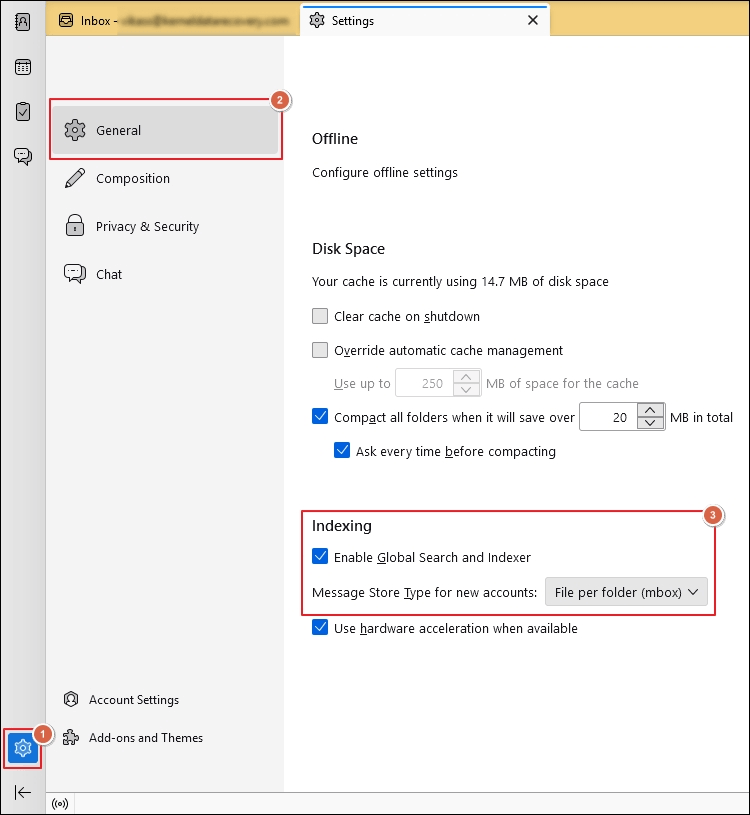
Step 4. Once done, try to search the item again.
Method 3. Verify Your Search Terms & Filters
Sometimes Thunderbird search appears broken because the search terms or selected filters exclude the email you want to find. So verify these:
Step 1. Search using a distinctive word from the email’s subject or message body.
Step 2. Remove unnecessary search conditions and filters.
Step 3. Check that you have selected the correct sender, recipient, subject, or message-body filters.
Step 4. If you are using Quick Filter, clear the existing ones and search again.
- Global Search is not case-sensitive.
- It doesn’t index one- or two-character terms. So, search at least three characters.
- Avoid the asterisk (*) at the end of the search term. Mozilla notes that wildcard search behavior can be inconsistent.
Method 4. Repair the Affected Thunderbird Folder
Repair the damaged folder index when emails are missing from a particular folder or its message list doesn’t display correctly. Here are the detailed steps:
Step 1. Select the folder where emails are missing.
Step 2. Right-click the folder and select Properties.
Step 3. Navigate to the General Information tab.
Step 4. Click on Repair Folder and proceed to OK.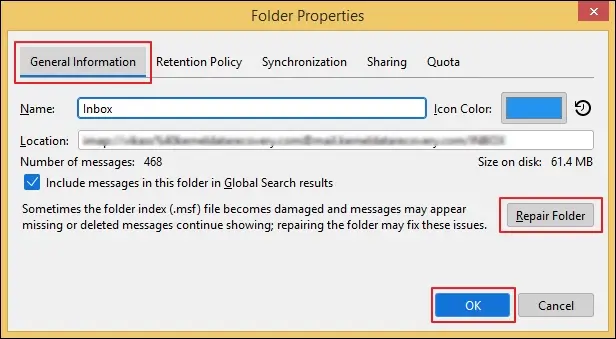
Step 5. Wait for Thunderbird to rebuild the folder index.
Step 6. Check the folder and search for the missing email.
Method 5. Rebuild Global Search Index of Thunderbird
If Thunderbird returns blank or incomplete Global Search results, its Global Database may be corrupted or not functioning properly. So, use the provided steps to force Thunderbird to rebuild the Global Search index.
Step 1. Go to the Menu and click Help.
Step 2. Then, continue withTroubleshooting Information.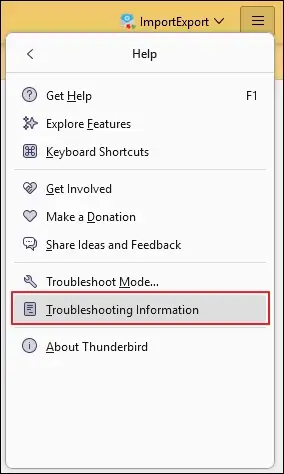
Step 3. Navigate to Application Basics > Profile Folder > Open Folder.
Step 4. Close the Thunderbird app completely.
Step 5. Locate the global-messages-db-sqlite file and Delete it.
Step 6. Restart Thunderbird to create a new Global Database.
Method 6. Let Thunderbird Finish Indexing Messages
Thunderbird takes time to index email messages after adding email accounts, large mailbox imports, or rebuilding the Global Database. So, track the process with the following steps:
Step 1. Navigate to the Menu and go to Tools.
Step 2. Click on the Activity Manager to proceed.
Step 3. Wait for the indexing process to finish.
Step 4. Avoid deleting the global database while rebuilding is in progress.
Step 5. Search for the required email again after indexing completes.
Method 7. Start Thunderbird In Troubleshoot Mode
If Thunderbird advanced search stopped working after installing an add-on, changing the theme, or modifying settings, an extension or customization may be responsible. So, open Thunderbird in Troubleshoot Mode to disable certain features & customization temporarily and check whether they are causing the problem. Here’s how:
Step 1. Navigate to Menu and Help > Troubleshoot Mode.
Step 2. Click Restart in the confirmation wizard.
Step 3. Apply changes and click Continue in Troubleshoot Mode. 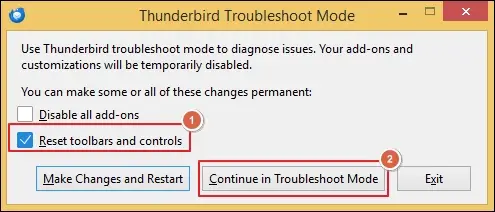
Step 4. Try Global Search and Quick Filter again.
Step 5. Return to normal mode if search works in Troubleshoot Mode.
Step 6. Click on Menu lines and proceed to Add-ons and Themes.
Step 7. Disable the add-on that conflicts with search.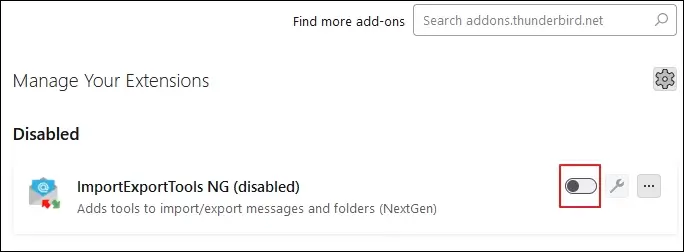
Method 8. Review the Item’s Original Folder When Found Ones Aren’t Opening
Sometimes Thunderbird displays an email in its search results but fails to open a message when you select it. This indicates a problem with the folder index or the mailbox data.
Step 1. Note the folder or account associated with the search result, if displayed.
Step 2. Open that folder directly in Thunderbird’s folder pane.
Step 3. Locate the email in the original message list. Then, open it.
Step 4. Use the Properties > Repair Folders steps if it fails to display.
Step 5. Search for the email again after the Thunderbird rebuild index.
Method 9. Inspect Selected Search Scope & Local Folders
If you can’t find an email, check where it is actually stored. It may be in another account, an archive, or in Thunderbird Local Folders.
The search option you use also matters: Quick Filter, Global, or Advanced Search. Here are the steps:
Step 1. Expand your email accounts in Thunderbird’s folder pane.
Step 2. Check the Inbox, Sent, Archive, and other relevant folders.
Step 3. Access Local Folders and check whether the email is stored there.
Step 4. When using Quick Filter, open the folder where you expect the email to be stored.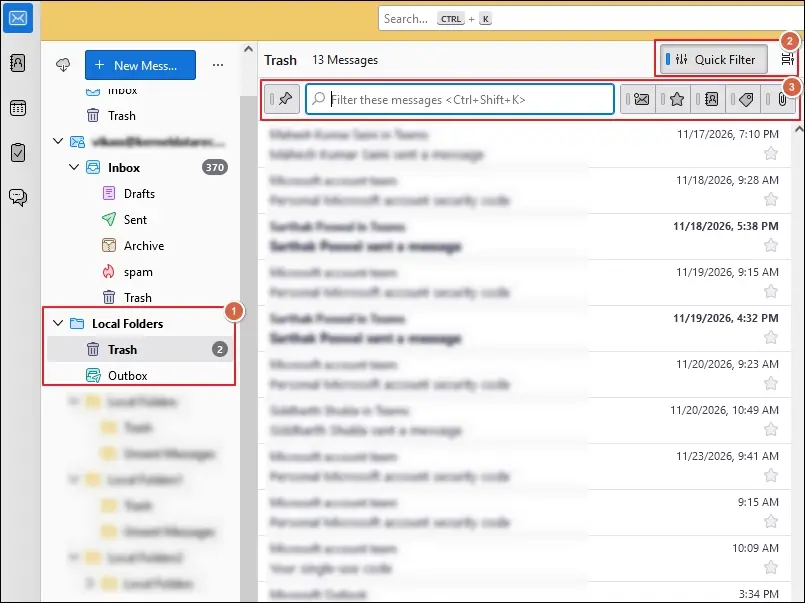
Step 5. Clear existing filters and try searching again.
Step 6. Use Global Search if you want to find across accounts and folders.
Method 10. Update Thunderbird & Test Search Again
Finally, check the current version of your Thunderbird application. If outdated, update the application to fix bugs and improve its performance. Here’s how:
Step 1. Go to Menu > Help > About Thunderbird.
Step 2. Check for available updates.
Step 3. Install an update if one is available.
Step 4. Restart Thunderbird once it is complete.
When Thunderbird Search Won’t Work Even After Fixes
If you have tried the above solutions but still cannot locate important emails, then consider checking the original mailbox data independently of Thunderbird with the help of MBOX viewer . For this, you can use the Kernel MBOX Viewer to open and inspect the contents without needing the search interface of Thunderbird.
This can help you determine whether the required messages are present in the mailbox file or not. With the software, you can open and view data from oversized MBOX files.
Tips to Prevent Thunderbird Search Problems in the Future
You can reduce the chances of encountering frequent Thunderbird search syntax or associated problems with these simple practices:
- Maintain regular backups.
- Allow indexing to complete.
- Keep Thunderbird up to date.
- Avoid interrupting mailbox operations.
- Use reliable storage for the Thunderbird profile.
Concluding Thoughts
Here, we have covered different solutions to fix Thunderbird search not working issues. You can apply the most applicable solution based on the problem you are currently facing. However, if all the given solutions fail to search for the required emails, then go to the recommended solution. The software helps you inspect and search emails from Thunderbird archives with ease.