Read time: 10 minutes
Libero email is the preferred choice of many Italian citizens. But after the January 2023 email server outage, users started looking for alternatives, and many chose Google as the replacement. Both Google and Libero Mail offer free email management with strong security. But if you compare them, Gmail is the clear winner. Furthermore, the need for advanced features directed users to transfer Libero email to Gmail account.
Multi-layer account security, larger mailbox (15GB default and easily upgradable), simple user interface, and integration with Google Workspace suite applications, these reasons alone can push you or anyone to migrate emails from Libero email to Gmail. Fortunately, there are multiple methods to carry out this email transfer, and we will discuss them all one by one. But before starting the migration, let’s see the most common reasons for this migration.
Why users want to transfer Libero email to Gmail?
The primary reasons to migrate Libero email to Gmail account are:
- High Availability Servers: Be it work or personal life, uninterrupted emailing is crucial. Google offers 99.9% server uptime. This means it is always ready to serve you from anywhere in the world and from any device (laptop, mobile, web) without fail.
- Enhanced Security: The enterprise level security mechanism of this tech giant makes it one of the safest places to manage and store your important emails. Gmail offers features, like password-less authorization, strong encryption standards, prevention of phishing through AI, etc.
- Scalable Storage: You start with a free 15 GB quota, and this can be expanded (up to multiple TBs) as per your requirements. Additionally, you can send multiple large files easily from Gmail (through the Drive link).
- Modern Features: Gmail offers advanced features, like smart email categorization and powerful email indexing for quick searching. Moreover, with the Gemini 3 integration in Gmail, you can now utilize features like real-time email writing, summarizing big messages, and much more.
- Integration with Google Workspace: Multiple G Suite applications like Keep, Drive, Calendar, etc. boost users’ productivity. You can save large email attachments directly to Google Drive or send large (multiple GBs) files using your Google cloud storage space, all without leaving Gmail.
- Support Add-ons: Increase the Gmail capability with GWS add-ons. Search and install extensions from the Google Workspace Marketplace. Gmail allows one-click installation of add-ons like Zoom, Canva, Slack, Dropbox, and many more.
Things to do Before you Migrate Libero Mail to Gmail
Before you begin to import Libero email to Gmail, make sure to complete these tasks:
- Review emails from your Libero Mail account: Analyze the source Libero Mail mailbox. If present, remove all the unwanted emails and large attachments. Also find and delete all empty or deleted folders. You can also categorize emails and move them to separate folders for easier classification.
- Backup your emails: We will transfer Libero email to Gmail over the internet. Issues like network loss and sudden power failure can lead to incomplete email transfer and data loss. To prevent permanent data loss due to any issue, you must use IMAP backup tool.
- Setup Gmail environment: Make sure the target Google account has enough storage space available to store all the emails from Libero Mail and choose a storage plan as per need. Furthermore, if you are admin and move to migrate multiple user mailboxes, create the respective user accounts in the Google Workspace environment. This will simplify mailbox mapping.
Best Ways to Transfer Libero email to Gmail
The most trusted methods to migrate Libero Mail to GWS account are discussed below. From email forwarding to copy & paste emails, we will discuss them all, starting from the simplest one.
Solution 1: Use Libero Mail email forwarding option
If your Libero Mail account is fresh or doesn’t have any important emails, you can simply configure your account to forward emails to your Gmail account. To enable forwarding, follow these steps:
Step 1: Navigate to the Libero Mail web interface and click on the Settings icon.
Step 2: Go to the email forwarding section and enable “Auto-Forward”.
Step 3: Provide the Gmail account email address and check the “Keep a copy of the message”.
Step 4: Save the changes.
Now, whenever you receive a new email in your Libero Mail inbox, it will automatically move to the target Gmail account. However, this feature is only available for users who have the Libero Mail Plus subscription account. Also, the old emails will not be moved by this method. For a complete mailbox transfer, you can use any of the methods given below.
Solution 2: Use Gmail’s Import email and contact option
Google offers a useful feature in Gmail to add emails and contacts from other webmail servers directly into Gmail. If email forwarding is not working for you, try this method to import Libero email to Gmail.
Step 1: Go to the target Google (Gmail) account.
Step 2: Click on the Settings icon and then choose the option See all settings.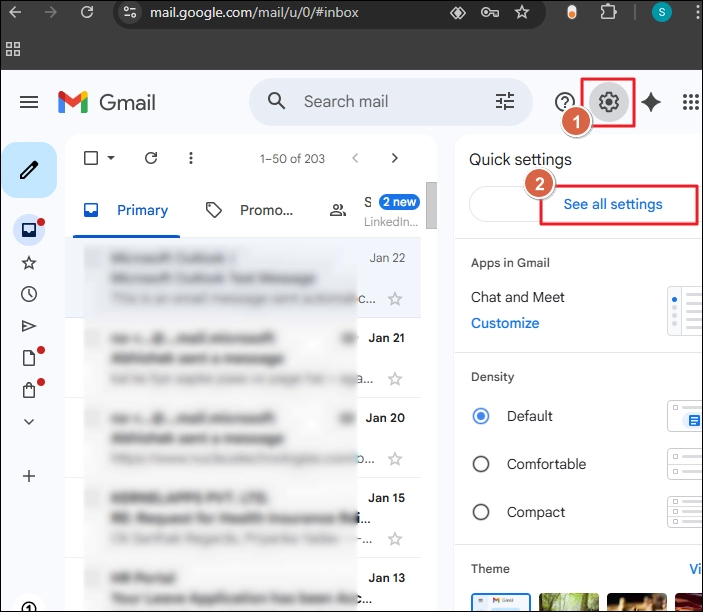
Step 3: Go to the Account and Import tab and click the Import mail and contacts button.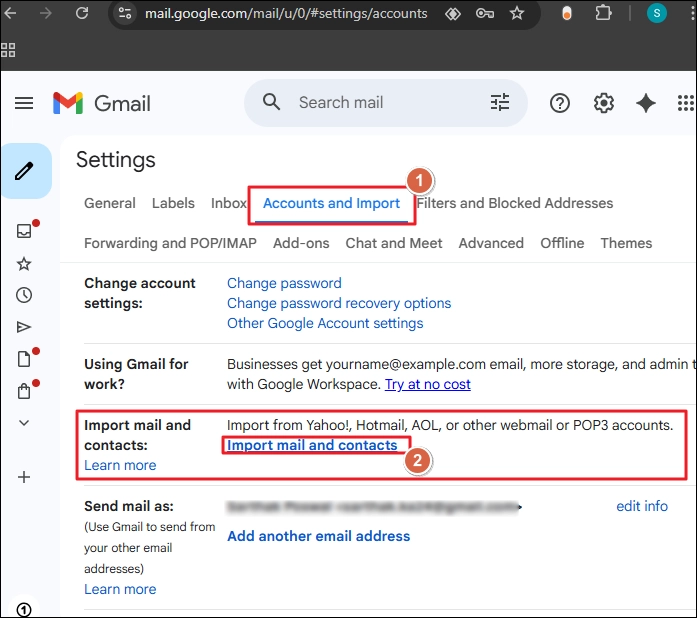
Step 4: Enter the Libero Mail email address and click Continue.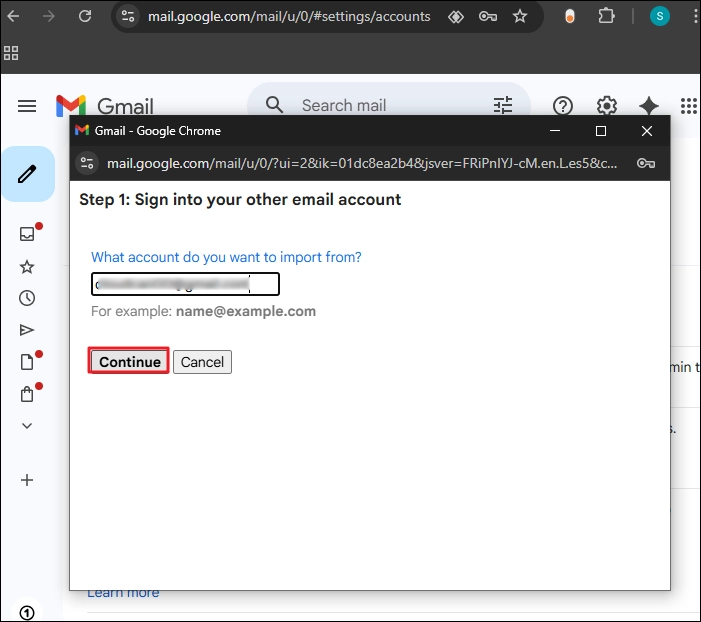
Step 5: Gmail will send a confirmation email to your Libero account. Click Continue to send the email.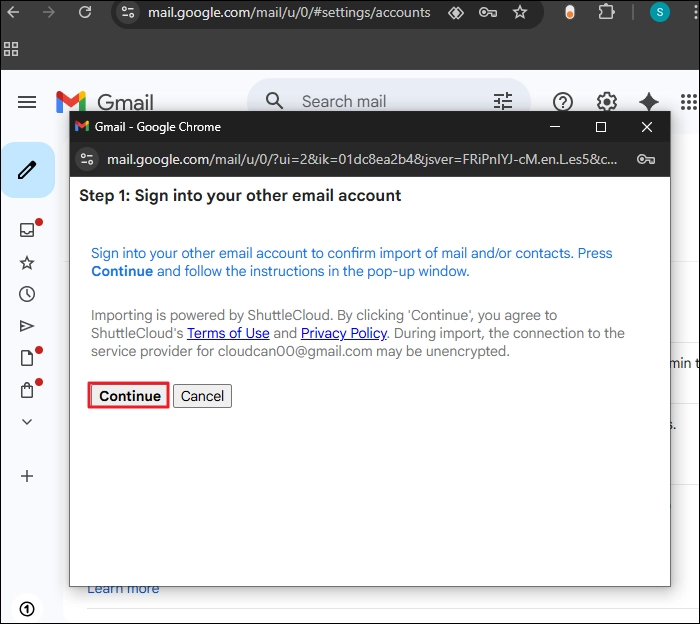
Step 6: Now, you must go to your Libero Mail account and open the email from Google. Then, click on the link (inside email) to authorize Gmail to export Libero email to Gmail.
Solution 3: Using Check mail from other accounts option
In addition to the above method, Gmail also provides the “Check mail from other accounts” option. You can use this option to migrate Libero Mail to Gmail account with these steps:
Step 1: Go to Gmail settings page and select Accounts and Imports tab.
Step 2: Click Add a mail account button.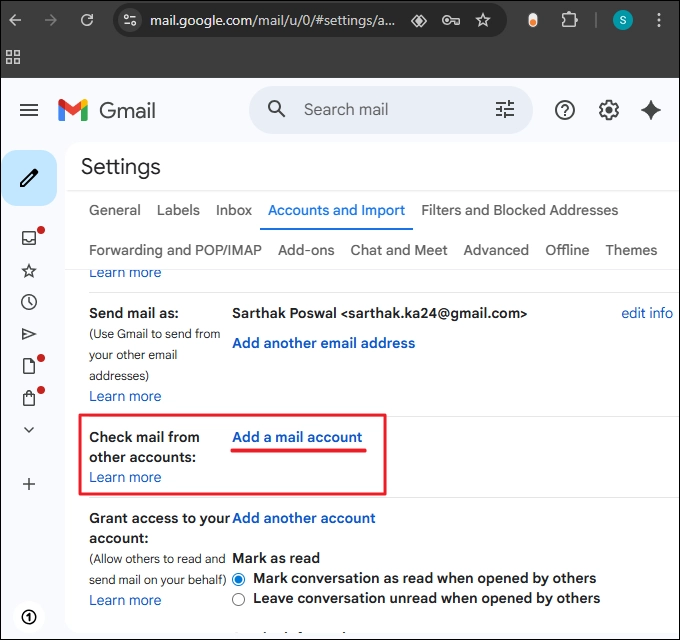
Step 3: Enter the Libero Mail account and click Next.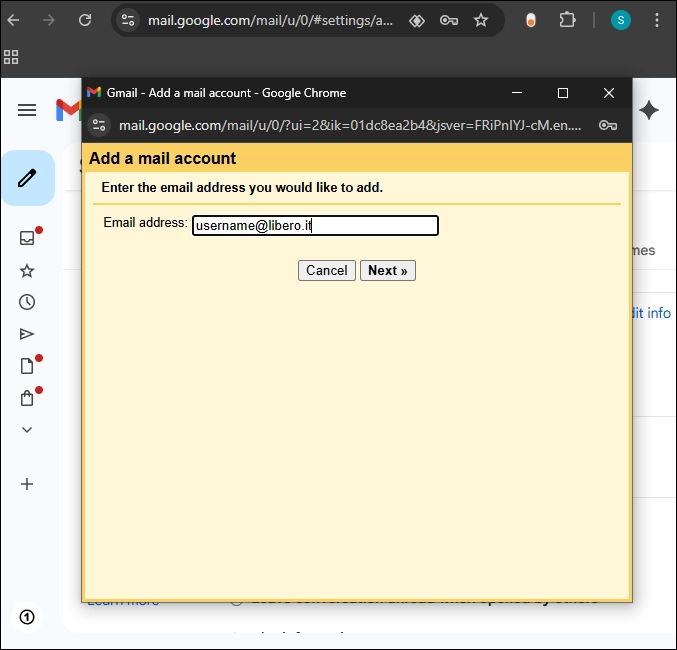
Step 4: You have two options to add the account. The first option, Gmailify, will only link the source account to Gmail, no migration. And the second option is for importing emails. Select the import email option and click Next.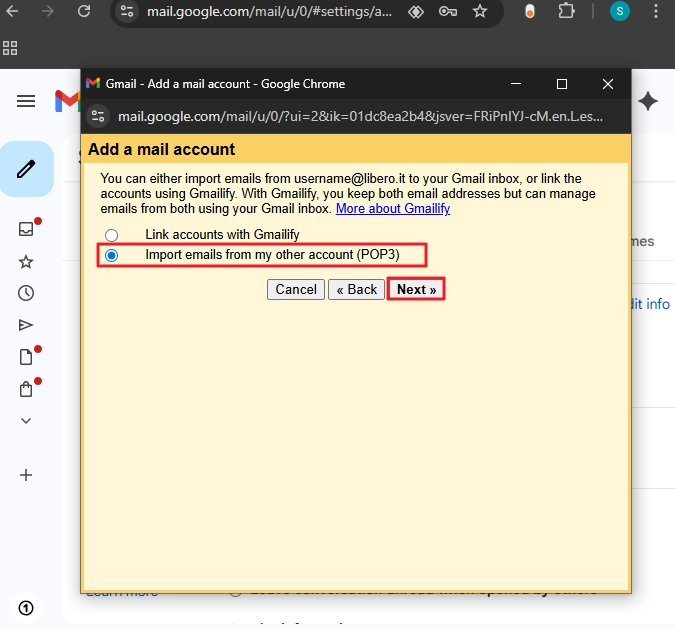
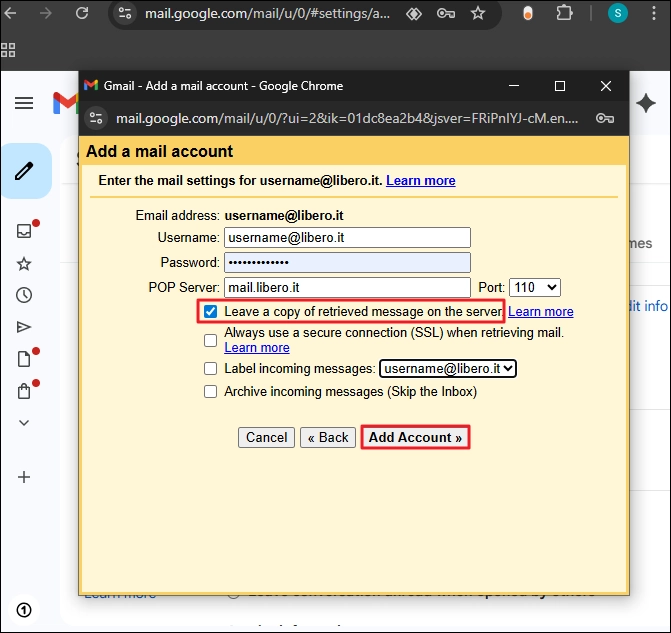
Step 5: Enter the required details and click Add Account.
Note: This method uses the POP3 protocol. All your emails will be transferred to Gmail and removed from the source (Libero account). To prevent this, tick the option “Leave a copy of retrieved messages on the server” before you proceed.
Step 6: Gmail will ask if you want to use the Libero account to send emails or not. Choose the option as per your need and click Finish.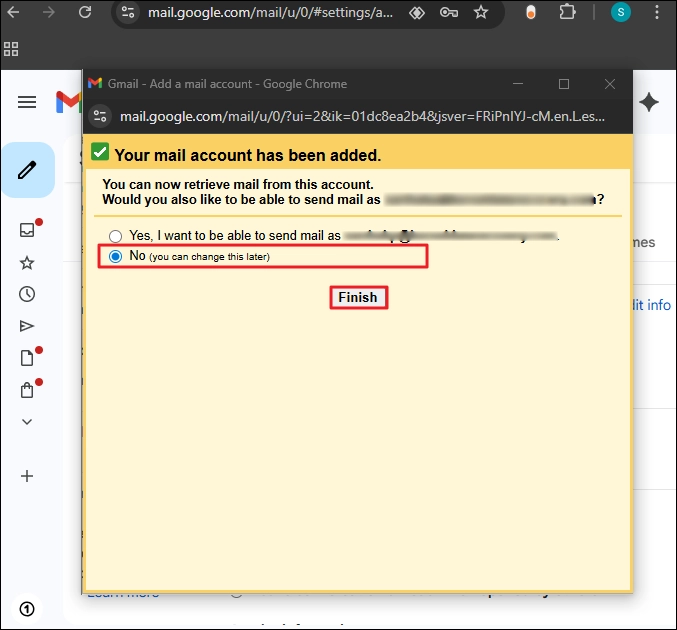
Gmail will begin to import all your emails. Wait until all the emails are moved. In case you don’t want to migrate all the emails and do a selective Libero mailbox migration to Google Workspace, you can use an email client.
Solution 4: Import Libero email to Gmail with drag and drop
Email clients like Outlook or Mozilla Thunderbird allow you to add more than one email account. Using this functionality of third-party email clients, you can move emails from one email account folder to another mailbox folder. In addition to Outlook or Thunderbird, you can use any email client that supports IMAP-enabled email accounts to migrate emails to GWS with these steps:
Step 1: In your email client, add both source (Libero Mail) and destination (Gmail) account.
Note: If you use 2 factor authentication, login will fail with standard passwords. In such a case, use app-specific passwords for login.
Step 2: Go to your Libero Mail mailbox folder, select the emails you want to move (all or selective). Then, drag and drop them to the Gmail mailbox folder.
Note: Using the drag & drop method to migrate Libero Mail to Gmail, the original folder hierarchy will be lost
Limitations with the Native methods
You can export Libero mailbox to Gmail account with the manual methods. But with limitations, such as:
- Not reliable for migrating multiple mailboxes at once.
- Drag & drop emails individually is time-consuming.
- There is a risk of data loss if you transfer using the POP3 protocol.
- Lack of filters for selective email migration.
- Both Libero Mail and Gmail may face downtime during migration.
Bulk Transfer Libero Email to Gmail with an Automated Tool
When you have hundreds of user mailboxes to move, you must rely on a professional IMAP migration tool. The Kernel IMAP to Google Workspace Migration tool is a one-stop solution for all your email migration needs. Migrate emails error-free between all IMAP supported email servers (including Libero Mail and Gmail).
Notable features of the migration tool:
- Deeply scan the source mailbox and move all data items without fail.
- Migrate multiple mailboxes with accurate user mapping (automatic or manual).
- Built-in filters (date selection, folder selection, etc.) for user-controlled migration.
- An incremental migration option to move emails between the same endpoints without data duplication.
- Live migration status with the option to save a detailed report locally in a CSV file.
Conclusion
Transfer Libero email to Gmail with the methods discussed above. To import only a few emails, you can use the Libero Mail forwarding option. For complete mailbox migration, use Gmail’s add email and import email functions. However, the manual methods are time-consuming and come with the risk of data loss. The best method to migrate Libero Mail to Gmail is to rely on a professional Kernel IMAP to Google Workspace migration tool. The tool also supports multi-factor authentication to securely connect both endpoints and initiate email transfers.
Frequently Asked Questions
A. To move Libero emails to Google, you must install Outlook. Then, add both source and destination accounts. Finally, move the emails from Libero to Gmail folder.
A. Yes. But to move 100GB of data, you have to buy a Gmail subscription, as the free version only comes with 15GB storage.
A. If your Libero and Gmail are secured with multi-factor authentication, you need app-specific passwords to log in to email clients and IMAP migration tools. Standard passwords will not work in such cases.