Read time: 10 minutes
While “Hotmail” technically no longer exists (it is now Outlook.com), millions of users still hold onto their @hotmail.com addresses. Some survey sites suggest the number to be approximately hundreds of millions. However, as technology is advancing, many users want a simple looking environment that offers a perfect balance of accessibility and technology. And Gmail fits the description. Moreover, Google’s advanced AI integration also compels users to transfer Hotmail to Gmail.
Moving from the legacy Hotmail to the modern Gmail email ecosystem allows you to manage your old emails alongside your modern workflow. You can leverage Google Drive integrations and utilize superior spam filtering, all from a single tab.
Common reasons to transfer Hotmail to Gmail?
The top reasons for moving from Hotmail to Gmail are:
Enhanced search capability
Google is known for its quick search. Gmail also follows this legacy and index email for quick & easy search, even if it’s decade old.
Integration with Android apps
Android users are heavily dependent on applications that work best with Gmail accounts. Therefore, users set Gmail as their primary account and export Hotmail emails to Gmail.
Gmail’s UI
Features like multi-tab view in Gmail (different tabs for different purposes) help to keep your inbox clean and attract users who desire an easy-to-use platform.
Accepted as a standard login method
Many websites allow users to sign up or sign in using only their Gmail accounts. Thus, moving to Google allows for a faster login mechanism.
Work requirement
Sometimes a company’s internal work policy or project requirement can force you to migrate emails to Google Workspace environment.
More Add-on availability
Google has the largest market share. Therefore, its developers are always making new add-ons to integrate several user requirements. Compared to it, Hotmail offers fewer add-ons.
What do Admins do before they transfer Hotmail to Gmail?
A few things you must do before starting the email transfer process are:
- Analyze your Hotmail mailbox and remove any obsolete emails or folder.
- Set the Gmail environment with required permissions and user mailboxes with ample storage available.
- Email migration always has data loss risks. Backup Hotmail account to avoid losing any email item.
Once you have taken care of all the above considerations, you can begin Hotmail to Gmail migration with the methods given below:
Quick Methods to Transfer Hotmail to Gmail [Error-Free]
Every user has a different requirement for migration. I will show you four different ways based on different use cases. You can directly jump to the method you found most useful to you, depending on following use cases:
Use Case 1: If you only want new emails to get delivered to your Gmail’s inbox. Then, method 1 is the right fit for you.
Use Case 2: For copying existing emails & contacts, go with method 2.
Use Case 3: Method 3 is best for someone who needs a selective email and folder migration.
Use Case 4: If you are an admin who needs a 100% secure method to move bulk user mailboxes from Hotmail to Gmail, choose method 4.
Method 1: Forward Hotmail email
To enable email forwarding, I will use the Outlook web version. You can also use the classic Outlook desktop application to forward emails, but the web version is faster.
Step 1: Go to OWA (Outlook Web App or Outlook on the web) and sign in with your Hotmail account.
Step 2: Click the Gear icon (Settings) at the top right.
Step 3: Navigate to Email > Forwarding.
Step 4: Select Enable forwarding.
Step 5: Enter your Gmail address.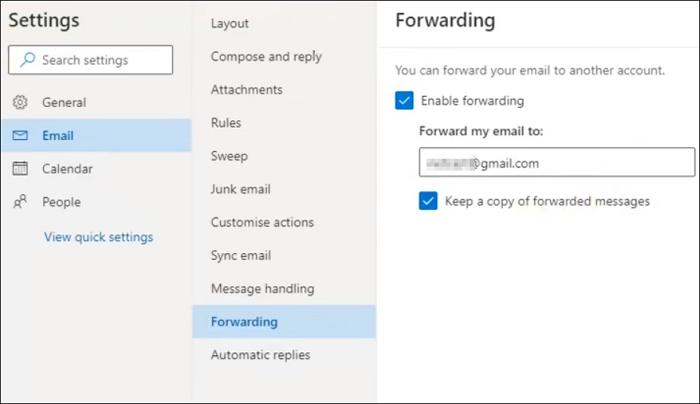
Note: To have a backup in Hotmail, check the option “Keep a copy of forwarded messages”.
Step 6: Click Save to apply the forwarding.
Now, every new email sent to your Hotmail will arrive in Gmail instantly.
Method 2: Gmail’s native import emails feature
Here’s how to export Hotmail emails to Gmail using this procedure:
Step 1: Open Gmail (configured with the account where you want to move the emails). Click on the Settings icon and choose the See all settings.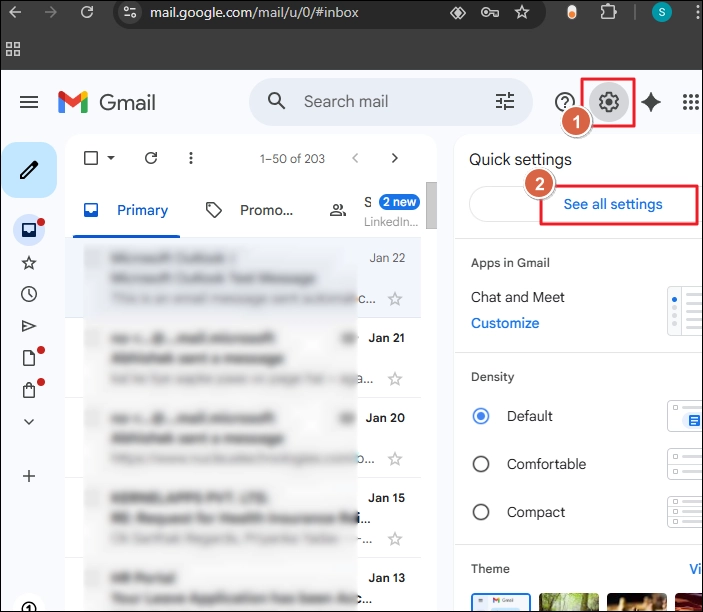
Step 2: Click on the Account and Import tab and select the Import mail and contacts option.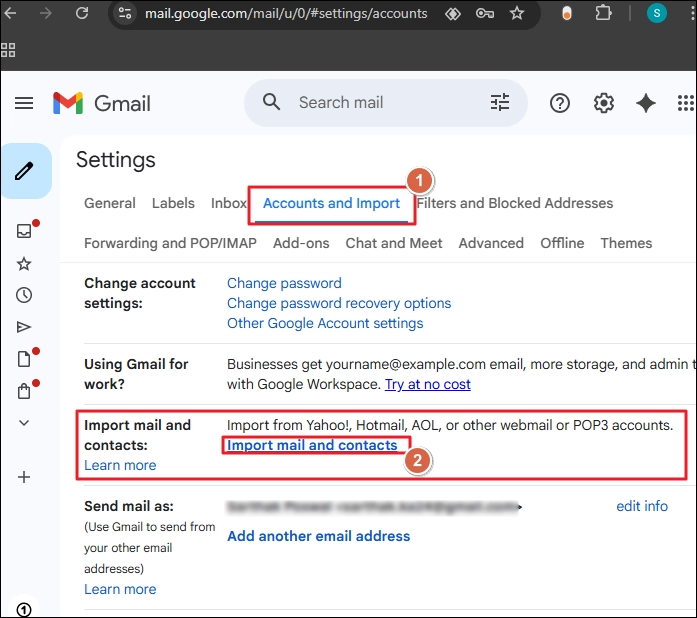
Step 3: Enter your Hotmail account and click Continue.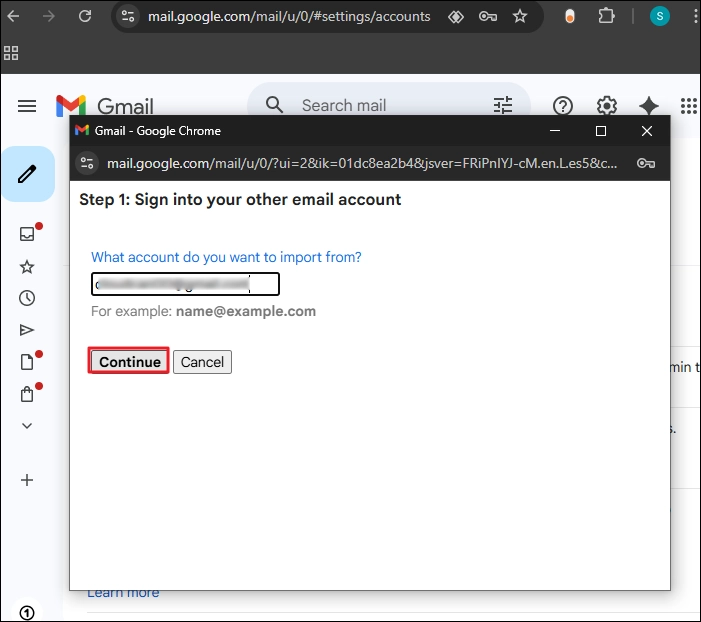
Step 4: Click Continue to get a confirmation email in your Hotmail account.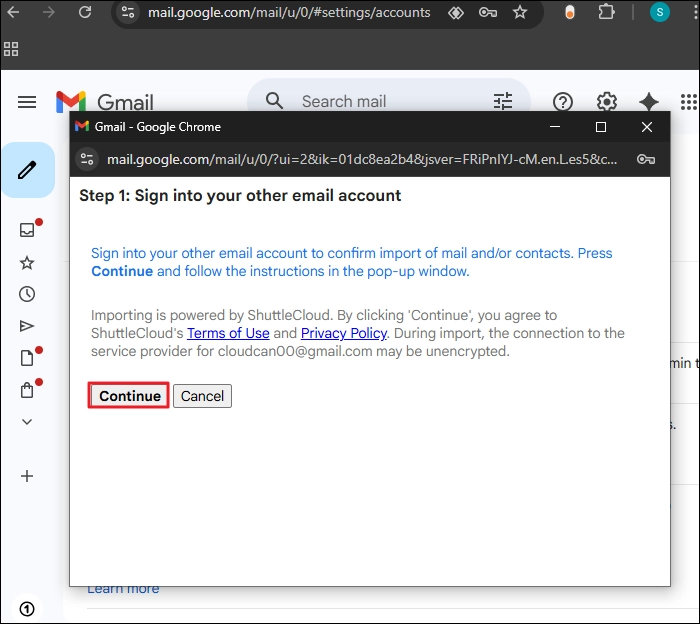
Step 5: Go to the Hotmail account. Find and open the email from Gmail and confirm it.
Note: This process runs in the background and can take up to 2 days, depending on your mailbox size.
Method 3: Selective data migration from Hotmail to Gmail
When you only need to migrate emails related to a specific client or project and maintain a custom folder hierarchy, you can copy the folders or emails. For this, you can use any IMAP supported email client. Here, I am using Outlook to carry out the steps, because I already have my Hotmail account configured in it.
Step 1: Open Outlook, click File and click Add Account.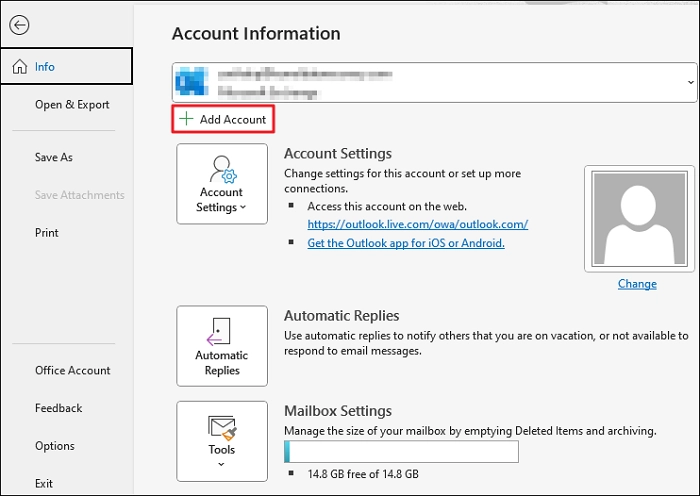
Step 2: Enter your target Gmail email address and click Connect.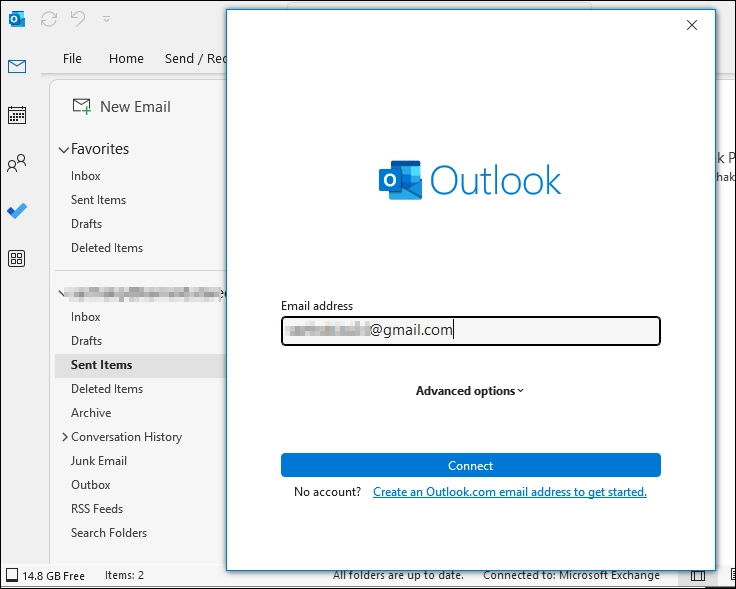
Step 3: Follow the login process. Depending upon your security settings, Outlook will either redirect you to Chrome for authorization or only ask for password.
Step 4: When your email account is added, select the folder you want to move. Right-click on it, select the Copy Folder option.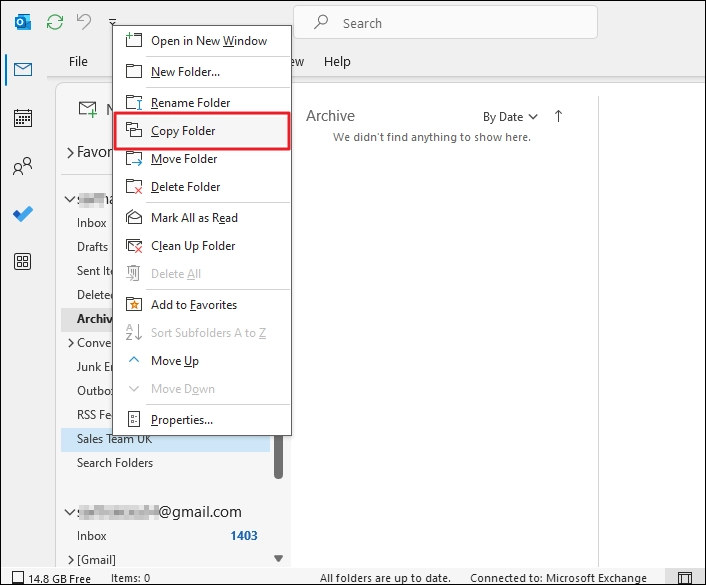
Note: To move emails, select the emails, right-click and choose the Move to option.
Step 5: Choose the folder from the Gmail mailbox where you want to move the data and click OK. You can also create a new folder by clicking on the New option.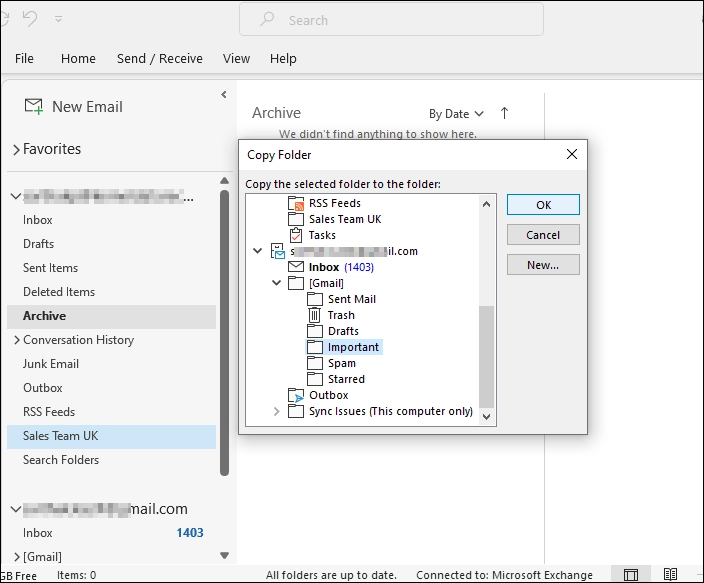
Method 4: Professional IMAP to G Suite migration tool [Admin’s Choice]
This method is best suited for IT Admins who need to migrate multiple users and want to avoid time-taking manual methods. With a professional solution like the Kernel IMAP to Google Workspace Migration tool, you can easily move large mailboxes from any IMAP server to GWS.
Why use a tool?
- Accurate data migration with original metadata and folder hierarchy.
- Move 1000+ mailboxes in a single operation with no size restrictions.
- Automatic user mapping with CSV file for precise data transfer.
- Built-in filters for selective email migration, including date and folder selection.
- Integrated with an incremental migration feature that only moves new data.
- Compatible with all Google Workspace plans and Windows OS versions
Quick steps to export Hotmail email to Gmail with the tool
Step 1: Download, install, and open the tool. Select the IMAP to Google Workspace option.
Step 2: Add the source (Hotmail) and destination (Google) account. For destination, you can add single or multiple mailboxes.
Step 3: Map the source mailbox to destination mailboxes.
Step 4: Apply filters for selective data migration and start the migration.
Step 5: You will get a completion message when the transfer is complete. Click Save Report to CSV to download migration report.
Comparison: Choosing the Best Method to Transfer Hotmail to Gmail
Check out this table for a quick comparison of the given methods to select the best one according to your requirements.
|
Feature |
Auto-Forwarding |
Gmail Native Import |
Desktop Drag & Drop |
Kernel Automated Tool |
|
Difficulty |
Easy |
Easy |
High |
Easy (Professional) |
|
Migrates Old Mail |
No |
Yes |
Yes |
Yes |
|
Folder Structure |
No |
No (All in Inbox) |
Yes |
Yes |
|
Contacts |
No |
Yes |
Yes (Manual) |
Yes (Complete mailbox migration) |
|
Best For |
No need for old emails |
One-time personal switch |
Specific folders |
Bulk Data / Enterprise |
Common Hotmail to Gmail Migration Errors
When you export Hotmail emails to Gmail, you may encounter a few issues, like:
Authentication Error
When you have enabled the Two-Factor Authentication (2FA) in Gmail, you will not be able to login to Outlook or any migration tool with the standard password. To resolve it, create app password in Gmail and use this to login.
“Message Too Large” Errors
Gmail doesn’t allow importing emails with attachments larger than 25MB. You have manually searched and removed such emails from Hotmail. If you need the emails, extract attachments from Outlook and import them later.
Missing Emails
Using the manual method will not keep the original folder hierarchy; your emails from the source folder may not move to the same folder in destination. Some users consider it a loss of data, but it’s not that. To view all the imported emails, click on the “All Mail” label in left pane.
Transfer Stuck
If the source mailbox is massive in size, Gmail will take multiple days to move data. You may think it’s stuck. But in the background, the process is still continuing. However, if the import is taking more than 72 hours, stop it & run again.
Conclusion
When you only want new emails, forwarding is the quickest method. To move old emails to Gmail, choose any method from the second to fourth to transfer Hotmail to Gmail. However, before you start data transfer, make sure to back up your Hotmail emails. However, if you need to move mailboxes in bulk with original metadata and folder structure, use the recommended Kernel IMAP to Google Workspace Migration tool.
Frequently Asked Questions
Answer: The native solutions are:
1. Not recommended for bulk mailbox transfer.
2. Time-consuming with risk of change in the folder structure.
3. Prone to errors and data loss.
4. Lack of filters for selective email migration.
Answer: To make sure you keep getting the new emails, you must setup auto forwarding in Hotmail using the steps given in method 1.
Answer: Yes. To do this, go to Gmail settings. Then, choose the Accounts and Import tab. Click on the Send mail as option and add your Hotmail email address. This allows you to reply to emails using Gmail while keeping the sender as your Hotmail address.