Read time 5 minutes
Microsoft 365 is a widely used cloud platform that manages all email data of an organization. Along with email data, it offers multiple tools to simplify various tasks in just a single cloud platform. Like other data, you can even store contacts and calendar information in your Office 365 accounts. Storing contacts in Office 365 will help you to send or receive emails easily. In some cases, users delete some unnecessary contacts, and while doing so, they unknowingly delete some important contacts as well.
Now, recovering these contacts can be tricky if you don’t know how to accurately recover deleted contacts in Office 365. So, here we have mentioned some practical ways to recover deleted contacts from Office 365.
Before recovering your essential contacts, let’s know the prime reasons for recovering Office 365 contacts.
Why recover deleted contacts from Office 365?
Here are all the possible reasons that will brief you on the necessity of recovering your deleted contacts from Office 365.
- Accidental Deletion: When you accidentally delete your contacts while removing duplicate or unnecessary contacts.
- Data Loss: Occasionally, contacts can disappear due to software glitches, sync errors, or issues with Outlook.
- Business Continuity: When you lose your key client’s contact information that will halt your sales or support.
- Compliance & Auditing: In business settings, admins might need to recover contacts for compliance or investigations.
- Restoring Suggested Contacts: Even suggested contacts (from your auto-complete list) can be recovered if deleted.
Now, when you know all the reasons, it’s time to delve into the recovery process and retrieve all your deleted contacts from Office 365.
Recovering deleted contacts depends on whether they are still in the Deleted Items folder or not. Considering users’ needs, we have covered both scenarios. Also, recovering contacts is possible for end users using MS Outlook. So, make sure your Office 365 account is configured with MS Outlook to retrieve deleted contacts.
Methods to recover deleted contacts in Office 365
Now, it’s time to recover your essential contacts from your Office 365 account using free manual methods.
Method 1: Recovering Contacts From Deleted Items Folder
Every item, when you delete any contact or other item from the Office 365 account directly, goes to the Deleted Items folder. So, if you remove a contact, it will still be available in the Deleted Items folder. Let’s start recovering contacts from the Deleted folder:
- Open MS Outlook and select Deleted Items in the mailbox folder list:
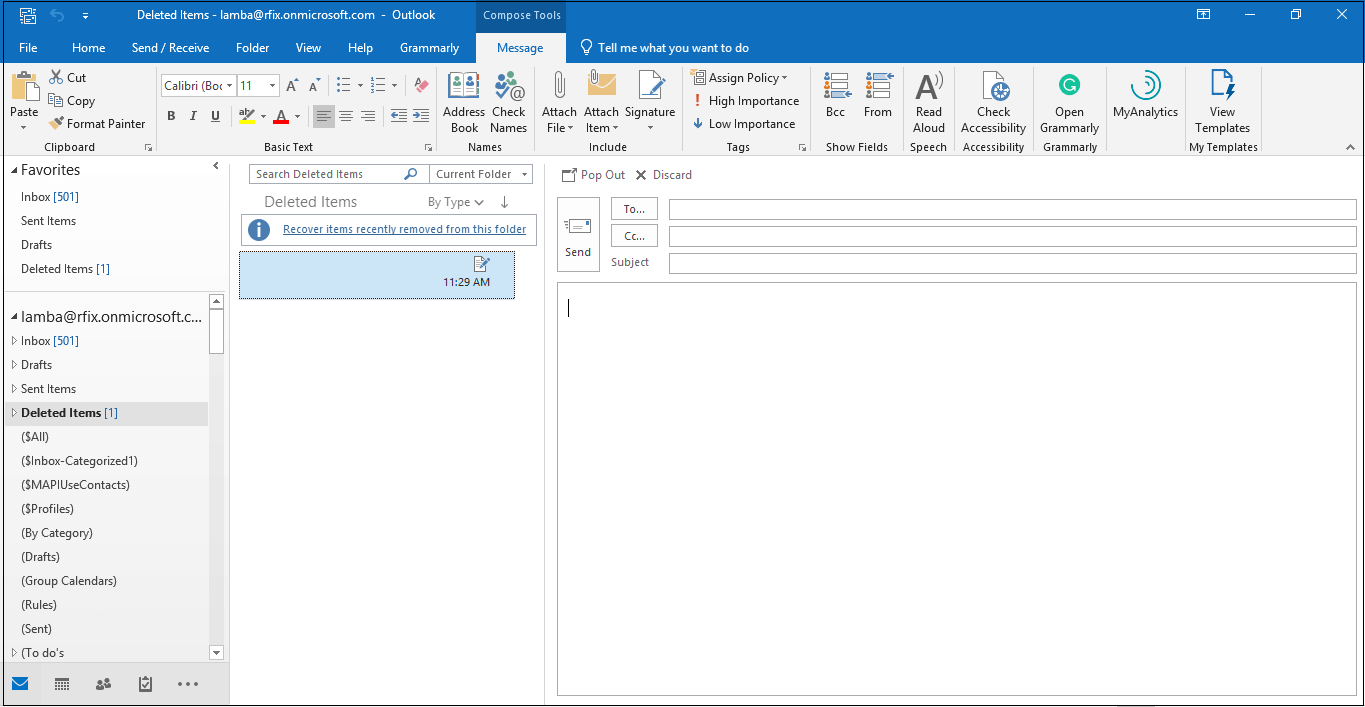
- Now, in the Search Deleted Items section, find the item/contact that you want to recover. You can also sort all contacts as required.
- Once you find the specific contact, right-click on it and select Move> Other Folder.
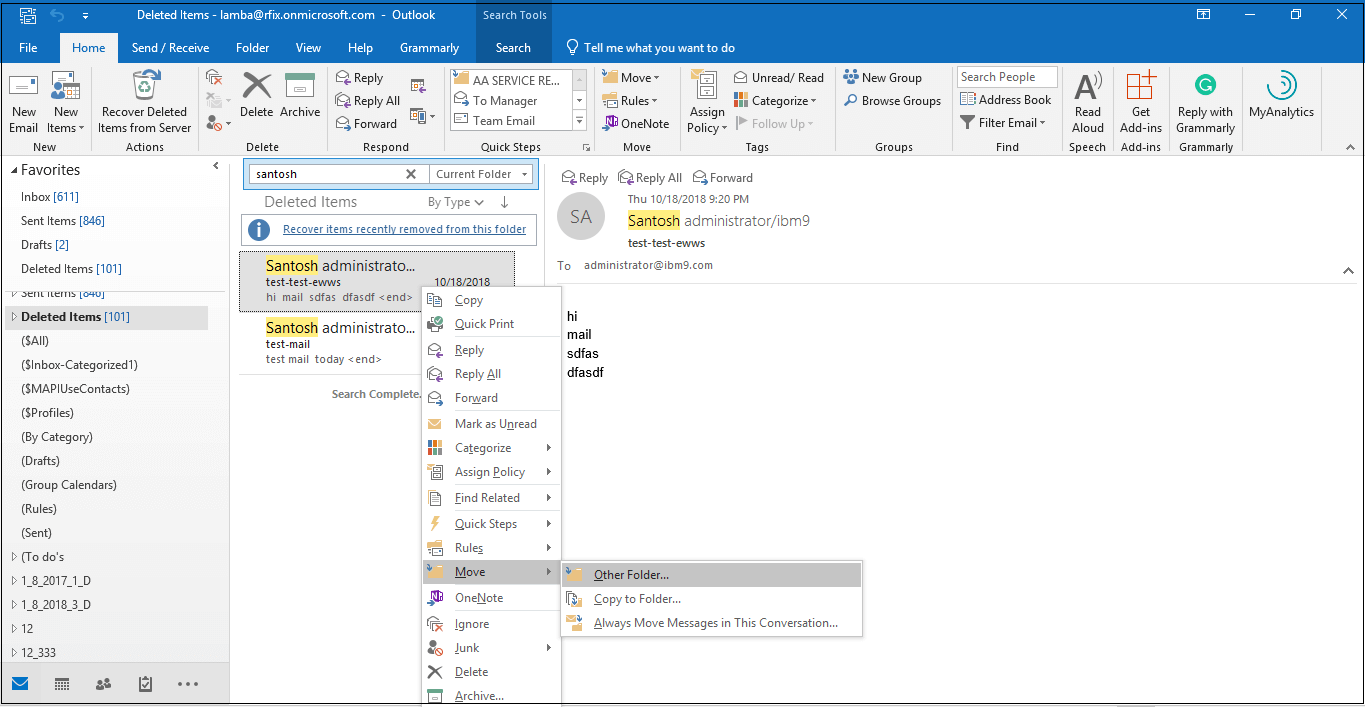
- Select the Contact list from your Office 365 account and click OK.
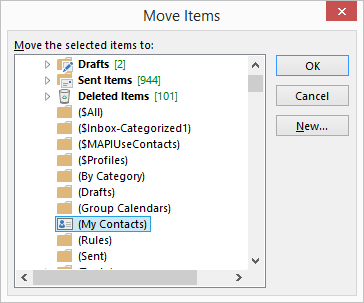
Note: You can also move recovered contacts to a subfolder.
Method 2: Recover Contacts not in Deleted Folders
If the deleted contacts are not available in the Deleted Items folder, then you can find the contacts in the Recoverable Items folder. Deleted items/contacts often move to Recoverable Items folder. Deleted items/contacts often move to the Recoverable Items folder when:
- You remove contacts from the Deleted Items folder
- Empty the Deleted Items folder, or
- Permanently delete contacts with Shift+Delete.
Follow these steps to recover the contacts from the Recoverable Items folder:
- Open MS Outlook and go to the Deleted Items folder.
- Select the Home tab from the menu, and then click Recover Deleted Items from Server.
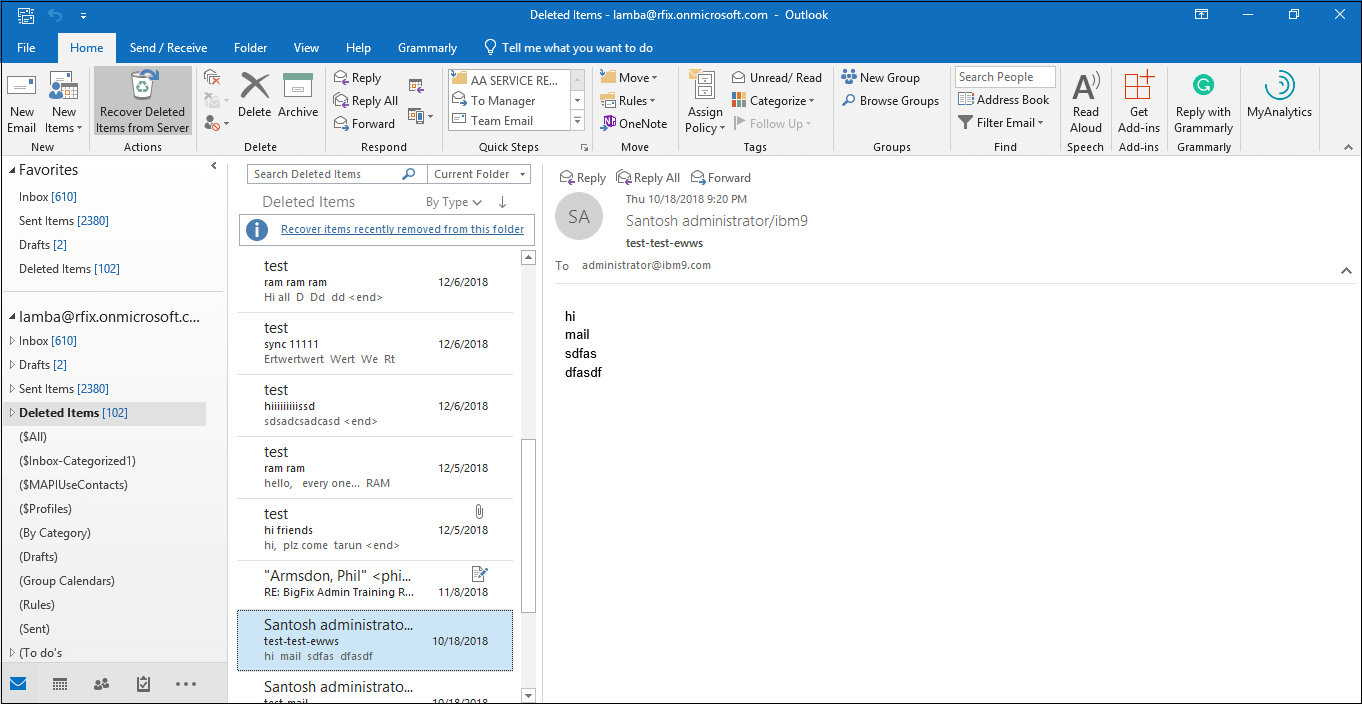
Note: This option is only available if you’re working online and using an Exchange account in MS Outlook. - In the Recover Deleted Items wizard, you can find specific contact with the help of Subject column. You can also use the From column to sort blank entries, as contacts don’t have a value in the From field.
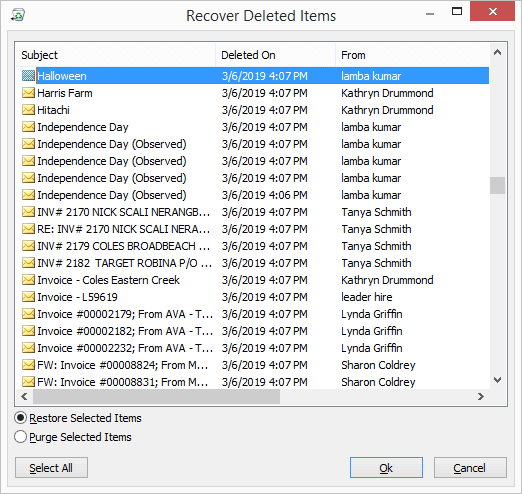
- Now, choose contact you want to recover, select Restore Selected items, and click OK.
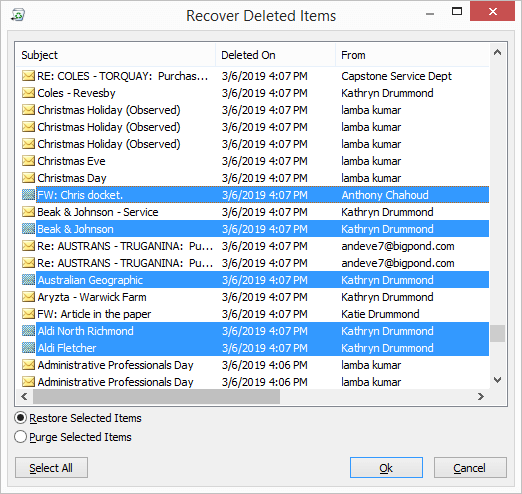
- The recovered contacts will be moved to the Deleted Items folder. You can quickly move the deleted contacts to your contact list using the 1st method.
How to recover deleted contacts in Outlook on the Web
You can also configure your Office 365 account in Outlook Web. The environment will remain the same with some minor differences. If the contacts are deleted, then you can recover them using the following 2 methods:
Option 1: Recover contacts from Deleted Folder
Just like all mailbox items, even the contacts, when deleted, go directly to the deleted folder. You can recover the contacts using these steps.
- On the People page, go to the Deleted Folder.
- If the Contact is present there, then you can choose it and click Restore. The contact will go back to the original place.
Option 2: Recover contacts from the Recoverable folder
When the chosen retention period for deleted items expires, they are moved to the recoverable folder. You can recover the contacts from there also.
- On the People page, go to the Deleted folder.
- At the top, click Recover deleted.
- Choose the Contacts and click Recover.
Now, what if your contacts were not in the Deleted folder or the Recoverable folder? At that time, you need to initiate an Exchange Database Recovery process to get all your deleted contacts from Office 365 that are still stored in your Exchange server.
Still, you can try the above-mentioned methods and recover your contacts. However, these manual methods have their own restrictions that will delete your Office 365 contacts and corrupt your EDB files. Then it will make the situation worse! Because then you need to repair EDB files, and then try to restore your contacts. So, let’s find out all the drawbacks of these manual methods, so you can protect your EDB file or other data.
Limitations of manual methods
- Deleted contacts are held in the Recoverable Items folder for a set period (default 14-30 days), after which they’re permanently gone unless retention policies are extended.
- You can only recover from their own Deleted Items & Recoverable Items. Admins manage retention, so users must know their organization’s rules.
- If a user or admin permanently deletes a contact (empties Deleted Items or purges from Recoverable Items), you must use an advanced Exchange database recovery tool to recover data.
- Restoring large numbers of contacts manually is time-consuming and cumbersome, requiring individual selections.
- Contacts deleted from “Other Contacts” are harder to recover and may require undoing recent changes rather than direct recovery.
When outcomes are not achieved using manual methods, a wiser choice would be to rely on an automated Exchange Server recovery approach. It will help you to recover all your contacts and other data from Office 365 with complete data integrity. Let’s know about one of the best software that will help you recover your deleted data. Additionally, export your Exchange Database EDB to PST for easier accessibility in the any version of Outlook.
Reliable solution to recover deleted contacts in Office 365
Kernel for Exchange Server is an effective solution for restoring deleted contacts or data items from Microsoft 365 accounts. It allows users to recover even permanently deleted items or contacts from Office 365 account. Additionally, it will restore your data in a new PST file, existing PST file, Live Exchange (On-Premise), Outlook Profile (Default, POP3, IMAP, Domino, GroupWise, Gmail, Exchange, Office 365, etc.,) and Office 365 (Exchange Online).
Conclusion
Your contacts include all the essential internal and external stakeholders necessary to run your workflow smoothly. If they get deleted, recovering them takes utmost priority. Therefore, we have mentioned some effective manual methods that will help you to recover deleted contacts in Office 365. However, these manual methods can’t guarantee a successful recovery process. Thus, relying on an automated Kernel for Exchange Server tool will help you to recover your contacts in multiple locations, like PST file, Exchange Server, Outlook, and many more.
Frequently asked questions
Ans: If your contact is still available in the Deleted folder or the Recoverable folder, then you can recover it. Otherwise, there is no manual way to recover permanently deleted contacts from Office 365.
Ans: Yes, you can manually recover or export your deleted Office 365 Contacts from Office 365 contacts into a PST file. But for that, your contacts should be in your deleted or recoverable folder. However, it is a lengthy process. To simplify the export process, use a professional EDB to PST converter tool and retrieve all your contacts in a PST file.