Read time: 7 minutes
Summary: Planning to migrate Outlook mailbox to Google Workspace? What about the data stored within the calendars? Do you have any strategy in mind? If you’re worried about how to handle the Outlook calendar data during Office migration, this article is for you. It explains how to move Outlook calendar to Google with easy methods. Moreover, you can check out Kernel Office 365 to Google Workspace Migration tool for a hassle-free migration.
Outlook calendars store important meetings, appointments, dates, events, etc. Businesses, when planning their platform switches, such as Google Workspace to Office 365 migration, often forget to consider calendar data. Any interruptions during the transfer can lead to losing all the essential data, which no business can afford.
Therefore, whenever planning to end a subscription from Office 365 and switching to a new platform, always prepare a strategy to export Outlook calendar to Google Calendar. Learn how you can export calendars without losing even a single calendar entry using the methods explained in the article.
What data can you migrate from Outlook calendars?
When you transfer Outlook calendar to Google calendar, you are migrating the following data entries:
- Events: Appointments, meetings, and other planned event entries.
- Reminders: Alerts or reminders arranged for a particular date and time.
- Recurring events: Event entries that recur on a defined schedule.
- Attachments: Files, documents, and other attachments linked to an event.
- Attendees: Details about all the members attached to the appointments.
- Time zones: Time zones set for each event or meeting.
How to export Outlook calendar to Google calendar?
There are multiple methods to move Outlook calendars. Let’s check out some of the most used methods one-by-one:
Method 1: Importing Outlook calendar to Google using .ics file
This method involves exporting the calendar from the Outlook application to a .ics file and then importing the file to Google Calendar, followed by Outlook and Google Calendar syncing. Follow the steps below:
Step 1: Open Outlook and go to Calendar view.
Step 2: Click File and choose Save Calendar/ Export.
Step 3: Provide a location to save the calendar on your computer.
Step 4: Open Gmail on your browser and go to Google Calendar.
Step 5: Now, click on + button and tap on Other calendars.
Step 6: Click on the Import button and then Select File.
Step 7: Browse your computer to provide path to the .ics file.
Step 8: Select from the Google Calendar where you want to import Outlook calendar. Click Import.
Step 9: Open Outlook New and click on Add Account.
Sep 10: Enter your Gmail account credentials and go to Calendar view.
Once done, check both calendars and you’ll be able to access both from a single interface.
Method 2: Copy Outlook calendar to Google by exporting
This method uses the export feature of Outlook and import in Google Workspace. Launch Outlook application on your desktop and follow the steps below:
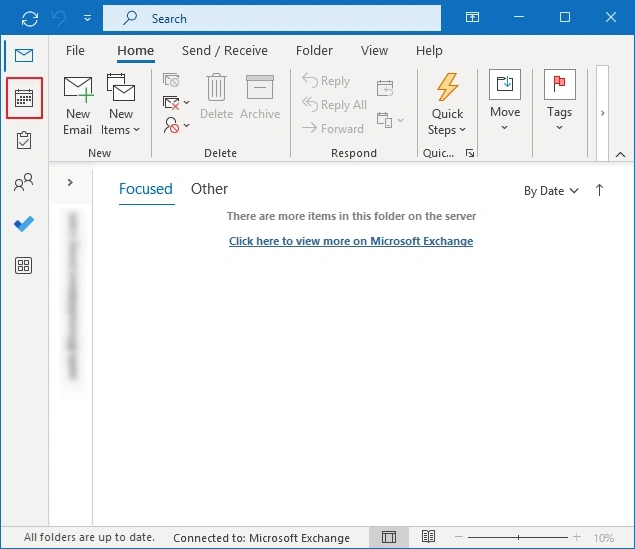
Step 1: Open Calendar by clicking on the Calendar icon from the left pane.
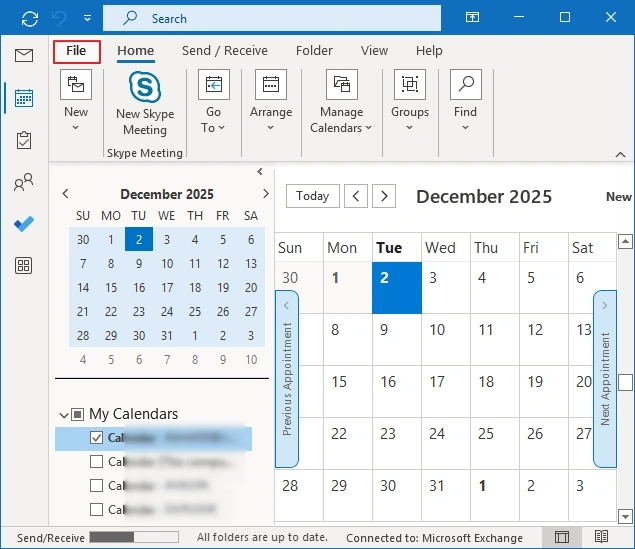
Step 2: Go to the File tab, then Open & Export and click on Import/Export.
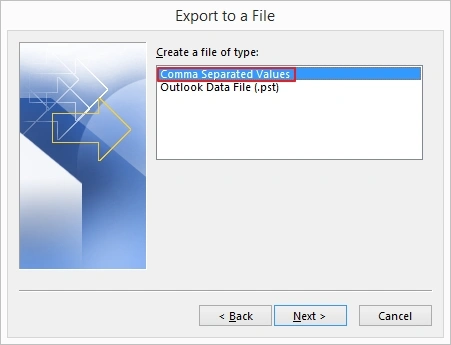
Step 3: Select Export to a file and then Comma Separated Values (CSV) as the output file type.
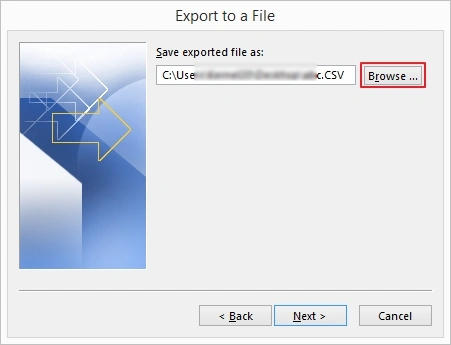
Step 4: Browse to provide the saving location and select the calendar to export.
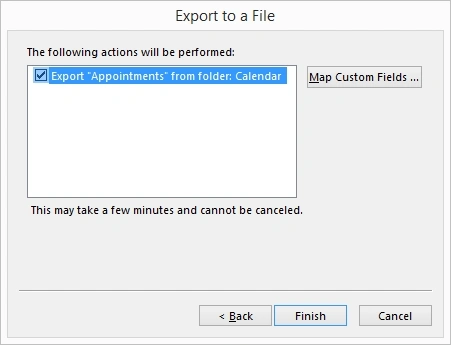
Note: Review the actions to be performed in the mailbox and click Finish.
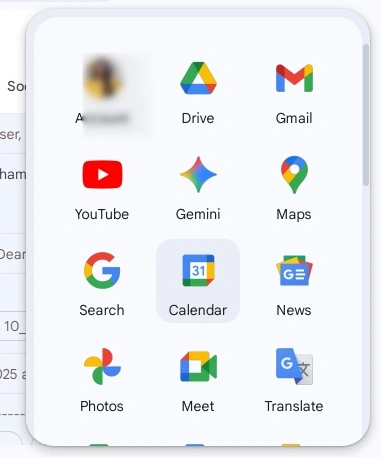
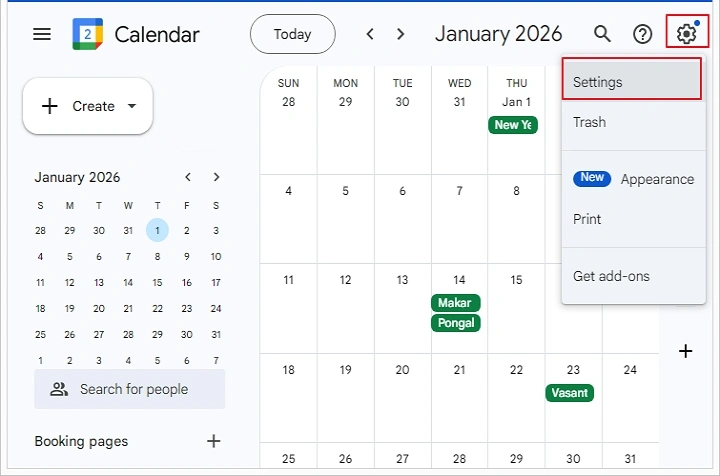
Step 5: After saving the calendar, go to Google Calendar in your browser and click on the Settings icon (gear).
Step 6: Select the Settings option and then Import & Export in the left pane.
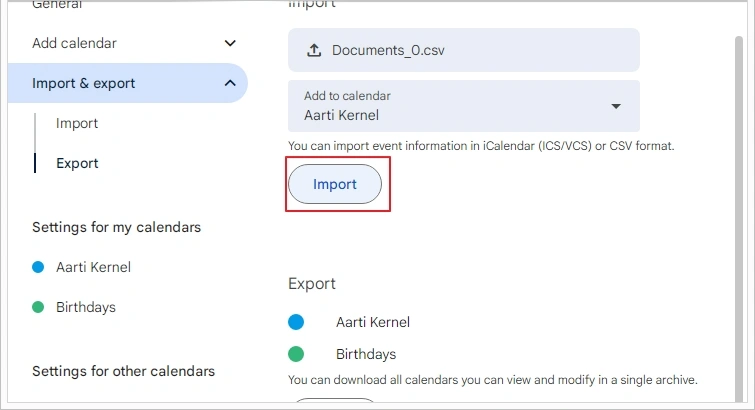
Step 7: Now, click on “Select file from your computer” and then select the CSV file exported from the Outlook application.
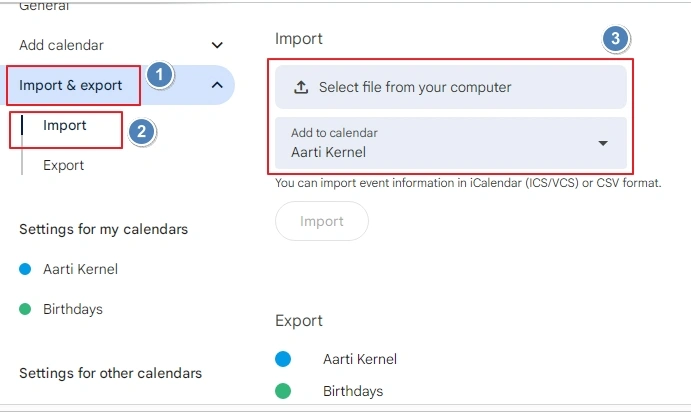
Step 8: Pick the destination calendar to which you want to import the calendar and click on the Import option.
Limitations of importing Outlook calendar to Google manually
- Some of these methods work for specific versions of Outlook application.
- Often require you to perform same steps repeatedly.
- You have to manage everything manually, which leads to missed deadlines and unnoticed tasks.
- Chances of data corruption and failed/ incomplete calendar exports.
What is the best method to move Outlook calendar to Google calendar?
With the manual methods available, you can learn how to move Outlook calendar to Google Calendar. However, there are chances of errors and process failures during data export. To avoid these consequences, use a professional solution like Kernel Office 365 to G Suite migration tool.
Using this tool, you can effortlessly move emails, contacts, calendars, etc., from Office 365 to G Suite, irrespective of the data volume. Some features of this tool include:
- Move mailboxes from Office 365 to G Suite
- Easily transfer users and groups from Office 365
- Comes with advanced filters for specific data transfer
- Easy user mapping between source and destination
- Preserve integrity and hierarchy of the data
Importing Outlook calendar to Google Calendar using this solution will help you achieve better collaboration and a consistent user experience. Additionally, your data will be safely exported to G Suite without making any modifications.
Conclusion
Losing calendars during Outlook to Gmail data export means losing track of your important project deadlines and meetings, appointments, etc. Use the methods as explained above and learn how to export Outlook calendar to Google Calendar. You can also use the Kernel Office 365 to Google Workspace migration tool to eliminate chances of errors and target 100% accurate data transfer.
Frequently Asked Questions
Here are the steps to sync Google calendar with Outlook calendars:
1. Sign in to Office 365 on a browser and go to Outlook.
2. Go to Settings and then View All Outlook Settings.
3. Select Calendar and then Shared Calendars.
4. Now, choose Select a calendar, Calendar, Can view all details, and click Publish.
5. Copy the given ICS file link and open Google.
6. Click Other Calendars +, then From URL, and click Add calendar after pasting the link.
Email users usually see this error when the file you want to import is quite large in size. This is because Google Calendar is compatible with files up to 1MB in size.