Read time 5 minutes
Summary: Since Arbitration mailboxes host important Exchange system data and enable crucial functioning, they need to be migrated from Exchange Server 2010 to Exchange Server 2016. You can move the Arbitration Mailbox from Exchange 2010 to 2016 through Exchange Admin Center (EAC) or Exchange Management Shell (EMS).
Exchange Server 2010 has seen its end of its support on October 13, 2020, and businesses are migrating to newer versions quickly. If you migrate mailboxes from Exchange 2010 to Exchange 2016, then it will be advantageous for the business too.
| Exchange 2010 has only Exchange Management Console to handle on-premises mailboxes only. | Exchange 2016 has online Exchange Admin Center that is accessible on any web browser. |
The main objective of Exchange 2010 to Exchange 2016 migration is to move primary mailbox, public folder, archive mailbox, and shared mailbox. But the migration does not end there. There are system mailboxes that are hidden, and you must migrate these mailboxes too to keep various features functioning. These system mailboxes are also known as arbitration mailbox.
Arbitration Mailbox: A Brief Introduction
The arbitration mailbox is the system mailbox from Exchange Server that saves many organizational data like audit logs, unified messaging data (greetings, dial plans, and menus), and helpful metadata that helps in eDiscovery searches.
- By default, the name of the arbitration mailbox is SystemMailbox{e0dc1c29-89c3-4034-b678-e6c29d823ed9}, but there can be multiple arbitration mailboxes in Exchange 2010. The display name is Microsoft Exchange.
- After preparing the Exchange Server 2016 environment, you need to move the system mailbox (arbitration mailbox) to it. But start the migration only after you have completed the installation and verification of the latest Exchange Server.
- The system mailboxes remain hidden; you cannot see them in the list of user mailboxes. But you can run a cmdlet and check its details.
Get-Mailbox -Arbitration | ft name, alias, servername
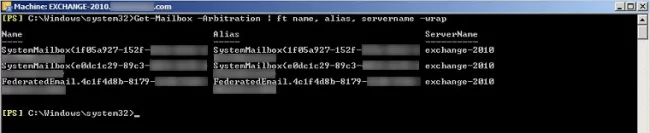
The importance of the system mailbox makes it an integral part of the upgrading process for Exchange Server, and you can migrate it using EAC or Exchange Management Shell.
Why Move Arbitration Mailbox from Exchange 2010 to 2016
When the arbitration mailbox is still hosted in an old Exchange server or does not reside in the newest Exchange version, the following issues may be encountered:
- Exchange Admin Center (EAC) features won’t work correctly.
- eDiscovery searches will fail for new or migrated mailboxes.
- Mailbox move requests may be hindered or fail.
- Administrator audit log searches.
- Audit report requests will be cut off.
Microsoft specifically recommends to move arbitration mailbox to the newest Exchange version (e.g., Exchange 2016) in the organization.
Note: Here are some scenarios that you will face if you do not move the system mailbox.
- In Exchange Management Shell of Exchange Server 2016, when you run the Search-AdminAuditLog command to access the administrator audit log, but you will get an error that mentions that you cannot create an Administrator log search as the SystemMailbox is present on a server that is not running Exchange 2016.
- You cannot run an eDiscovery search using either the Exchange Admin Center or Management Shell. As you create and queue them, they will not start. An error is logged in the MSExchange Management log with the Event ID 6. The error states that Start-MailboxSearch failed. You can conduct the search using the Shell commands in Exchange Server 2010.
How to Move System Mailbox to Exchange Server 2016 using EAC
Here is how to move arbitration mailboxes to Exchange 2016. Just login to Exchange Admin Center and follow the upcoming steps:
- Go to Recipients>>Migration>New (+).
- Click ‘Move to a different database.’ It will open the ‘New local mailbox move’ page.
- Click ‘Select the users that you want to move.’ Then click Add (+).
- At the ‘Select Mailbox’ page, including the system mailbox which has following properties:
- The mailbox name is Microsoft Exchange.
- The alias name for mailbox is SystemMailbox{e0dc1c29-89c3-4034-b678-e6c29d823ed9}.
- Click OK. Then click Next.
- A new page is ‘Move Configuration’ where you need to type of name for the migration batch. Click the option ‘Browse’ to select the Target database box.
- Add the mailbox database at the ‘Select Mailbox Database’ page. Verify that the new version of a chosen mailbox database is Version 15.1, which validates that the database belongs to the Exchange Server 2016. Click OK, then click Next.
- The next page is ‘Start the batch.’ Here choose all the options to start the migration automatically and fulfill the migration request.
- Finally, click New.
- Go to Recipients, then tap on Migration.
- Select the move request to view its status.
- Wait until the status changes to Completed or Completed with warnings.
Move system mailbox to Exchange Server 2016 using Exchange Management Shell
You need to run several commands to complete the migration to Exchange Server 2016:
Run the following command:
The command shows the name of the database and its version. When you are sure about the version of the database, then run the next command.
In the last step, you can check the status of arbitration mailbox using the following command.
If the value of the AdminDisplayVersion is version 15.1, then it shows the arbitration mailbox belongs to Exchange 2016 Server.
After successful completion, you can easily perform multiple administrative tasks, such as
- Running the Search-AdminAuditLog command.
- Export the administrator audit log using the EAC.
- Create and perform an eDiscovery search in Exchange Server 2016.
Concluding Words
The arbitration mailbox in Exchange Server is of great importance. If you do not migrate the arbitration mailbox and other system mailboxes, then many features will not work, and you will not be able to work on Exchange properly. At the time of Exchange 2010 to 2016 migration, you need to migrate the arbitration mailbox separately, which is not attended by many.
To help you with this, step by step process for EAC & EMS is given. But the Kernel Migration for Exchange makes the migration process easier and hassle-free. It is a simple Exchange Migration tool that can access the whole database and migrate to a different Exchange Server. It conducts the migration as per your schedule and provides a complete migration report.
Frequently Asked Questions (FAQs)
A: Arbitration mailboxes are specialized yet hidden system mailboxes in Exchange that help to function:
1. Administrator audit logging
2. eDiscovery (In-Place eDiscovery)
3. Mailbox migration metadata
4. Approval workflows (moderated recipients)
5. Exchange-generated audit reports
6. Organization metadata
A: A typical sequence to migrate arbitration mailboxes from Exchange 2010 to 2016 involves:
1. Install Exchange 2016.
2. Configure coexistence (URLs, certificates, namespaces).
3. Transfer arbitration mailboxes to Exchange 2016.
4. Move test user mailboxes.
5. Migrate all user mailboxes.
6. Move public folders (if applicable).
7. Decommission Exchange 2010.
A: You may experience below features:
1. Exchange 2016 administrative functions work correctly.
2. eDiscovery and compliance features operate properly.
3. The administrator audit logging functions correctly.
4. Mailbox migration processes work as expected.
5. You avoid issues when managing the organization from Exchange 2016.