Read time: 6 minutes
Summary: Uninstalling Microsoft Office 365 from PC is simple if you follow the right method. You can uninstall Office from PC using Windows settings, Control Panel, Microsoft support tool, or using the command prompt as well. Here, we will explain all the methods with their proper steps, including how to completely remove Office 365 on Windows 11 and Mac devices. But do consider keeping Office 365 backup beforehand, to avoid loss or business disruptions.
Microsoft Office 365, now known as Microsoft 365, is widely used for Word, Excel, PowerPoint, Outlook, and many other feature-rich & productivity applications. However, many users often need to uninstall Office 365 from their PC due to system errors, performance issues, and many other reasons.
Unlike other applications, simply clicking on uninstall is not enough. Office file and background services may still remain in the system, which may cause reinstallation errors or license activation issues later. That’s why it is important to know how to uninstall Microsoft Office 365 completely.
Here you’ll get a clear stepwise process/method to uninstall Microsoft Office from PC and practical tips to make sure that Office 365 is removed with no other issues. You’ll also get a dedicated backup solution that will help you keep your Office 365 data accessible forever. Let’s get started now!
When Should You Uninstall Office 365 from PC:
There are many scenarios that compel you to uninstall Microsoft 365 from your PC. Some of them are as follows:
- Office apps won’t open and crash frequently.
- Activation/subscription error keeps appearing.
- Installing a different Office version.
- Your PC is running slowly.
- The office installation got corrupted.
- Need to remove Office 365 subscription from PC.
Points to Consider Before Uninstalling Office 365
Before uninstalling Office 365 from PC, taking a few precautionary steps can save you from issues like data loss, unnecessary downtime, etc. Some steps are as follows:
- Secure your data first. Before doing anything with Office 365, make sure that your data, like important emails, docs, files, etc., is fully protected. However, using a dedicated Office 365 backup tool would be more helpful and beneficial for doing the same.
- Access your Office 365 subscription status: The Microsoft 365 plan won’t be cancelled if you uninstall Office. If you no longer need the service on the PC, you should manually remove the Office 365 subscription from PC. By doing so, you can also avoid unwanted charges.
- Close all Office 365 applications: Since Microsoft 365 provides separate applications like Word, Excel, Outlook, etc., make sure these are fully closed before uninstalling, otherwise you’ll get errors. Moreover, running such applications may freeze and ruin the uninstall process.
- Plan for Reinstallation beforehand: If you need to reinstall Office later, note down your Microsoft account credentials. Because reinstalling requires the same account used during the original setup.
After considering these points, you’re now ready to uninstall Office from your PC.
How to Uninstall Microsoft Office on Windows 11?
Uninstalling Office from PC is easier and error-free with the right methods. Here are a few of them given:
Method 1. Uninstall Office 365 from Windows Settings
If you’re a Windows 11 user, you can follow the steps below to install Microsoft 365 effectively. Follow these:
- Press Windows+I to open Settings. Go to Apps.
- Tap on installed Apps and select Microsoft 365 or Office.
- Click on the three dots next to it and tap on Uninstall. Click Uninstall again to confirm.
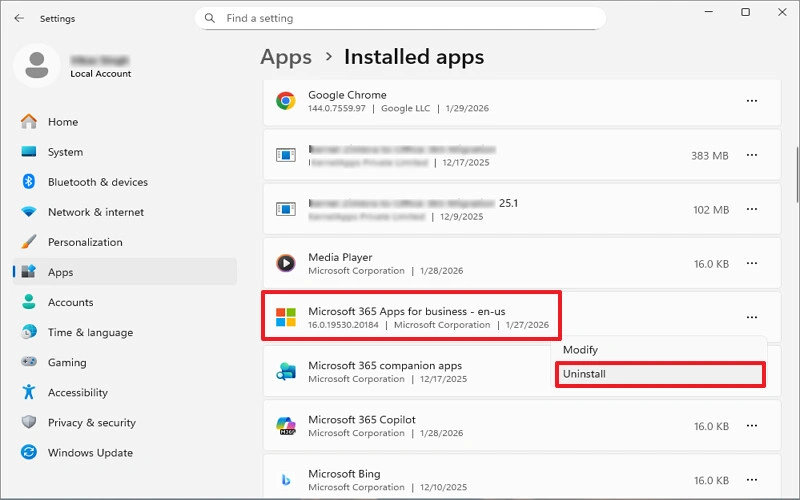
After that, restart your PC, and check for the results.
Method 2. Uninstall Office from a PC via Control Panel
Using the Control Panel is also an easier and recommended way to completely remove Office 365 from PC. Here are the steps to follow:
- Press Windows+R and type Control Panel. Press Enter.
- Open Programs and Features and look for Microsoft 365.
- Right-click on that and choose Uninstall, and follow the on-screen instructions.
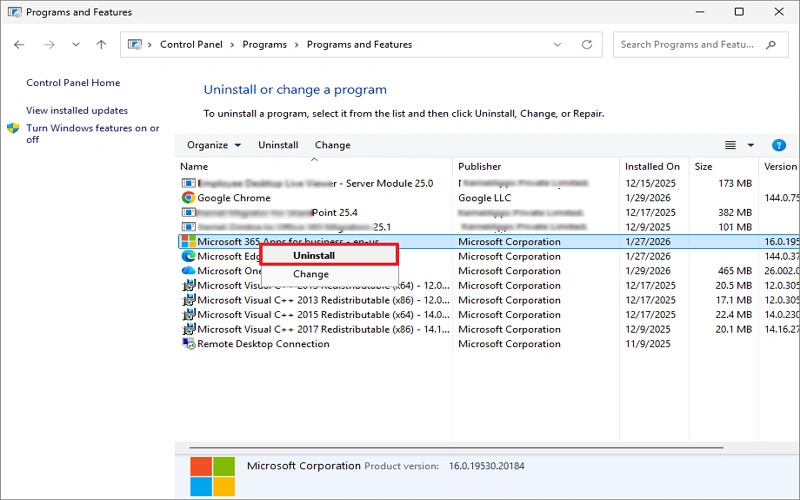
After following these steps, restart your PC. Your Office will be removed from the PC.
Method 3. Remove Office 365 using the Microsoft Support Tool
As per Microsoft, the SaRA (Microsoft Support and Recovery Assistant) tool is recommended to deal with Office 365 issues if you’re using the enterprise version. Here are the steps to uninstall Microsoft Office 365 using SaRA:
- Download Microsoft Support and Recovery Assistant and install it on your system.
- Open the tool, select Office and tap on Uninstall Office.
- Sign in using credentials if asked and select the version to remove.
Once the process is completed, restart your PC immediately. It will remove Office 365 completely.
Note: After uninstalling Office, leftover files may still exist, so remove them to protect your system from future issues while reinstalling Office. For that, follow the steps below:
Open File Explorer, go to the file path below and delete it:
- C:\Program Files\Microsoft Office
- C:\Program Files(x86)\Microsoft Office
- C:\ProgramData\Microsoft\Office
After that, press Windows+R, type regedit, and remove Office-related registry keys. Restart the PC.
How to Uninstall Office 365 on Macintosh?
If you’re a Mac user and have Office installed, you may also need to remove that. Before uninstalling Office from Mac, make sure that all Office applications (Word, Excel, PowerPoint, Outlook, etc.) are closed. Now, follow the steps:
- Go to the Applications Folder, open Finder, and click on Applications.
- Drag and drop Office Apps (Microsoft Word, Excel, PowerPoint, etc.) to Trash.
Note: Alternatively, right-click on the application and select Move to Trash.
- After that, Click on the Trash icon.
- Right-click and choose Empty Trash to delete Office from your Mac.
After emptying the Trash, restart your Mac to complete the removal process.
Conclusion
Now that you know how simple uninstalling Microsoft Office is. With these effective methods, you can effectively remove Office from PC. For simple removal, you can use Windows Settings or the Control Panel accordingly. But for stubborn issues, the Microsoft Support tool is recommended. Also, restart your PC just after uninstalling Office to remove the residue file and protect your system from further issues during installation.
Besides, keeping a backup of your Office 365 data is a top practice to follow, and you can do it using the professional Office 365 backup tool. Kernel Office 365 Backup and Restore is one such reliable and automated solution to accomplish backup tasks. You can also use its free trial version to check the efficiency of features and capabilities. Download today!
Frequently Asked Questions
No, uninstalling Office 365 only removes the application from the PC. User account and license remain active in Microsoft 365. Admins remove deleted users from Office 365 manually to permanently clean up unused or deleted users.
No, the user license remains assigned even after Office is removed from the PC.
You can use the Control Panel, Windows Settings, Command line, or the Microsoft Support and recovery tool to uninstall Office from PC effectively.