Read time: 9 minutes
Titan Mail may be a good option for a small team. But sooner or later, you have to move to a more reliable email server, like Google. To transfer Titan Mail to Gmail account, you can try a mix of approaches (manual & automated). The final answer depends on your needs. If it’s a temporary thing, you can go with the auto-forward option or use an email client to move the emails. But for a more permanent fix, try the mail add feature of Gmail.
Moreover, there is also the option to use an advanced IMAP to Google Workspace tool, which allows selective as well as complete mailbox migration. Read the blog to learn about all working methods. But first, let’s see why users generally migrate from Titan to Gmail.
Why Transfer Titan Mail to Gmail?
Here is why most of my clients make the switch from Titan Mail to Gmail:
- The Spam Filter: Google has the best spam filter on the planet. Titan is okay, but it often lets through annoying spam emails or sometimes blocks real important emails.
- Mobile Experience: The Gmail mobile app is better optimized and works really smoothly in comparison to the Titan Mail app. Furthermore, Gmail search capability is far better than Titan.
- Docs and Drive Integration: In Gmail, an attachment is just a click away from being a Google Doc. In Titan, it is a file you have to download, save, and upload again.
- More Uptime: Titan is reliable, but Google is Google. It’s almost always available, and even if Gmail goes down, it will be only for a few hours max, due to their multiple server model.
- Add-on Ecosystem: Gmail has thousands of plugins that offer easy email tracking, meeting scheduling, and much more. Moreover, the Gemini integration is opening new ways of accessibility for users.
Things to Do Before You Transfer Titan Mail to Gmail
For an error-free email transfer process, do this:
- Get the IMAP and POP3 configuration details of Titan Mail
- Backup your Titan Mail mailbox to prevent the risk of data loss.
- Check the emails and remove obsolete emails and large attachments to speed up the transfer.
- Export your Titan Mail contacts. The manual methods may skip them.
Methods to Transfer Titan Mail to Gmail – Top 2 Ways
To migrate emails from Titan to Gmail, use the methods given below:
Method 1: Use Gmail’s Add a Mail Account
This pulls mail from Titan into Gmail. It is free but has limits, like it does not retain the folder structure. The steps to carry out this method are:
Step 1. Log into your Gmail account. Click the Gear icon > See all settings.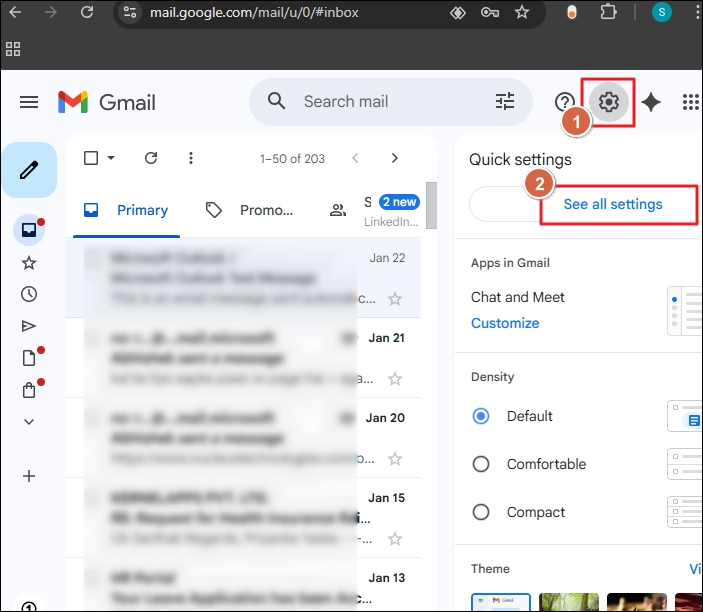
Step 2. Go to the Accounts and Import tab. Look for “Check mail from other accounts” and click Add a mail account.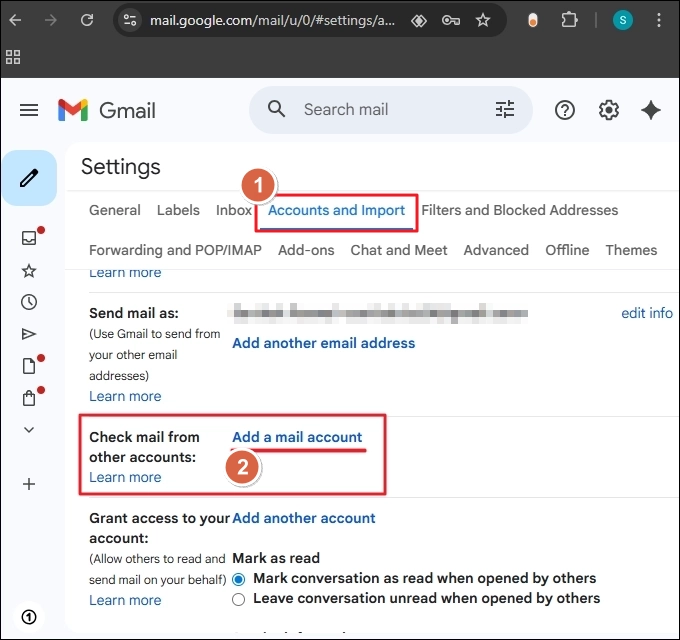
Step 3. A yellow window pops up. Enter your Titan email address. Click Next.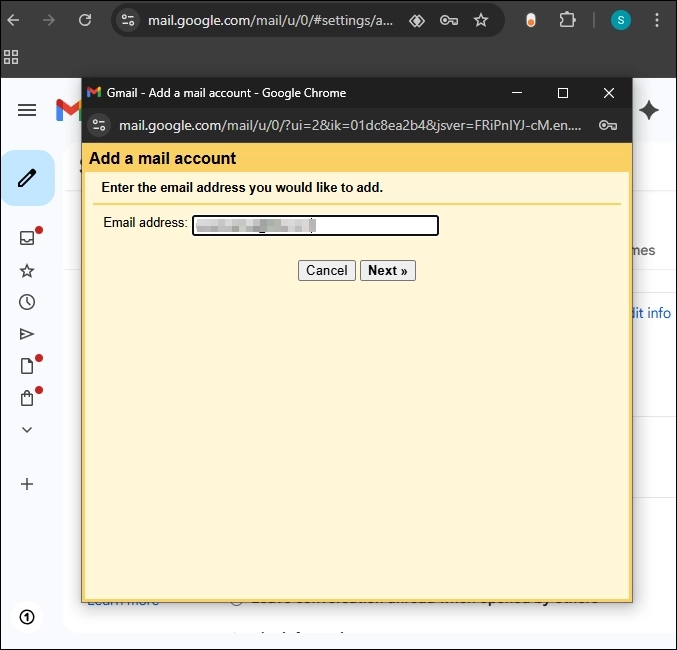
Step 4. Choose Import emails from my other account (POP3) and click Next.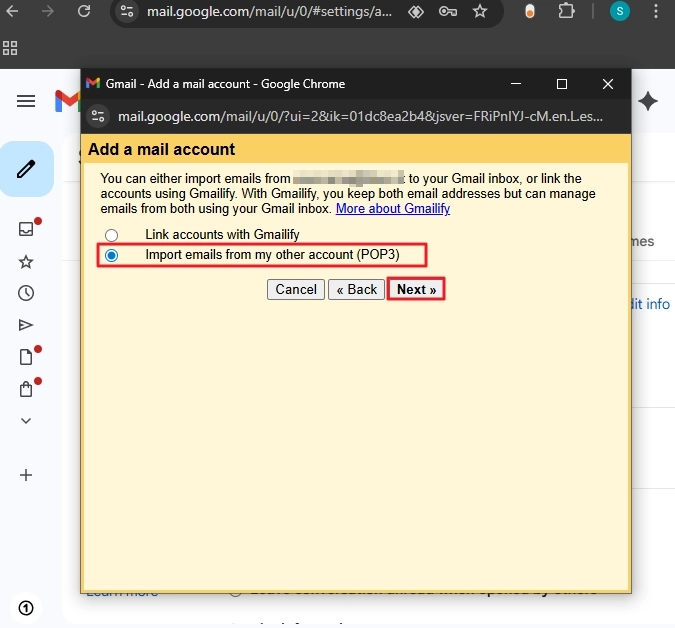
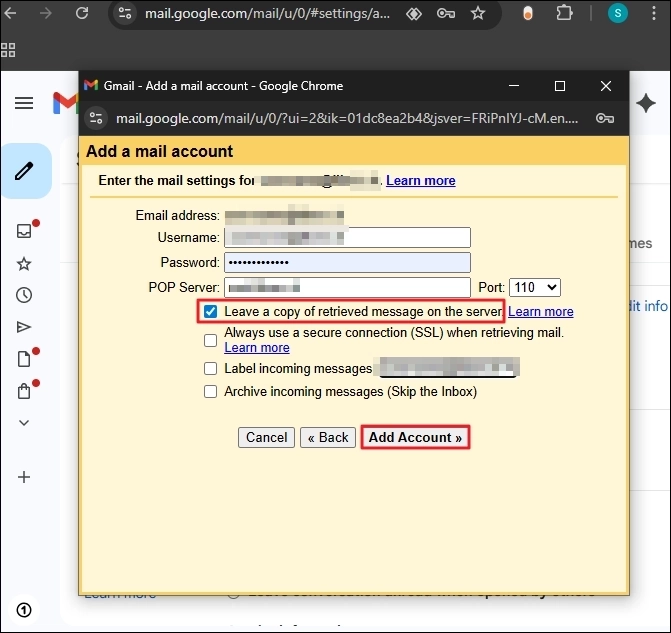
Step 5. Enter these specific settings:
- Username: Your full Titan email address.
- Password: Your Titan password.
- POP Server:titan.email
- Port: 995
- Check these boxes: Leave a copy of retrieved messages on the server and Always use a secure connection (SSL).
- Finally, click Add Account.
Step 6. You can opt to use the Titan Mail to send emails or not. Choose as per your need and click Finish.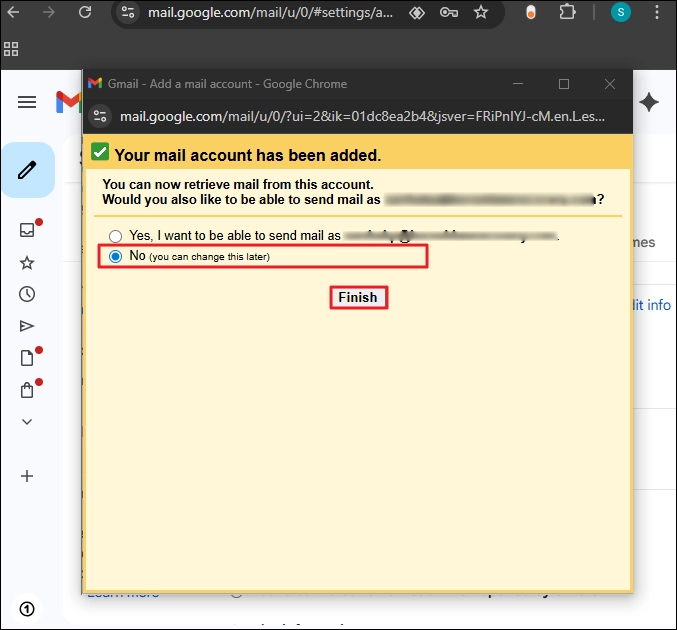
Gmail will now connect to the source account and start Titan Mail to Gmail migration. This can take days if you have a lot of mail.
Method 2: Use a Professional-Recommended Tool – Kernel IMAP to Google Workspace
When I have a client with 50 employees or a massive 20GB mailbox, I don’t trust POP3. It times out too often. I use a dedicated tool like Kernel IMAP to Google Workspace migration tool.
Why this tool is better?
- Complete Mailbox Transfer: Unlike the native methods, this tool allows you to move your emails, contacts, calendar entries, & other Titan Mail mailbox components
- Keep the Folder Structure: It keeps your hierarchy. If you had a folder called “Invoices/2023”, it appears in Gmail as “Invoices/2023”.
- Bulk Move: Best for bulk email migration to Google Workspace. Move ten user accounts at once using a CSV file method without configuring each account manually.
- No Duplicates: It comes with an Incremental migration feature. If you run the migration twice, it won’t copy the same email again and only move the new data item.
How to use the software to migrate emails from Titan to Gmail:
Step 1. Download, install, and open the tool. Select IMAP to Google Workspace option.
Step 2. Click on the Add button under the Add Source section.
Step 3. Enter the Titan Mail IMAP details:
- Server Name: imap.titan.email
- User Email: Titan email address
- Password: Your account password.
- Port: 993
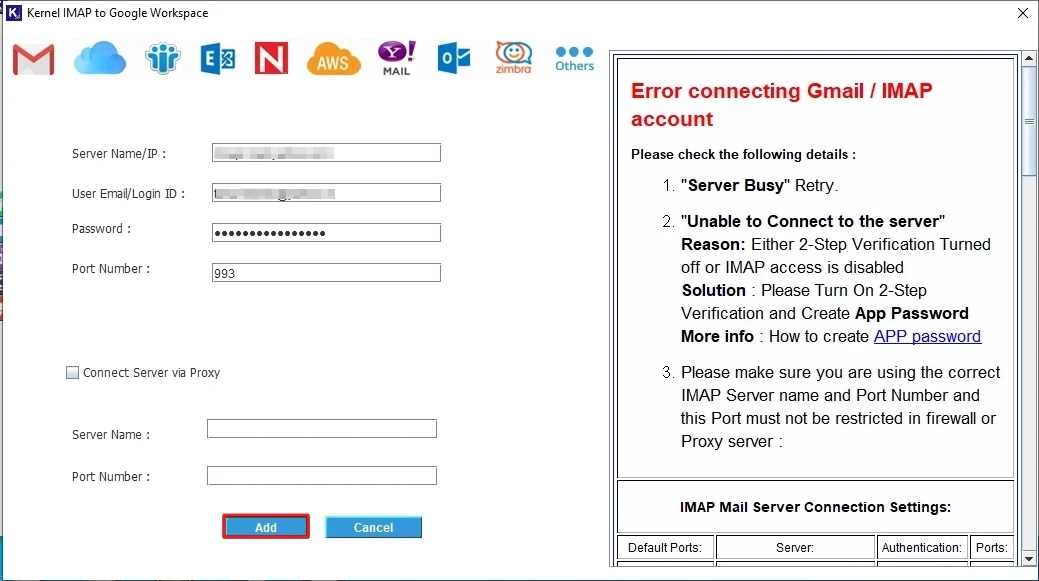
Note: If connection failed, try disabling Titan Mail 2FA (if enabled) and try again.
Step 4. After adding the source, click Add under the Add Destination tile.
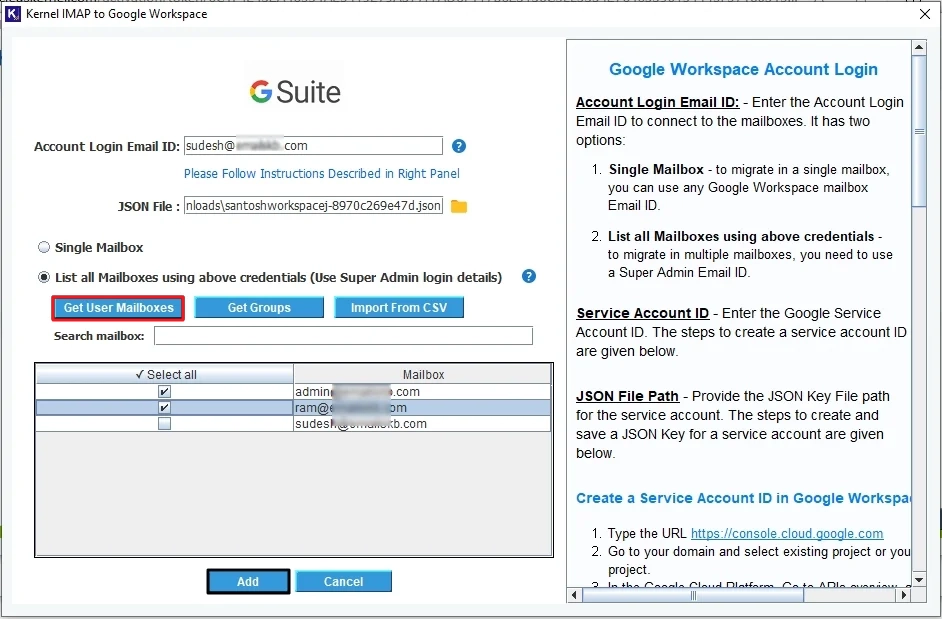
Step 5. Provide the login credentials and choose:
- Single Mailbox: To transfer Titan Mail to Gmail’s single mailbox.
- List all Mailboxes using above credentials: To move emails to more than one mailbox. Click User Mailboxes, select the mailboxes, and click Add.
Step 6. Map the source & destination mailboxes and click Set Filter and Migrate.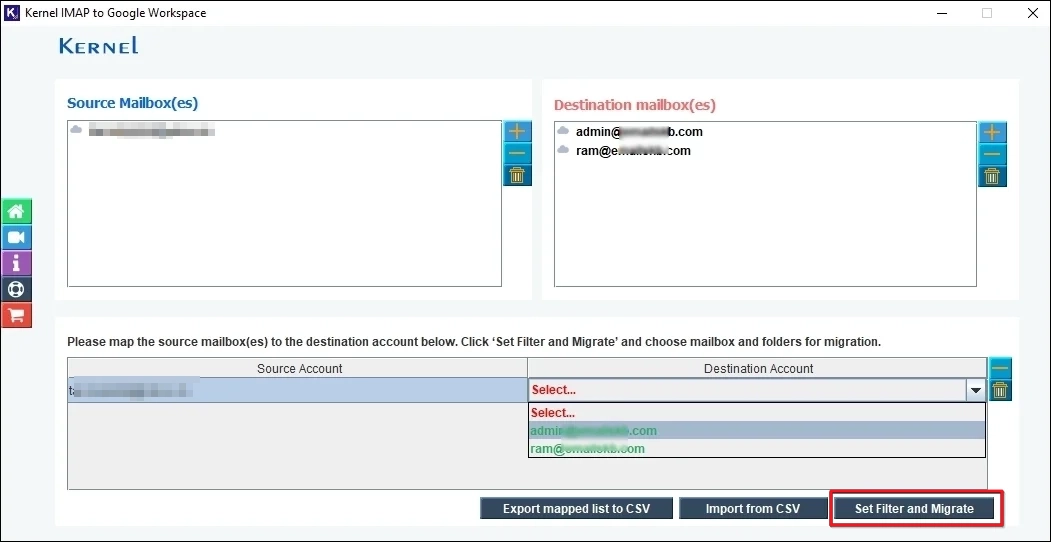
Step 7. Apply filters as per your requirement and then click I’m OK, Start Migration.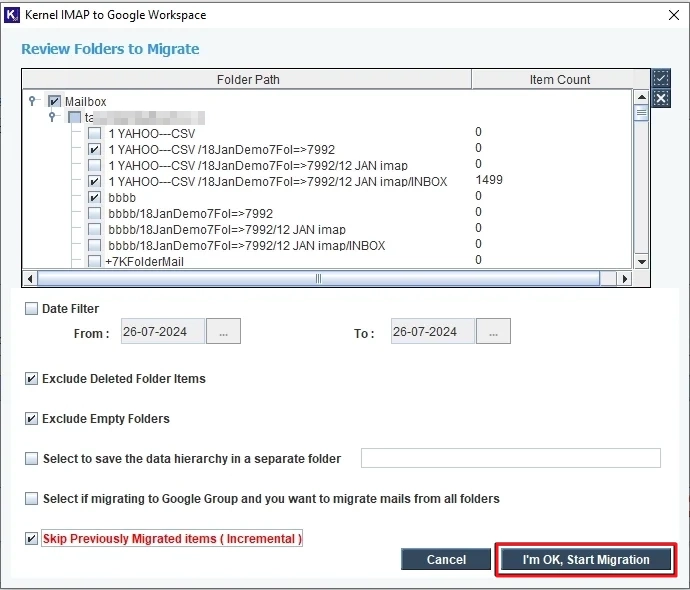
Step 8. Titan Mail to Gmail migration will start. After completion, you will receive a confirmation message.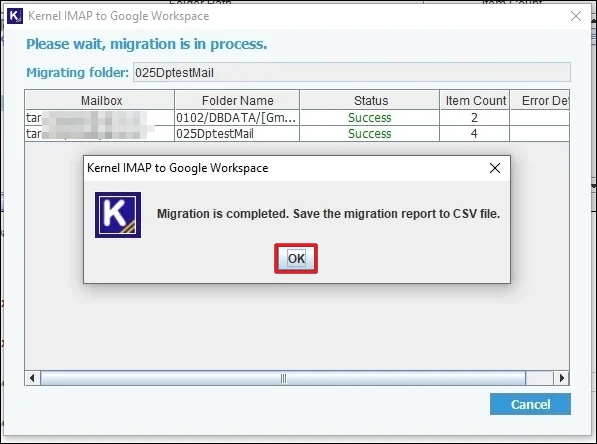
Step 9. To save a report (in CSV format), click Save Report to CSV and provide the location to download the file.
Quick Ways to Migrate from Titan to Gmail
If you only have a few emails to move and you don’t care about old folders or emails, use these methods.
Method 1: Email Forwarding
This doesn’t move old emails. It only sends new ones to Gmail. Here’s how to do so:
Step 1. Log into Titan Webmail. Click the Gear Icon (Settings) and go to Preferences.
Step 2. Find Forwarding tab and select the Add option for Forward OUT.
Step 3. Enter your Gmail address. Titan will send a verification code to your Gmail.
Step 4. Get the code and paste it back into Titan Mail window. Finally, click Start Forwarding.
Method 2: The Drag-and-Drop
This can move old + new emails, but you need an email client for this. I am using Outlook; you may use any IMAP-supported email client.
Step 1. Add your Titan Mail account and Gmail account to Outlook.
Step 2. Open your Titan Inbox in Outlook.
Step 3. Select the emails you want to migrate from Titan to Gmail.
Step 4. Right-click, go to Move > Copy to Folder.
Step 5. Choose the Gmail Inbox or any other folder and click
Comparison: Native Way vs. IMAP Migration Tool
Here is the reality check on how these methods compare during Titan Mail to Gmail migration.
|
Feature |
Manual Gmail Import (POP3) |
Kernel IMAP Tool |
|
Folder Structure |
Lost (Everything goes to Inbox) |
Retain original folder hierarchy |
|
Sent Items |
Often missing |
Included |
|
Speed |
Slow (Google controls the speed) |
Fast (Uses full bandwidth) |
|
Large Attachments |
Times out on large attachments |
Reliable for all types of attachments |
|
Bulk Users |
Impossible (One by one) |
Easy (CSV Upload) |
Conclusion
Moving to Gmail is an upgrade. Use the simple methods discussed above and transfer Titan Mail to Gmail effortlessly. For selective migration go for email-forwarding or drag-&-drop method. To move all the emails at once, you can go with the Gmail’s import capability. However, the manual methods are slow and time-consuming. For quick Titan Mail to Gmail migration, use the professional IMAP to Google Workspace tool.
Frequently Asked Question
A: The port 993 is for IMAP configuration and best when you need to sync your emails. While the 995 is for the POP3 protocol, use it when you only want to download emails.
A: No. Both methods copy the data. Your Titan email stays active until you decide to cancel the subscription. You can receive mail on both during the transition.
A: Google deprioritizes these imports. The more emails you want to migrate from Titan to Gmail, the more time it will take. It is not broken; it is just slow.