Read time: 7 minutes
Summary: Office 365 mailboxes store your complete email data, including important client communications, progress statuses from the team, and a lot more. When an employee departs from the organization or moves to another team, as an administrator, you need to manage the mailbox data. For this, you might need to move Office 365 mailbox to another user. Learn from the article how to perform the transfer. Furthermore, scroll down to find Kernel Office 365 mailbox migration tool for an error-free transition.
When someone from an organization departs, their mailboxes become inactive, but the data stored within those mailboxes is still useful for other team members. These mailboxes store emails, contacts, calendar events, and other useful data required to maintain continuity in projects and client relationships. To provide the team members with data accessibility, you need to migrate Office 365 mailbox to another user.
Office 365 tenant to tenant migration of mailboxes requires a clear understanding of the user account and its data structure. The process can be overwhelming because it involves potential downtime and risk factors. Read this article to learn possible reasons and how to move mailboxes between Office 365 tenants.
Why move Office 365 mailbox to another user?
The reasons for migrating Office 365 mailboxes can vary from organization to organization depending upon the work objectives. Here are some of the common reasons demanding the transition:
- Departure of an employee: Whenever an employee leaves the organization, the data stored within the mailbox must be transferred to another user taking over the duties.
- Change of department: When organization change departments or teams for some of their employees, the mailbox data will also be required to migrate, so that the data and responsibilities can be reassigned.
- Business mergers: During mergers of two or more businesses, it is required to migrate mailboxes from one Office 365 tenant to another.
- Acquisition of businesses: When a company acquires another organization, they often want to move Office 365 mailbox to another user as per their policies.
- Change in subscriptions: When there are changes in the organization’s subscription plans, they might need the Office 365 move mailbox to another user to manage their email data.
Preparations before Office 365 transfer mailbox to another user
There are some preparations and arrangements that need to be done before transferring the data for a hassle-free data migration. Make sure to keep a note of them:
- Create licenses in the target Office 365 environment to accommodate user mailboxes migrated from the source.
- Create admin accounts in both source and target to transfer mailbox to another user Office 365.
- Communicate with the users to notify them of the upcoming Office 365 mailbox migration.
- Make your users understand how to operate with Outlook on the Web using the new credentials so that they know how to connect after migration.
- Verify and add the source domain on the destination email domain. Create TXT records in the Domain Name System for the verification.
- Take thorough backups of data in advance to avoid any possibilities of data loss.
How to transfer mailbox to another user Office 365?
There are two methods available that you can use to migrate the mailboxes between Office accounts. Here is the processes to follow:
Migrate Office 365 mailboxes using Outlook application
If you have installed Outlook application on your desktop, this method will help you migrate the mailboxes:
Step 1: Open Outlook and go to the File menu and click on Account Settings > Account Settings.
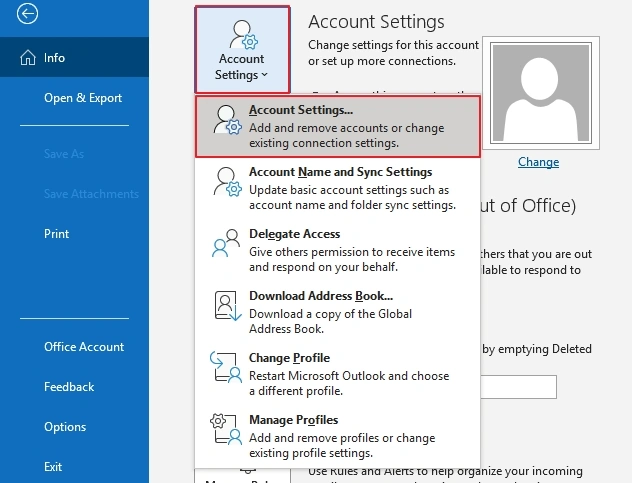
Step 2: Under the Email tab, click on New to add a new account.

Step 3: Enter the source email address and click Connect.
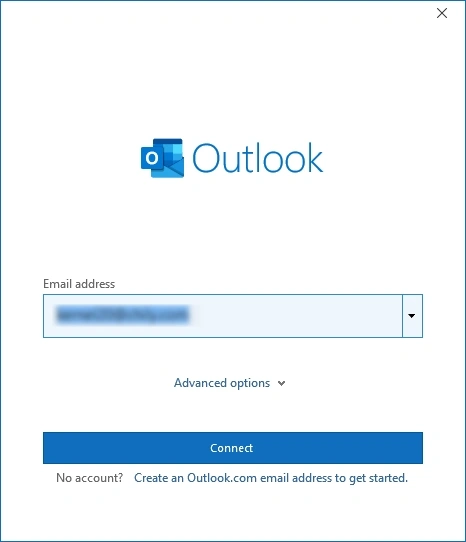
Step 4: Provide the password, and your account will sync with the Outlook application.

Step 5: Now again go to File, click Open & Export, and then Import/Export.
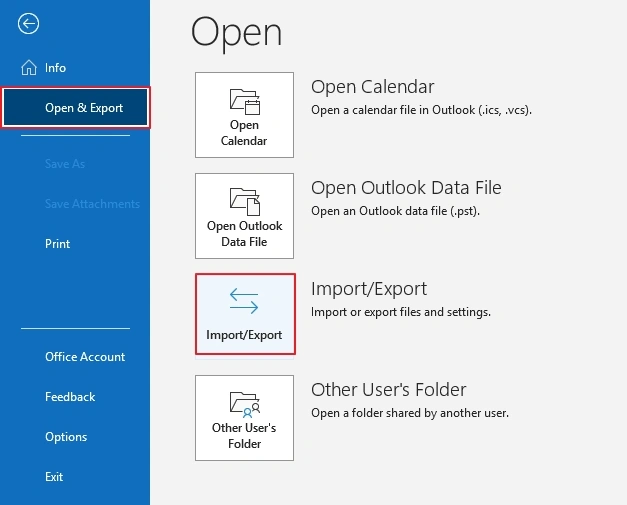
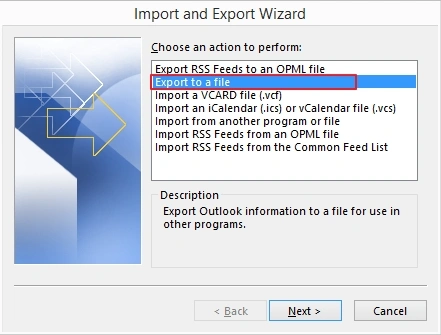
Step 6: Select Export to a file and click Next to select Outlook Data File (.pst) as the output file.
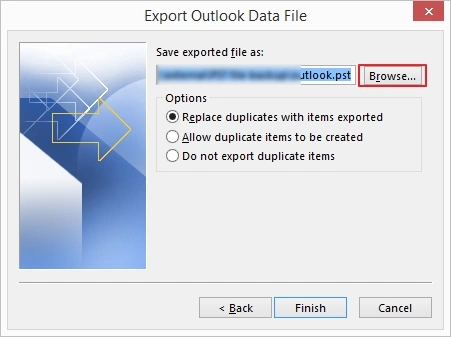
Step 7: Select the saving location by clicking on the Browse button. Click Next.
Step 8: Now, add the destination account using Step 1 to Step 4.
Step 9: Go to Import/Export and choose Import from another program or file. Click Next.
Step 10: Choose the source file you just saved and click Open to import the file to the destination account.
Move Office 365 mailbox to another user using Admin Center
With the Office 365 admin center, you can move mailboxes within the same tenant. Use this method when you have less than 10 accounts within a tenant. Follow the given steps:
Step 1: Login to Office 365 admin center using your global admin account.
Step 2: Go to users and click Active Users to select the user account to move.
Step 3: After selecting the users, click Mail.
Step 4: Select Manage email forwarding and then enable the Forward all emails sent to this mailbox option.
Step 5: Enter the destination email and turn on the required options. Click Save Changes.
However, to use this method, make sure you assign licenses to both users.
Shortcomings of manual methods
Some of the shortcomings of using the manual methods to Office 365 migrate mailbox to another user include the following:
- Requires technical knowledge and admin access.
- Cannot forward old emails, works only for future emails.
- Requires you to continue retaining the source account, which becomes quite costly.
- Adjusting forwarding email settings on multiple accounts can be time-taking.
Use Office 365 Migration Software: Expert recommended solution
Even though the manual solutions to migrate help to move the mailboxes to another user, there are some restrictions in using them. Being an Office admin, you cannot completely rely on such methods.
A reliable and efficient solution that will help you migrate office 365 mailbox to another user is Kernel Office 365 Migrator. The tool allows smooth data transfer from Office 365 components between two tenants irrespective of the data volume. Supports easy user mapping and incremental data transfer of primary, archive, and shared mailboxes to Office 365 users. It is also equipped with data filters to provide easy control over the data you migrate using the tool.
Download the tool and start your migration journey today for an error-free data migration!
Conclusion
With the manual methods as mentioned in the article, there are chances that you migrate the data to the desired users’ mailbox but with some limitations. You need to possess a technical understanding of the platform, and there are chances of data loss.
To avoid this, you need a reliable tool like Kernel Office 365 Migrator. Our tool will help you simplify the migration process and handle the structure and metadata efficiently under all circumstances. Moreover, you can also migrate Office 365 groups between user mailboxes using this tool.