Read time: 6 minutes
Outlook offers a built-in option to add attachments to email messages. Users can attach images, documents, videos, spreadsheets, etc., and send them to anyone without any issues. Sometimes, Outlook fails to load and show attachments, creating challenges for users. And for an uninterrupted workflow, it is mandatory to fix the issue of Outlook attachments not showing.
There are a few methods available to fix this problem, which we are going to discuss in this blog. First, let’s find out why attachments are not showing in Outlook.
Why Attachments Not Showing in Outlook : Key Reasons
Here is a list of some common reasons behind attachments not showing in Outlook issue:
- Slow or unstable internet connection
- Outdated Outlook version
- Antivirus or firewall interference
- Synchronization issues
- Corrupt Outlook profile
- Incorrect add-ins
- Damaged OST/PST file
- Security issues
- Disabled attachments previewer
Top Methods to Fix Outlook Attachments Not Showing Issue
Below are some methods listed to fix Outlook attachments not showing issue. Follow them carefully for a hassle-free experience:
Method 1. Temporarily disable Antivirus program
Sometimes, an antivirus program stops users from opening Outlook attachments. You can temporarily turn off the antivirus program and reopen Outlook to verify if it was causing the problem. If doing this resolves your issue, enable the antivirus after accessing your email attachments.
Method 2. Update the Outlook application
An outdated Outlook version might cause attachments not showing in Outlook issue. You can update the Outlook application to the latest version and get this issue resolved. Here are the steps to do so:
Step 1. Launch Outlook and go to File.
Step 2. Click on the Office Account button, then click Update Options >Update Now.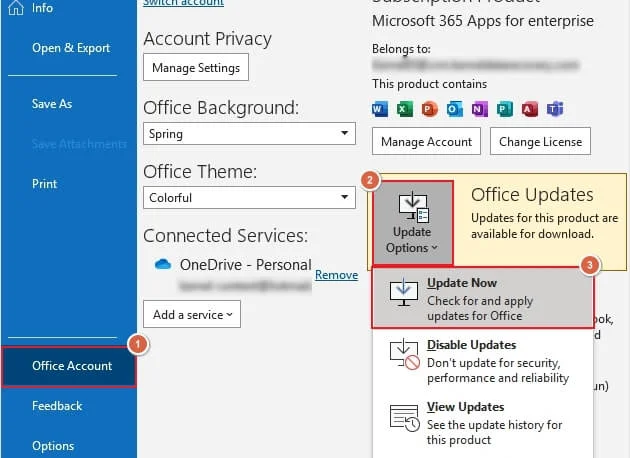
Method 3. Disable Outlook Add-ins
Sometimes, third-party add-ins may stop users from accessing their attachments in Outlook. Try to disable all the add-ins, then use Outlook and see if the issue is resolved. Here’s how to disable Outlook add-ins:
Step 1. In Outlook, go to File >Options.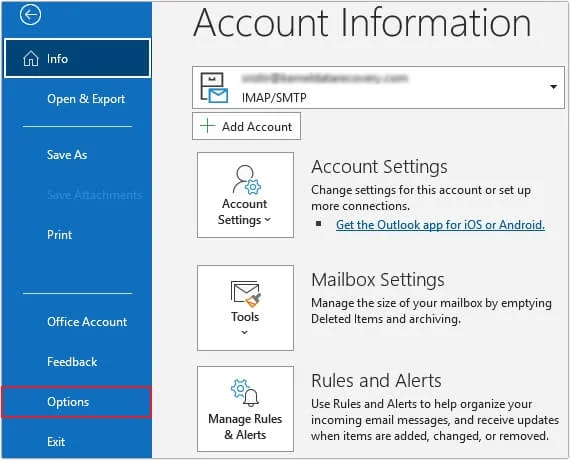
Step 2. Click on Add-ins, then click COM Add-ins >Go.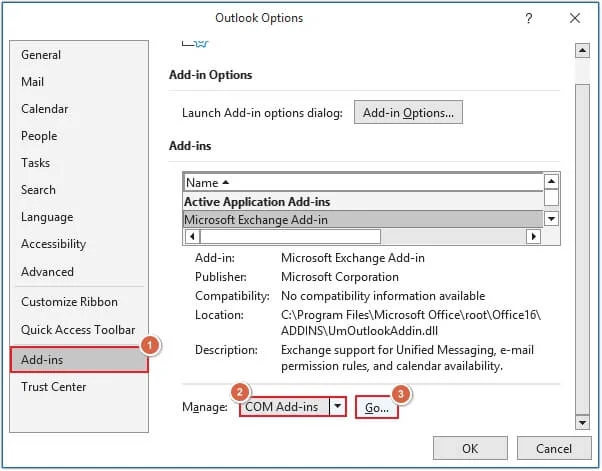
Step 3. Uncheck all the add-ins and click OK.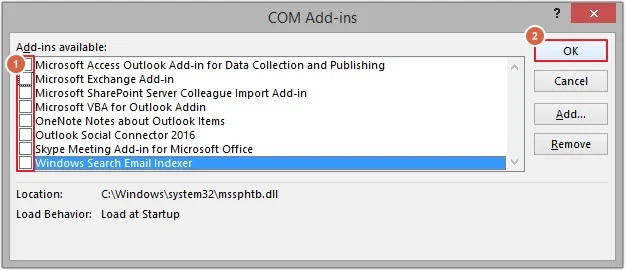
Step 4. Restart Outlook and see if attachments are visible or not.
Method 4. Verify Attachments Previewer settings
If the attachments previewer setting is turned off, then you might not be able to view attachments. Make sure all the necessary settings are correctly configured. Follow the steps below to verify the attachments previewer settings:
Step 1. Open Outlook and go to File, then click Options.
Step 2. Click on Trust Center, then open Trust Center Settings.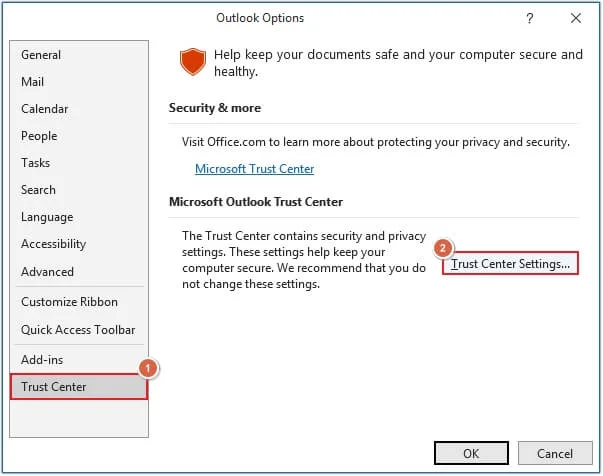
Step 3. Go to Attachments Handling and uncheck the Turn off Attachment Preview option (if selected), then click Attachments and Document Previewers.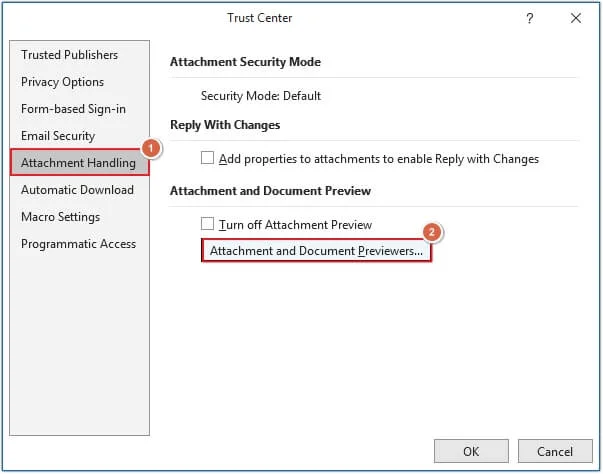
Step 4. Select all the File Previewing Options if not selected and click OK.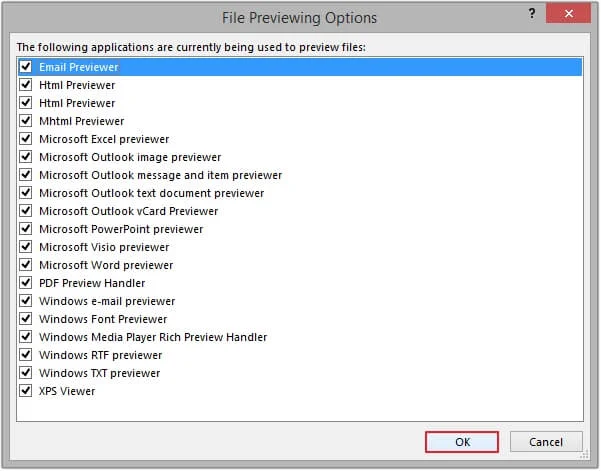
Method 5. Delete Cache files
If any Outlook cache gets corrupted, then it might also stop you from opening the attachments. Follow the steps mentioned below to delete old cache files:
Step 1. Press Windows+R keys on your keyboard to open the Run wizard and type %localappdata%\Microsoft\Outlook\RoamCache, then hit OK.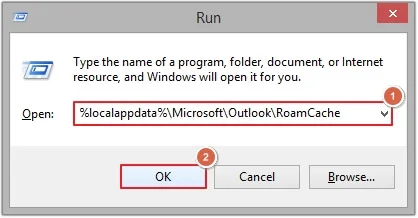
Step 2. Select all the Cache files and click on the Delete button.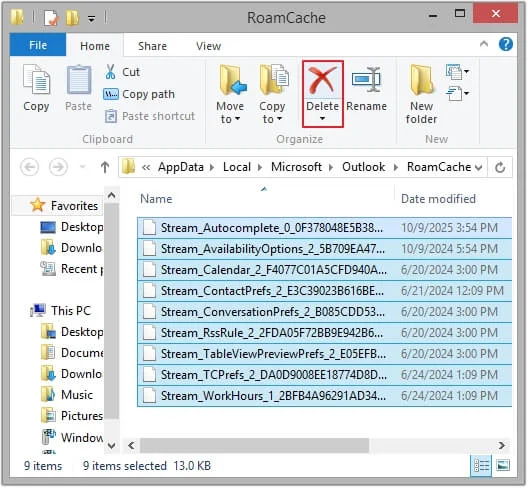
Step 3. Start Outlook again and see if attachments are visible.
Professional Tool to Extract Attachments Locally – Recommended Solution
If you still face the issue even after trying all these methods, then you need to use an automated Outlook Attachment Extractor software to extract and save all the attachments on your local system. The Kernel Outlook Attachment Extractor tool allows users to securely extract attachments with the same quality with 100% error-free process. The software puts forward multiple benefits to make the process smooth, such as:
- Allows adding multiple OST/PST files and Outlook profiles simultaneously.
- Efficiently extracts attachments from individual email messages or folders.
- Offers numerous filter options to search for specific email messages.
- Add OST and PST files of any size without any file size restrictions.
- Comes with conditional filters for precise email attachments extraction.
- Free trial version to extract 10 attachments per folder for free.
Conclusion
When Outlook fails to show attachments, this might be due to synchronization issues, a corrupted OST/PST file, a damaged Outlook profile, faulty add-ins, and many other reasons. You can resolve this issue with the help of the methods discussed in this guide. Furthermore, if the problem persists, we recommend using our Outlook Attachment Extractor tool to retrieve attachments and save them locally on your system.
Frequently asked questions
A. There are multiple reasons for attachments not showing in Outlook, such as faulty add-ins interference of antivirus or firewall, corrupted Outlook profile, internet issues, and more.
A. Yes, you can easily extract attachments from Outlook 2016 and other versions using the Kernel Outlook Attachment Extractor tool.
A. Yes, the Kernel Outlook Attachment Extractor tool is 100% safe to use.