Read time: 8 minutes
Google Workspace offers multiple apps to streamline workflow. Google Contacts is one of them, and it helps you to create, save, and access contact details in one place. In Google Contacts, you can save all the essential information, like phone numbers, email addresses, and other details for both personal and professional use.
In Google Contacts, you can easily update contacts, merge them and find any specific contacts instantly. It works across multiple devices and connects with Gmail and Android, which helps users stay in touch anytime from anywhere.
Occasionally, users need to back up Google Contacts for multiple reasons. Let’s discuss the prominent reasons when you need to export contacts from Gmail to your local machine.
Why export contacts from Gmail?
Check out some prominent reasons that insist users to backup contacts from Gmail or Google:
- Data Backup & Security: Create an offline copy of your contacts to safeguard them from account hacking or data piracy.
- Switching Email Providers: When you want to switch your email client or access your contacts in Outlook, Yahoo, or other services.
- Device Migration: Save all your Google contacts to access all your contacts when switching from Android to iPhone.
- Data Management: Export contacts from Gmail to manage multiple contacts in a single place to access your data offline.
- Sharing & Collaboration: Create a backup of all Gmail contacts to share them with ease, even when you cannot access your Google Contacts.
Now you know why exporting contacts from Gmail is essential for every user. Let’s find out all the possible solutions to quickly export contacts from Gmail.
Top Solutions to Export Contacts from Gmail?
You can find numerous solutions to export Google contacts. However, many of them are not working properly. Here we will list all the possible solutions that help you save Google contacts locally:
Solution 1: Download Google Contacts to PC using the Export feature
Google Contacts has an export feature that helps you download or backup specific or all Google Contacts to three file formats – Google CSV, Outlook CSV, or vCard (for iOS Contacts). Let us see the steps in the download process.
Step 1: Go to Google Contacts and log in to your account.
Step 2: The Google Contacts interface will be opened along with the Contact lists and details.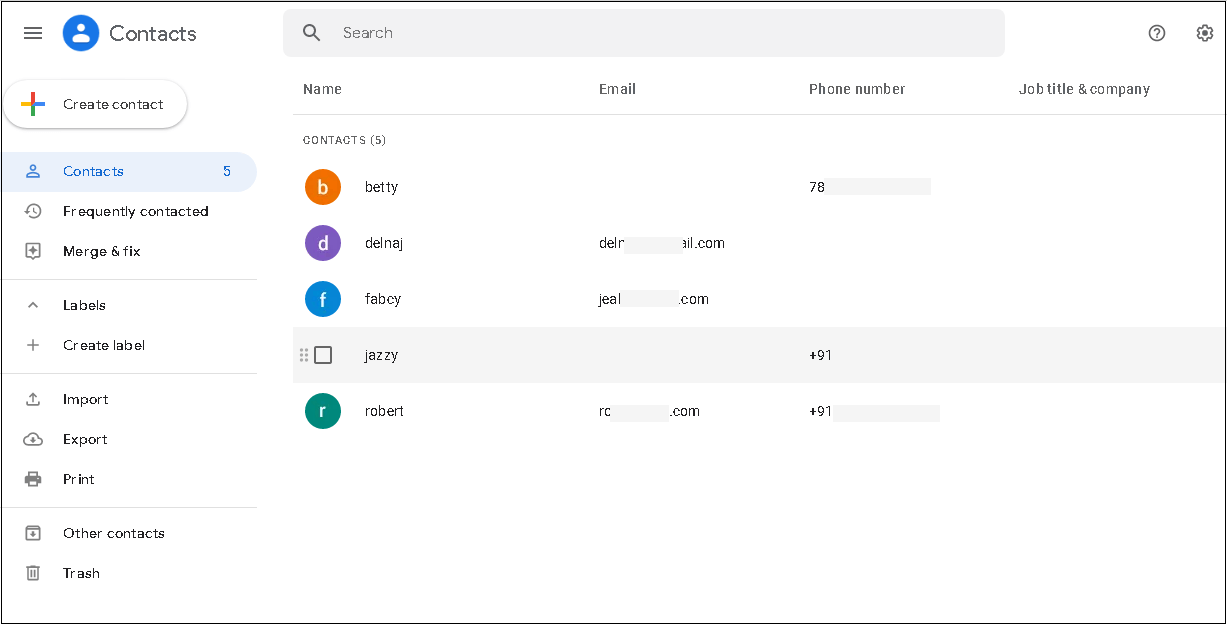
Note: You can easily backup single or multiple contacts as per your needs. For demonstrations, we will proceed with single or multiple contacts backup process one-by-one.
How to export single contacts from Gmail?
Step 1: Downloading a Single Contact: If you want to download a single Google Contact, select the specific single contacts using check box.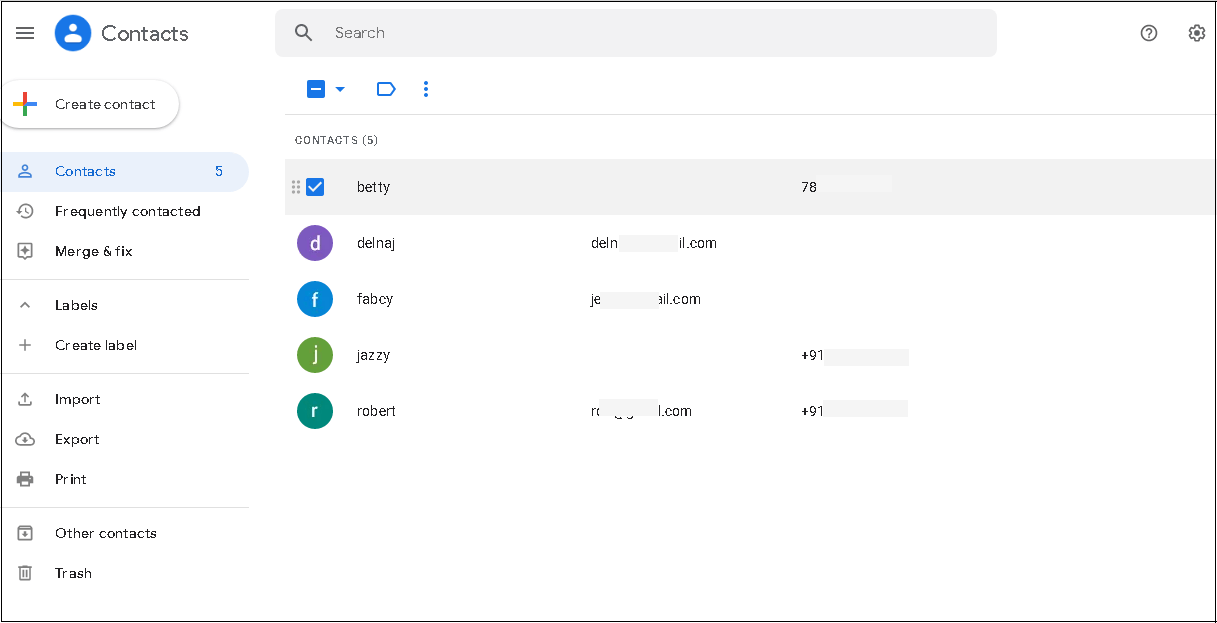
Note: Users can also visit the Frequently contacted option in the left panel to select the desired contact from the frequently contacted contacts list.
Step 2: Click on the More or 3 vertical dots at the top and select the Export option from the drop-down list.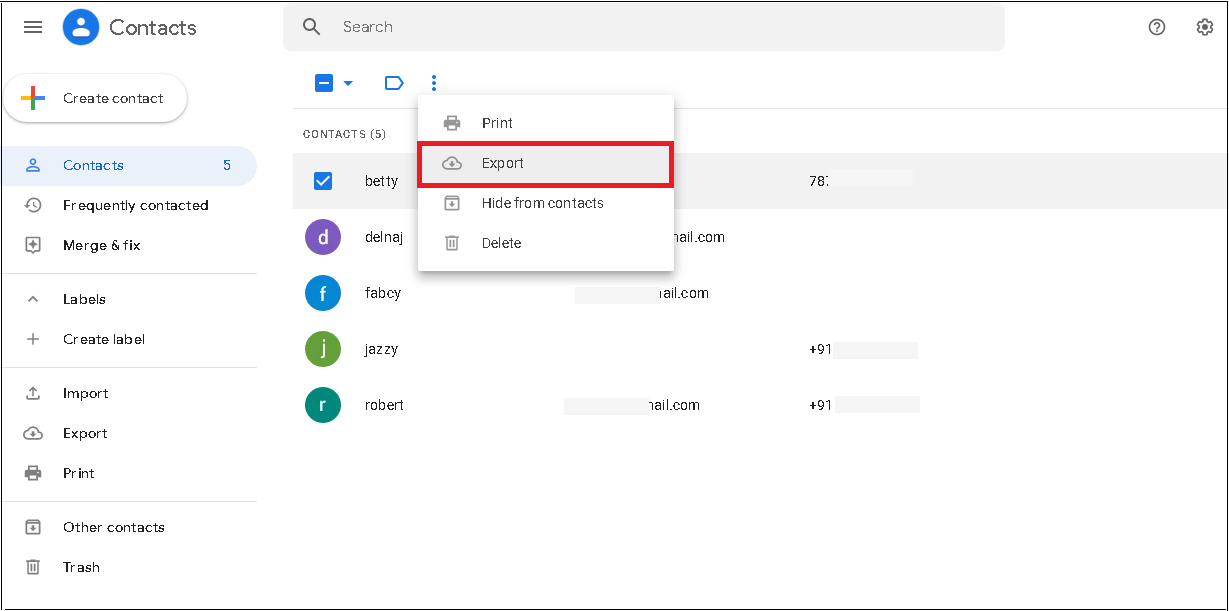
Step 3: Select one of the three export options – Google CSV, Outlook CSV, or vCard as per your requirement and click on Export.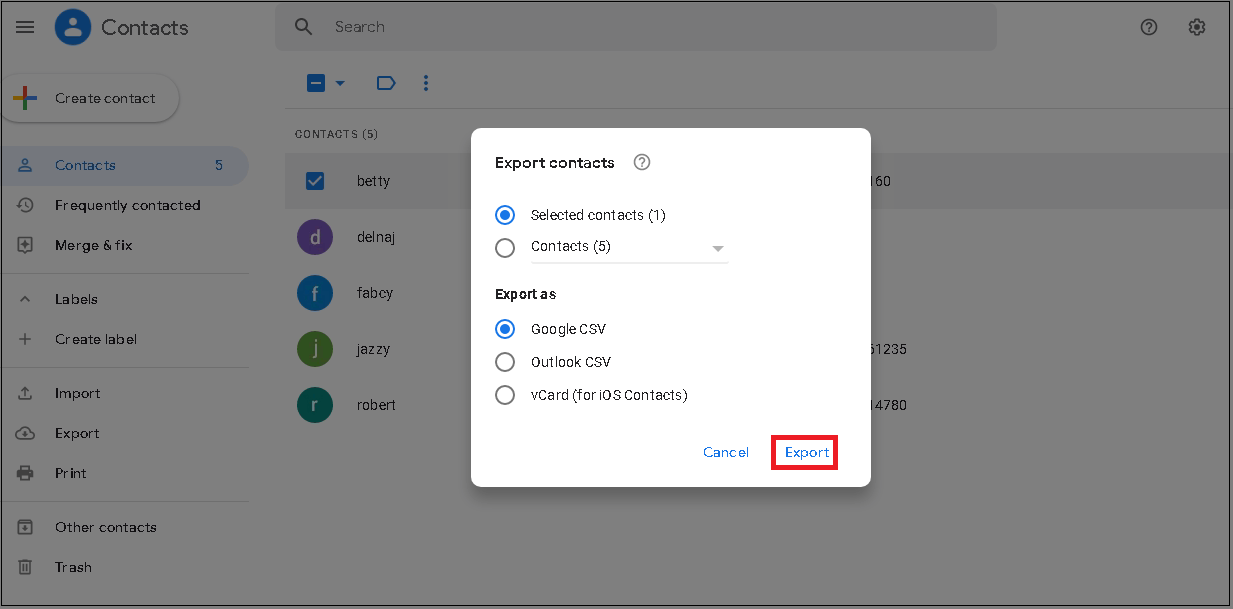
Step 4: As soon as you hit the Export option, the download will start. Now, access the downloaded file directly by clicking on the Open file option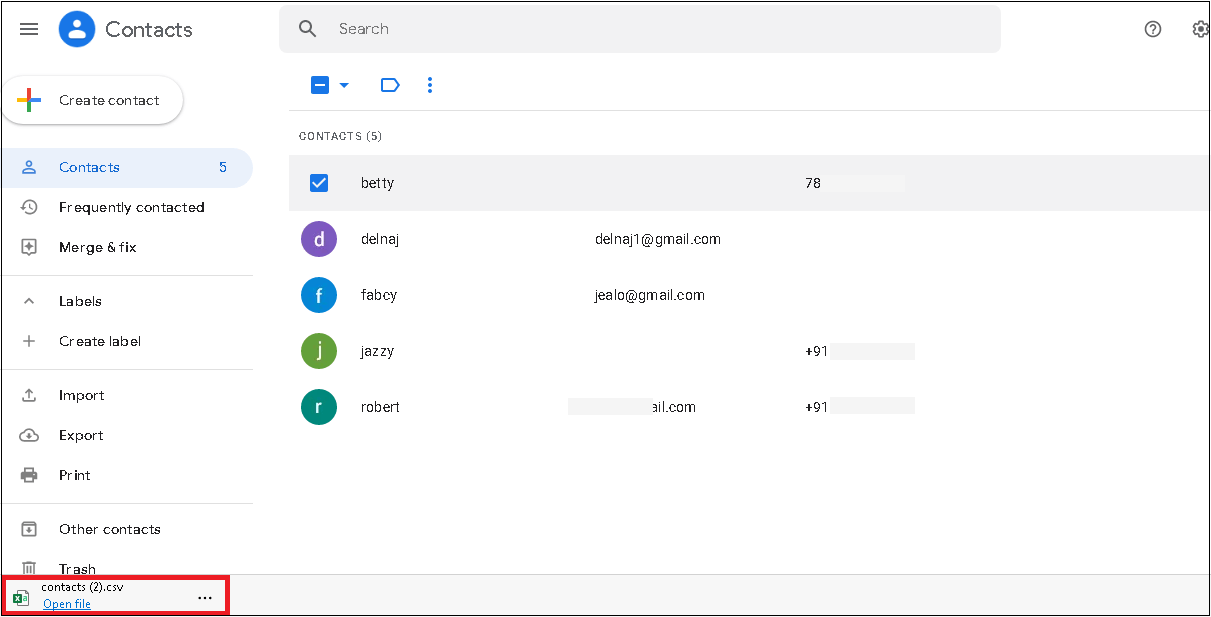
How to export multiple contacts from Gmail?
Step 1: Downloading Multiple or All contacts: To download multiple Google Contacts to your system, select all the required contact checkboxes.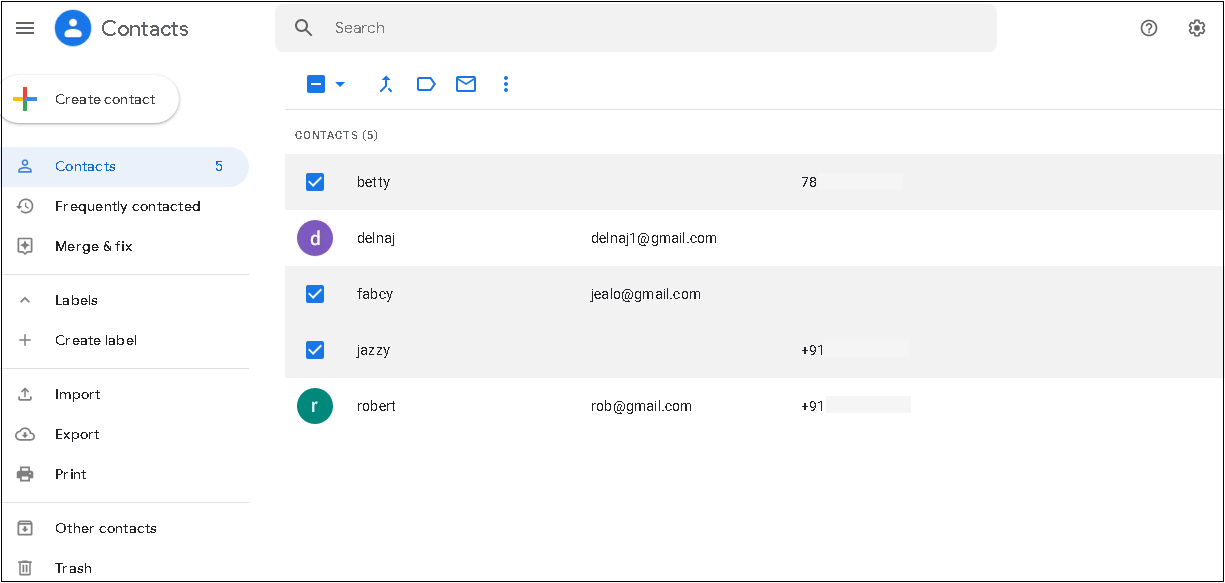
Step 2: To export all Google Contacts to your PC, select All in the expandable window, above contacts. It will select all your Google contacts.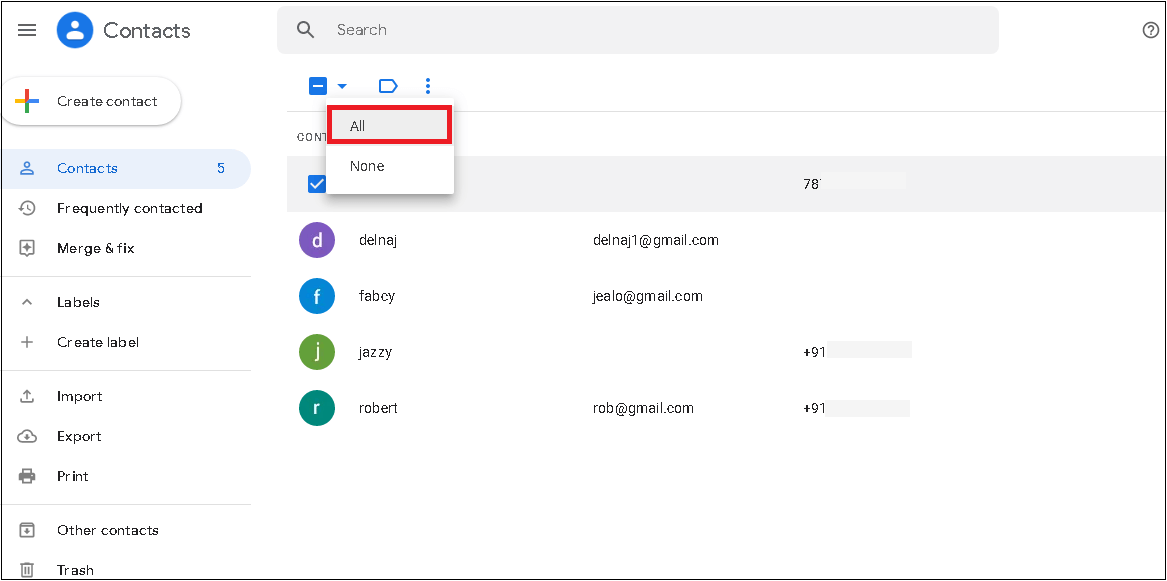
Step 3: Click on the three vertical dots or More option and select the Export option, or you can directly click on the Export option from the left panel.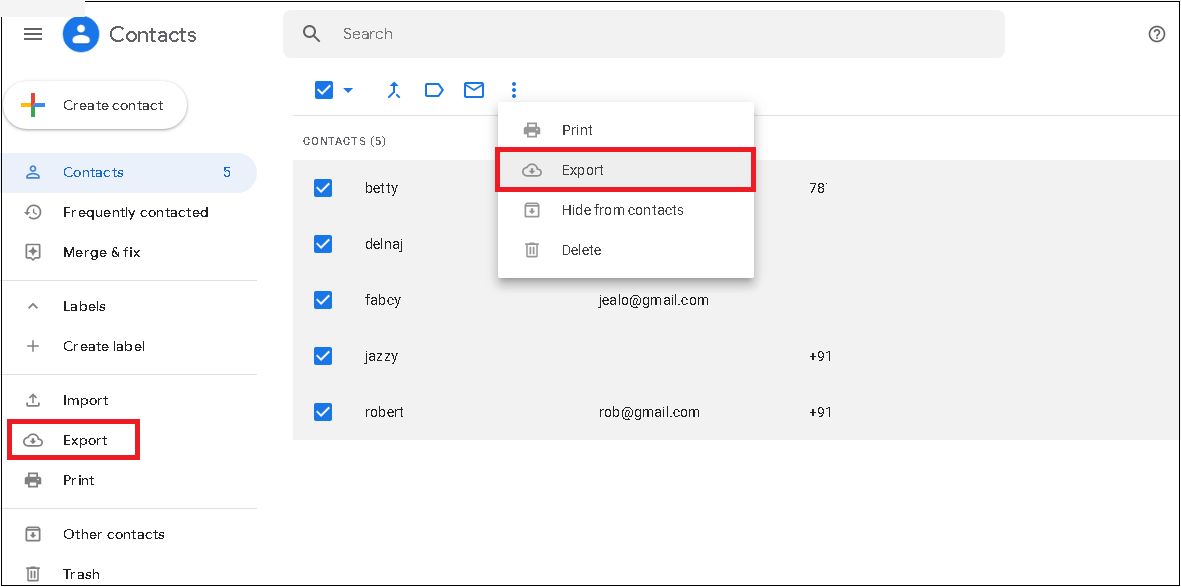
Note: Also, you can directly click on the Export option from the left panel.
Step 4: Choose the export format under the Export section and click on the Export option to start the download.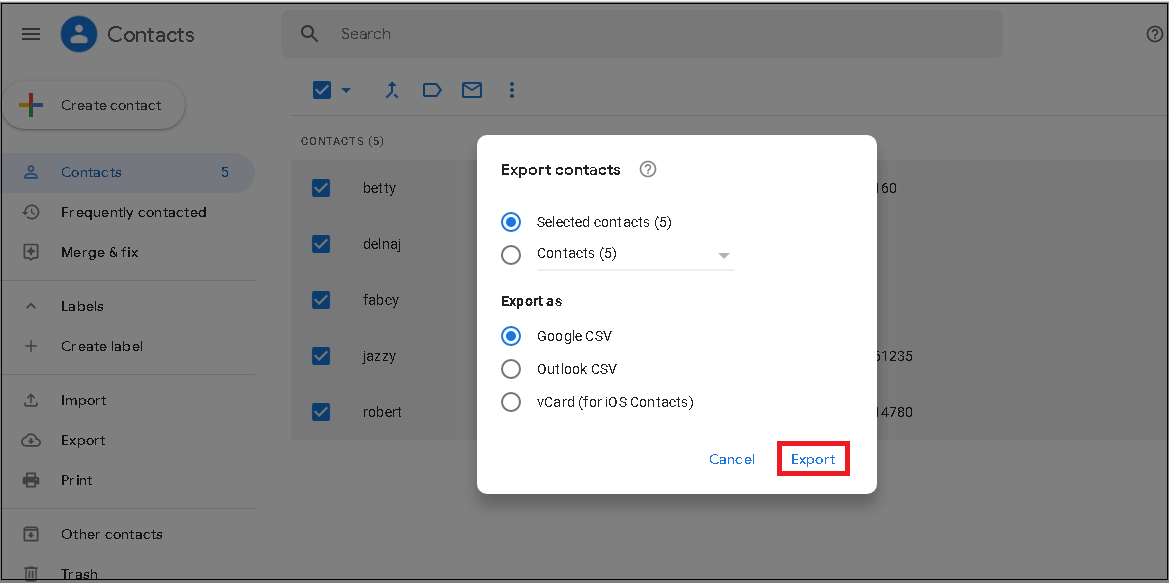
Hence, the manual method of downloading single, specific, or all Google Contacts is explained.
Export Google Contacts using Google Takeout
Google offers an additional Google Takeout service that helps you export all data from various applications and create a zip file of your exported data.
Step 1: Go to Google Takeout, select Contacts and click Next Step.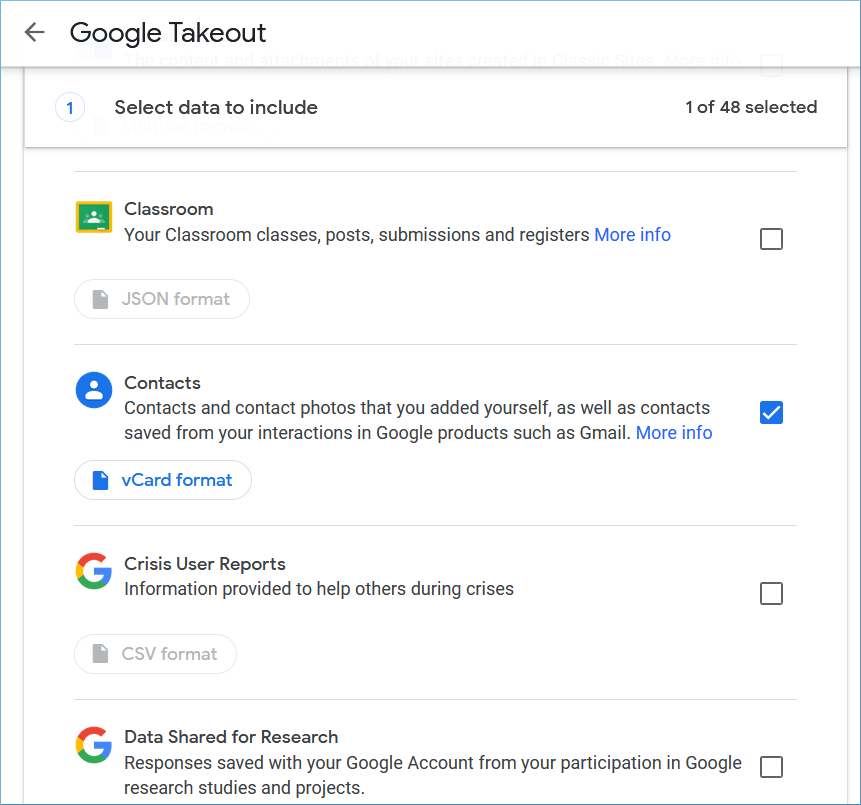
Step 2: Takeout will create a download file with your contacts. So, you can click Download button, and the zip file will be downloaded.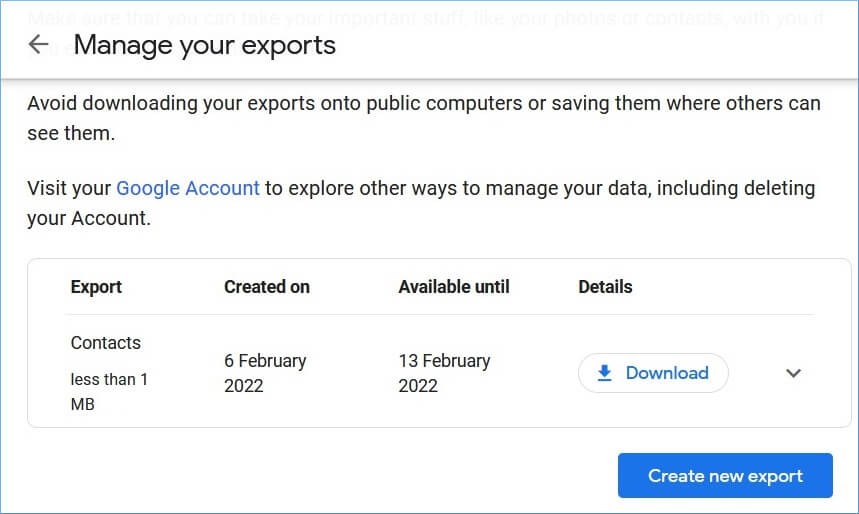
How effective is the manual solution to download Google Contacts to PC?
The manual way to backup or download Google Contacts is worthwhile only when users need to download all the contacts to the system or a few contacts from a small list. Then, it would be easier for them to choose rather than search for the desired contacts from the long list of contacts. Another shortcoming is the limited download formats, such as Google CSV, Outlook CSV, and vCard. Google CSV is only convenient for Google platforms; Outlook CSV requires import in Microsoft Outlook, and vCard format is only suitable for the Mac environment.
So, considering all these limitations, users might require an alternative solution to download specific Google Contacts from a long list into a more convenient-to-use file format. Let us check this out in our next segment.
Backup or download your Google Contacts with Kernel Google Workspace Backup and Restore (formerly Kernel G Suite Backup)
Using the most reliable and powerful Kernel Google Workspace Backup and Restore tool (formerly Kernel G Suite Backup), you can automatically download Google Contacts to their PC from a G Suite account’s single/multiple user mailboxes. It allows you to select Contacts manually and apply filters for the selective download and export, even from a long Contacts list. The tool allows you to backup G Suite contacts/calendars to Outlook PST. Additionally, it offers multiple output formats, such as MSG, EML, PDF, DOC, DOCX, MHT, or HTML formats to save data. Apart from the Google Contacts backup, it allows users to backup data from G Suite account applications like Gmail, Calendar/Appointments, etc.
Wrapping up
In the blog, we have explained all maula methods, like Export feature and Google Takeout to export contacts from Gmail. However, manual methods cannot offer multiple output saving formats, which is why you can’t use them on multiple platforms. But Kernel Google Workspace Backup and Restore software is one of the best software to export contacts from Gmail with all the names, email addresses, and tags intact.