Read time: 9 minutes
Quick Steps to Convert TXT to Excel (XLS & XLSX)
Here’s the solution to save bulk TXT files to Excel in few steps with a standalone Kernel Document Converter software.
- Download Kernel Document Converter tool freely.
- Install and open the tool. Add your TXT file.
- Browse saving location and select Excel format.
- Finally, the TXT to Excel conversion will complete in a while.
So, above we have mentioned few steps to convert batch text files into Excel format in one go. Still, if you are confused then checkout the detailed step-by-step assistance.
Why Convert TXT to Excel Files? Benefit of Excel files
Often, users with bulk data (.txt files) convert text files to Excel because Excel improves data handling and analytical capabilities. Converting TXT to Excel makes it easier to manage large datasets. Some benefits of Excel files are as follows:
- Structured rows and columns.
- Data filtering and sorting.
- Formula and calculation support.
- Charts and visual analysis.
- Better readability and formatting.
- Integration with the Microsoft environment.
Quick & Easy Solution to Convert TXT File to Excel
Professionals often work with bulk files with different file sizes during system migrations or data recovery processes. Along with working with those TXT files, they seek to convert them to Excel for various other purposes. In such cases, the automated tool can be helpful. It converts multiple large TXT files to Excel at once with no size restriction and keeps all text file content intact.
Step-by-Step Process to Convert Text File to Excel
The process to convert TXT file to XLS via the powerful tool. Here are the steps to follow:
- Download and install the Kernel Document Converter on your system.
- Launch it and select file type TXT, & tap on Browse to select Text files.
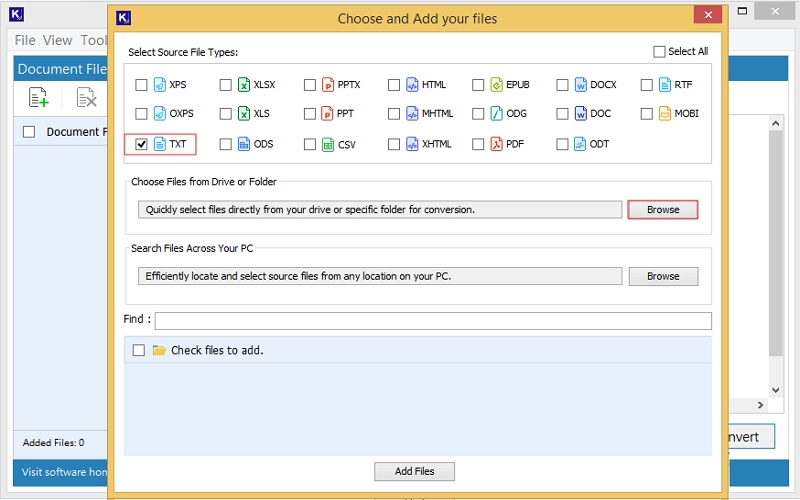
- Choose the TXT files you want and tap on Select. All files will be listed.
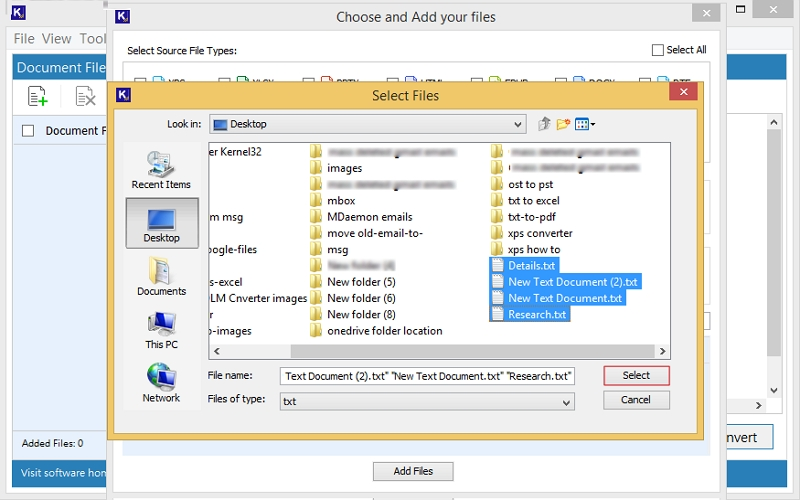
- Select the required TXT file and tap on Add Files.
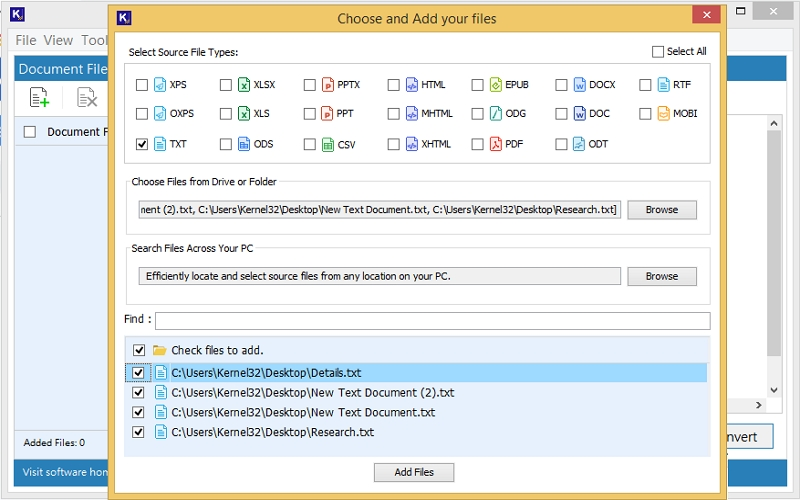
- Select a specific file and preview it. Once previewed, check the boxes, and click Convert.
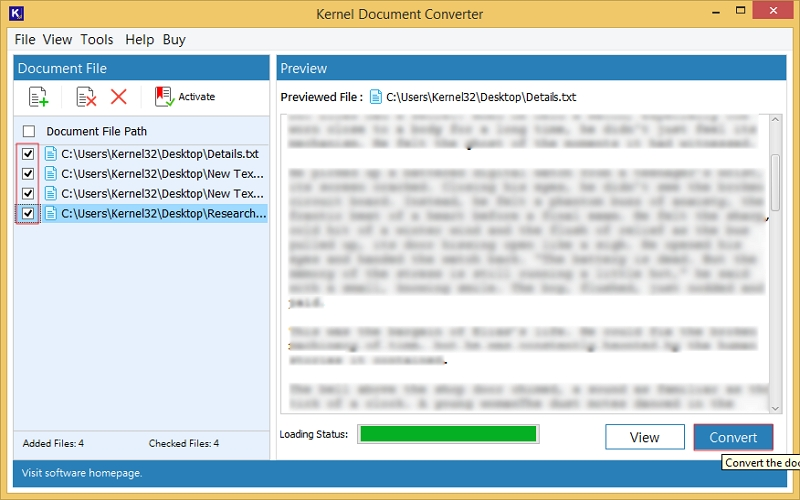
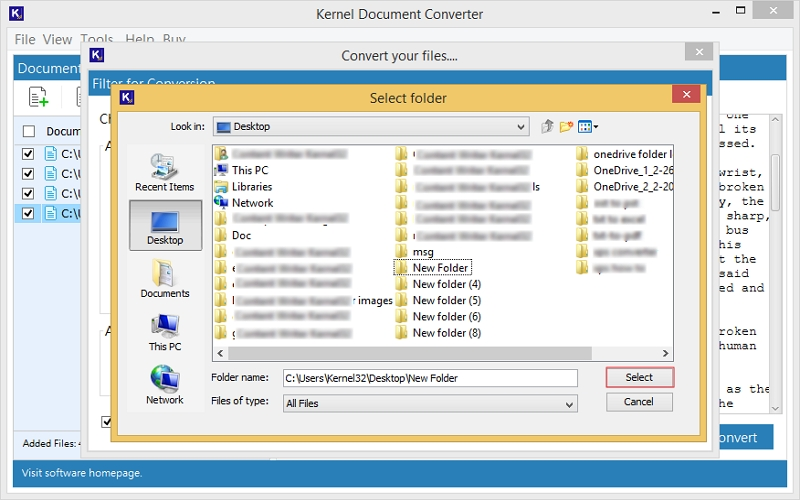
- Click Browse and provide the saving location.
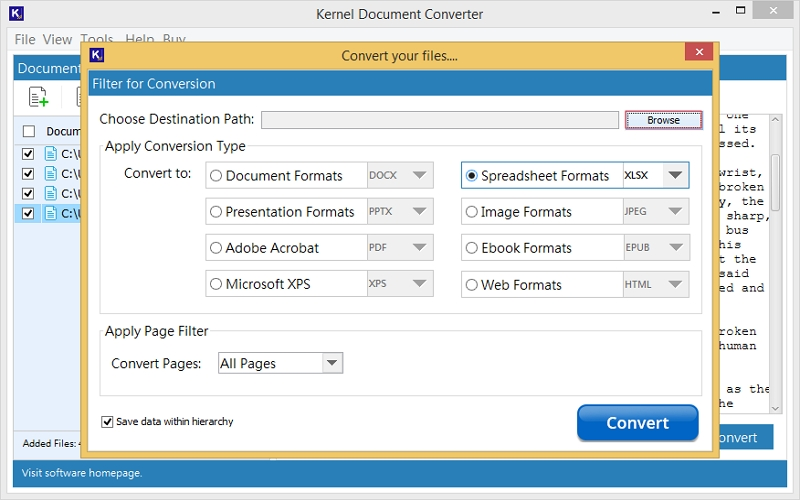
- Specify the saving location for the resultant Excel file.
- Now go to the Spreadsheet Format and select XLSX format. Apply page filter if needed. Click Convert.
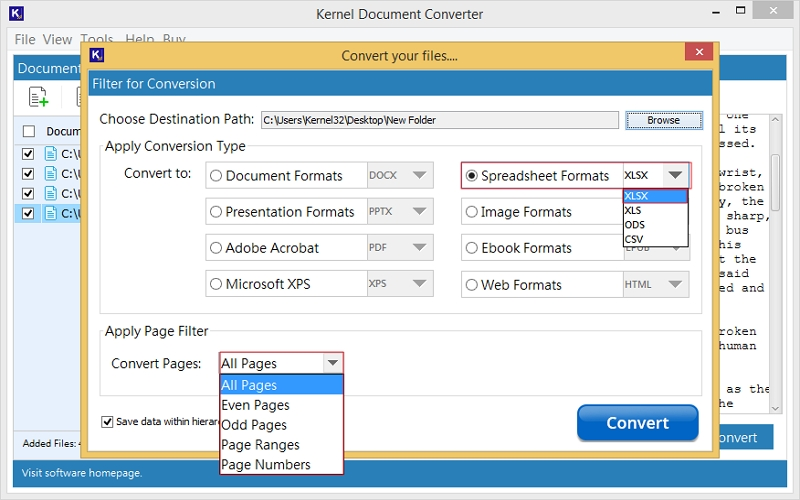
- The TXT to XLSX conversion will start. Wait for a few minutes.
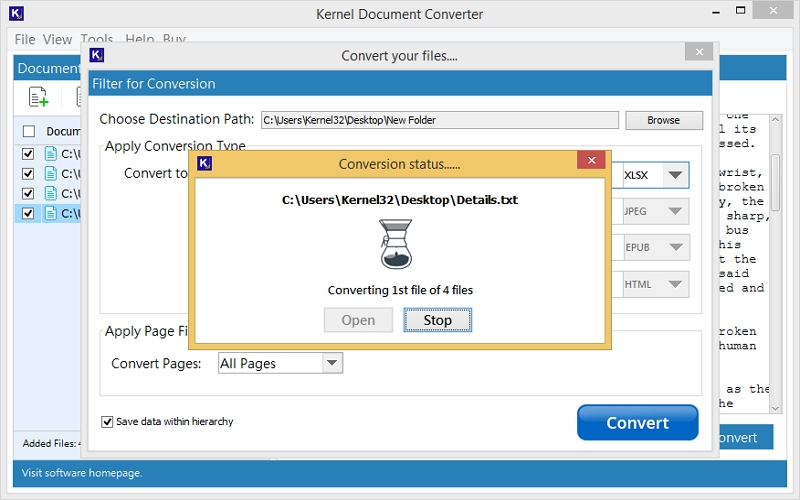
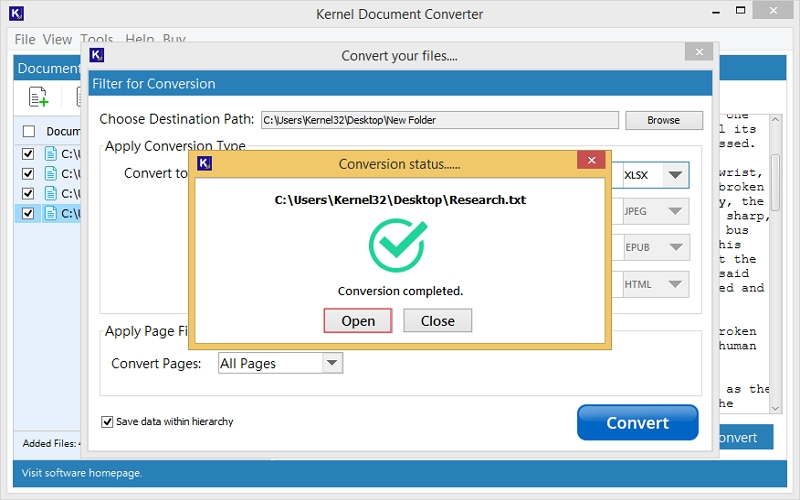
- After conversion, click on Open. You will be redirected to the resultant XLSX files.
Note: You can also search TXT files automatically by clicking Browse under Search file across the PC.
Note: We have explained step-by-step process to convert bulk Text files into Excel format with the help of advanced TXT to Excel Converter.
Simultaneously, you can also save text file to Excel using the manual method. But they include many drawbacks including structure disruption, method failure for large files, time consumption, etc. Still, if you seek manual methods to do so, you can go with the ones mentioned below.
Manual Methods to Convert Text File to Excel
Here are a few free and reliable methods that you can follow to convert TXT to XLS, XLSX, effectively. Go through the ones below and pick them at your convenience:
Method 1: Convert TXT to Excel using Excel Import
You can use the Microsoft Excel Import feature, which is the most reliable built-in feature to convert text files to Excel spreadsheets. Most importantly, this allows you to define how the data should be separated into columns, such as using commas, tabs, spaces, etc., as delimiters. Here are the steps to follow:
- Open your Microsoft Excel, click File>Open, then browse and select the TXT file.
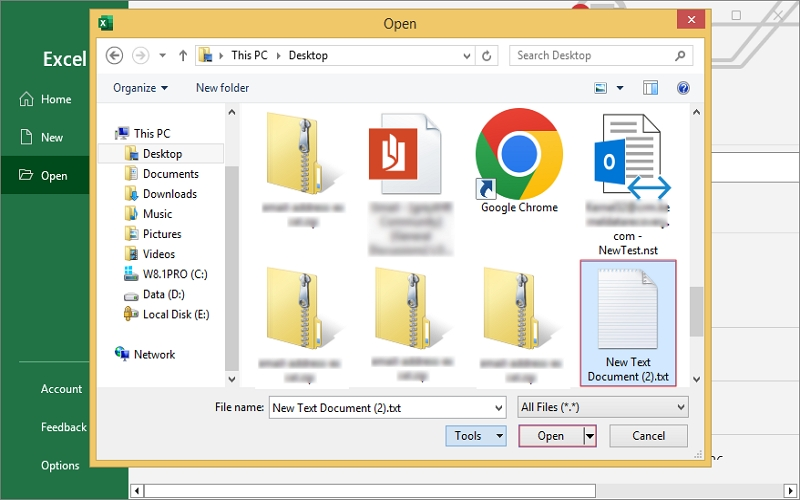
- Tap on Delimited if commas, tabs, or spaces separate the data. Click Next.
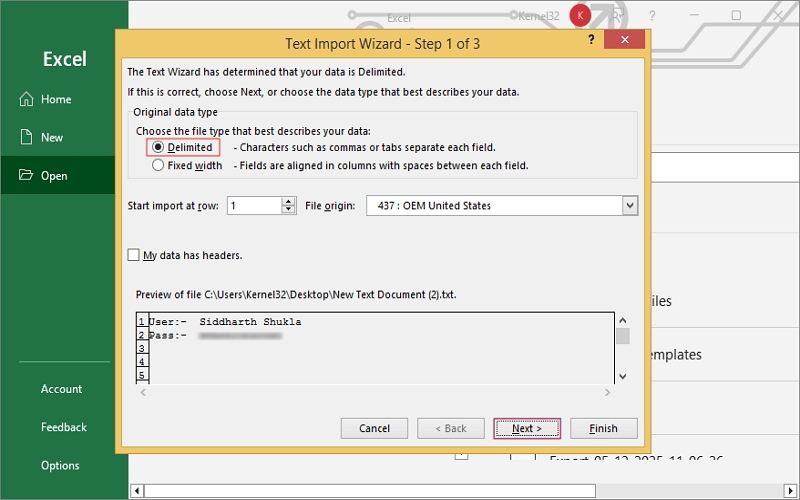
- Adjust column formatting according to you and click Finish. The text will be displayed in Excel.
- Now, click on File, tap on Save As, input the file name, and select the file type XLS or XLSX as you need. Click Save.
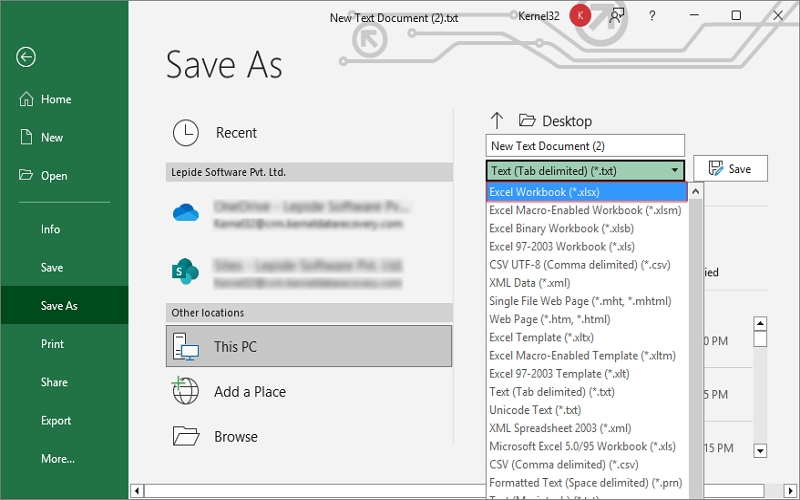
Your TXT file data is saved in an Excel file.
Method 2: Convert Text File to Excel via Copy & Paste
Copy-paste is another method to convert text files to XLS, XLSX, which you can use for small text files or simple data. Just copy the text content and paste it into an Excel file, then separate the data into columns using Excel. Follow the steps below:
- Open the TXT file in Notepad, press (Ctrl + A) to select, and press (Ctrl + C) to copy.
- Now, open Microsoft Excel and paste the copied content into an Excel worksheet via (Ctrl + V).
- After that, select the pasted column, click Data, then Text to Columns.
- Choose the delimiter (comma, tab, space) as you need and finish the conversion.
- Save the file as XLS or XLSX accordingly by clicking Save As.
The text file data will now appear in structured columns in Excel.
Method 3: Convert TXT to Excel using Power Query
Power Query is a powerful feature in modern Excel versions that helps import and transform external data sources. Even if you have large TXT files or recurring data imports, this method works better. Here is how to perform:
- Open Microsoft Excel, go to Data, & tap on Get Data.
- Select From File, then From Text/CSV, and choose the TXT file.
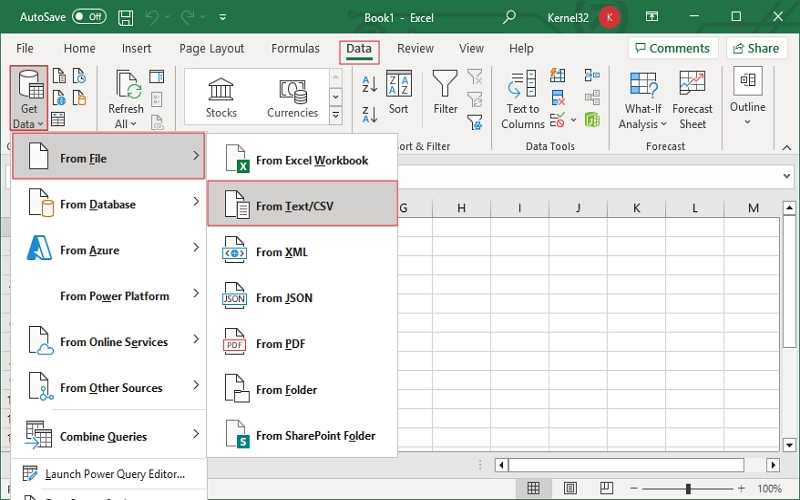
- Excel will preview the data. After that, adjust delimiter settings if you need & click Load.
- Once done, save it as your desired Excel file (XLS or XLSX).
Your text file data will automatically be imported into Excel as a table.
Typical Situation Where TXT to Excel Conversion is Preferred
Industries from different domains often rely on TXT files for easier data storage and simplified transfer to another system or device. However, they often convert these files into Excel for a few scenarios, like:
- System logs extraction.
- Database outputs.
- Simplified financial records.
- Application data exports.
- Research datasets presentation.
Ending Note
The ways to convert TXT file to Excel discussed above are quite easy and free; anyone, even a non-tech person, can use them easily. Microsoft Excel provides several built-in methods, like the Import Wizard, Power Query, & copy-paste. Each method has its own impact and allows users to convert TXT to XLSX files.
For safer and bulk TXT to Excel conversion, our handy tool is viable. It is the most trustworthy solution that professionals prefer. The trial version is free to use. Download today and test its efficiency!!
People Also Asked
A. The document converter comes with different prices and plans to suit all kinds of users and firms. You can check out the Buy Page for assistance and pick any plan as per your needs.
A: Manual methods may bother you for bulk conversion; you can use the specialized desktop-based tool for hassle-free and guaranteed results.