Read time: 5 minutes
Need to convert your ODS to Word but unsure where to begin? When you look to share reports, put organized data in place or want your spreadsheet content easier to read, this ODS to DOC conversion can help. Many users struggle with formatting issues, missing data, or compatibility problems during this process. So, which is the right method that you must follow?
Look at our expert insights to learn the most effective ways to save ODS to Word without any content structure disturbance.
What is an ODS File and Why Do Users Convert ODS to Word?
ODS is an OpenDocument Spreadsheet file format mainly created by LibreOffice Calc and Apache OpenOffice to store spreadsheets, formulas, tables, formatting, etc. Although ODS files work well in open-source Office suites, Microsoft Word does not directly support spreadsheet layouts properly.
Many professionals convert spreadsheet data into Word documents for reporting, documentation, collaboration, or printing purposes. Some common use cases where most users prefer Word files over ODS to:
- Create personal as well as business reports from spreadsheet data.
- Share project summaries with clients.
- Edit spreadsheet content inside Word.
- Maintain compatibility with Microsoft Office users.
- Convert tables into an editable document format.
Methods to Convert ODS to Word | Manual & Automated
There are multiple ways to perform the ODS to DOC conversion. Users use both manual and professional tools according to their convenience.
Method 1: Convert ODS to DOC via Microsoft Word
Microsoft Word can be your go-to solution to save ODS file to Word, but only if you’re using the latest version of the Microsoft Office applications. It is one of the easiest free methods available. Steps to convert ODS file to DOCX are:
- Locate your ODS file, right-click on it, tap on Open With, and then select Word.
- Click Yes to confirm. Your ODS file will be opened in Microsoft Word.
- Once opened, tap on File, then Save as, and tap on Browse.
- Choose the saving folder, name the file, and select Microsoft Word from the Save as Type dropdown. Click Save.
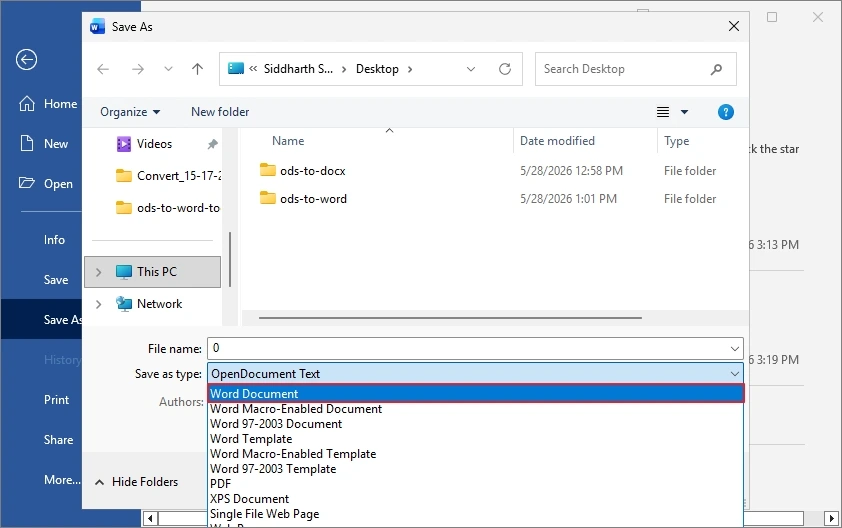
Your ODS file will be saved in DOCX format. But make sure Microsoft Word is the latest version.
Method 2: Convert ODS to DOCX using Microsoft Excel
As ODS are spreadsheet files, Microsoft Excel can also help users convert them before exporting them into Word format. The steps to convert .ods to .doc via Excel are:
- Open the ODS file in Microsoft Excel and review the records as well as formatting & data structure.
- Select and copy the spreadsheet that you want and paste them into Microsoft Word.
- Once the required record is pasted, go to File, tap on Save As, and save the document in DOC or DOCX format.
Note: Similarly, you can use LibreOffice or Google Sheets to convert .ods document to .docx document.
Method 3: Convert ODS File to Word using Online Converter
Being a common approach, users now prefer web-based file converter tools (for basic conversion tasks) because they provide quick results with no software installation required. Users find it simple to use, as they just upload their ODS files and download the resultant Word document instantly. The steps to do so are as follows:
- Open a trustworthy online converter website and then upload your ODS files.
- Choose DOC or DOCX format and then start conversion. Wait for a while.
- Once converted, download the resultant DOCX file. You can check the download folder of your system to review the resultant DOCX file.
When Manual Methods Are Not Enough, What Professionals Opt For
Manual conversion methods are not always reliable. They often cause formatting problems and consume unnecessary time when there are large spreadsheet databases, financial records, invoices, analytics reports and structured tables. In such a situation, a professional ODS to DOCX converter becomes the smarter choice.
Kernel Document File Converter Software is one such powerful solution designed to reduce manual effort and preserve document quality. While many users initially search for basic manual conversion methods, professionals usually prefer it for features like fast batch conversion, better formatting retention, large ODS files support, specific page conversion, email address extraction, etc. The easy-to-follow steps to convert ODS to Word are as follows:
- Download and install tool on your system.
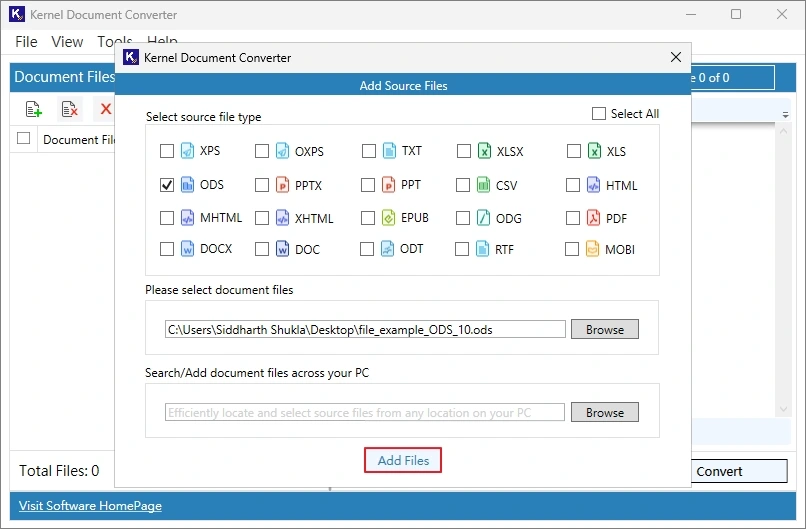
- Launch it and click on Add file, select the ODS file option, tap on Browse, and add your file.
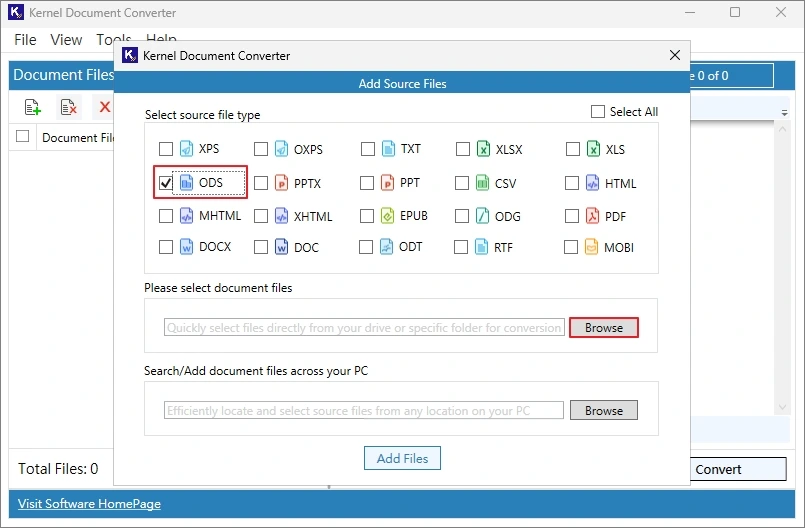
- Once you have selected your ODS files, click on Add File.
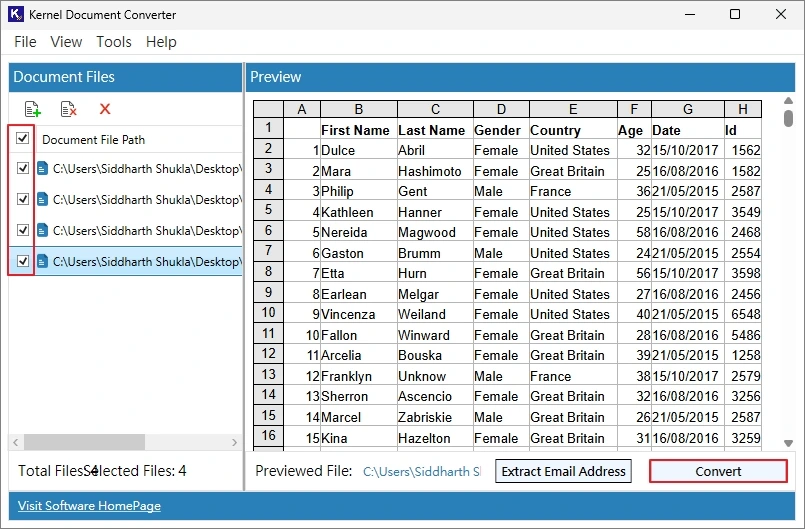
- Your ODS files will be added. Double-tap on the file that you want to preview. After selecting the file that you want to convert, click Convert.
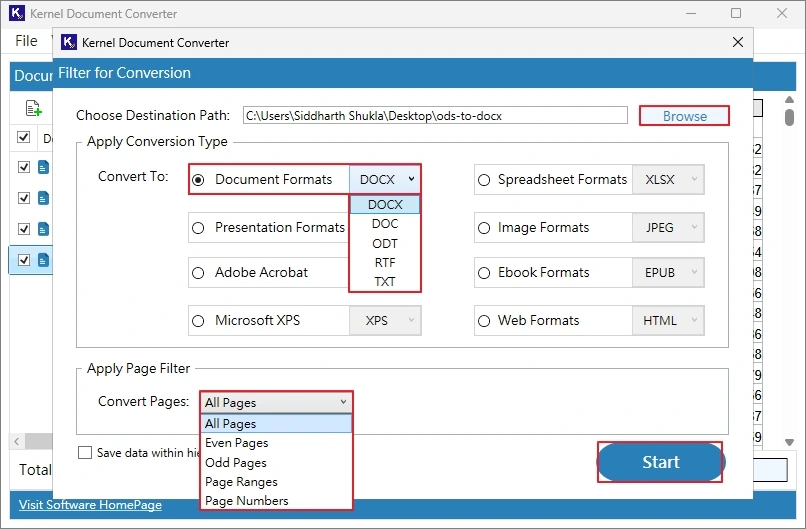
- Click Browse and specify the saving location. Then, go to Document Formats, select DOCX, and apply Page Filter if you want. Click Convert.
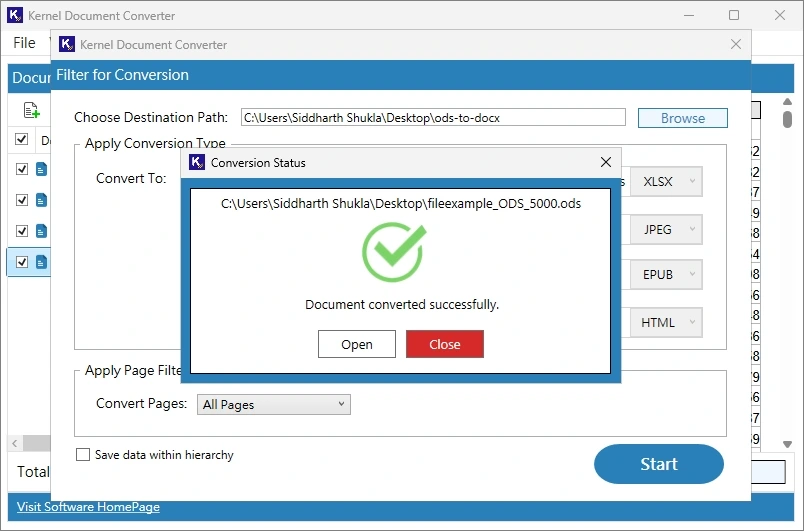
- The ODS to Word file conversion will start. Wait for a few minutes.
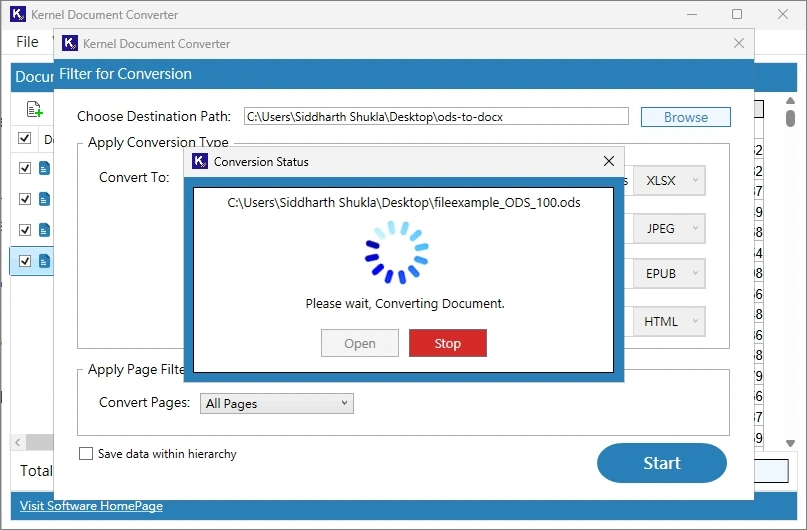
- Once the conversion completes, tap on Open to navigate to the saving location directly. View the resultant DOCX files.
Final Thoughts
Don’t let your operations slow down due to file incompatibility; opt for the best-suited method and convert ODS to Word files effectively. The methods above are fully tested and working. However, they come with various limitations; they are free to use and best for basic conversion tasks.
But if you are looking to convert ODS to Word for organizational purposes, the professional ODS to Word converter is the best option. Get the free version now to evaluate its effectiveness. Take the trial today!