Read time: 9 minutes
Essence: You can convert ODS to Excel easily using:
- Microsoft Excel (Best for desktop-based conversion)
- Google Sheets (Best for web-based ODS conversion)
- Apache OpenOffice Calc (Best open-source alternative)
- Online Converter (Best for quick one-time conversion)
- Kernel Document Converter (Best for bulk conversion)
As businesses move towards cross-platform collaboration, format-like ODS (used by open-source tools) and XLSX (used by Microsoft Excel) often collide. The good news is here!! The process to convert ODS to Excel is easier than ever if you use the right method.
Be it you’re working individually or handling bulk or enterprise-level data conversion, this guide will make you learn the modern and efficient ways to convert OSD to XLXS. Stay with the article and know how to convert ODS File to Excel format easily!!
Quick Solution: Convert ODS to XLSX in just 4 steps:
- Download Kernel Document Converter Software first. Install & open it.
- Add your ODS file, preview its content, and tap on Convert.
- Provide a saving location, apply page filters, and then click Start.
- The conversion will start. You can click Open to check the results.
All your ODS files will be converted instantly.
Methods to Convert ODS to Excel | Fully Effective
To convert ODS to Excel sheets, instead of different hits and trials, here we’ve shortlisted the only methods that give desired outcomes. The detailed stepwise process is given below for each method. Go through them accordingly:
Method 1: Convert ODS to Excel via Google Sheets
As a free web-based spreadsheet application of Google Workspace, Google Sheets also helps to convert ODS to XLSX format. However, it requires an internet connection, but users find it a handier way to convert ODS to Google Sheets. Here are the steps to follow:
- Open Google Sheets in any browser, tap on File, then Open.
- Go to the Upload tab, tap on Browse, select your ODS file & click Open.
- The ODS file will be opened in Google Sheets. Now tap on File, then Download and select Microsoft Excel (.xlxs).
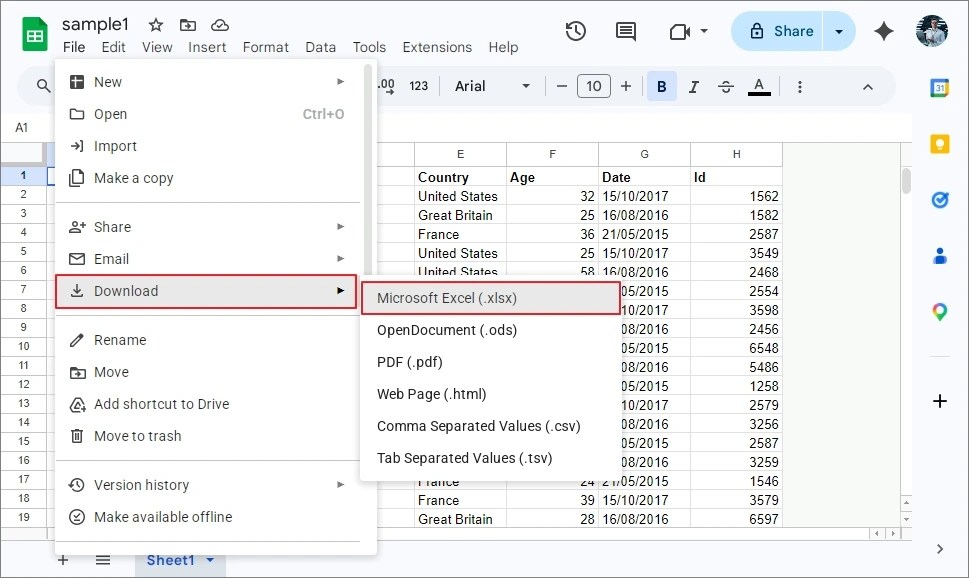
Wait for a few seconds, and the resultant XLXS file will be downloaded. You can use it as you want.
Method 2: Convert .ods to .xls using Apache OpenOffice Calc
As Apache OpenOffice Calc is a free, open source spreadsheet application, you can convert ODS to Excel at no cost. If you’re a Windows user, you can do it effectively. Here is how to convert ODS to XLS:
- Locate your ODS file, right-click, then select Open With and Apache OpenOffice Calc.
- The ODS file will be opened in Apache OpenOffice Calc. Tap on File and click on Save as.
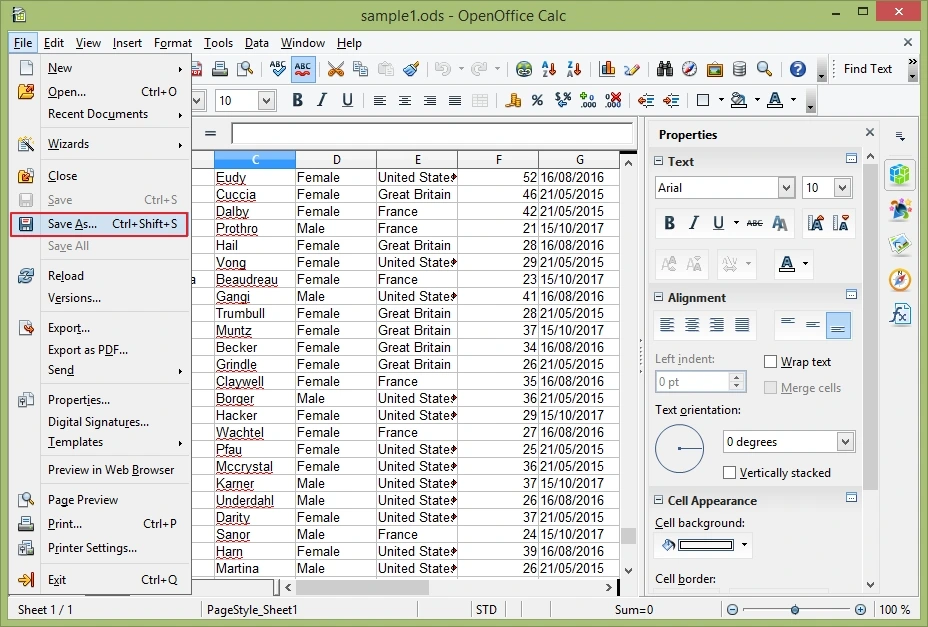
- Specify the saving location, name your file, and select Microsoft Excel (.xls). Click Save.
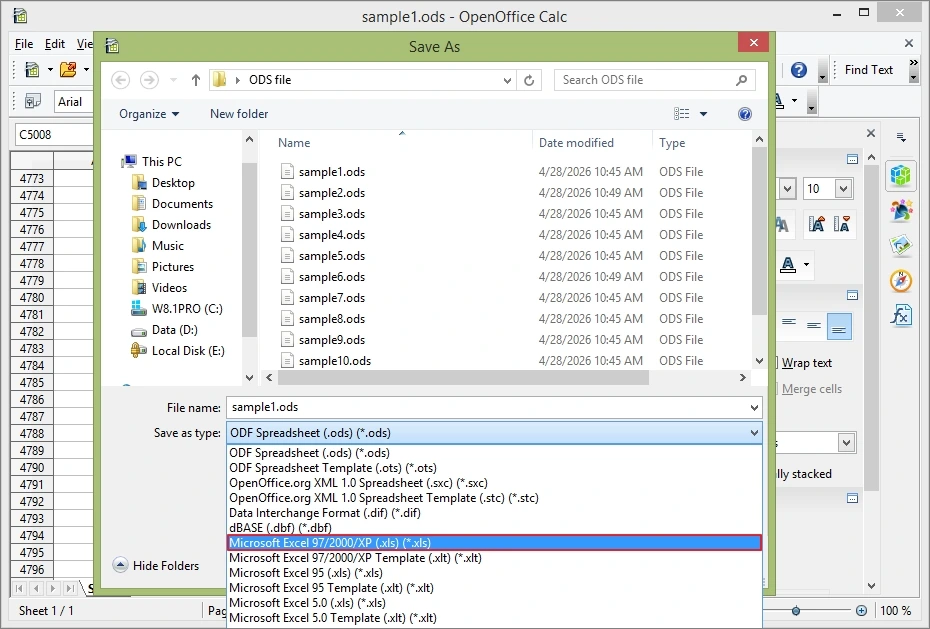
The ODS file will be saved in the .xls format.
Method 3: Convert ODS to XLSX via Microsoft Excel
Microsoft Excel is another widely used spreadsheet application used to manage and maintain datasets. However, it supports almost every spreadsheet file format effectively. To convert ODS to Excel Sheet, follow the steps below:
- Right-click on the ODS file, tap on Open With, then select Microsoft Excel.
- The ODS file will be opened in Excel. Tap on File, then Save As. Click Browse.
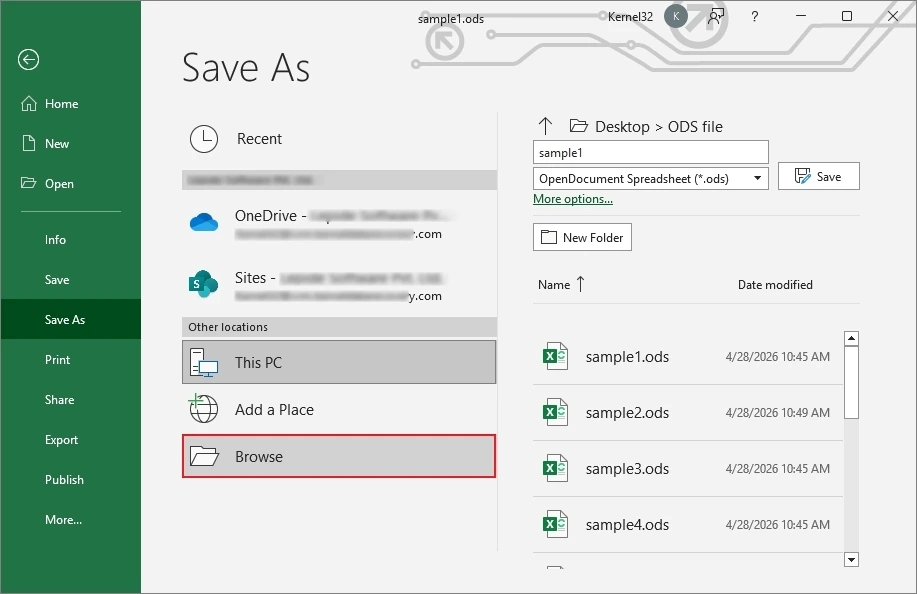
- Specify the saving location and select Excel Workbook (.xlsx) in Save As Type. Click Save.
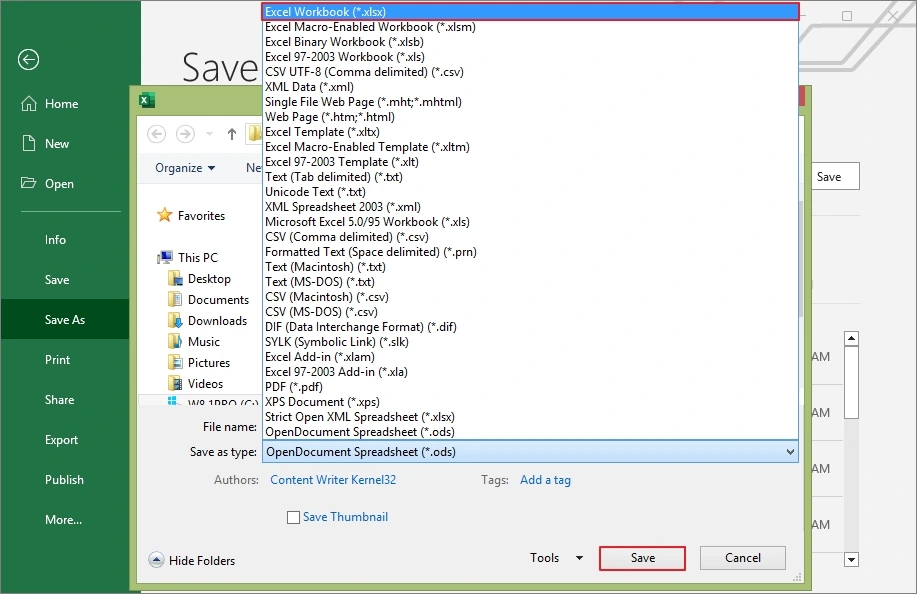
The resultant Excel file will be saved at your specified location in your system.
Method 4: Convert ODS to Excel via Online Converter
Online converters are also web-based applications that help to convert one file format to another. Similarly, you can also convert your ODS files to Excel Format. You just need a reliable online converter to do so. The process below will help you out.
- Open your browser and look over any reliable online ODS to Excel converter.
- Upload your ODS file and convert it.
- Once converted, you will be asked to download. Download it.
Now, all your data in the ODS file will be saved in Excel file.
Convert ODS to Excel Beyond Limitation via Professional Solution
Manual solutions are quite reliable for a small-scale ODS to Excel conversion. But for the enterprise environments and special scenarios like bulk & quick conversion, full accuracy, selective conversion, and intact formatting, a professional ODS to Excel converter is the ideal option.
One such tool, Kernel Document Converter, is a reliable utility that supports bulk ODS conversion, clear data preview, no data loss or error type issues, and hassle-free ODS file conversion. The tool keeps all data intact, like the original. It is free from any limitations; you can even convert hundreds of ODS files in one go. Be it a novice or tech expert, a startup or a big firm, it is suitable for all enterprise environments as well.
Step-by-Step Process to Convert ODS to Excel
Here is a complete and error-free process to convert ODS to XLSX file. Go through the steps given below:
Step 1: Download and install Kernel Document Converter on your system and launch it.
Step 2: Tap on the Add File icon, check the ODS option, then tap on Browse.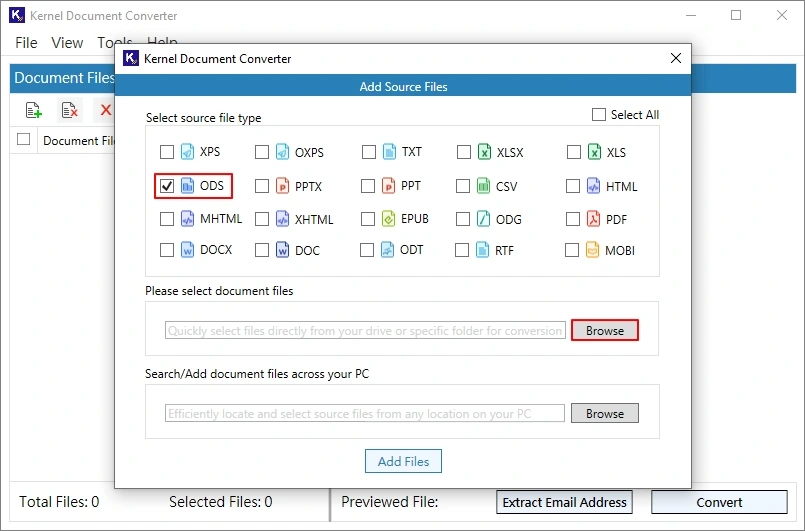
Step 3: Select your ODS files and tap Select. Once selected, tap on Add Files.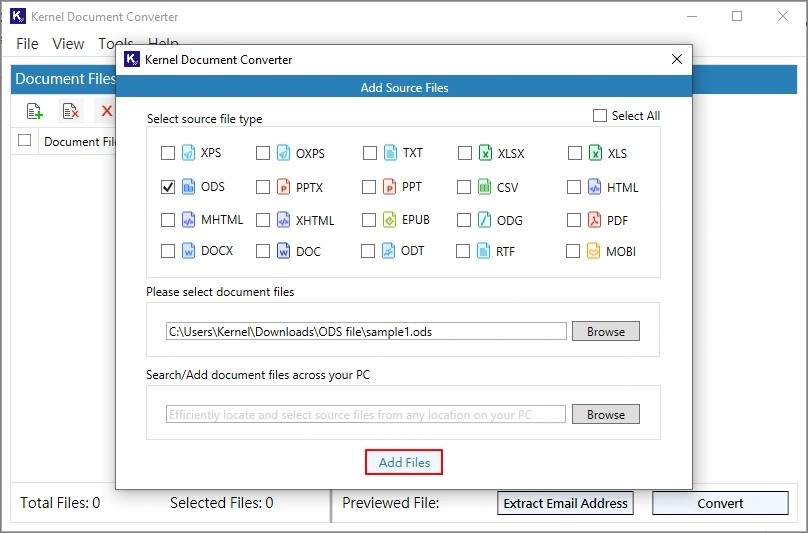
Step 4: Now double-tap on each file and preview your file content. Select them and click Convert.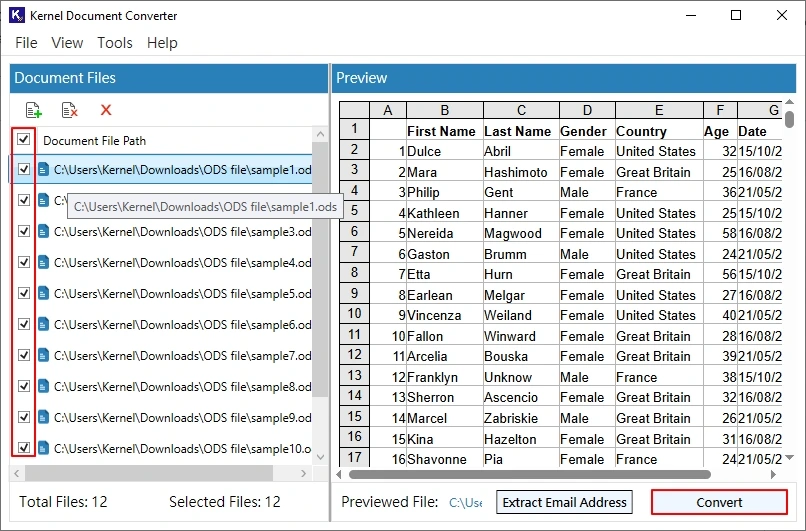
Step 5: Click Browse and add a saving location. Select XLXS from the Spreadsheet Formats. Also, apply the filters accordingly, then click Start.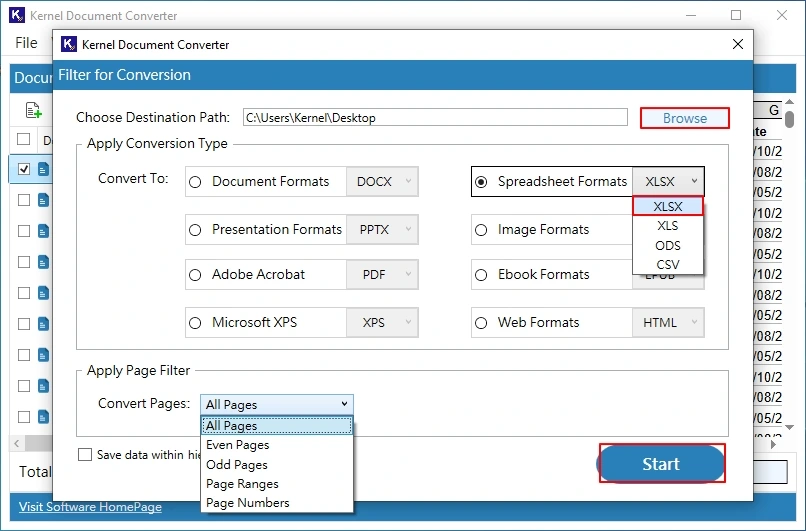
Step 6: The ODS to Excel conversion will start. Wait for a while.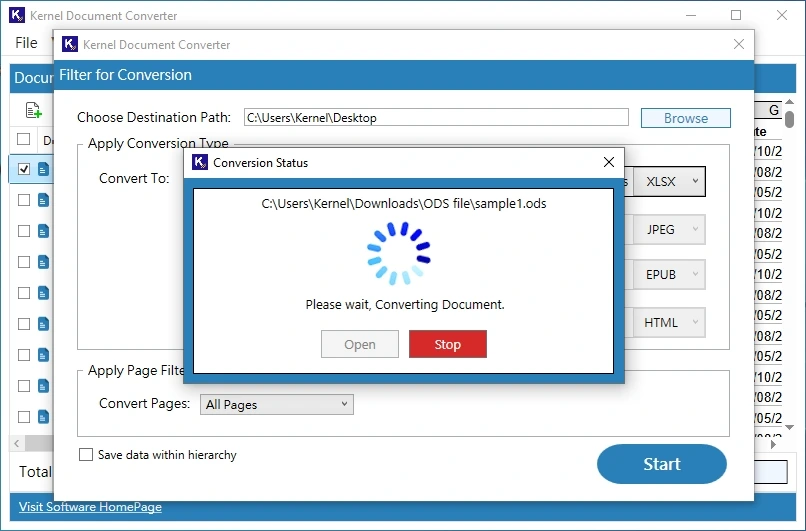
Step 7: Once the ODS conversion completes, click Open to navigate to the saving location directly.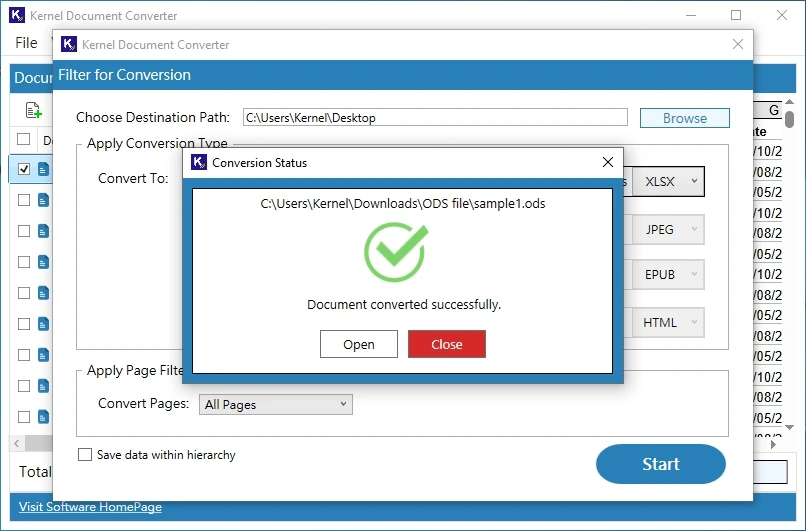
Final Words: Convert ODS to Excel Wisely
To convert ODS to Excel, manual methods (Microsoft Excel, Google Sheets, Apache OpenOffice Calc, & online converters) are quite workable, but they lack the safety and bulk support. While the professional solution, offers additional features compared to manual methods. It comes with different licensing options that suit all kinds of users and organizations. The free trial version is out for you; get it now to experience a safe ODS to Excel conversion.
FAQs
A: Yes, you can use Google Sheets or Apache OpenOffice Calc to convert ODS to XLSX for free.
A: Use a tool like Microsoft Excel or a professional ODS to Excel converter tool to preserve formatting, formulas and complete layout as well during conversion.
A: For basic use or a few ODS files, Microsoft Excel & Google Sheets work. But for bulk and 100% accuracy, the Kernel Document Converter is reliable.
A: Manual methods do not support bulk conversion; using the professional ODS to Excel converter is viable.
A: Online tools are convenient to use, but they may risk data privacy. You should avoid them if you have sensitive or confidential data.