Read time: 9 minutes
Brief Summary: Wider use cases of PDF files and compatibility across devices and applications compel users to convert ODS to PDF (Portable Document Format). Microsoft Excel, Google Sheets, Apache OpenOffice Calc, online converters, or a desktop-based document converter make it possible with reliable results.
A Real Scenario:
“I have a collection of archive reports, financial records, & important business data of my company in ODS files. The parent company needs them for evaluation but asked me to send all documents in PDF files. Should I convert ODS to PDF now? Please let me know if there is any reliable solution?”
As the modern digital workplace is shifting towards smart, portable, & AI-ready documents, businesses prefer not to use raw documents like ODS. It has compatibility issues, editing, and often results in broken formatting. To resolve such a problem, professionals prefer PDF format. It maintains exact spreadsheet structures across every device, cloud platforms, & operating systems.
But the real challenge is “Can I convert ODS file to PDF on my own’.
The answer is Yes, you can. The process to convert ODS to PDF may look a little complicated at first, but easy. In this guide, we’ve mentioned the top working methods that will surely help to convert ODS to portable documents.
Benefits of Converting ODS to PDF
An ODS file is a spreadsheet format used to store tables, formulas, charts, and formatting details. Although ODS files are useful for editing, they may not open properly on all systems. That is why many professionals choose to convert ODS file to PDF for better compatibility and document consistency across platforms. A few benefits you’ll get:
- PDF keeps the original layout, fonts, charts, tables, links, etc., unchanged. The recipient sees the exact document with no formatting issues.
- PDF files have password protection features that restrict accessibility without permissions. This helps protect sensitive spreadsheet information.
- You can open PDF files on smartphones, tablets, laptops, and desktops without any spreadsheet software.
- PDF files appear cleaner and more organized and are considered professional documents for reports, invoices, presentations, and official documentation.
Methods to Convert ODS to PDF| Reliable Picks
Here are the reliable methods to convert ODS to PDF. Follow the steps carefully given below:
Method 1: Convert ODS File to PDF using Microsoft Excel
If you’ve installed Office Suite (Microsoft Excel) in your system, then you can easily convert ODS file to PDF. However, it only converts one file at a time. Here are the steps to follow:
- Locate and select your ODS file, right-click on that, tap on Open With, then click Microsoft Excel.
- Your ODS file will be opened in Excel. Click on File, then Save As, & Browse.
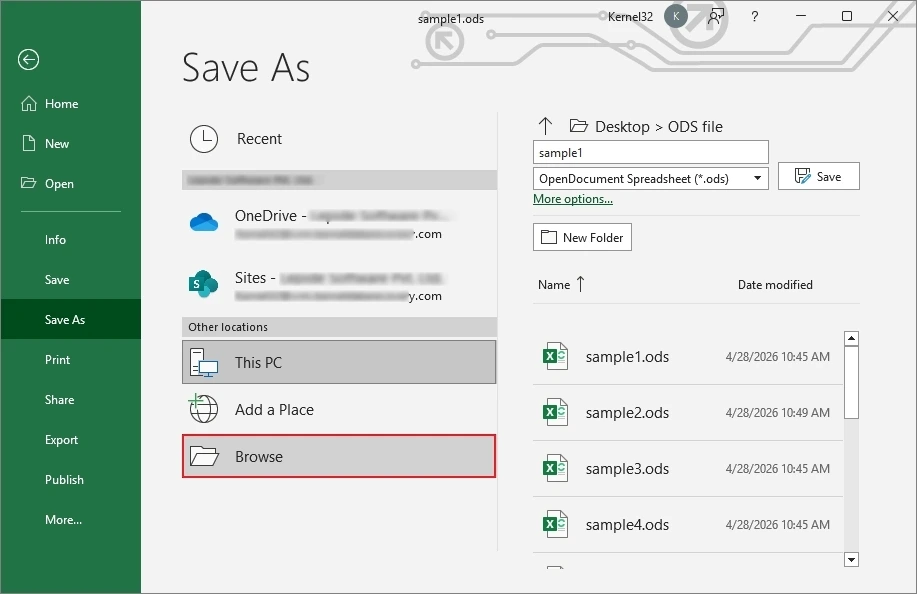
- Specify the folder for saving, select PDF (.pdf) format from Save As Type, and click Save.
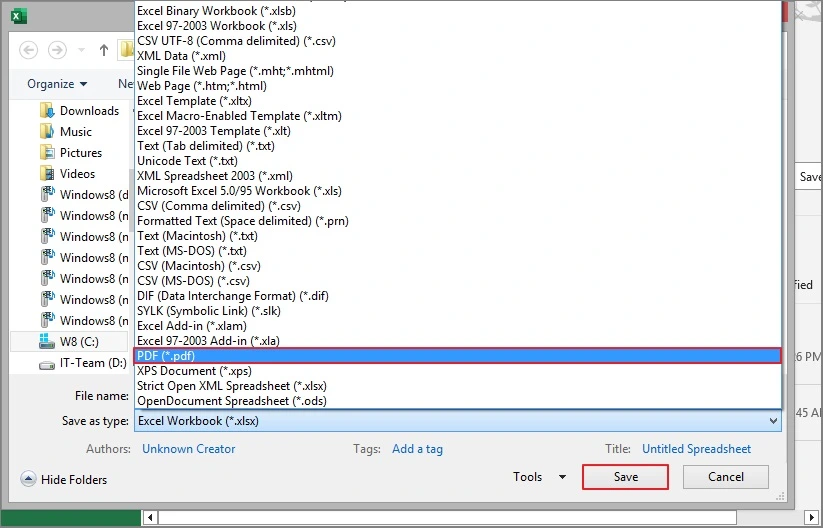
Your ODS file will be converted to PDF. Open that PDF file and check for formatting. However, this method is simple and converts ODS file quickly, but sometimes users have reported a disturbance in formatting and formulas.
Method 2: Convert ODS to Portable Document using Apache OpenOffice Calc
Some systems with lower version OS have Apache OpenOffice Calc installed instead of Microsoft Office. If your system has OpenOffice, then Apache OpenOffice Calc is another free way to convert ODS to PDF. Here are the steps to convert ODS to PDF:
- Select your ODS file, right-click, then tap on Open With, choose Apache OpenOffice Calc.
- The ODS file will be opened in OpenOffice Calc. Click File, then choose Export as PDF.
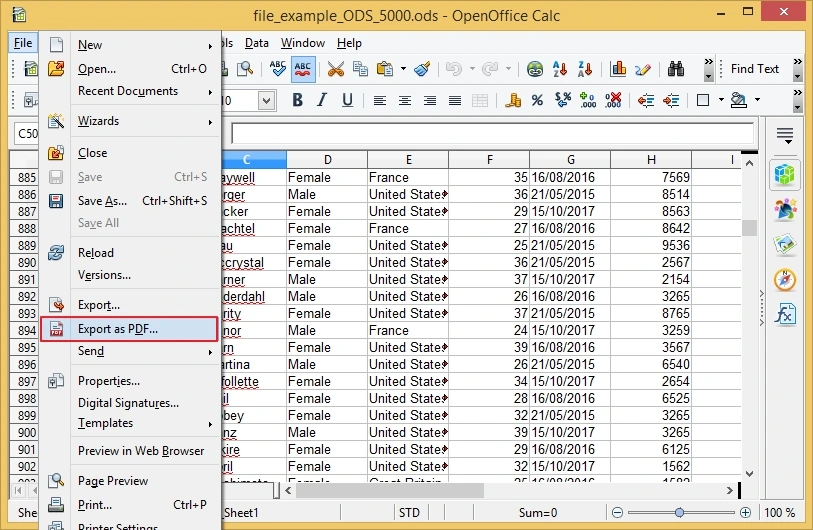
- Choose the options given and tap on Export.
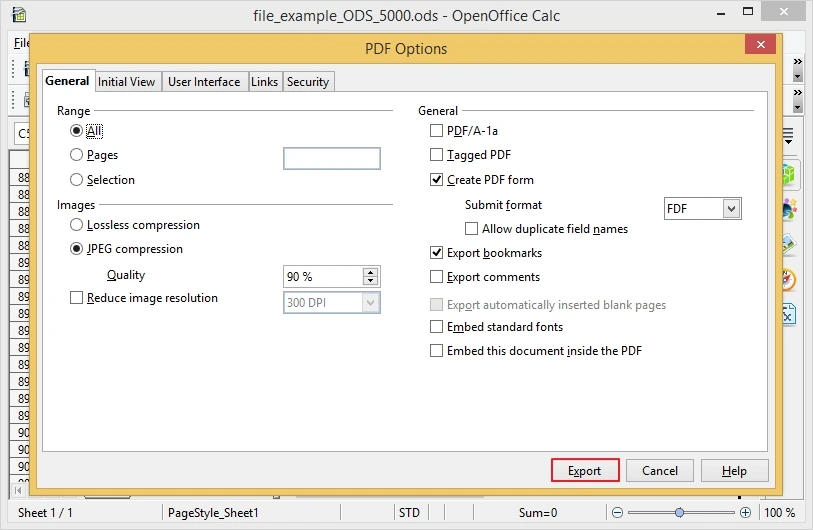
- Specify a saving location for the resultant PDF and click Save.
The ODS file will be saved in the PDF format. Once done, go to the folder where the PDF file is saved and check for the layout and structure. Apache OpenOffice Calc is a completely free solution and good for basic conversion, but formatting may get removed sometimes.
Method 3: Convert ODS File to PDF via Google Sheets
When none of the native desktop applications like Excel or OpenOffice Calc are available, web-based tools are also used to convert ODS file to PDF. Google Sheets is a free application that manages spreadsheet data. Here are the steps to convert ODS to PDF:
- Open any browser and access Google Sheets. Tap on File>Open.
- Go to Upload, tap on Browse, select your ODS file & then click Open.
- Your ODS file will be opened in Google Sheets. Again, click on File, then Download, and select PDF (.pdf).
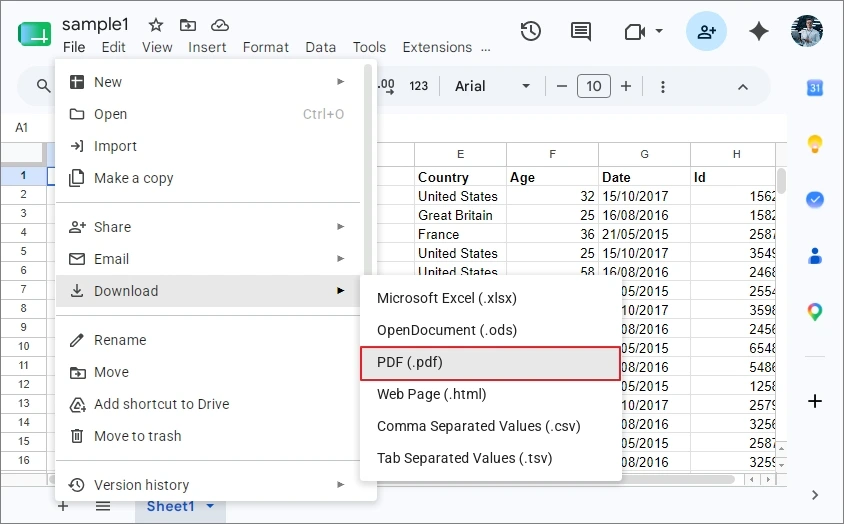
The PDF file will be downloaded to the download folder. Open that and check for formatting and layout.
With this, you don’t need to install any additional software; you just convert via a browser with an internet connection. However, large files may load slowly, and formatting may slightly change.
Method 4: Convert ODS to PDF via Online Converter
Online converters are another go-to alternative if you want a quick ODS to PDF conversion. Just search & choose the best online ODS to PDF converter over the internet, upload your ODS file, convert it, and then download.
However, online converters are good for instant conversion, but may suffer with large file sizes and complex layouts and formulas. Even the confidentiality of the document may also be at risk when converting ODS to PDF via an online converter.
Moving Beyond Manual Conversions
Undoubtedly, the above-mentioned techniques effectively help to convert ODS to PDF, but they may not always come with accurate results. With complex & large spreadsheet files, users often face formatting changes, missing tables, alignment issues, or slow processing.
To counter these limitations and get faster conversion, better formatting accuracy, & more reliable output quality, many business owners, professionals, accountants, & even IT teams prefer dedicated ODS to PDF converter solutions instead of relying only on manual methods.
When Batch ODS File Support & Accurate Results are Needed
Data accuracy, conversion speed, and document safety are everyone’s top priority. No one wants to lose clarity, confidentiality, and appropriate formatting. Therefore, a desktop-based All in One Document Converter Software can be your smarter choice because it simplifies the entire conversion process and maintains the original spreadsheet structure with no formatting issues.
Step-by-Step Process to Convert ODS to Portable Document
Step 1: Download and install Kernel Document Converter on your system.
Step 2: Launch it, and click the Add File icon. Select the ODS option, then tap on Browse.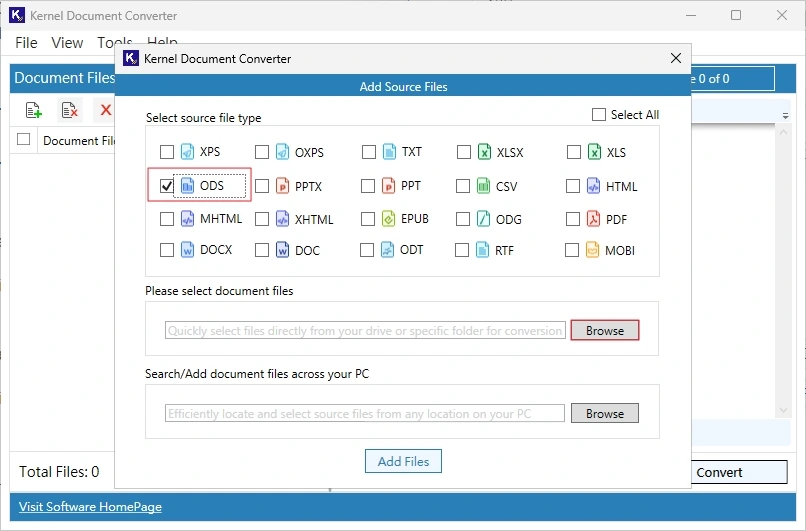
Step 3: Select the required ODS files and tap on Select. Once added, click Add Files.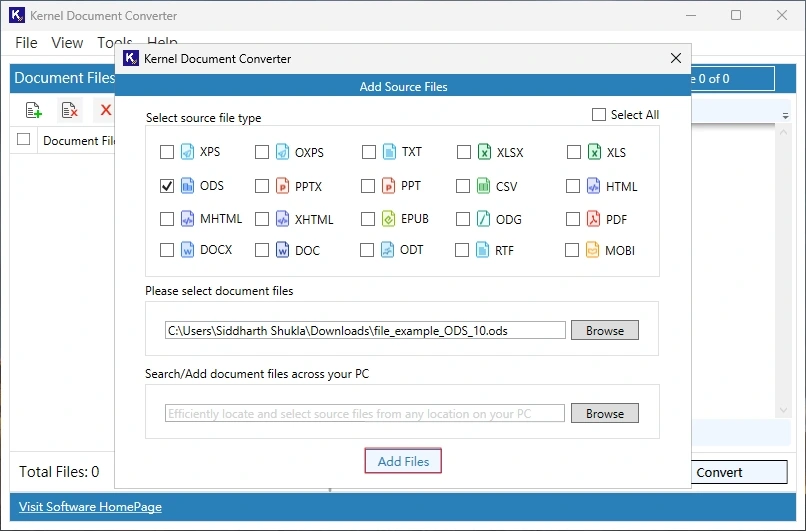
Step 4: To preview file data, double-click on the required file. Select the documents and click Convert.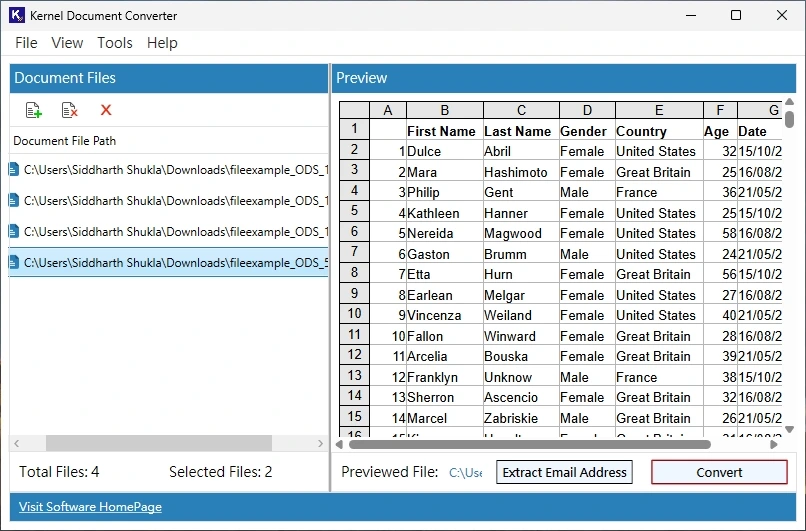
Step 5: Now, click Browse and specify the saving folder. Go to Adobe Acrobat, select PDF, and apply the filters if needed. Click Start.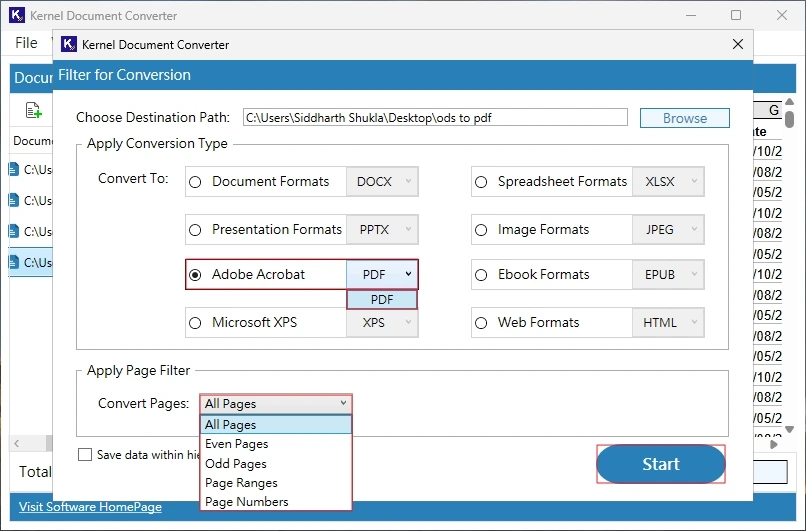
Step 6: The conversion process of ODS to PDF will start. Wait for a few minutes.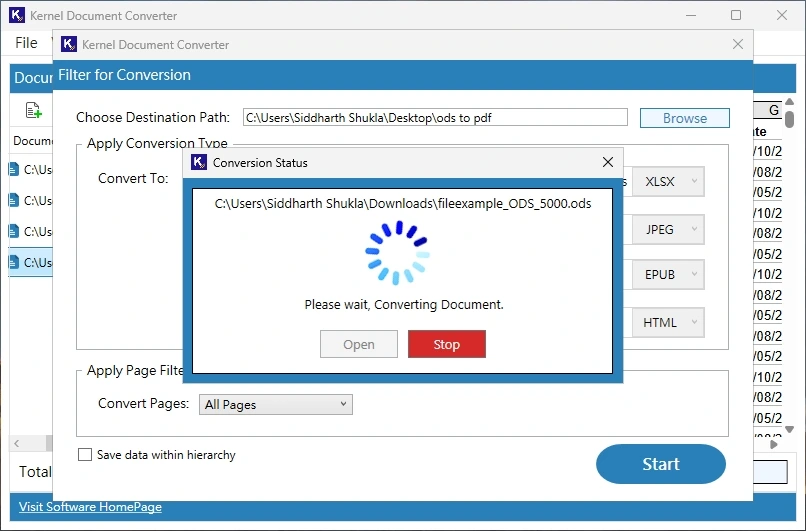
Step 7: Upon the process completion, you can click Open to go to the resultant PDF files directly.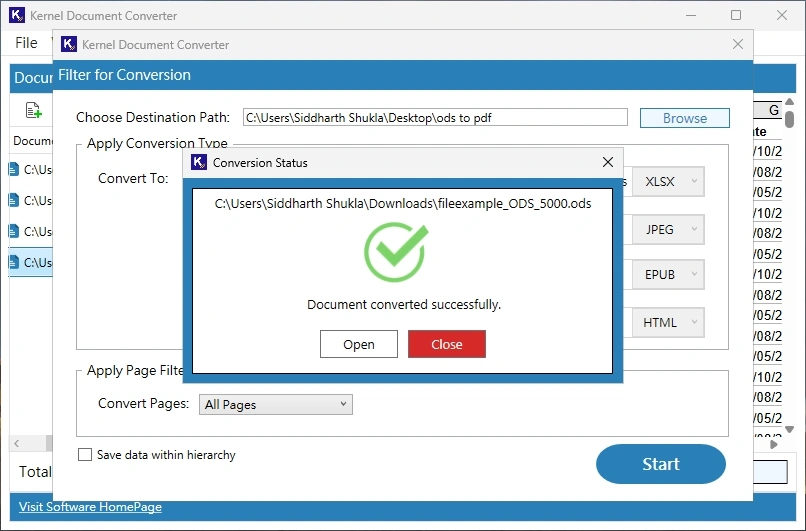
Final Words
ODS to PDF conversion is easy when you choose the right method. Our guide has decoded the best ways available for this conversion. Use Microsoft Excel, Apache OpenOffice Calc, Google Sheets, and desktop / offline converter to create PDF files from ODS with no formatting disruption.
When opting for the suitable method, keep in check the file size, formatting accuracy offered, and ease of use. When you are well-through with all such info., the ODS to PDF conversion becomes a hassle-free process with no common formatting or compatibility issues faced.