Read time: 9 minutes
Imagine you receive an important sales report in .ods format from a client, but your CRM only accepts CSV files. When you tried to open them, the formatting was broken. Tables were disturbed, and characters had disappeared. Issues like these put analysis in difficult situations.
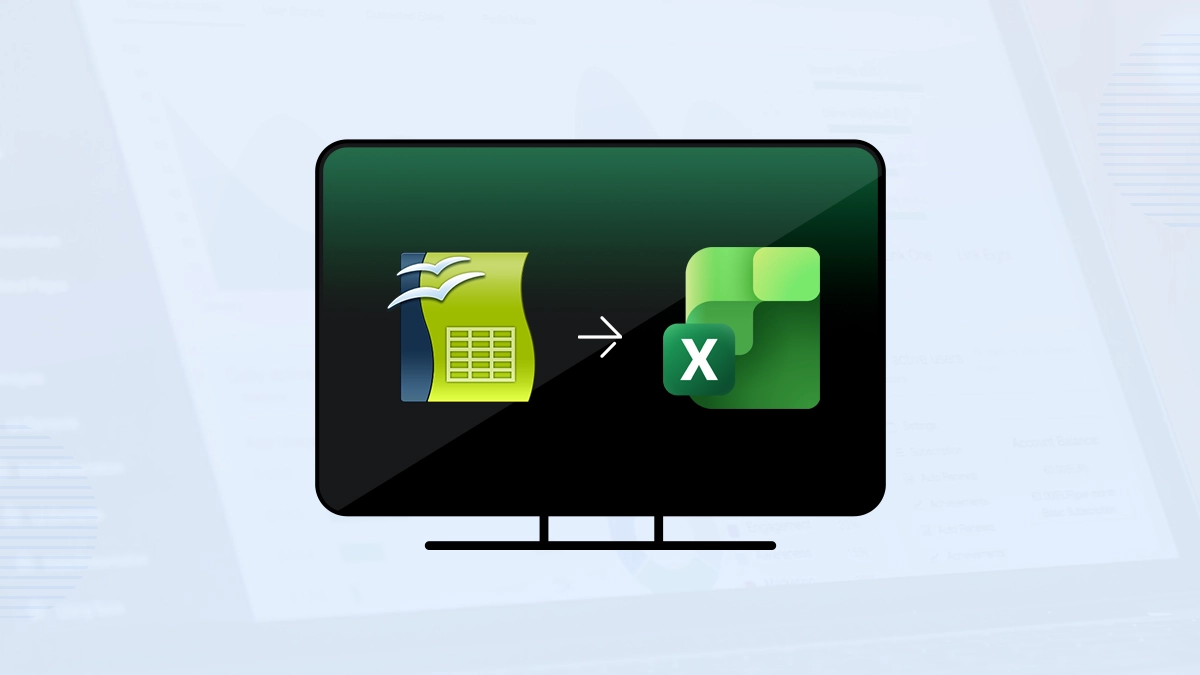
Nowadays, this is becoming a common problem as businesses use different spreadsheet platforms daily. But this can be solved when you convert ODS to CSV. However, the process seems to be complex at first, but the methods, along with other information, will help you preserve data accuracy and avoid formatting issues. Just follow the article and get the best method for personal or business use!
Brief Introduction to ODS File & CSV File
An ODS file stands for OpenDocument Spreadsheet. Mainly, LibreOffice Calc and OpenOffice Calc use this spreadsheet format for storing tables, formulas, charts, & spreadsheet data.
CSV stands for Comma-Separated Values. It stores spreadsheet data in plain text format, where commas separate each value. It is lightweight and compatible with almost every platform, such as Databases, CRM software, accounting tools, email marketing platforms, data analytics applications, etc.
Therefore, other characteristics, along with such wider compatibility, compel users to convert .ods to .csv for better compatibility and data sharing.
Why Do Users Convert ODS to CSV? Common Reasons to Know
Many users convert spreadsheet formats to improve compatibility, simplify data sharing, and import files into different business applications without formatting conflicts.
Reasons to Convert ODS to CSV:
- CSV files work with almost every operating system, database, and spreadsheet application without additional support.
- Many CRM, ERP, & automation platforms only support CSV files for bulk data uploads and migration processes.
- CSV files consume less storage space compared to ODS spreadsheets containing formulas, formatting, & embedded objects.
- CSV files load faster in data analysis tools, reporting systems, & cloud applications as well because they contain plain text values only.
- CSV files open easily on Windows, Mac, Linux, & web-based spreadsheet applications with no compatibility issues.
Methods to Convert ODS to CSV |100% Working & Reliable
There are different methods to convert .ods to .csv; each has its own set of steps and results. All reliable ones are mentioned below.
Method 1: Convert ODS to CSV using Microsoft Excel
Microsoft Excel is a powerful spreadsheet application used to manage analysis and maintain complex datasets. Here is how to convert ODS to CSV:
- Select your ODS file, right-click on that, tap on Open With, and then Microsoft Excel.
- Your ODS file will be opened in Excel; click on File. Go to Save As, then Browse.
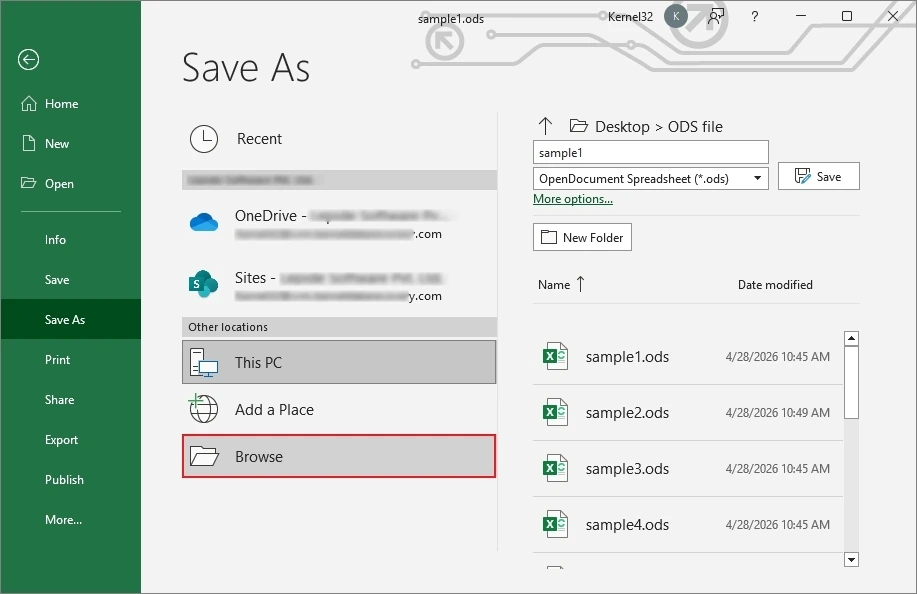
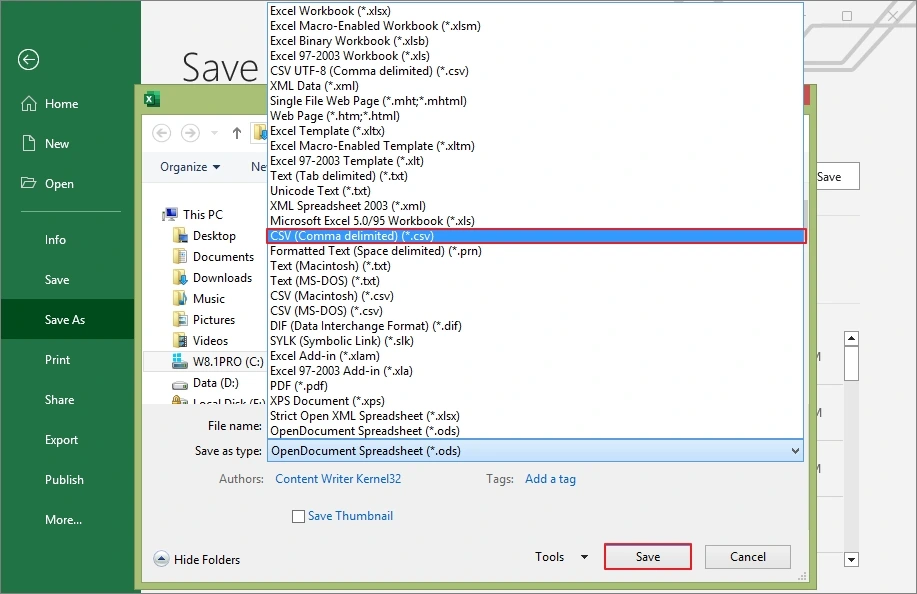
- Provide the saving location and select CSV (Comma Delimited) .csv from Save As Type. Click Save.
Advantages you get:
- Simple and beginner-friendly.
- No extra tool required.
- Rapid conversion process.
Limitations you may feel:
- Formatting and formulas may not remain intact.
- Large files may show compatibility warnings.
Method 2: Convert ODS to CSV via Google Sheets
Google Sheets is a free and effective web-based application used to manage spreadsheet data. You can also use it to convert ODS to CSV. Here are the steps to follow:
- Open Google Sheets in your browser, click File, then Open.
- From the Upload tab, tap on Browse, then select your ODS file & click Open.
- Your ODS file will be opened. Click on File, then Download, and select Comma Separated Values (.csv).
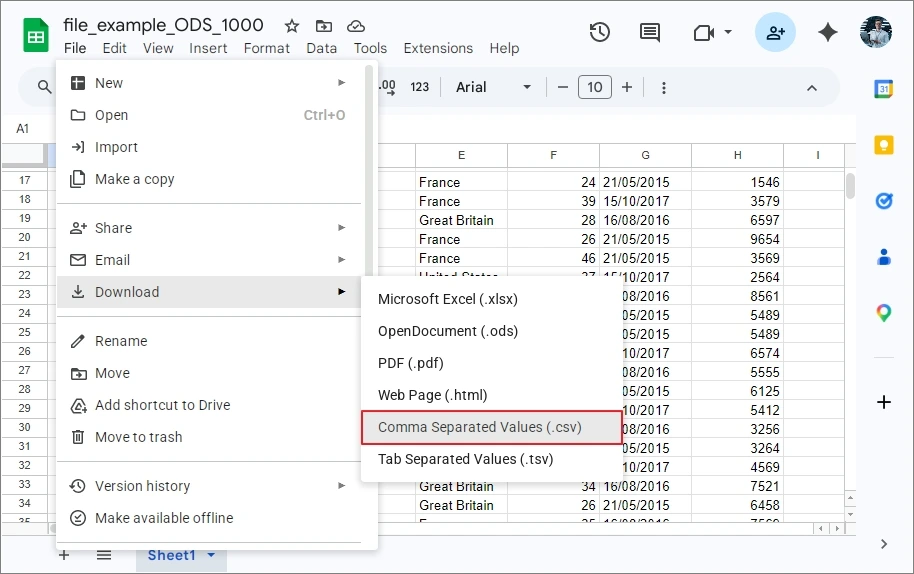
The resultant CSV file will be downloaded to the download folder.
Advantages you get
- Accessible from any device.
- No software installation needed.
- Good for remote teams
Limitations you may feel
- Requires internet connection.
- Large files may upload slowly.
- Formatting can slightly change.
Method 3: Convert .ods to .csv using Apache OpenOffice Calc
Apache OpenOffice Calc is another free alternative way to convert ODS to CSV. However, it is just an open-source spreadsheet application, but it allows you to do it effectively. The steps to convert ODS to CSV:
- Tap on the ODS file, right-click, then select Open With, then Apache OpenOffice Calc.
- The ODS file will be opened. Tap on File, then click on Save as.
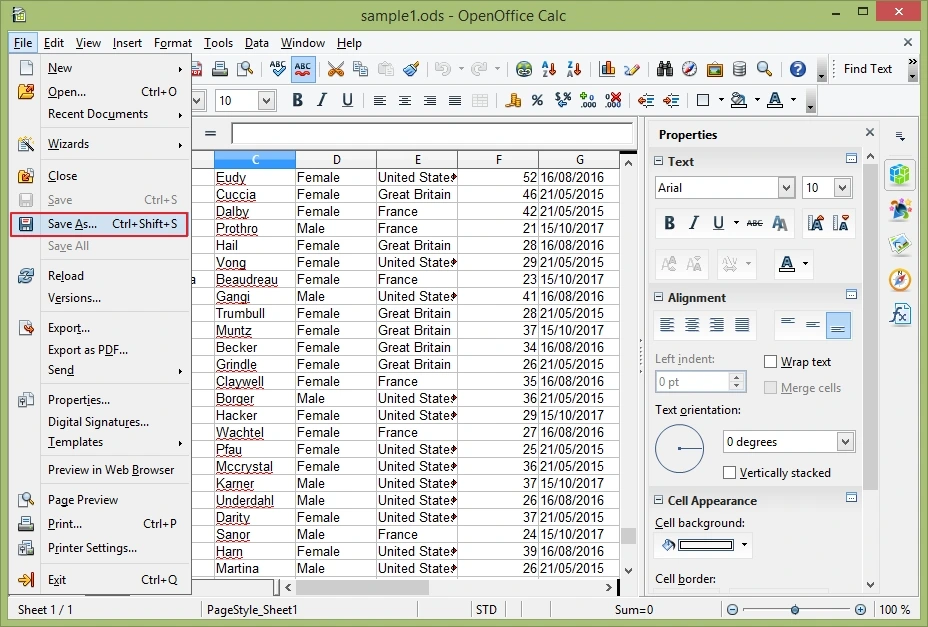
- Provide a saving location and select Text (.csv). Click Save.
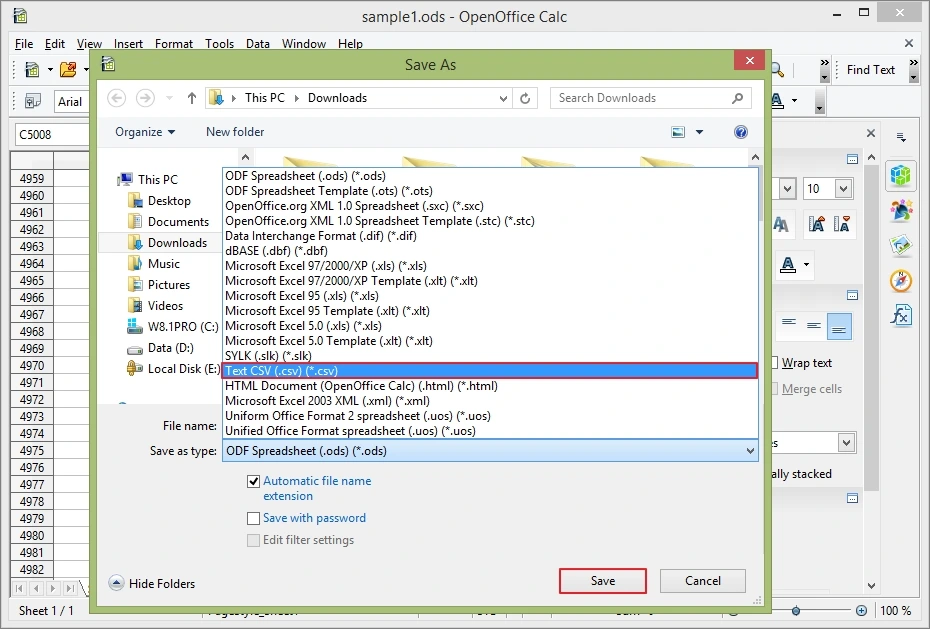
The ODS file will be saved in the CSV format.
Advantages you get
- Completely free solution.
- Good for basic spreadsheet conversion.
- Supports multiple operating systems.
Limitations you may feel
- Formatting gets removed.
- Formula-based values may change.
The limitations of the above method may disturb you or put you in trouble when you try to convert .ods to .csv at free will, such as large file size, bulk conversion, etc. Limitations like formatting issues and content intactness are also major concerns. A professional ODS to CSV converter can help to solve all such limitations and issues.
Method 4: Convert ODS to CSV via Kernel Document Converter
For a desired outcome in ODS to CSV conversion, you can rely on Kernel Document Converter Tool. You can add multiple ODS files in one go, escape formatting issues & get other benefits like large file support, specific page conversion, direct preview, email extraction, high accuracy, etc. The steps to convert ODS to CSV are as follows:
Step 1: Download and install tool on your system. Once done, launch it.
Step 2: Click the Add File icon, check the ODS option, then tap on Browse.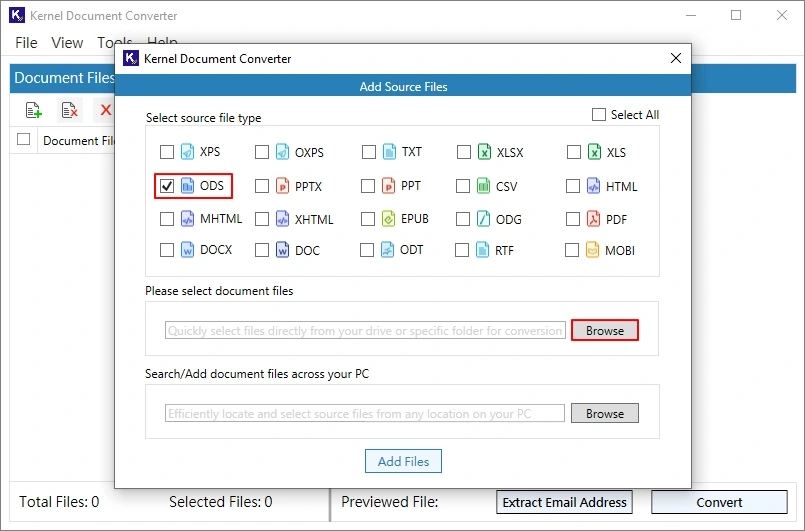
Step 3: Select your ODS files and click Select. Once selected, click Add Files.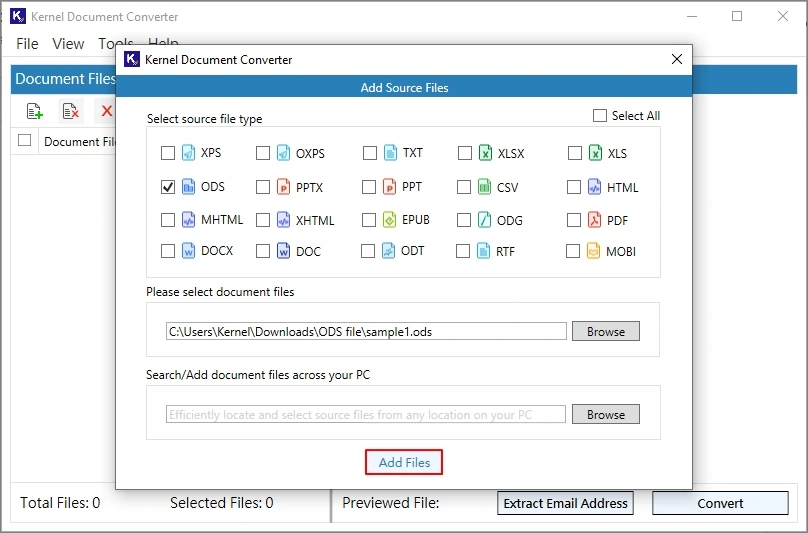
Step 4: Double-click on the file to preview. After that, select the required ones and click Convert.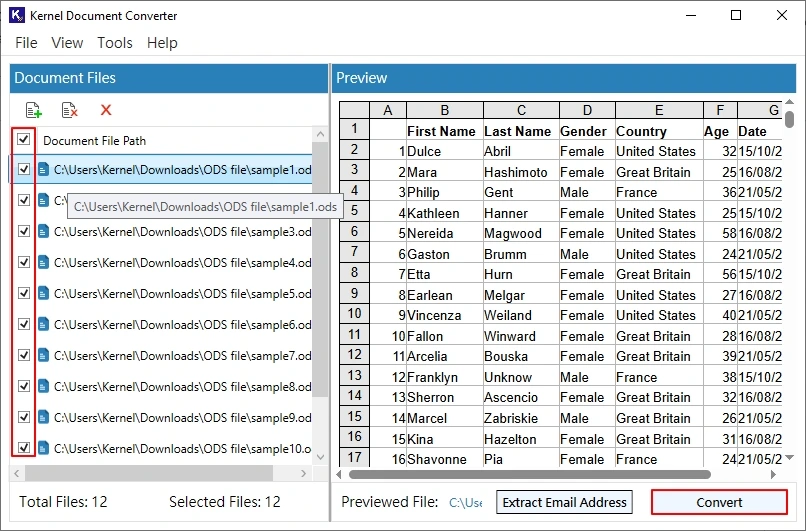
Step 5: Tap on Browse and provide a saving path. From the Spreadsheet Formats, select CSV, and apply the filters accordingly. Click Start.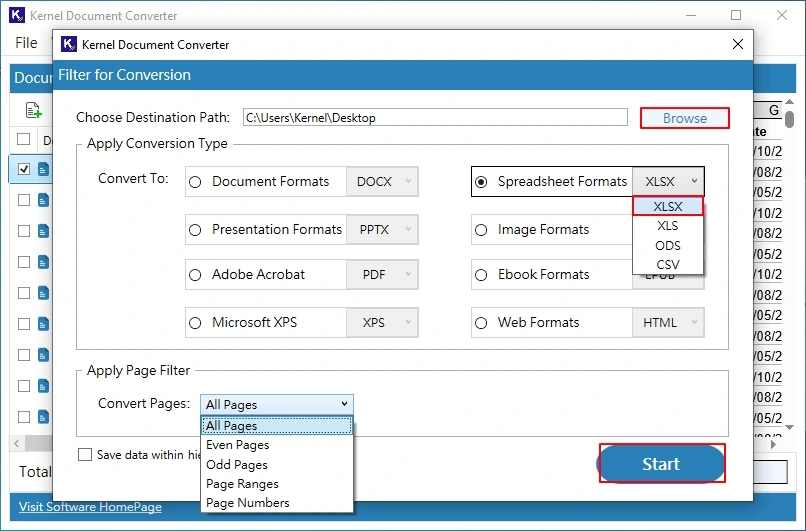
Step 6: The ODS to CSV conversion will start. Wait for a few minutes.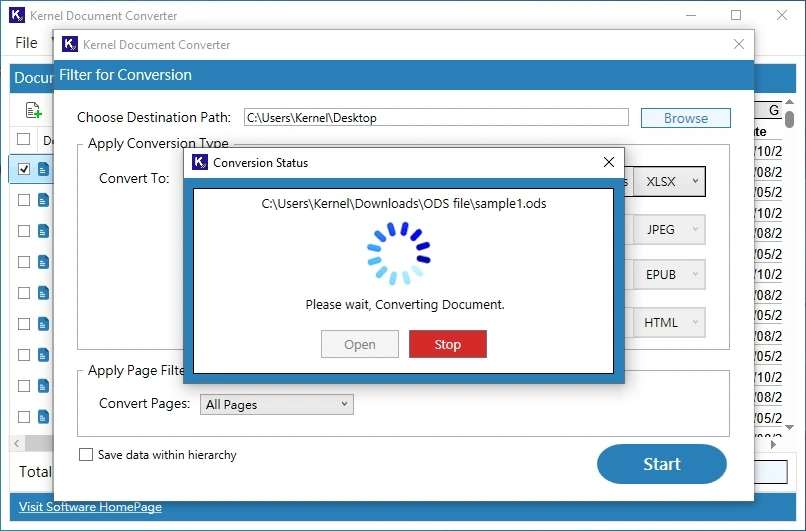
Step 7: Once the ODS to CSV conversion is completed, click Open to go to the resultant CSV file directly.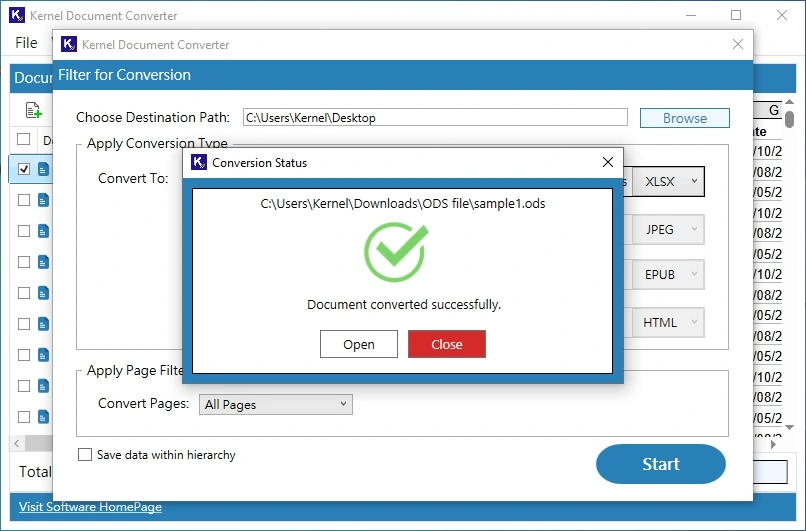
Last Say: Make ODS Conversion Accordingly
Now you know all the information about ODS and CSV, along with the methods to convert .ods to .csv. However, each method mentioned here is effective but has its own advantages and limitations, except for the professional solution. Kernel Document Converter gives results beyond limitations, and usability is so easy; even novice & professional can use it without a hitch. Moreover, the tool is ideal for all kinds of users, from individuals to small and large firms. Get the free trial now!!
FAQs You Should Know
A: Use Microsoft Excel, Google Sheets, or Apache OpenOffice Calc to convert ODS to CSV for free.
A: Applications like Microsoft Excel, Google Sheets may lose formatting, but the professional ODS to CSV converter tool keeps formatting and formulas intact.
A: Since applications like Google Sheets, Excel, and OpenOffice Libre have no bulk support, only professional ODS to CSV converters are viable to convert bulk ODS files to CSV.