

Read time: 6 min
USB Drives are one of the most common removable storage devices used when working with computers or laptops. When you use a USB drive with multiple workstations, there is a high chance of it getting infected with a virus intrusion or corruption. This can often lead to permanent data loss if not handled appropriately within a time. Administrators format their corrupted or inaccessible USB drives to repurpose it for future use.
You can format a USB flash drive using the command prompt, Disk Management, bootable drives, or a file explorer. Out of these methods, formatting using CMD means more reliability, easy deletion of protected or locked partitions, and bypassing errors that obstruct Windows file explorer from successful drive formatting. With that in mind, let’s proceed to learn how to perform this USB drive formatting with zero process errors.
What is the purpose of formatting a USB flash drive?
Formatting USB drive means preparing a storage device to have enough space to store new information. Here is how formatting a USB is going to help you:
- Improve USB drive compatibility and provide maximum storage capacity.
- Use the formatted drive with PCs with different OS in an efficient manner.
- Makes your drive free from viruses, malware, or any other anti-security program.
- Remove any sort of insecure and harmful data from the drives.
- Restore the drive to its full capacity even if it was partitioned previously.
How to format corrupted USB flash drive using Command Prompt?
Here’s the step-by-step guide to format USB flash drive using Command Prompt:
Step 1: Scan the drive for viruses
To perform the removable drive formatting, first connect it to your workstation. Now, run a deep antivirus scan on it to detect any viruses or other malware programs. If there are any viruses infecting the drive, remove it using the antivirus software.
Step 2: Launch command prompt
Open command prompt on your computer using Windows and R key and run “diskpart” command to create a disk partition.
Step 3: Check the Disk Number
Next, you need to run “list disk” command to see the number of disks available on your device and their status. Make sure to note the disk number you need to format using command prompt.
Step 4: Select the required disk
With the command “select disk ”, you will be able to select the disk that must be formatted.
Step 5: Clean your drive
Now, that you have selected the required disk, clean it with a simple command: “clean”.
Step 6: Make partition
Now you need to make the primary partition in the drive. It will help in future installations of the operating system.
Step 7: Format the selected disk
After the partition, the final step to USB formatting is to format the selected disk. Once you complete previous step, run “format fs=ntfs” and click Enter.
At the end, type exit and press Enter to finish.
Another solution for manual USB flash drive formatting
Here is how to use the file explorer to format the drive:
- Go to Windows Explorer and right-click on USB flash drive. Select properties.
- Select General tab to see the NTFS file system and disk capacity.
- Close properties, right-click on USB drive and select Format.
- Select NTFS in the File System and click Start.
- Select OK on the Warning message for confirmation.
Tips to keep your USB flash drive healthy
Follow these tips to avoid distorting your USB drive and retain its efficiency to store maximum data:
- Always insert the drive into the port carefully to avoid damage.
- Keep the drive away from moisture and humidity to avoid short-circuits.
- Do not use the drive for long hours or high-frequency editing.
- Keep the drive within protective storage to keep it safe from dust and buildup.
How to recover data from USB drive (removable drive)?
Worried about what will happen to your data within the USB drive after formatting? How do you plan to save your crucial data against loss in all circumstances? Formatting a USB drive eventually means losing all the data stored in the drive. However, you still have the chance to recover Windows data from damaged or corrupted hard drive, USB, SD cards, and other removable media.
For this, you need to use a professional Windows data recovery software like Kernel for Windows Data Recovery. It helps you restore deleted, lost, or missing data files from corrupt removable drives and Windows partitions without any errors. Once the data is recovered, the tool allows you to save it to the desired location for easy access. Here are some of the prominent features of the tool:
- Recover data from unreadable SD cards.
- Retrieve lost data from corrupted USB flash drives.
- Preview recovered files & folders before saving.
- Recover audio, images, documents, and other file types.
- Search feature to find specific files for recovery.
How to use Windows data recovery tool to recover data from USB drive?
Insert the USB drive into your PC and then follow the given steps to complete the data recovery process:
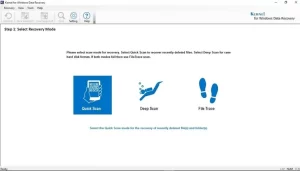
- Launch the tool and select Quick Scan to scan the computer to load the local and external drives.
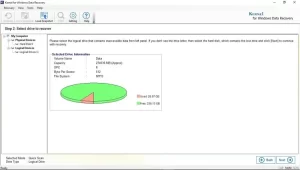
- Select the drive from the left pane and click Next to proceed recovery.
- Preview the recovered files and folders and select the desired ones to save.

- Adjust Recovery Settings to manage recovery of deleted and duplicate files.

- Provide the file saving location and click OK to begin saving the recovered data.

Conclusion
Formatting USB flash drive using command prompt allows you to bypass the write-protection errors, which is not possible with other formatting methods. However, it is important to remember that formatting means wiping off all the data from the drive. After the process, your drive will be empty, and all the data will be deleted. To avoid losing it all, use the recommended Windows Data Recovery tool to recover data from damaged and corrupted removable drives.
Frequently Asked Questions
A. To format your flash drive, follow the steps below:
1. Click on Start menu and search “Create and format hard disk partitions.”
2. Click on the search result to open Disk Management window.
3. Right-click on the connected removable drive and select Format.
4. Provide a storage name and select NTFS as the file system.
5. Select Default in “Allocation unit size” and mark the checkbox Enable file and folder compression. Click OK.
A. Erase is a term that defines deletion of specific files or folders from the memory. However, format means removal of all the files and folders from the memory.