

Need to recreate your SQL Server database structure on another server? Exporting its schema can save you from rebuilding every database object manually.
The SQL Server database schema helps you create a development or testing environment, document database structures, or share database design without exposing sensitive records.
For this, SQL Server Management Studio provides a built-in Generate Scripts wizard that exports an entire database or selected objects as a SQL Script. You can also use SQL queries to retrieve table and column details, save metadata in Excel or CSV, or extract a schema-only DACPAC using Microsoft’s free SqlPackage utility.
Here, we will explain practical methods to export a database schema in SQL Server.
What Does a SQL Server Database Schema Include?
A database schema defines how a database organizes and manages its objects. It describes the database structures, such as relationships and rules that govern data storage. A SQL Server database schema can include several objects, which you can check out in the table below:
| Tables | Columns |
| Data types | Primary Keys |
| Foreign Keys | Indexes Constraints |
| Views | Triggers |
| Stored procedures and functions | |
Types of SQL Server Database Schema Exports: Script, Data, and Diagram
SQL Server provides different ways to save database information, and each of them serves a different purpose. So identify the output type before your export.
| Export Options | What It Contains? | Best For |
| Schema-only SQL script | Definitions of selected database objects. | Recreation of database structure without records. |
| Schema-and-data SQL script | Object definitions and data-related SQL statements. | Database recreation structure along with records. |
| DACPAC | Database schema model (data is excluded by default). | Schema deployment, comparison, and development workflows. |
| BACPAC | Database schema and table data. | Moving a database with its data. |
| Excel/CSV | Tabular metadata, such as table names and column details. | Database documentation and analysis. |
| Database Diagram | Visual representation of tables and their relationships. | Understanding or sharing database design. |
5 Ways to Export SQL Database Schema Manually
Go through this section to learn the most appropriate solutions for exporting a SQL database schema. Try them out to find the applicable method based on your needs.
Method 1. Use SSMS to Export Database Schema In SQL Server
You can use SQL Server Management Studio to generate Transact-SQL scripts for an entire database or selected objects. Here are the steps to export SQL database schema without data:
Step 1. Open SQL Server Management Studio and Connect to Server.
Step 2. Expand Databases to select the required one.
Step 3. Right-click on the database and go to Tasks > Generate Scripts.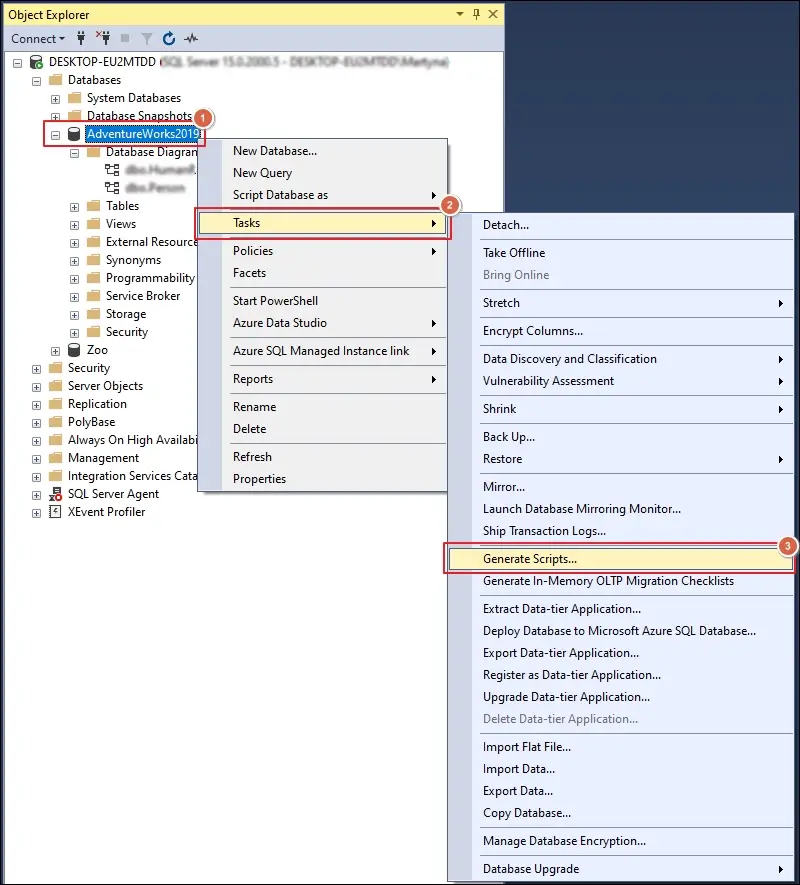
Step 4. Click Next on the Introduction page.
Step 5. Choose Objects from the following options:
- Script entire database and all database objects
- Select specific database objects
Once done, click Next to continue.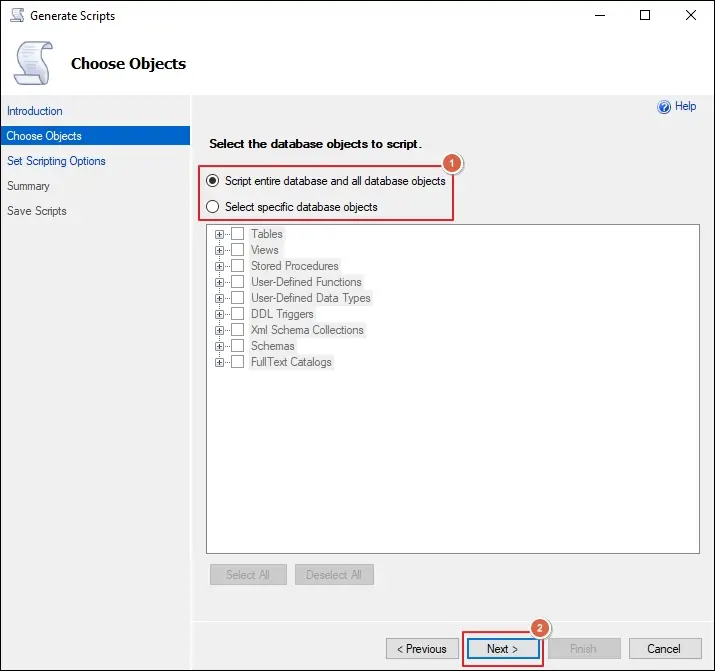
Step 6. Select the Save as script file and its associated options. Then, go to the Advanced section.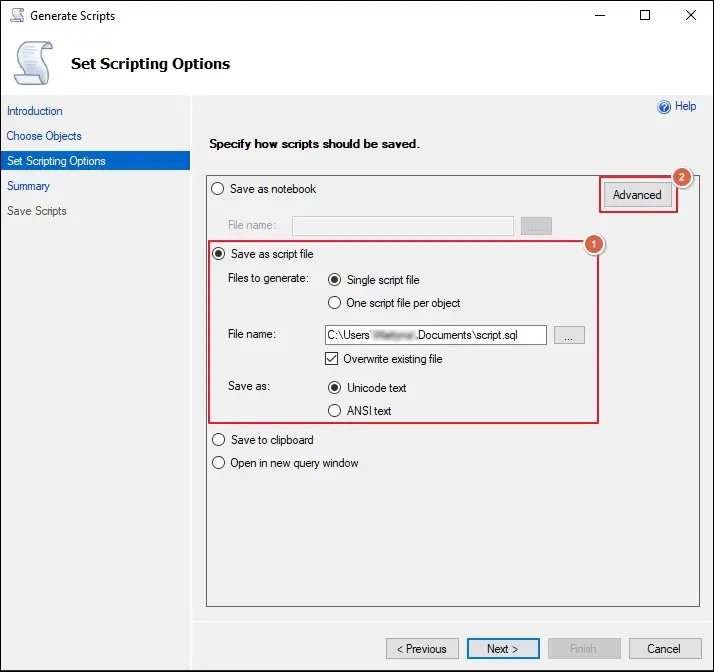
Step 7. Locate the Types of data to script option.
Step 8. Choose Schema only from the drop-down menu and click OK. Then, click Next.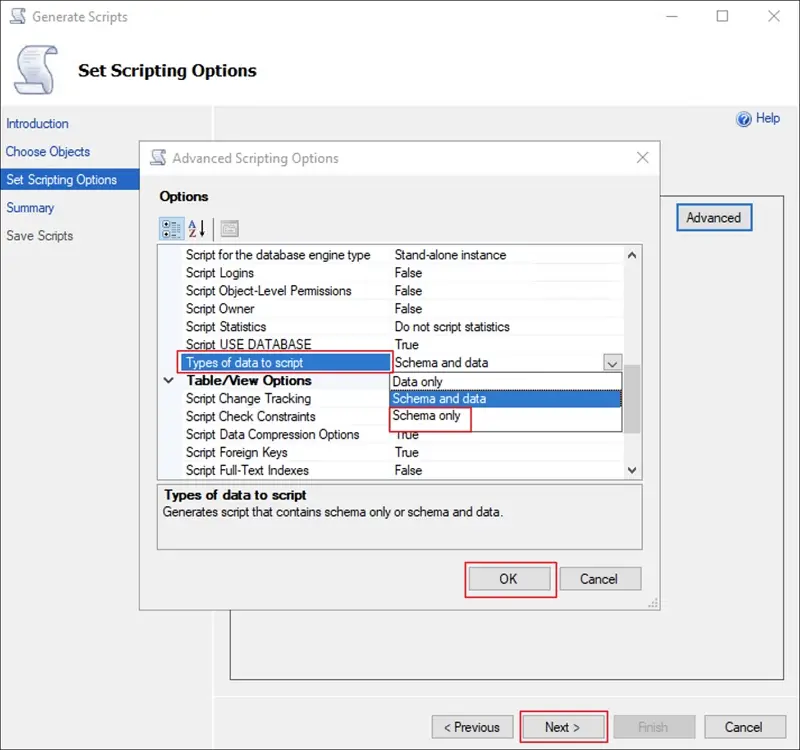
Step 9. Review your selections and proceed to Next.
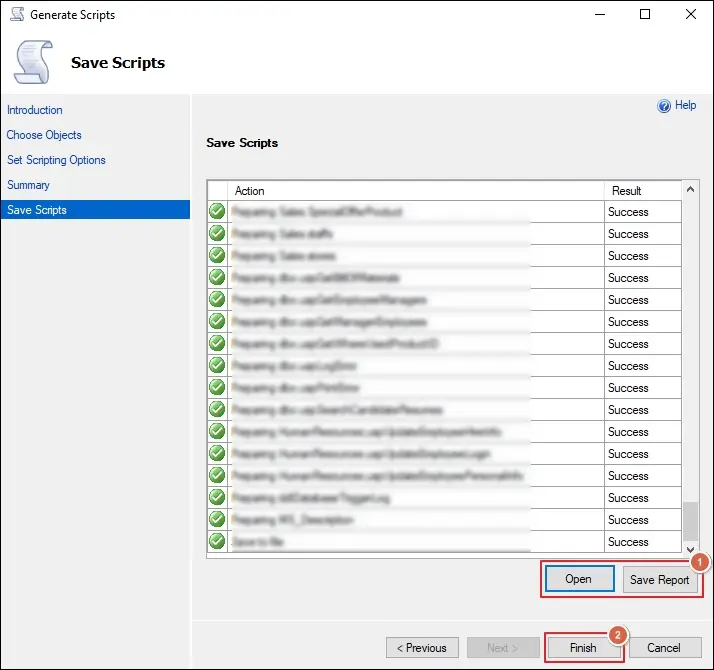
Step 10. Wait for the saving process to complete and click Finish.
Method 2. Export SQL Database Schema of Selected Tables or Database Objects
You do not always need to export the entire database. SSMS lets you generate scripts for the tables and objects through the Script As menu in Object Explorer. Here are the steps to export SQL Server tables or other objects.
Export Schema of a Single Table or Object from SSMS
Follow the given steps to export single objects from SSMS with ease:
Step 1. Launch SSMS and Connect to the required SQL Server instance.
Step 2. Expand Databases and select your database.
Step 3. Expand the desired Tables folder and right-click on it.
Step 4. Choose the Script Table as > CREATE To.
Step 5. Select the New Query Editor Window option.
Step 6. SSMS generates the table’s CREATE TABLE statement in a new query window.
Step 7. Review the script and select File > Save As.
Step 8. Save the file with a .sql extension.
Export Schema of Multiple Tables Using Object Explorer Details
You can use Object Explorer Details to select multiple objects of the same category:
Step 1. Expand the required object folder.
Step 2. Press F7 or go to View > Object Explorer Details.
Step 3. Select the required objects while holding Ctrl.
Step 4. Right-click the selected objects.
Step 5. Choose the relevant Script As option and select the desired output location.
Method 3. Run A SQL Query to Export Database Schema From MSSQL
You can use the SQL query to create a list of every table and column in a database. Follow the given steps to export data from SQL database to Excel or CSV.
Step 1. Select your database from the Available Databases list.
Step 2. Choose the New Query option and paste the provided query.
SELECT
s.name AS SchemaName,
t.name AS TableName,
c.column_id AS ColumnPosition,
c.name AS ColumnName,
ty.name AS DataType,
CASE
WHEN c.max_length = -1 THEN ‘MAX’
WHEN ty.name IN (‘nchar’, ‘nvarchar’)
THEN CAST(c.max_length / 2 AS VARCHAR(10))
WHEN ty.name IN (‘char’, ‘varchar’, ‘binary’, ‘varbinary’)
THEN CAST(c.max_length AS VARCHAR(10))
ELSE NULL
END AS MaximumLength,
c.precision AS NumericPrecision,
c.scale AS NumericScale,
CASE
WHEN c.is_nullable = 1 THEN ‘YES’
ELSE ‘NO’
END AS IsNullable,
c.is_identity AS IsIdentity
FROM sys.tables AS t
INNER JOIN sys.schemas AS s
ON t.schema_id = s.schema_id
INNER JOIN sys.columns AS c
ON t.object_id = c.object_id
INNER JOIN sys.types AS ty
ON c.user_type_id = ty.user_type_id
WHERE t.is_ms_shipped = 0
ORDER BY
s.name,
t.name,
c.column_id;
Step 3. Select Execute or press F5. The results appear in the grid.
Step 4. Review the results. A MaximumLength of -1 means MAX, and an empty value means the data type has no character length.
Step 5. To include column names in the saved file, go to Tools > Options > Query Results > SQL Server > Results to Grid, check Include column headers when copying or saving the results, and select OK. Restart SSMS or open a new query window.
Step 6. Right-click anywhere in the results grid to Save Results As > CSV > Save.
Step 7. Add the line below before ORDER BY to export only specific tables.
WHERE TABLE_SCHEMA = ‘dbo’ AND TABLE_NAME IN (‘Customers’, ‘Orders’)
Make sure to replace the schema and table names with yours.
Method 4. Create and Save Database Diagrams In SSMS
You can create and export database diagrams in SSMS with the help of the following steps:
Step 1. Go to Object Explorer, expand Databases, and select the required one.
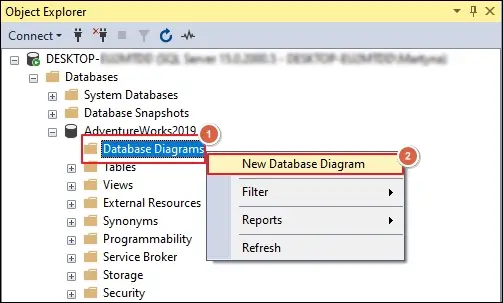
Step 2. Right-click on Database Diagrams and choose the New Database Diagram option.
Step 3. Select the required tables in the Add Table wizard.
Step 4. Click the Add option to load tables. Then, tap Close.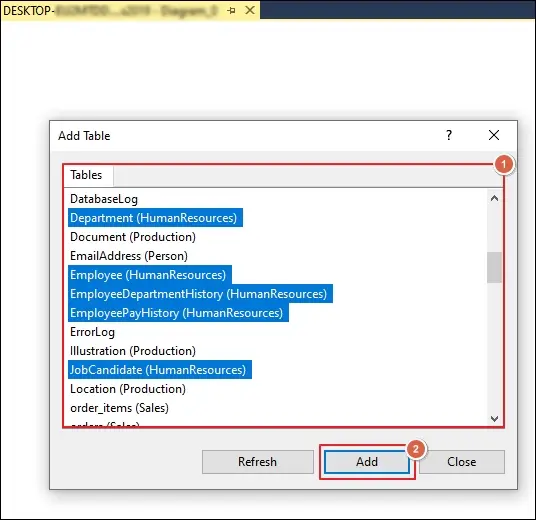
Step 5. Review the diagram. Each box is a table, and the lines show the relationships between tables. Drag the tables to arrange them so the lines are easy to follow.
Step 6. Right-click the table and select Table View > Keys to change how much detail a table shows.
Step 7. Select File > Save Diagram, enter a name, and select OK.
Step 8. Open the created diagram and right-click on the blank area.
Step 9. Choose the Copy Diagram to Clipboard option.
Step 10. Paste the image into Paint, Word, or PowerPoint. Then, save the file as an image.
Method 5. Export SQL Database Schema Using SqlPackage
A DACPAC is a database deployment package that contains a model of the database schema. By default, the SqlPackage Extract action does not include table data. Here are the steps to export database schema in SQL Server using it:
Step 1. Download and install SqlPackage from Microsoft’s official site.
Step 2. Open the Command Prompt, Terminal or, another supported command-line interpreter.
Step 3. Run the below-provided extract command.
SqlPackage /Action:Extract \
/TargetFile:”C:\Export\DatabaseSchema.dacpac” \
/SourceServerName:”YourServerName” \
/SourceDatabaseName:”YourDatabaseName” \
/SourceUser:”YourUsername” \
/SourcePassword:”YourPassword” \
/p:ExtractAllTableData=false
Step 4. Wait for SqlPackage to finish. It displays progress and a result message.
Step 5. Check the result by verifying that the .dacpac file exists in your folder.
DACPAC vs. BACPAC: What is the Difference?
Although both formats package SQL Server database information, they serve different purposes. Here’s a table to clarify the difference between them.
| Feature | DACPAC | BACPAC |
| File Extension | .dacpac | .bacpac |
| Database Schema | Included | Included |
| Table Data | Excluded by default. | Included |
| Primary Purpose | Schema deployment & comparison. | Database portability with schema & data. |
| Application | Development & deployment workflows. | Moving a database with its records. |
Conclusion
Here, we have covered a detailed guide to export database schema in SQL Server. You can check the different available methods to export a schema based on your requirements. For example, generate scripts works for schema-only .sqlfile, a DACPAC suits deployment, all these methods need database to be accessible. But, if your database becomes corrupted, damaged, or inaccessible, these methods may not work. In that situation, Kernel for SQL Database Recovery tool can help recover tables, triggers, rules, functions, stored procedures, primary keys, foreign keys, and other database objects in their original structure. Whichever method you use, make sure to verify the exported schema before using it on another server.