Read time: 9 minutes
To save individual emails with original formatting, metadata, & attachments, Microsoft Outlook MSG files are widely used. Users often share MSG files between systems for collaboration, legal documentation, email archiving, or troubleshooting purposes.
But in most situations, users face errors when they try to share MSG files between systems. It can be due to system inconsistencies or overlooked behavior. This blog will help you identify more common issues with their root cause. Besides, it will provide you with the practical insights to avoid these issues in the future.
MSG files: Email message files created by Microsoft Outlook that store complete email data, like:
- Email subject & body.
- Sender & recipient details.
- Date & time information.
- Attachment & embedded elements.
Reasons for Issues When You Share MSG Files Between Systems
MSG file compatibility issues generally occur due to differences in:
- File handling permissions.
- File integrity during transfer.
- Operating system availability.
- Attachment limits or sync settings.
- Using the different Outlook versions.
- The email client used by the individuals.
Share MSG Files Between Systems: Common Issues Found
Go with the following section & know the root cause of all the common errors that users usually face while sharing Outlook message across systems.
Issue 1: Cannot Open MSG Files on Different System
It is one of the most common issues that recipients usually face while opening the MSG files. This issue usually happens when Microsoft Outlook is not installed or not properly updated/configured on the target system. Because MSG files are a proprietary format for Outlook, other email clients will not recognize them.
Issue 2. Compatibility Issues Between Outlook Versions
In most cases, it is seen that different Outlook versions handle MSG files slightly differently. A user who creates an MSG file in the new Outlook version can face difficulties in opening the same file in the older versions. Consequently, it leads to Outlook message file errors.
Common Symptoms:
You can identify this issue by noticing the following symptoms:
- Formatting-related issues prompted.
- Get improper display of email content.
- Find the missing email headers situation.
Issue 3. MSG Email Attachment Not Opening
Faced the issue of missing or not opening email attachments? This issue is frequently reported by users while transferring the MSG files between systems. The primary reason behind this issue is the improper method of transfer.
Other causes include:
- Interrupted MSG file transfer.
- Exceeded the file size limitation.
- Dealing with compression or extraction errors.
Note: Exceeding the MSG file size can also cause issues like incomplete downloads, failed uploads, or incomplete file content.
Issue 4. File Permissions & Access Restrictions
Users usually go for sharing Outlook messages across systems through external drives, network folders, or cloud storage. But due to permissions settings, these files may not be accessed or modified by the users, leading to situations like,
- Access denied errors.
- Not able to save & forward the MSG files.
- Getting read-only file status instead of editing.
Important to know: Platform dependency issues (Windows vs MacOS) can cause this issue, like you have created the MSG file in Windows Outlook & you are using that in MacOS Outlook.
Issue 5. File Corruption Errors
Using an improper method to share MSG files between systems can corrupt the MSG files, which can lead to their inaccessibility. This can include unstable internet connection, abrupt USB removal, or unsupported compression tools that can cause file corruption errors.
Signs of corruption include:
- Outlook message file errors are prompted.
- Blank email body & unrecognized file format warnings.
Issue 6. Security & Email Client Restrictions
Some system security restrictions/policies or filters block MSG files as they contain embedded scripts or macros. As a result, users can face the MSG file compatibility issues. The common restrictions that users usually face include:
- Antivirus is blocking the MSG file access.
- MSG file not opening on another computer.
- Prompting with the system security warnings.
- Email gateways are rejecting MSG file attachments.
Want to Get Rid of these Issues? Convert MSG to PDF
Most of the issues arise due to the incapability of MSG files in sharing or portability, where the PDF format leads among all. Converting MSG to a PDF file is the most suitable approach to avoid these issues. You can use the manual methods for conversion, but its inherent limitations, like unsupported bulk conversion, distorted data integrity, etc., may not provide the desired results.
Here, the Kernel MSG Viewer Pro tool stands out to tackle all MSG related issue & even supports batch MSG conversion to PDF with precision. The advanced tool is equipped with high-tech & user-centric features to provide the needed results without data loss.
Here are the steps to understand its functionality:
Step 1. Download & open the MSG Viewer Pro software.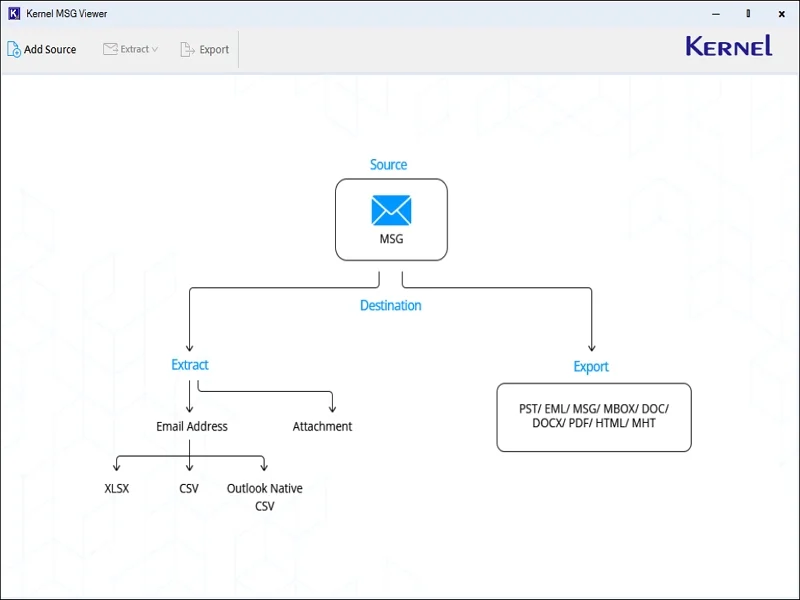
Step 2. Click on the Add Source, browse the MSG files & tap on the Add files option.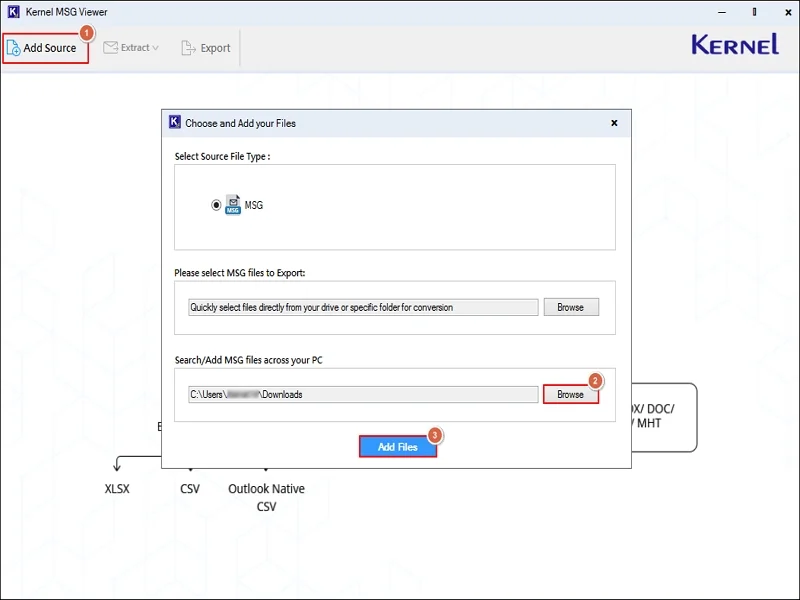
Step 3. Preview the complete content of the MSG file, like sender, recipient, subject, & date, with attachments & categories.
Step 4. Choose the desired MSG files with the filters, like To, CC, BCC, Subject, etc. Then, hit the Export tab.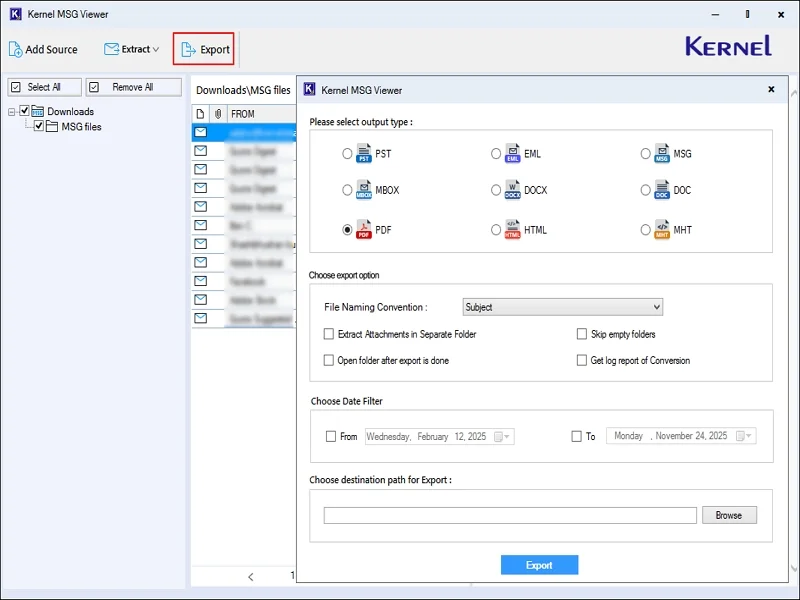
Step 5. Choose the PDF option, apply the filters, browse the preferred endpoint & hit the Export option.
Step 6. It will start the MSG to PDF conversion. Access the saved PDF file directly once the process is completed.
Important to know: You can even extract email addresses & attachments separately into the local system with this advanced tool.
Best Practices to Avoid MSG File Compatibility Issues
Follow the guidelines below to reduce Outlook saved emails sharing problems:
- Ensure the compatibility of the Outlook version on both systems.
- Verify file integrity when sharing Outlook messages across systems.
- Check system permissions settings or filters.
- Avoid renaming file extensions manually & use stable file transfer methods.
Wrapping Up
Understanding the common issues related to the “share MSG file between systems” process can help users take precautionary action in the future. We have covered all the major errors in detail along with their root causes. Consider them for smooth sharing. But, if you want to avoid these issues, convert them into standard & portable formats like PDF with the advanced tool resolution.