Read time: 6 minutes
The confidential data and messages stored in the mailbox of your PST file are an object of concern and must be protected from unauthorized access. The standard practice to safeguard a PST file is to password-protect it. However, users often forget or lose the password associated with the PST files.
What would you do if a situation arises demanding immediate access to the content of the encrypted PST file? To help you with such a scenario, this blog will help you learn some reliable ways to decrypt Outlook PST file password and access its protected data safely.
What do users need to decrypt Outlook PST file?
The need to decrypt Outlook PST password can arise due to several factors including personal and professional. Some of the prominent reasons why a user will change its PST file password are listed below:
- Forgot or lost password of old or new PST files.
- Need to access a protected file from an anonymous source.
- Need for a stronger password to tackle the latest cyber threats.
- Company password policy demands a change or update in password.
Quick methods to decrypt Outlook PST password
To allow access to an encrypted PST file, we will make use of various approaches both manual and automated. However, the user must understand that no direct manual method exists to decrypt Outlook PST file password and break through its latest defense algorithms.
Method 1. Using pst19upg.exe
Microsoft has a tool called pst19upg.exe which was developed to allow users to upgrade the PST file. However, apart from upgrading the PST file, this utility also serves as a tool to remove Outlook PST file password by removing the file’s encryption during upgrading. This utility works best for Outlook version 2002 and before. The pst19upg.exe tool may find it difficult to access and operate PST files created in Outlook versions post-2002. Here’s how to use it to remove password and decrypt Outlook PST password:
Step 1: Make sure to create a copy of your encrypted PST file.
Step 2: Open SCANPST.EXE (Inbox repair Tool) and click on Repair.
Step 3: Use PST19UPG.EXE to convert your PST file to ANSI. Steps to do so are:
- First, run pst19upg -x oldfile.pst temp.pst to extract file.
- After that, run pst19upg -i temp.pst newfile.pst.
Step 4: Your PST file will become password-free. Open it on Outlook to access data.
Method 2. Utilizing PST backup – Solution to access PST data
This method doesn’t remove or decrypt Outlook PST file encryption, instead provides a way to access your locked data using the backup of your PST file. Every Outlook user possesses a backup of PST file. This backup can be used to recover your crucial data in case you cannot access the items from the password-protected PST file. You can import the backup.pst file in Outlook using the Outlook import module.
Follow the steps below to recover your locked emails and attachments with the backup.pst file:
- Open Outlook and go to File > Open & Export.
- Select Import/Export, choose Import from another program or file, and click on Next.
- Select Outlook Data File (.pst) and click on Next.
- Click Browse and specify the location of the backup PST file. Click on Next.
- Choose the folders you want to import from your PST file and check the Include subfolders option. Click on Finish.
How to decrypt PST password without Outlook? Automated approach
Kernel for Outlook Password Recovery is a specially designed tool to decrypt Outlook PST file and recover lost PST passwords. You can also remove password from encrypted PST, or you can set a new password to it. This Outlook Password Recovery software allows you to decrypt Outlook PST file password in three simple steps and then it will display the password automatically. Moreover, it offers numerous advanced features like:
- Allows users to add single or multiple PST files to recover the password at once.
- The software supports PST files encrypted with non-English or special characters.
- Permits users to remove Outlook PST files Password without altering data.
- Best Outlook Password Decryptor tool to set a new password for your PST file.
- The free version allows you to remove, recover, or reset the password of a PST file up to 500MB.
Quick steps to use Outlook Password Decryptor tool:
Step 1. Launch the Software and use Add file button to add PST file.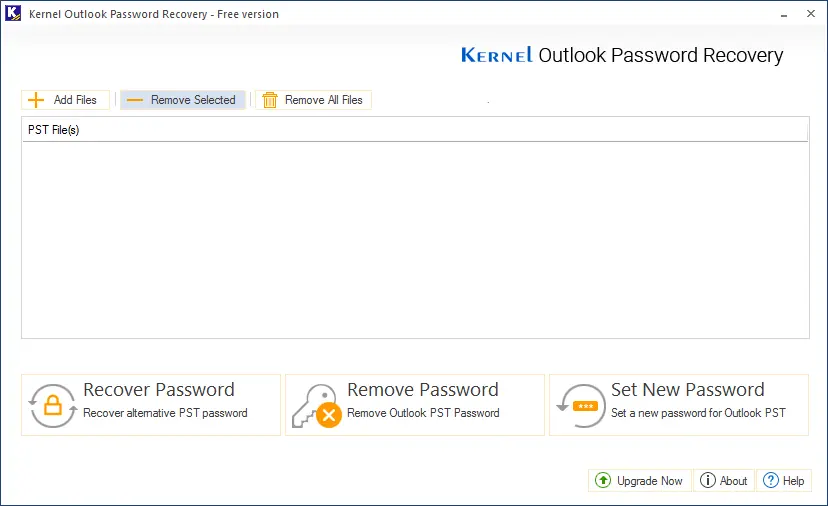
Step 2. Add PST from your system hard disk then use Recover Password.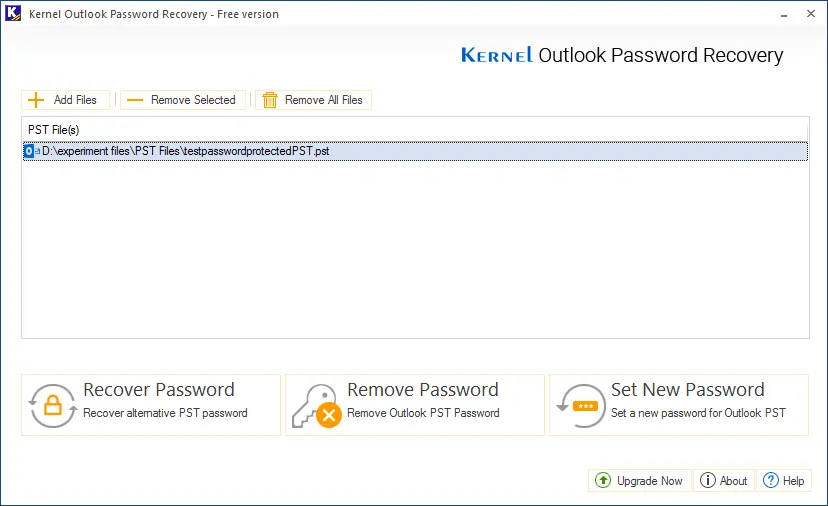
Step 3.Your password is decrypted and will be displayed on the tool.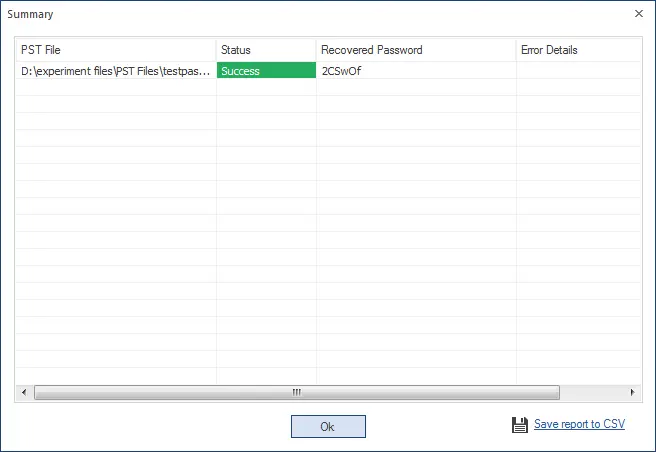
Conclusion
Undoing your Outlook data file encryption can be really challenging without the right tools. Kernel Outlook Password Recovery software is an accessible and reliable alternative to manual methods. Knowing authentic methods to access your locked data is essential to prevent any business calamity. However, in case you are wondering how encryption is added to the PST file, read the blog “Change or set password for Outlook PST file”.
Frequently Asked Questions
A. No. Use our automated Outlook Password decryptor, Kernel for Outlook Password Recovery, to decrypt PST password without Outlook and worrying about data loss.
A. You can use the Outlook built-in option or PST19UPG to remove Outlook PST file password manually.