Read time: 8 minutes
Summary: Moving old emails to Outlook PST helps to keep them combined, accessible, and even for safe backups. You can do it with Outlook itself quickly. But to move old emails to PST files in bulk may put you in a hassle, which you can escape with the right method and strategy. In this article, you get the best methods and automated solution for bulk emails to PST conversion. We’ll also cover common reasons & smart strategies in a stepwise manner.
You can easily move old emails to PST file for Microsoft Outlook when you use the authentic methods. Outlook’s built-in Import/Export feature or archive feature mainly helps users to manage mailbox data efficiently. Resultantly, efficient mailbox management improves Outlook performance. When your mailbox grows too large, it can slow down your system and increase the risk of corruption. That’s why many users look for reliable ways to move old emails to PST file to keep their mailboxes organized.
Whether you want to move old emails to PST file for Outlook or manage large-scale email migration, we’re here to help you out with the right solution. In this complete guide, you will learn manual and free methods along with an automated MSG to PST converter solution that will help to move old emails to a PST file for Outlook.
Reasons to Move Old Emails to PST File
To reduce mailbox size, improve Outlook performance, & create secure local backups for long-term storage and compliance needs, Outlook users usually move old emails to a PST file. Some of the main reasons are given below:
- Improve Microsoft Outlook speed and performance.
- Keep mailbox size limit issues away.
- Create a backup of old emails.
- Free up server storage space.
- Keep important historical emails safe.
Note: Your old emails might be in MSG format in local storage or in a specific email account. When you have MSG files, drag and drop those files into the functional Outlook first. Or if the old emails are in the specific email account, you need to configure that in Outlook for the same.
Manual Methods to Move Old Emails to PST File for Outlook
Once you’ve imported your old emails into Outlook or configured your email account in Outlook, go through the methods to move old emails to PST file for Microsoft Outlook. Opt for the given methods below at your convenience:
Method 1. Move Old Emails to PST File Using Import/Export
Microsoft Outlook has a built-in Import/Export feature that allows you to move old emails to PST Outlook. Here are the steps to follow:
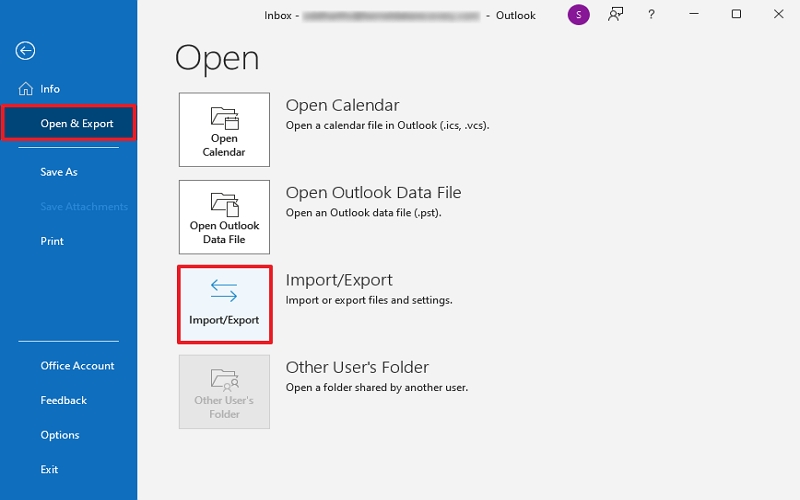
- Open the Outlook application, go to File, and choose Open & Export. Click Import/Export.
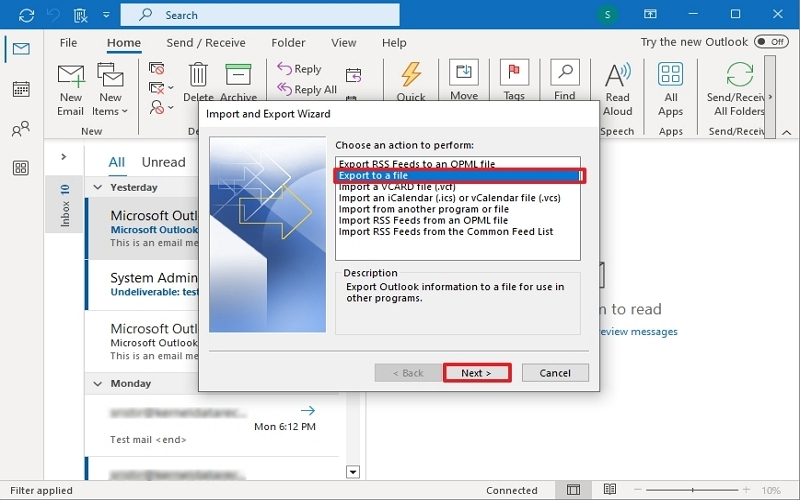
- Click Export to a file and tap Next.
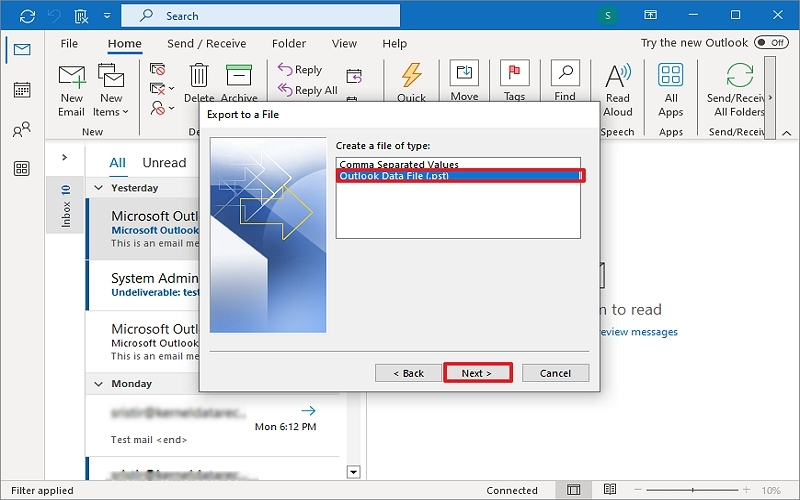
- Tap Outlook Data File (.pst). Click Next.
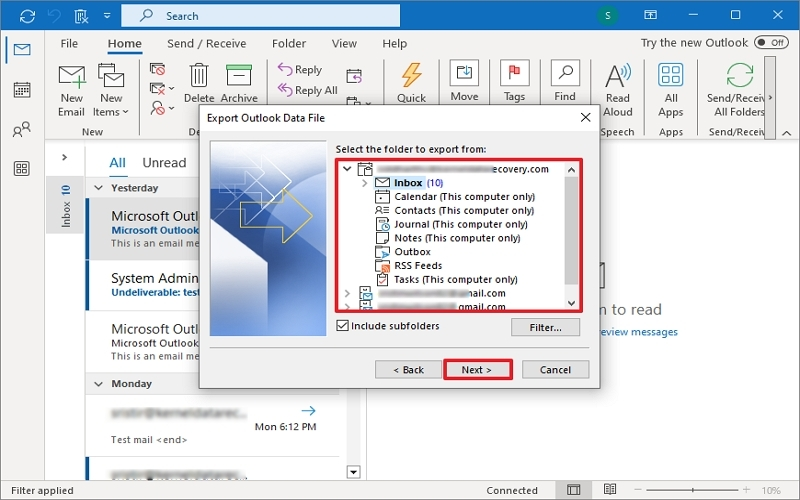
- Choose the folders where you save your MSG files. If you’ve configured email account in Outlook, select the folder you want to export as PST.
- Click Browse to choose the saving location of the PST file. Click Finish.
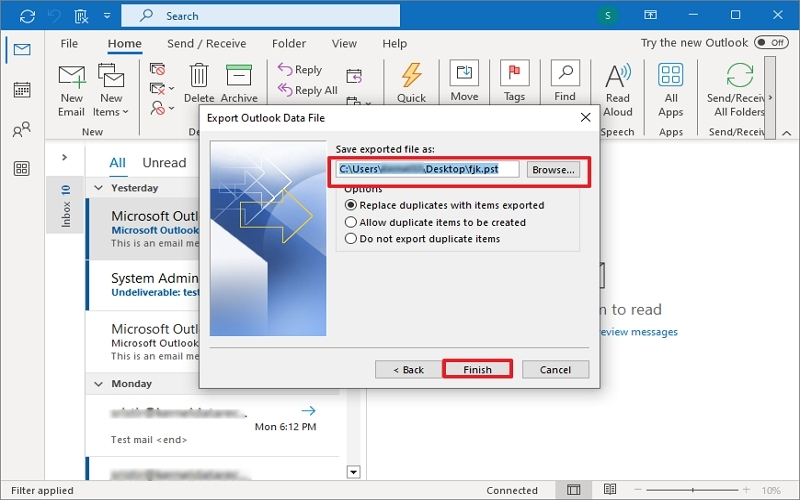
It will convert old emails to a PST file at your preferred location.
Note: If asked, input the password for your PST to keep it protected from unauthorized users.
Method 2. Move Old Emails to PST File Using the Auto Archive Feature
Auto Archiving is another option to move old emails to PST Outlook (imported MSG files or configure a specific email account folder) manually. Follow the steps below.
- Open the Outlook application, go to File, and choose Options.
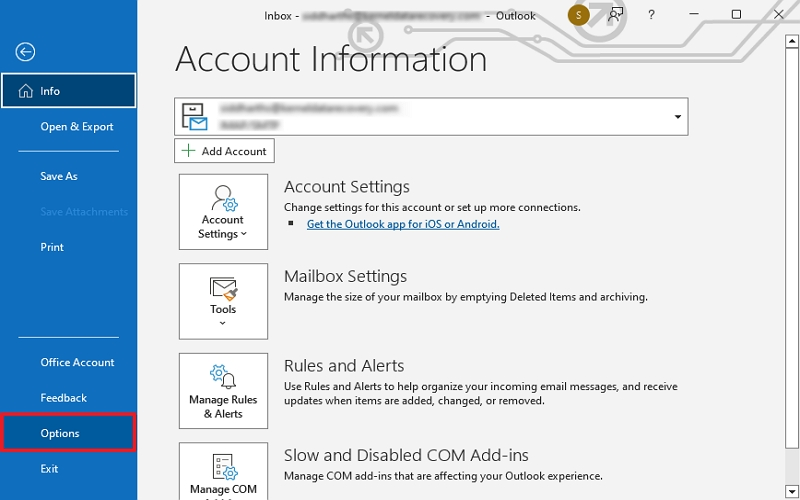
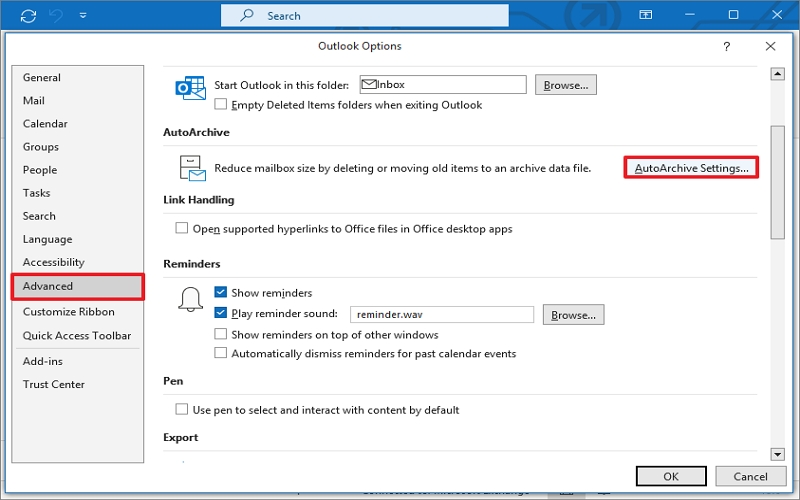
- Tap Advanced, then go to Auto Archive Settings to set up archiving.
- Specify the time interval, saving location, & other options accordingly. Click OK.
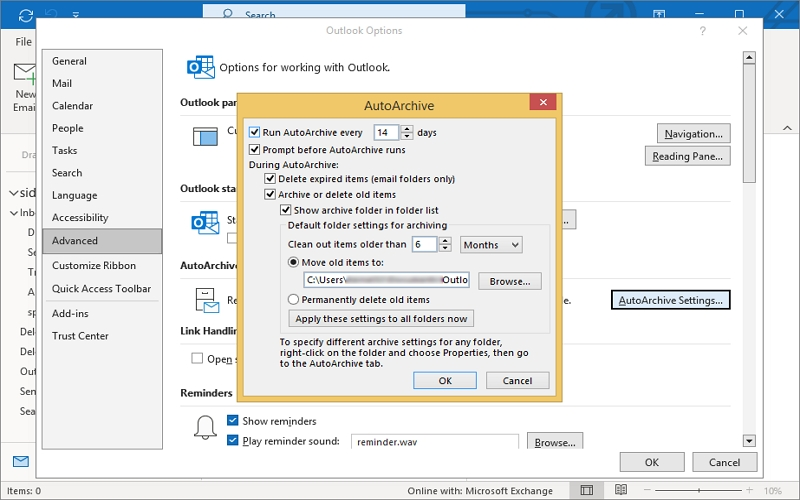
Once completed, you can find the archived PST file in the specified location in local storage.
Note: If you have old emails in EML files, you can also use the above methods to move old emails to Outlook PST.
Limitations of Manual Methods to Move Old Email to Outlook PST
Manual methods are free and effective for small mailboxes but may suffer from bulk email conversion. Here are some common limitations you will face when you move old emails to PST file for Microsoft Outlook:
- Not suitable for bulk MSG conversion.
- Time-consuming for large mailboxes.
- Risk of file corruption if interrupted.
- No advanced automation options.
- Risk of missing emails due to human error.
- Required Outlook & difficult for non-technical users.
For managing thousands of old emails in a professional manner, an automated MSG to PST converter solution is a better option & many professionals recommend it.
Common Errors and Solutions You Must Know
You can sometimes encounter several errors in Outlook when you export old emails. So, understand them well and protect your tasks from failures & get a smooth PST file creation.
|
Outlook Errors |
Solutions |
|
PST File Size Limit Issue |
Older Outlook versions have a 2GB limit. Upgrade Outlook or split the PST file. |
|
Export Stuck or Freezing |
Disable add-ins and restart Outlook. |
|
Corrupted PST File |
Use Outlook’s Inbox Repair Tool (ScanPST.exe). |
Best Solution to Move Old Emails to PST File for Microsoft Outlook
The Kernel MSG to PST Converter is a reliable solution to convert MSG files into Outlook PST files with all data intact. Move multiple MSG files into a single PST file in just a few clicks. It safely transfers MSG emails along with all data, like metadata, folder structure, etc. Compatible with all major Outlook versions, the tool also provides flexible saving options for better email management.
Features of the Advanced Software:
- Save MSG files in PST, EML, MBOX, DOC, DOCX, HTML, PDF, etc.
- Convert multiple MSG files into a single or multiple PST files at once.
- Preserves email formatting, attachments, metadata, and properties.
- Preview MSG file content before the final export process.
- Maintain original folder hierarchy.
- Extract email addresses and attachments separately in a specific file.
Do Consider Smart Email Archiving Strategy
Modern email management requires smart archiving strategies that balance storage optimization, compliance, accessibility, and long-term data protection. Instead of manually selecting emails every few months, create a structured plan:
- Archive emails older than 1 year.
- Maintain yearly PST files.
- Check & repair issues in PST file regularly.
- Keep backup copies on external drives.
- Use encryption for sensitive data.
Businesses should also consider compliance policies before archiving.
Conclusion
When you regularly archive old emails, you get improved Outlook performance, no storage issues, & valuable data protected. Before you carry out the given methods, you will need to access your old Outlook emails. After that, by following the above methods and best practices, you can easily move old emails to PST Outlook without technical difficulties.
If you have bulk old emails, then moving them to PST via the manual method may bother you due to various risks and limitations. So, using the professional solution over a manual workaround is the best solution for you. The free trial version is for you: download it now!
Frequently Asked Questions
A: Yes, you can move multiple old MSG files into one PST file via Outlook and a professional MSG to PST converter solution.
A: Yes, moving old email to PST file manually requires consecutive steps, so having technical expertise & better understanding of the Outlook application is needed.