Read time: 8 minutes
Gmail, even though it is a majorly preferred email platform, often uses the user data as a source of its research and advertising. Such practice often questions the credibility and privacy of the email messages and other data. This explains why it is time to break free from the shackles of conventional emailing and take control of your inbox privacy with ProtonMail.
Gmail to ProtonMail isn’t just a transition of your email address, rather it is the change of your complete digital identity. However, shifting years of hoarded data from the used to environment might seem tough, but it will bring some revolutionary reforms in your everyday email communication. If you’re ready to migrate from Gmail to ProtonMail, read this article bit by bit. It shares some effective methods and practices that you can use to migrate between the two ecosystems.
Why do you need to switch from Gmail to ProtonMail?
Before moving ahead with the migration methods, here are some reasons that explain why you must move from Gmail to ProtonMail:
- Maintain transparency: ProtonMail is an open-source email service provider that delivers complete transparency among its users.
- End-to-end encryption: It is an end-to-end encrypted platform that helps you make sure the intended receiver and you are the only one to read the email messages.
- Do not track data: Unlike other email platforms, ProtonMail never tracks or saves the user’s activity and uses it for advertising purposes.
- Easy data import: ProtonMail has an in-built utility, Easy Switch, that imports mailbox data from other email platforms like Gmail, Outlook, etc.
Manually migrating emails from Gmail to ProtonMail
Let’s now proceed to see how to migrate emails between these two platforms for highest efficiency:
Transfer emails with the Import Assistant
ProtonMail import assistant, that is, Easy Switch, helps in easy export of emails, contacts, calendars, and other data to ProtonMail without any other utility. Here are the steps:
Step 1: Login to your ProtonMail email account and go to Settings> All Settings> Import via Easy Switch.
Step 2: Select Google as your service provider to start.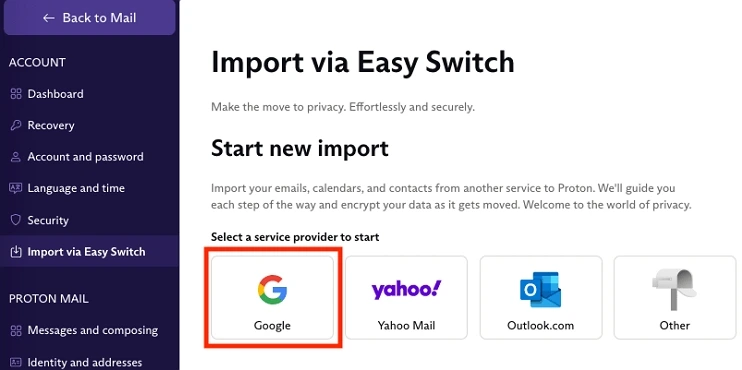
Step 3: Sign in to your Gmail account using the credentials.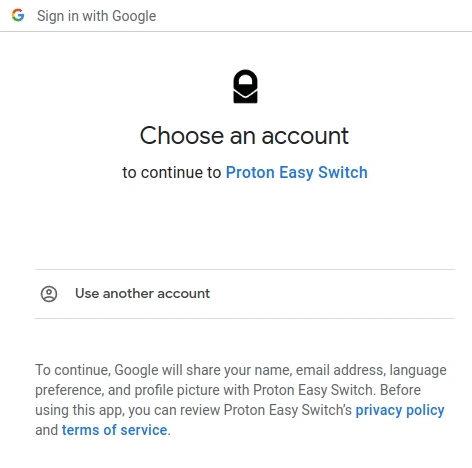
Step 4: Choose the mailbox folders data to import into ProtonMail.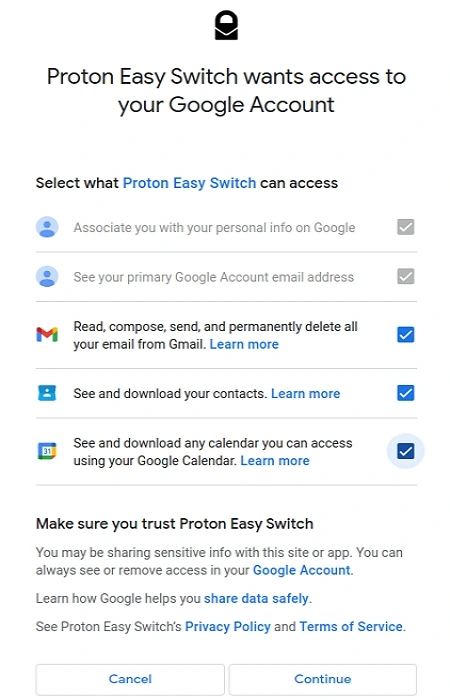
Step 5: Select Start Import to begin the process for saving data to ProtonMail.
Gmail email migration to ProtonMail with email forwarding
Enabling auto forwarding redirects all the future emails coming to Gmail to land straight to the ProtonMail inbox. Follow the given steps:
Step 1: Go to Gmail on your web browser and sign in using the account credentials.
Step 2: Click on the Gear icon and then See All Settings.
Step 3: In the Forwarding and POP/IMAP tab, click on Add a forwarding address.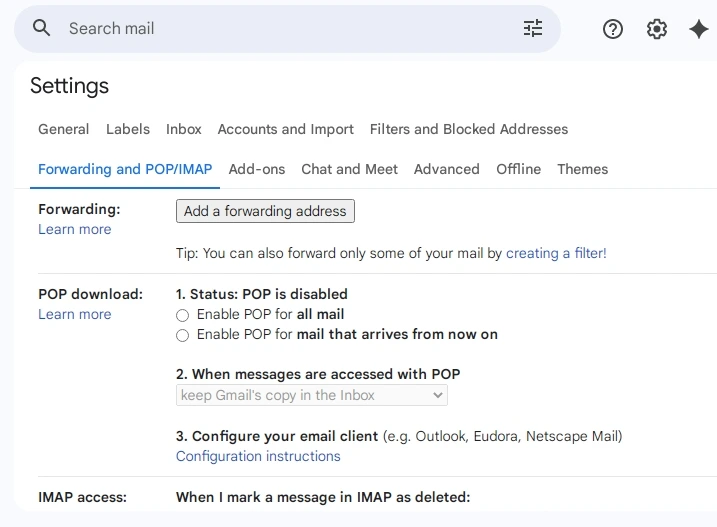
Step 4: Enter the ProtonMail email address to migrate the emails.
Step 5: Enter the code from your ProtonMail account to verify forwarding request.
Step 6: Click Forward a copy of incoming mail and Save changes.
Migrate data using Google Takeout
Another method to migrate from Gmail to ProtonMail is using the Google Takeout, that simply exports all the selected data from Gmail to an archive file, which can be imported into the ProtonMail. Follow the steps:
Step 1: Open Google Takeout on your browser signing in with your credentials.
Step 2: Go to Mail and then click Next.
Step 3: Select File type & size and click Create export.
Step 4: Once the archive file is ready, you can download it offline.
Step 5: Extract the emails from the archive file in an MBOX file format.
Step 6: Install ProtonMail Bridge and configure it using Thunderbird or other email client.
Step 7: Use the email client to import the MBOX file to extract the desired email data.
Limitations of manual methods
- No provision for direct Gmail to ProtonMail transfer.
- Chances of losing emails during the migration process.
- Create security risks when emails are downloaded offline.
- Chances of data duplicity in the destination platform.
- Requires technical expertise to setup IMAP accounts.
Why switch to a professional tool for Gmail to ProtonMail transfers?
Performing Gmail email migration to ProtonMail can be a hectic job. If you migrate using manual procedures, there’s a risk of data loss, ineffective transfer, and difficulties in retaining labels and folders as in Gmail environment. To avoid the risks of manipulated data integrity and structure, use a professional mailbox migration solution like Kernel Migration for IMAP. This IMAP migration tool is designed with advanced algorithms that take care of the process to transfer complete data items, including emails, contacts, calendars, etc., with their email properties.
Some of its advanced features are:
- Allows direct migration of IMAP mailboxes.
- Support batch migration without data loss.
- Include filters for managed migration of data.
- Provide data preview before data transfer.
- Migrate bulk mailboxes for massive volumes.
With a full-fledged IMAP mailbox migration tool like ours, you can migrate data between IMAP servers irrespective of the number of mailboxes and data stored in them.
Easy process to migrate your Gmail emails to ProtonMail:
Step 1: Click on ‘IMAP to IMAP’ from the homescreen to proceed.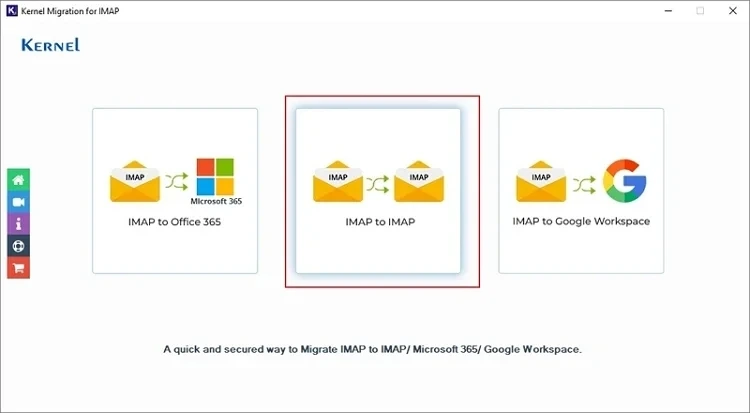
Step 2: Tap on + Add in the Add Source pane to connect with Gmail account.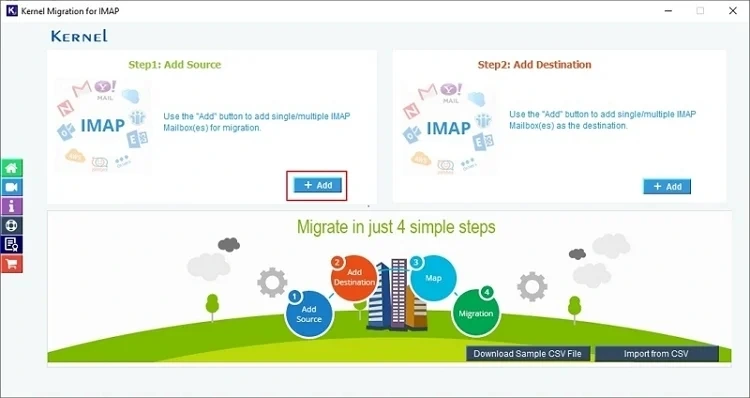
Step 3: Provide the required credentials of the Gmail account to move mailbox data from. Click Add.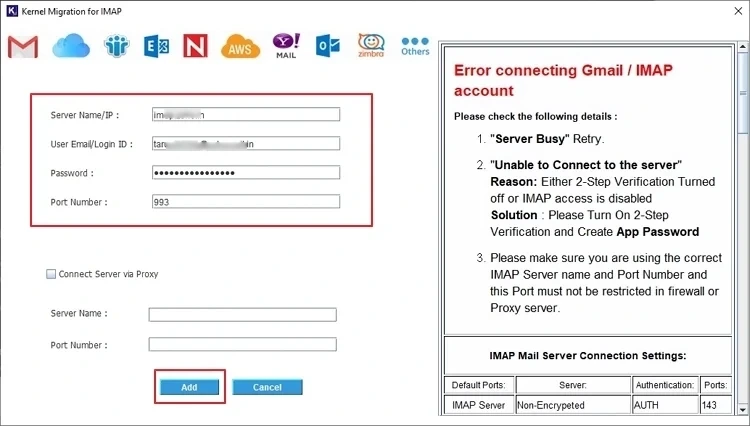
Step 4: Similalrly click on Add in the destination pane to add the ProtonMail account.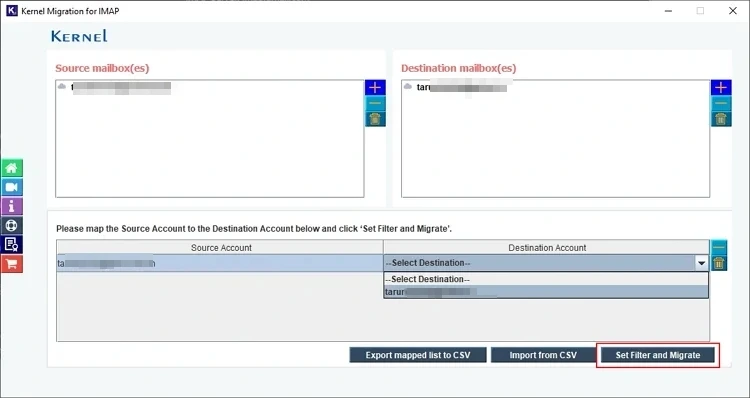
Step 5: Map the Source account to the Destination account by selecting from the dropdown list. Click ‘Set Filter and Migrate’.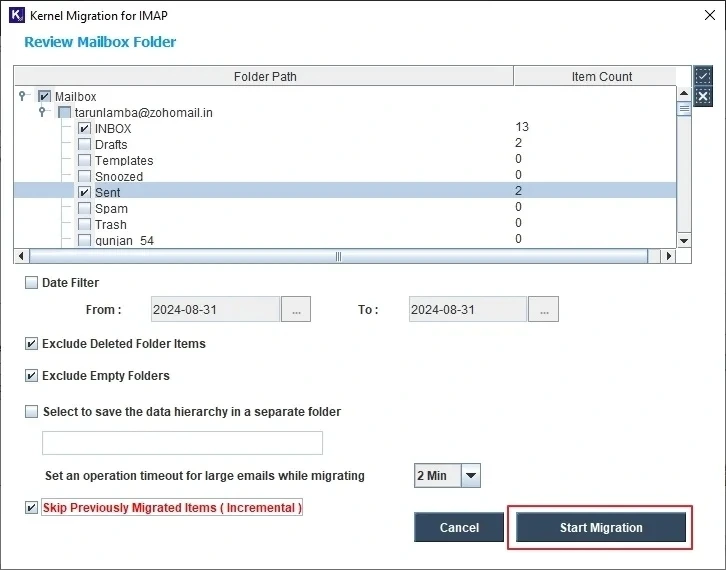
Step 6: After tool finishes ‘Enumerating Folders’, select the preferred email folders and filters from the list. Click ‘Start Migration’.
The migration process will begin instantly with the progress details on the screen.
Conclusion
ProtonMail provides an end-to-end encrypted platform to send and receive your emails without allowing access to save your data. To migrate from Gmail to ProtonMail manually, you can perform the steps as explained in the migration methods. However, the best way to do this is with Kernel Migration for IMAP tool. The simple interface of the tool demands no technical expertise to run the data transfer process and deliver exceptional results.
Frequently Asked Questions
A: With a Gmail alternative like ProtonMail, you can expect end-to-end data encryption to your mailbox, which is free from advertisements, or data tracking. The privacy option makes it quite a suitable option to swtitch from Gmail.
A: Easy Switch is a built-in utility by ProtonMail that can be used to migrate emails from Gmail to ProtonMail. To migrate, go to Settings, click all Settings, and use the tab Import via Easy switch. Follow the prompt to authenticate Gmail account and move your email data.