Read time: 9 minutes
Summary: Misconfigurations, access to the wrong users, insufficient visibility, and phishing increase the chances of breaches and compliance issues. Following Microsoft 365 security best practices, like enabling MFA and DLP, can reduce security risks and strengthen organizational resilience. This blog highlights the best practices for Microsoft 365 security and compliance, with a detailed overview of security features provided by Microsoft. Additionally, we highlight how important it is to have a reliable backup strategy. Solutions like a reliable Office 365 backup tool are essential to back up Microsoft 365 data safely. Use the given practices to protect your data and comply with security standards.
Over the past year, 74.4% people in the USA were targeted by cyber threats and malicious activity, as reported in the Microsoft Digital Defense Report 2025. Aggressors mainly targeted Government agencies and the IT sector with the main goal of Data theft and extortion. This highlights the fact that even a single mistake on the user’s end can make their crucial data vulnerable to cyberattacks.
The only way to protect data from these cyberthreats is to follow some easy security tips. Most of the Microsoft 365 users are suffering from this currently, as they have not followed even the basic security practices suggested by Microsoft. In this article, we’ve talked about the best practices for Microsoft 365 security to protect your data. Let’s start understanding Microsoft security from the root.
What is the Microsoft 365 Shared Responsibility model?
Before getting to know Microsoft 365 security and compliance standards, it’s necessary to understand what exactly the Microsoft 365 Shared Responsibility model is. The Shared Responsibility model of Microsoft is a framework that divides the responsibility of data protection with the user and Microsoft. While Microsoft manages the security features and upkeep of the cloud platform, it’s the user’s responsibility to backup their entire data and manage user access and permissions.
In easy language, the security of the cloud depends on Microsoft, which includes the security of the physical data centers, the host infrastructure, and the upkeep it takes to maintain the infrastructure. Office 365 security features, Multi-Factor Authentication, Microsoft Defender for Office 365, and Data Loss Prevention (DLP) are advanced and integrated features that provide robust protection to users’ data. On the other hand, user’s responsibility in this framework mainly covers the following things:
- Data encryption
- Managing user accounts
- Regular backups of the entire data.
- Assigning roles and permissions to necessary users.
- Protecting personal devices from cyberthreats like virus/malware and phishing attacks.
Best Practices for Microsoft 365 Security
Given below are some essential practices for efficient office 365 security management. Follow each of these practices to protect your account and prevent any unauthorized access.
Implement Multi-Factor Authentication (MFA) for your Organization
The most basic step to protect your account from phishing attacks and unauthorized data access is by enabling Multi-Factor Authentication. An Office 365 account is password-protected, but that is not enough due to increasing hacking activities and breaches in the digital world. Enabling MFA for your account adds an additional layer of security against cyberattacks.
Multi-Factor Authentication means users can sign into the Microsoft 365 account only after completing multiple authentications for the same account. The authentications can be OTP verification from the phone number or an email address other than the current one. It is also known as 2-step verification. It is good to protect your account from unwanted intruders and hackers.
It is needed to enable Security Defaults in Microsoft 365 to enable multi-factor authentication. In the latest subscriptions, it is enabled by default. Though, here are the necessary steps to enable it manually.
- Sign in to your Microsoft 365 account with administrator credentials (username and password).
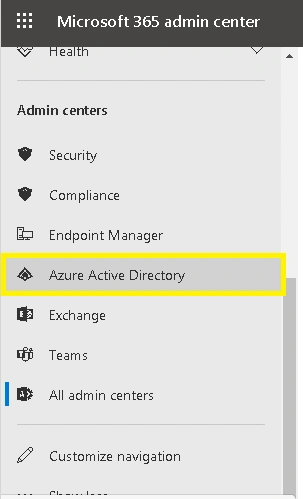
- Click on Admin Center and navigate to Show All>Admin centers>Azure Active Directory
.
- In the opened Azure Active Directory admin center, select Azure Active Directory and then select Properties option.
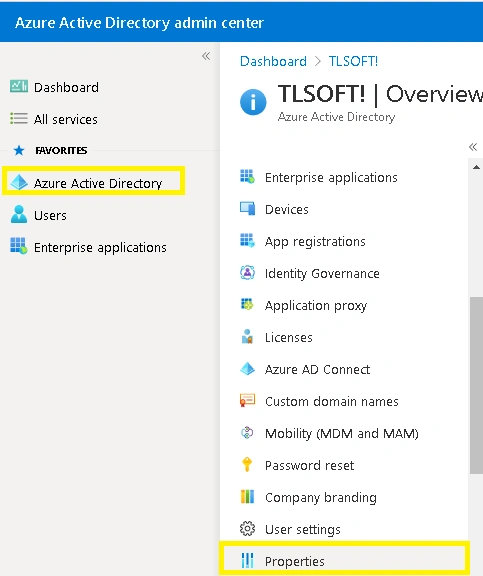
- Next, click on Manage Security defaults option.
- To enable the Security defaults, click on Yes and then click on Save to save this setting.
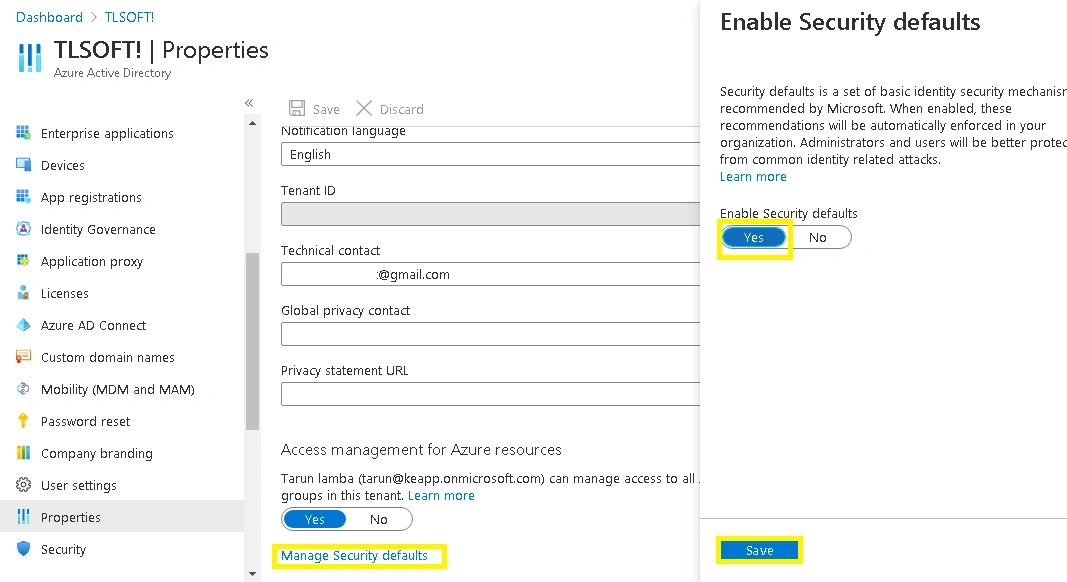
After enabling security defaults, you can now enable Multi-factor Authentication or 2-step verification for your Microsoft 365 account with the Account Settings feature.
Deploy Role-Based Access Control (RBAC)
An Office 365 account is as protected as it is configured to be. Access management, if overlooked, can become the biggest reason why an account gets compromised. Role-Based Access Control (RBAC) is a practice that global admins must adhere to, in order to prevent unauthorized access.
According to Microsoft, RBAC helps users assign permissions and roles to authorized users only. This helps in exercising granular control over who has resource access and what all can be done with those resources. This limits exposure and overprivileged access.
Implement the Unified Audit Log (UAL)
Unified Audit Log acts as a surveillance system in Office 365. It monitors admin and user activities across platforms like Teams, SharePoint, OneDrive, and Exchange. This centralized feature is of utmost importance for organizations as it offers several tools for compliance and security. UAL monitors all the activity and records it at a single, centralized place to see who did what and when.
Investigative tools provided with this feature help users track data breaches, suspicious sign-in attempts, and unauthorized modifications to data. Also, UAL assists organizations by complying with industry standards and regulations like ISO 27001, HIPAA, GDPR, etc. One of the crucial benefits of this feature is that it records all the information in a single place, making it easier for IT teams and admins.
Use Microsoft Defender for advanced threat protection
Microsoft Defender is a cloud-based security offered by Office 365 to prevent phishing attempts and advanced email threats. It provides real-time protection for platforms like SharePoint, Exchange Online, OneDrive, Teams, etc., from zero-day malware attacks. With the help of impersonation detection and advanced algorithms of machine learning, Microsoft Defender protects organizations from spoofing and important email compromise.
Use Microsoft 365 Security Score
Microsoft 365 Security Score is an in-built service from Microsoft, by which users can analyze the current settings and history to get insights compared to recommended actions for Microsoft 365 identities, applications, data, devices, and infrastructure. It generates reports with details based on the performance and provides a security score. It provides you with security analytics dashboard that allows you to safeguard your Office 365 data using the security score according to the top-industry standards.
This security score compares the Microsoft 365 user security settings to the standard practices by Microsoft. Using the Microsoft 365 score helps users to update the security of their Microsoft 365 accounts.
Employ Data Loss Prevention (DLP) policies
DLP, or data loss prevention, helps restrict users from sharing sensitive information about your organization externally. This is crucial in protecting information like financial data. You can use the Compliance Center within Office 365 to enable the Data loss prevention policies, and define the type of information you want to protect. It will ensure that a specific action or alert is sent to the Office 365 administrators as soon as the restricted information sharing is identified.
Utilize Privileged Identity Management (PIM)
Privileged Identity Management (PIM) is a service offered by Microsoft 365 that provides temporary Just-in-time access for admin privileges. It manages and controls admin privileges provided to users and makes sure access remains for a set period of time. This service functions on the principle of least-privilege and help users manage who accesses what resources. PIM is a great choice of service for Organizations who want to minimize resource access and data loss due to malicious actions.
Privileged Identity Management provides Just-in-time access to Microsoft Entra ID, Azure, and other Microsoft Services for a limited period of time. Also, it implements MFA to activate any role to prevent any unauthorized access. Moreover, users can download a detailed audit history whenever needed.
Protect Crucial Data with Kernel Office 365 Backup and Restore
The given Office 365 security features are powerful enough to protect your data, but the main part is still your responsibility. With the shared responsibility model of Microsoft, the responsibility of backing up the data remains with the users. But how do you backup large amounts of data safely? Manual methods are not up to the mark as they pose the risk of data loss.
As recommended by experts, using a reliable backup tool works best for taking a backup of your entire data without losing any. A tool like Kernel Office 365 Backup and Restore proves to be the best choice for this task as it is capable of backing up large volumes of data. This tool backs up data like emails, attachments, contacts, calendars, etc., with high precision.
Other than Office 365, users can safely back up their On-Premises Exchange and Hosted Exchange mailboxes. The tool offers multiple output formats to save the backed-up data like PST, PDF, EML, MSG, HTML, and more. With a beginner-friendly interface and a free trial version available to download on the official website, this tool is the perfect option for IT tech admins and even business professionals.
Conclusion
Keeping your data in a secure environment helps you dodge risks to your revenue as well as the business reputation. Following the security practices such as enabling multi-factor authentication and data encryption can help you prevent data breaches to an extent. However, it is also equally important to store the most recent backup of your data to avoid potential data loss if any cyberattacks happen. Kernel Office 365 backup & restore tool is a great aid in backing up Office 365 data efficiently.
Frequently Asked Questions
Ans: The best way to prevent unauthorized access in Office 365 is by following certain Office 365 security best practices like, managing user access, implementing password policies, taking data backup, etc.
Ans: Yes! Enabling Data Loss Prevention in your Office 365 account is as necessary as taking a backup of your data. DLP is like an additional security layer that prevents data loss in case of cyberattacks or accidental deletions.
Ans: Most important precautions include enabling Multi-Factor Authentication, using Microsoft Defender, and implementing DLP in your Office 365 account.
Ans: Using Microsoft Purview Portal, users can comply with industry standards like HIPAA and GDPR. This built-in portal allows users to assess risks, track compliance, and get a compliance score. Also, with the help of Data Loss Prevention, users can implement policies that can immediately detect and block any data leak.