Related Posts
Read time: 8 minutes
G Suite from Google gives the user more power and flexibility to use various Google applications professionally. Users get more storage, better support, and enhanced security. Also, there are scalable storage options to save an unlimited number of emails in the Gmail application mailbox. Even with multiple security features, it’s essential to have a backup of your complete mailbox information to avoid data loss.
There are several methods to download G Suite emails using Google’s inbuilt tools or other workarounds. Also, you can use a professional software to simplify the whole process. Let’s now see some key reasons to backup G Suite emails.
Some important reasons why users export G Suite emails are given below.
Now we know why it is necessary to export emails from Google Workspace. Let’s move forward with the methods to securely export G Suite emails.
Here, we will discuss all the reliable solutions to export emails from Google Workspace with guaranteed results.
Google Workspace admin can export emails with the help of Google Admin Console. Here’s how to do so:
Step 1. Login to Google Workspace account with the administrator credentials in the https://admin.googe.com URL.
Step 2. On the homepage, click on the “<” icon to open the side menu
Step 3. Choose Tools and then click on Data Export option.
Step 4. On the new page, click on Start Export option to start the data export process.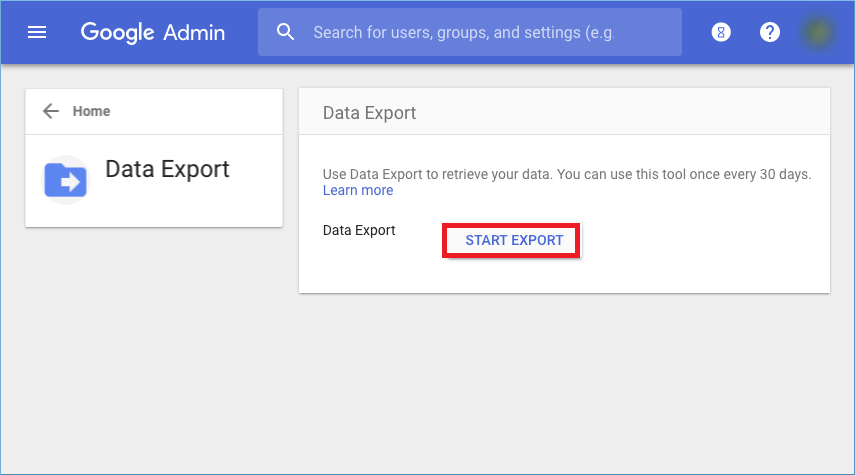
Step 5. It will take up to roughly 9 days for the export process to complete. Once the process gets completed, you’ll get a confirmation email.
Step 6. The data from the core services, like Gmail, contacts, and the calendar, will begin to be exported, and it will include the data of all the users present in the organization or the group you have created. After completing the export job, the administrator will get a confirmation email that links the exported data in the archived file.
NOTE-
Google Takeout is an in-built tool of Google where the user can select the apps and export them to an offline archive file.
Step 1. Go to the Google Takeout and log in with the correct credentials. 
Step 2.Tick the checkboxes of all the Google Workspace apps you want to export data from. Here we are selecting Mail as we want to export G Suite emails to PST format. 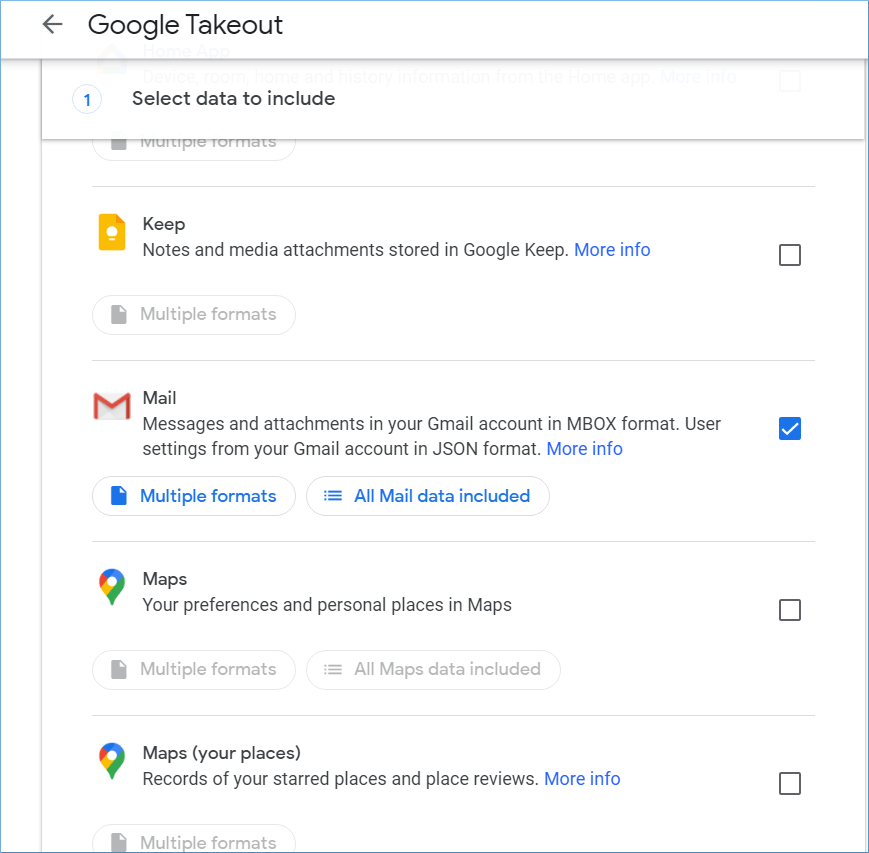
Step 3.After selecting all the required application to export, click Next Step.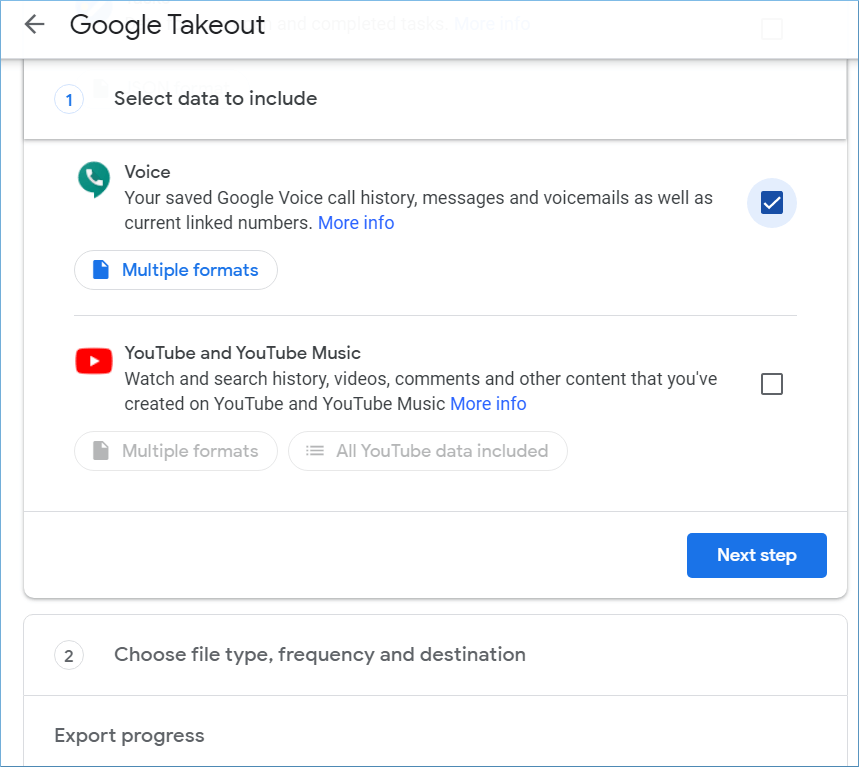
Step 4. Set Export Frequency and choose file type and size. Then click the Create export button. 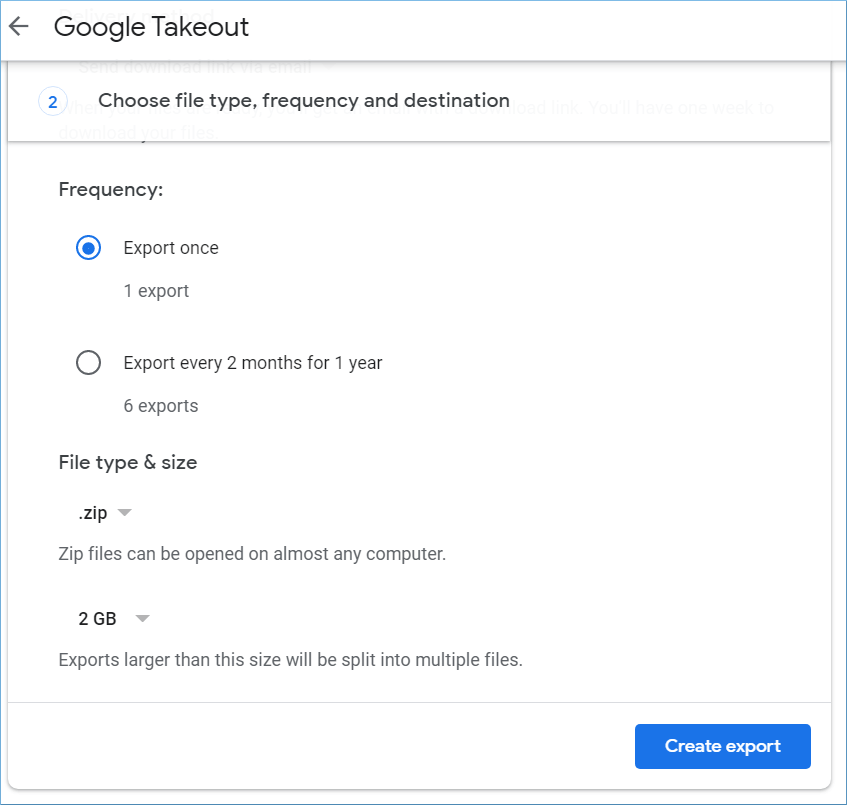
Step 5. Google will create a copy of your data. The migration time will depend on the size of the data. Let it complete.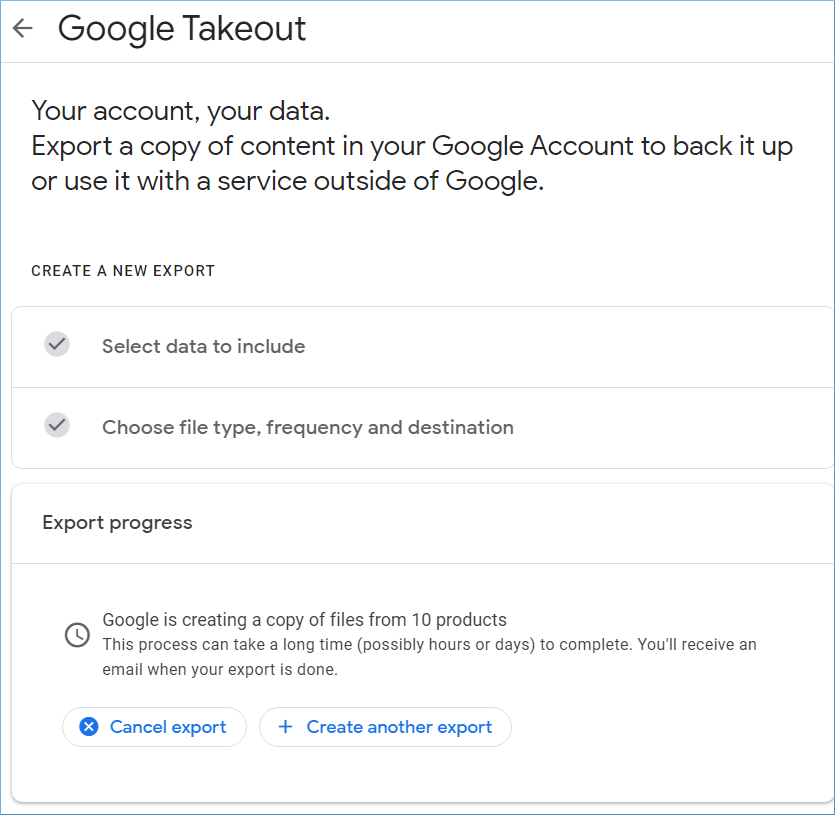
Step 6. After completing the creation of the export file to click the Download option to save the backup files on your system.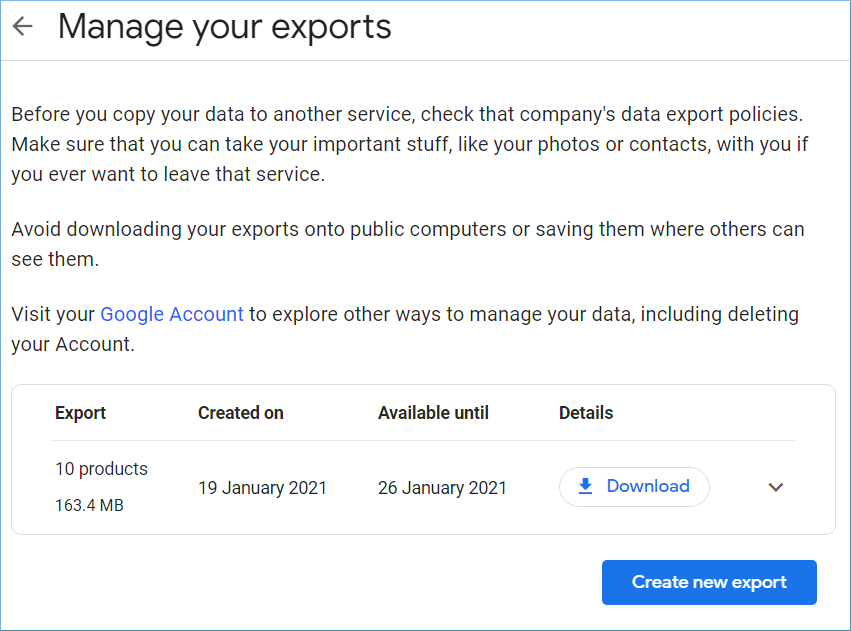
NOTE
If you have configured the G Suite account with the Outlook application, you can use the Import/Export wizard for Google Workspace data export directly to a separate PST file.
Step 1. Open Outlook click File. Then go to the Open & Export option and choose Import/Export.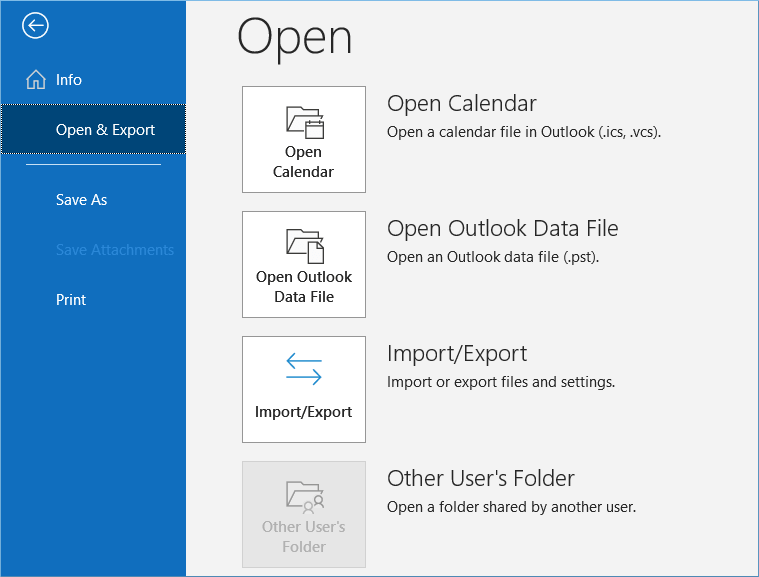
Step 2. Follow the steps of the wizard and choose the G Suite account’s folders to export. You can also apply filters to the folders. Click Next and save the data in the PST file.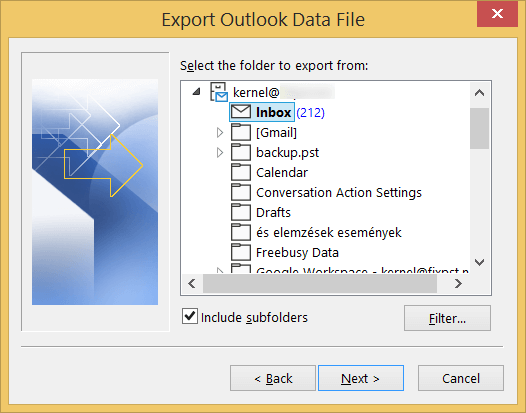
NOTE
If you require to access a special email without accessing it in the online account, then you can save an individual email in EML format.
Step 1. Open email in Gmail and click the three dots. Then, choose Download Message option.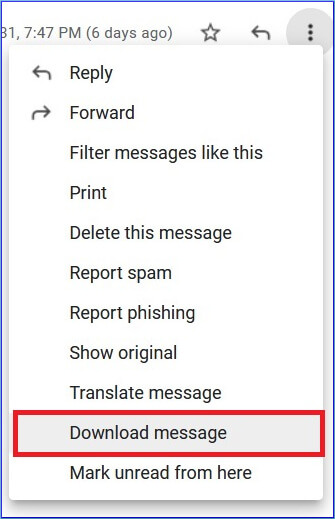
Step 2. The email will get downloaded in EML format to download.
Step 3. Access the email from the default Downloads folder.
Manual workarounds may help you export G Suite data, but they’re not reliable for large data sets. That’s why experts recommend using a professional Google Workspace backup tool for a simple and error-free backup process.
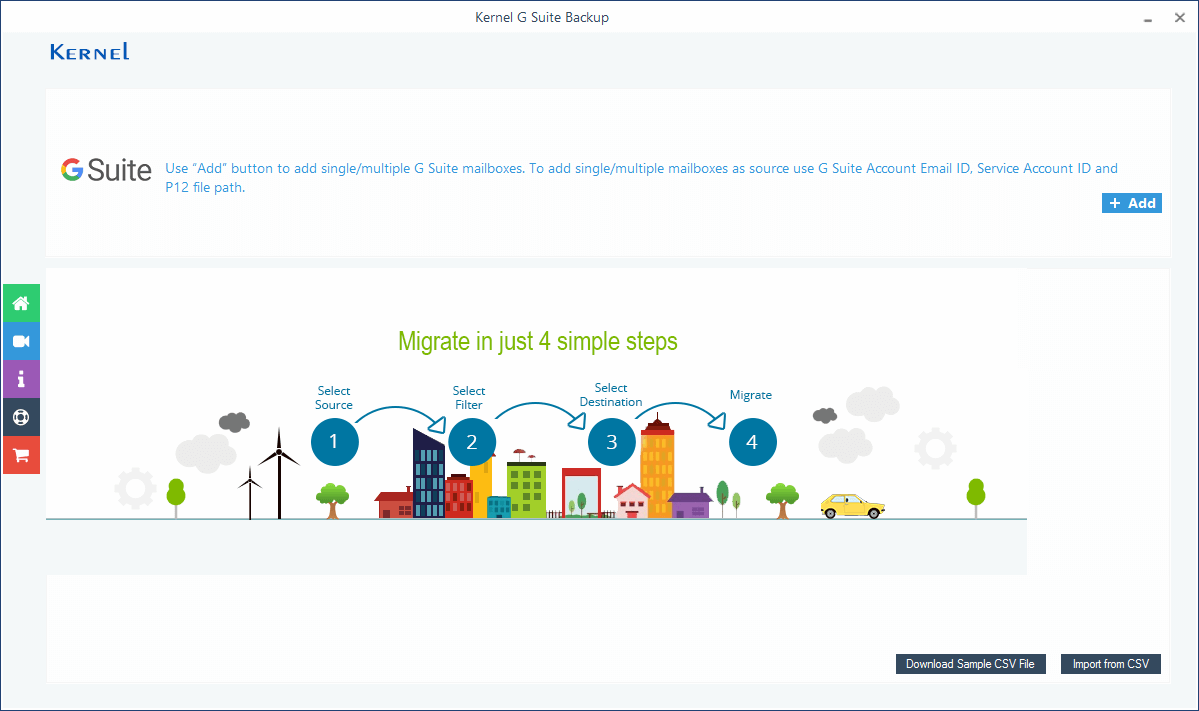
Kernel Google Workspace Backup and Restore is a solution to all the G Suite backup-related problems. It does not have any limitations like size, type, apps, etc. Also, with the help of the Super Administrator account, you can take an unlimited backup of all the user accounts. There is an ample number of features to map the mailboxes and apply the various filters on them.
There are different ways to download G Suite emails for free. You can export data using Google Admin console, use Google Takeout, or use the Import/Export feature of Outlook. However, using the recommended Google Workspace backup tool is a better option as it automates the backup process and provides many advanced features. Its free version helps you backup 10 items per folder free of cost. Try the free trial version to easily export emails from Google Workspace.