


Read time: 9 minutes
Document security and protection are the actual objectives to convert TXT to PDF, if the information is sensitive & confidential. TXT files are simple and editable, which makes them vulnerable to unwanted changes or unauthorized access. Converting them to PDF helps to keep the content fixed, easier to share, along with protection with security controls such as passwords & permission restrictions.
Usually, users convert TXT file to Adobe PDF when sending reports, logs, research notes, or legal text documents. A PDF keeps the document consistent on all devices and prevents accidental editing & formatting issues. In this article, you will learn how to convert TXT to PDF document using different free manual methods one by one. But before that, let’s understand the crucial benefits of the conversion.
Top Benefits Why Users Convert TXT to PDF
Since TXT files are open-format documents, anyone can easily edit or copy their content easily with the text editors. Whereas TXT to PDF conversion adds security layers that protect sensitive information and keep document integrity intact. Some of the main security reasons why users convert TXT files to PDF are as follows:
- Password protection to keep information safe: PDF files can be protected from unauthorized access. Only users with the correct password can open the document.
- Editing restrictions to prevent modification & document alteration: Unlike TXT files, PDFs allow you to restrict editing the original content and keep the content intact.
- Copy and print permissions: With PDF security settings, document owners can disable copying or printing features so that the risk of data misuse is reduced.
- Complete document integrity: Even when you share PDF file across devices, the original content structure remains unchanged.
- Secure sharing: PDF files are widely accepted and safer to send through email, cloud storage, or other popular business communication platforms effectively.
These benefits lead many professionals to prefer to convert TXT to Adobe PDF before sharing important documents.
Manual Methods to Convert TXT to PDF | 100% Free & Safe
Instead of the paid applications or methods, you can try several free and safe methods first to convert text file to PDF. The methods below are simple and accessible to you; try them at your convenience:
Method 1: Convert TXT to PDF Using Notepad (Windows)
Notepad is a lightweight and free text editor that provides a quick way to open and convert TXT files into PDFs via the built-in print-to-PDF option in Windows systems. Here are the steps to follow:
- Open your TXT file in Notepad and click File. Select Print.
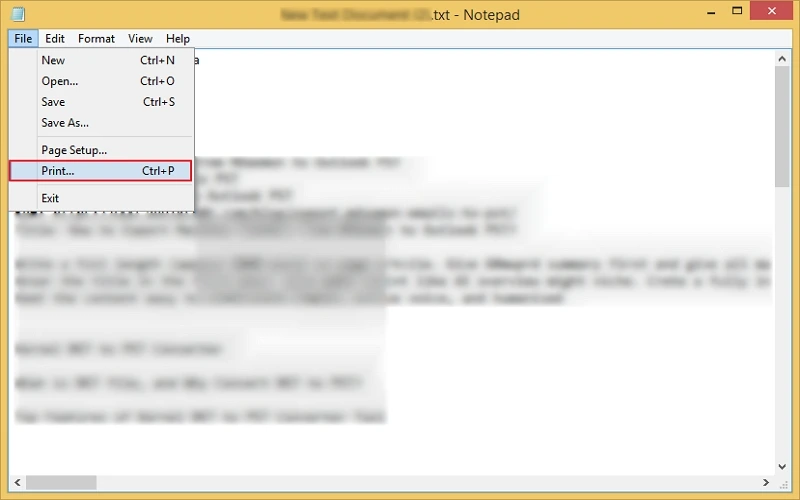
- Choose Microsoft Print to PDF as the printer and tap Print.
- Select the destination folder and save the PDF file.
Note: For Mac users, use TextEdit to convert TXT file to PDF. Here is how:
- Open the TXT file in TextEdit.
- Go to File, then tap on Export as PDF.
- Choose a location and click Save.
Method 2: Convert TXT to PDF by using Microsoft Word
Microsoft Word is a word processing application, used to create, edit, format, save, & print text-based documents. However, you can use this to import a TXT file and export TXT file as PDF easily. For that, you’ll need to follow the steps below:
- Open your TXT file with Microsoft Word. The text will load into the document editor.
- Tap on File, select Save As, & choose PDF as the file format.
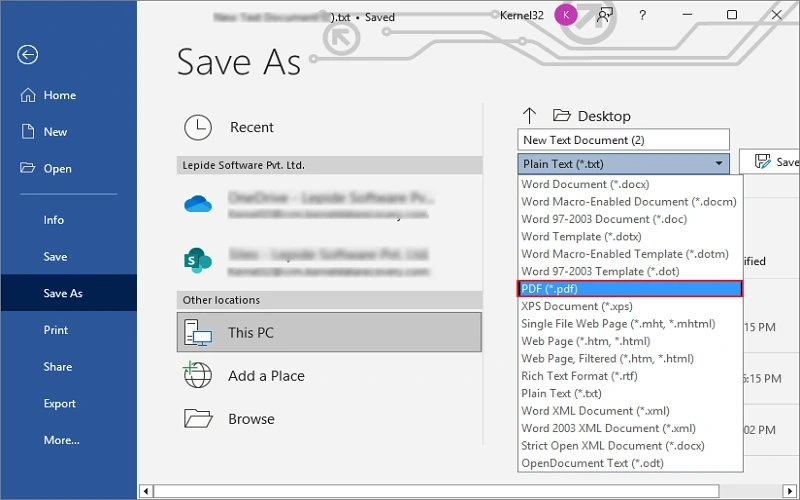
- Specify the saving location and save the file.
Method 3: Convert TXT to PDF via Google Docs
Provided by Google, Docs is a web-based word processor, and if you want a cloud-based solution to convert TXT files to PDF, then Google Docs is the best go-to option. It requires minimal effort to do so. Here are the steps to follow:
- Open Google Docs in your browser and click Blank Document.
- Tap on the File tab>Open. Go to the Upload tab and choose your TXT file. You can also paste the TXT content.
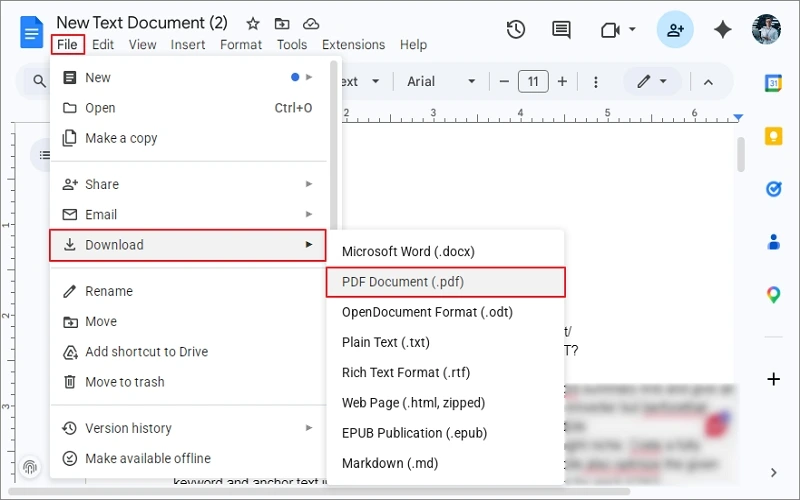
- Open the uploaded text file in Docs, and go to the File tab, then select Download.
- Choose PDF Document (.pdf). The PDF file will be downloaded.
Method 4: Convert TXT to PDF Using Online Converters
There are many online conversion tools that offer a quick and free conversion, and you can quickly transform TXT files into PDFs in a few clicks. However, they may give rise to data privacy issues with your files. Steps to follow are:
- Visit a trustworthy online TXT to PDF converter website, then upload the TXT file.
- Choose PDF as the output format and click Convert.
- After the conversion completes, download the PDF file.
Note: It is not always recommended for confidential documents because files are uploaded to external servers. Your data might be stolen or may be subject to a ransom attack.
Limitations of Manual TXT to PDF Conversion Workarounds
Generally, manual methods are helpful for only simple conversions. But if you’re converting large or bulk files, they may not be viable. Common limitations include:
- Time-consuming for bulk conversion.
- Potential security concerns with online tools.
- Risk of data loss with unreliable methods.
Because of these common challenges, many top professionals & individuals opt for automated desktop-based solution when document security is a priority.
Professional Solution to Convert TEXT to PDF
Complete dependency on manual workaround for the TXT to PDF conversion may bother you because they come with limitations & various drawbacks. A dedicated tool is a better option if security and reliability are important. Kernel Document Converter, an automated and smart solution, is the go-to one that converts TXT to PDF with full document accuracy. It is designed for individuals and organizations that need reliable document transformation in no time. Even less-technical users can easily convert bulk text files into PDFs with just a few clicks.
Organizations can safely convert a text file to PDF with no disruption, formatting errors, or data corruption. For users handling confidential information or large volumes of files, it is the ideal and efficient solution compared to manual methods.
Best Practices for Secure TXT to PDF Conversion
Only with standard strategies can you get maximum protection when you convert TXT file to PDF. A few of them are as follows:
- Always add a password to the PDF for security if the document contains sensitive information.
- Try to disable editing permissions so others cannot modify the document content.
- Avoid uploading and converting your confidential files to unknown websites.
- Use reliable conversion tools for better accuracy & security controls.
- After conversion, save documents in encrypted folders or trusted cloud storage services.
Transform your TXT Files to Secure PDF Today
Be it sharing or storage, information protection should always be a priority. Usually, TXT files are simple and easy to edit, but they lack the security controls required for confidential communication. But when you convert TXT to PDF, you transform your information with added strong protection features such as password security, restricted editing, etc.
However, applications like Notepad, Microsoft Word, & Google Docs can help with basic conversions, especially for small tasks. But when accuracy & bulk conversion becomes your need, then using a professional Document Converter is the smarter choice. The free version is available for you. Download it now and get hands-on experience today!!!
Frequently Asked Questions
A: TXT file contains only text and doesn’t support any text formatting or images between them. If you open a TXT file in Microsoft Word, then you can add text formatting and images in between text file content. Then, save that in PDF.
A: You can use Adobe Acrobat, Microsoft Word, Google Docs, and Notepad (text editor) as well to convert your TXT file in PDF with ease. For secure, bulk, and direct conversion, a dedicated document converter is needed.




![How to Convert RTF to PDF? [One-Stop Guide]](https://www.nucleustechnologies.com/blog/wp-content/uploads/2025/12/rtf-to-pdf.png)