Read time: 9 minutes
In data processing, programming input, email migration, or long-term archiving, the simplicity & universally compatibility of TXT files overpower the RTF. It drives users to look for different methods to convert RTF to TXT file to maintain their workflow continuity.
RTF & TXT Files Overview:
- RTF is well known for preserving visual elements like fonts, styles, spacing, & layout.
- Plain text files do the opposite, as they provide content in the simplest form with no visual elements.
Looking for the exact solutions? Check out this easy-to-understand blog to know all the possible workarounds to convert Rich Text File to TXT with ease.
Know the Objectives to Convert RTF to TXT File
Here are the core objectives that compel users to convert RTF file to TXT:
- TXT files provide clean, formatting-free content.
- Offers easy text indexing over others.
- Provides smaller file sizes & compatibility across devices.
- Helpful in content for scripts, command-line tools, or databases.
Manual Ways to Convert RTF to TEXT File [Possible Ones]
Know all the possible manual methods to convert RTF file to TXT format for free. This section will provide you with a complete step-by-step approach in detail.
Way 1. Use Microsoft Word to Convert RTF to TXT
It is one of the most preferred methods when you have Microsoft Word installed on the local system. The method helps in exact text extraction with minimal changes. You need to follow the below steps to use this method:
Step 1. Launch Microsoft Word & go to the File menu.
Step 2. Tap on Open, browse the desired RTF file to open it in Word.
Step 3. Check out all the content for accuracy & hit the File option.
Step 4. Click on Save As > Browse the destination. Choose the Plain text > Save option.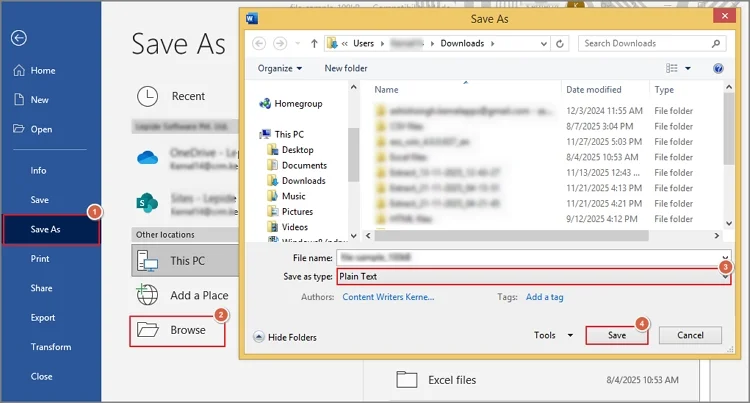
Important to know: Take help of the LibreOffice Writer for free & offline conversion. Perform the same steps as above, like opening the RTF file, going to the File> Save As & then saving as plain text format.
Way 2. Try Google Docs for Conversion [Online One]
When you need an online solution without any prior installation, you can go with the Google Docs option. It also provides the option to convert RTF to TEXT file with good internet connectivity. Know the steps to complete the process:
Step 1. Upload the desired RTF file to the Google Drive.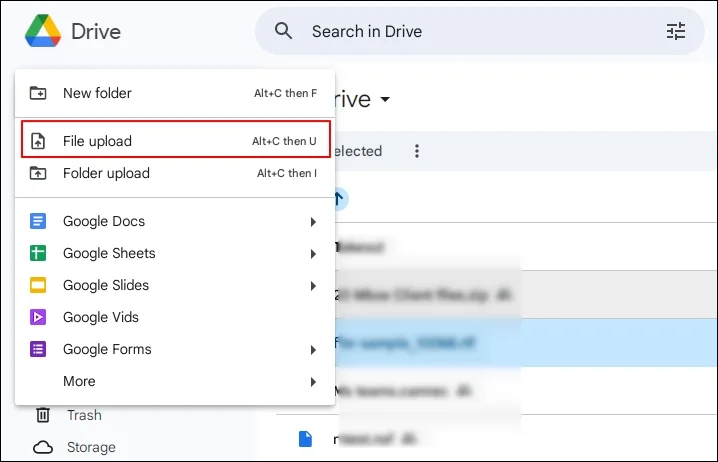
Step 2. Right-click on the RTF file. Tap on the Open With > Google Docs option.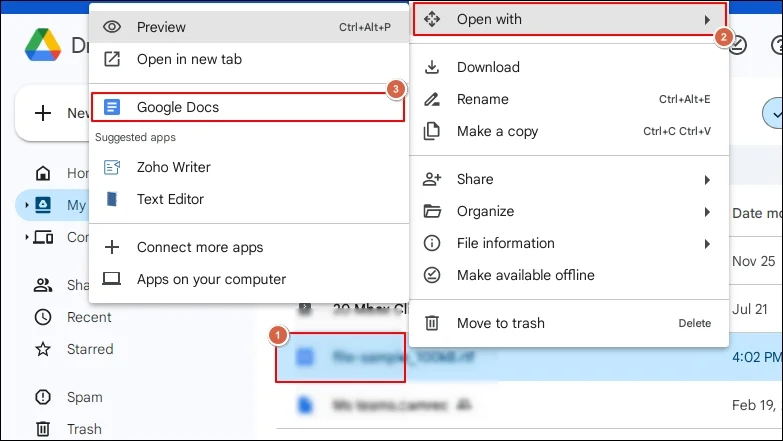
Step 3. Check the content accuracy & tap on the File> Download> Plain Text (.txt) options.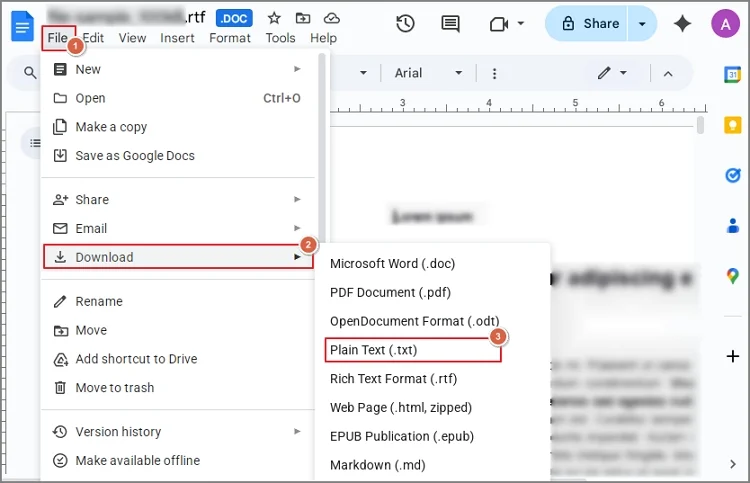
Way 3. Open RTF in WordPad & Save to TXT
It is the quickest approach in Windows to convert RTF file to TXT. Follow the steps below to execute the process successfully.
Step 1. Right-click on the RTF file, choose Open With > WordPad.
Step 2. Review the content, hit the File > Save As > Plain text document option.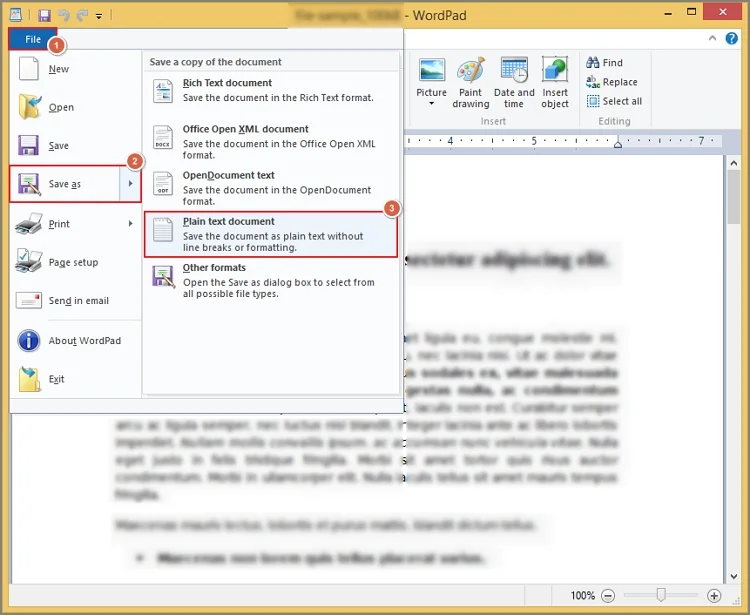
Step 3. Choose the destination & save it in plain text format.
Important to know: You can also take the help of the Notepad for conversion. Open the RTF file using Notepad & go to the File > Save As option to save it in the .txt format.
Common Issues with the Manual RTF to TXT Conversion
The manual methods come with some common restraints that can make the conversion experience bitter. Let’s explore them:
- Bulk conversion can’t be performed.
- Time-consuming & high risk of data loss.
- Often miss special characters & symbols.
- Extra line breaks & encoding mismatches.
- Loss of table structure & unwanted spacing.
Best Solution to Convert RTF to TXT Format in Bulk
If you are looking to perform batch RTF to TXT conversion without data loss, the discussed manual method may not get you successful results. In these scenarios, taking the help of the advanced solutions can be the most suitable option.
Kernel Document Converter is one solution that is often professionally recommended for document-related concerns. Its advanced algorithms & framework assure users for quick & error-free results.
Here are the steps to use the tool:
Step 1. Download & open the document converter.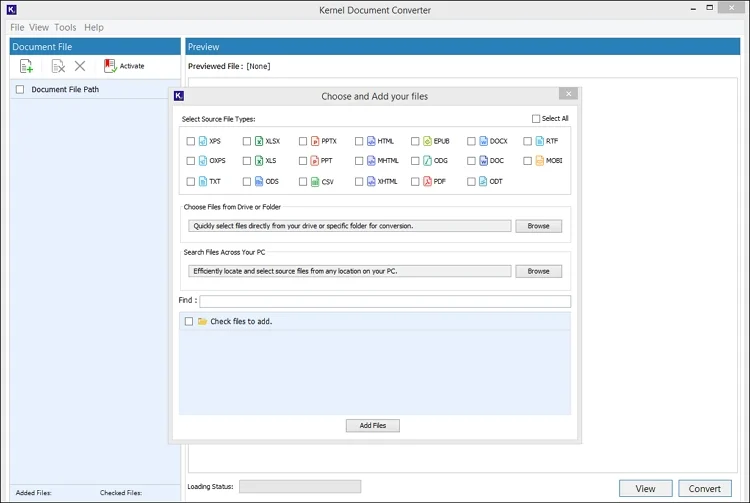
Step 2. Tap on the RTF format & select the file or folder that contains the RTF file. Click on the Add Files option.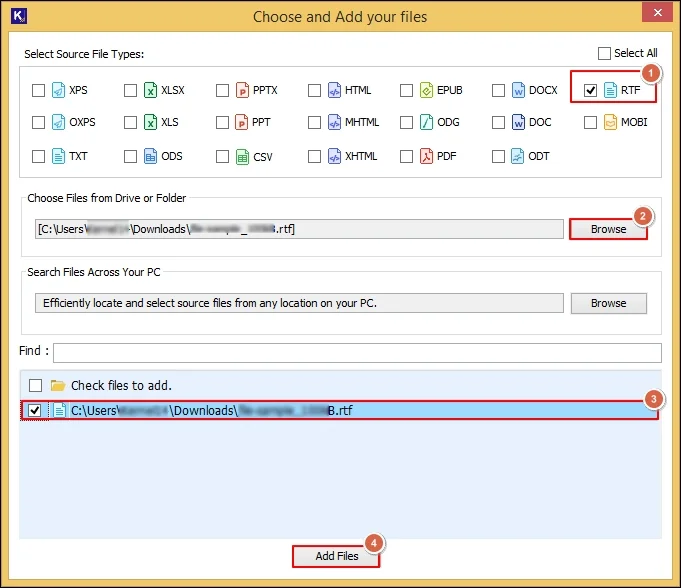
Step 3. Verify the complete RTF file data & choose the needed RTF files to convert into TXT format. Then, hit the Convert option.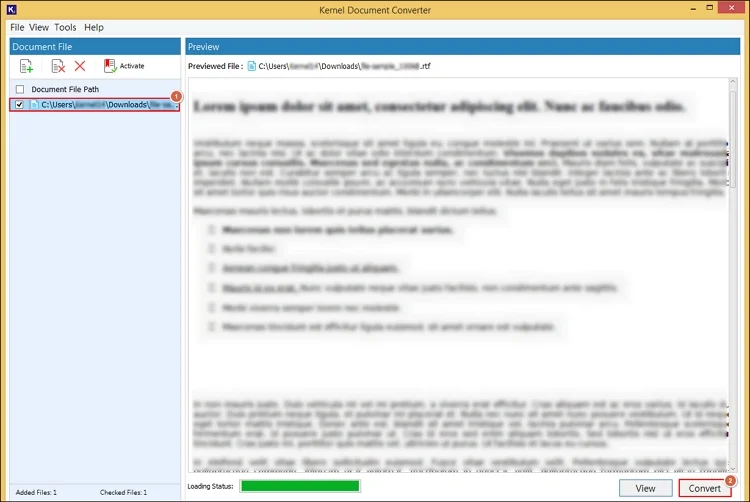
Step 4. Browse the preferred destination & choose the resultant format as TXT with the needed filters. Tap on the Convert option.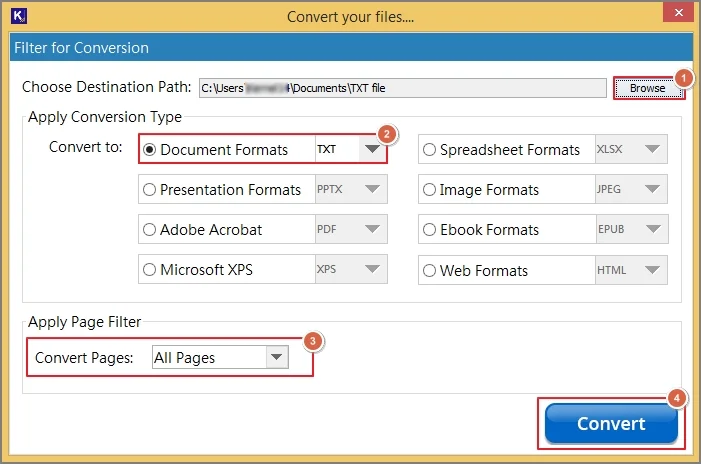
Step 5. It will start the “convert Rich Text File to TXT” process.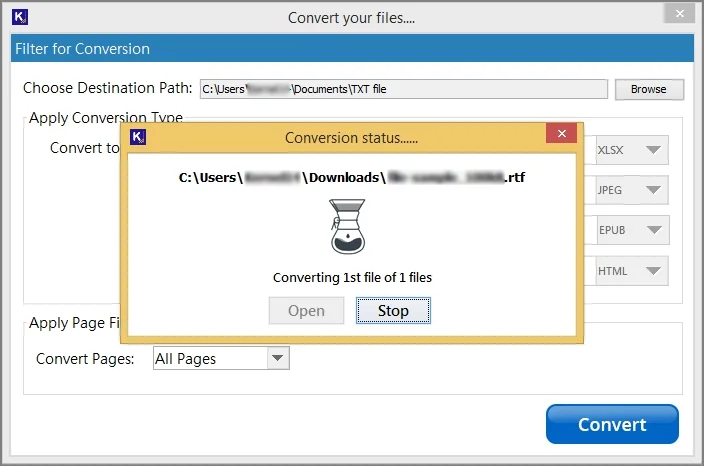
Step 6. Once you are prompted with the message “Conversion completed “, select Open to access the saved TXT file location directly.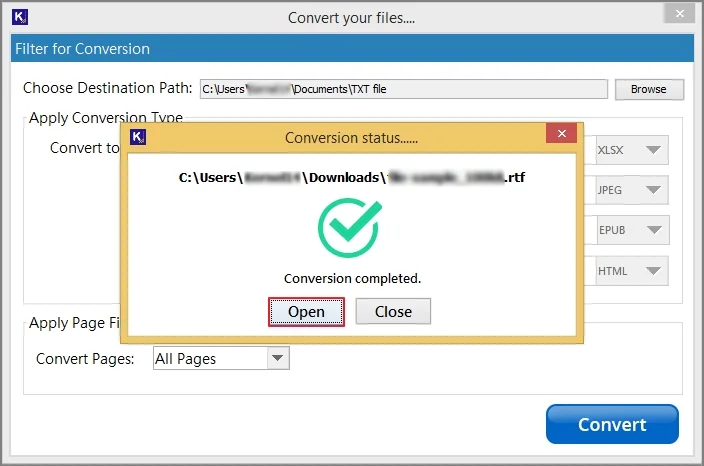
Key Features of the Document Converter
Explore the outstanding features of the advanced solution & perform conversion with a zero data loss guarantee.
- Convert RTF to TXT format in bulk without any hassle.
- Load the RTF files automatically with the auto-scan feature.
- Verify or preview complete RTF content before RTF conversion.
- Get advanced filters to convert RTF file to TXT format selectively.
- Maintains complete data hierarchy & integrity during the conversion.
- Allows users to convert RTF to EPUB and 20+ formats precisely.
Best Practices for Smooth RTF to TXT Conversion
This section will provide you with some best practices that can help in smooth RTF to TXT conversion:
- Manually review spacing after the conversion.
- Avoid complex RTF formatting before conversion.
- Always keep the original RTF file in your local system.
- Use UTF-8 encoding when prompted after conversion.
- You can take the help of text editors to refine the output.
Conclusion
Hopefully, the blog has provided all the needed information to convert RTF to TXT format successfully. It includes reasons, tips, best practices, manual & advanced solutions. Try them carefully to get the flexibility in using the RTF data for broader aspects with the TXT format.
Frequently Asked Questions
A. No. All the images, tables, & all embedded elements will be removed. You get only the textual content as the output with the TXT format.
A. Due to universal compatibility, users can open TXT files on any operating system or device.