Read time: 9 minutes
Being lightweight, editable, and compatible with multiple word processors, RTF [Rich Text Format] is widely used in creating and sharing formatted documents. But when it comes to professional sharing, printing, archiving, or compliance purposes, PDF format is often preferred. So, it drives users to convert RTF to PDF file format.
Confused about choosing the right method for smooth & error-free conversion? Check out this easy-to-understand write-up to get complete information on the RTF to PDF conversion, including reasons, tips, manual & advanced solutions.
Important to know:
RTF file: It is the document file format developed by Microsoft to allow the exchange of text files between different word processors. But not recommended for final or secure document distribution.
PDF file: Portable Document Format [PDF] is a widely accepted file format used for presenting documents in a fixed layout.
Reasons to Convert RTF File to PDF [Major Ones]
Here, we have covered the benefits of PDF files that can be the reason to convert Rich Text file to PDF format:
- Prevents unauthorized editing of the document.
- Helps in improving document security and integrity.
- Ideal for sharing, printing, and archiving operations.
- Offers consistent formatting across different platforms.
- Recommended for official, legal, or professional submissions.
[100% Free] Manual Methods to Convert RTF to PDF
Convert RTF file to PDF with the provided manual & easy-to-use solutions. Follow the stepwise approach of each method carefully to avoid any undesired results.
Solution 1. Use Microsoft Word to Convert RTF to PDF
Microsoft offers accurate previewing of RTF files and allows you to export high-quality, searchable PDFs at the desired location. Go with the following steps to know how it will help in the conversion:
Step 1. Open Microsoft Word. Click File> Open.
Step 2. Browse and select the .rtf file. Review document formatting. Hit the File option.
Step 3. Tap on the Save As option. Browse the saving location.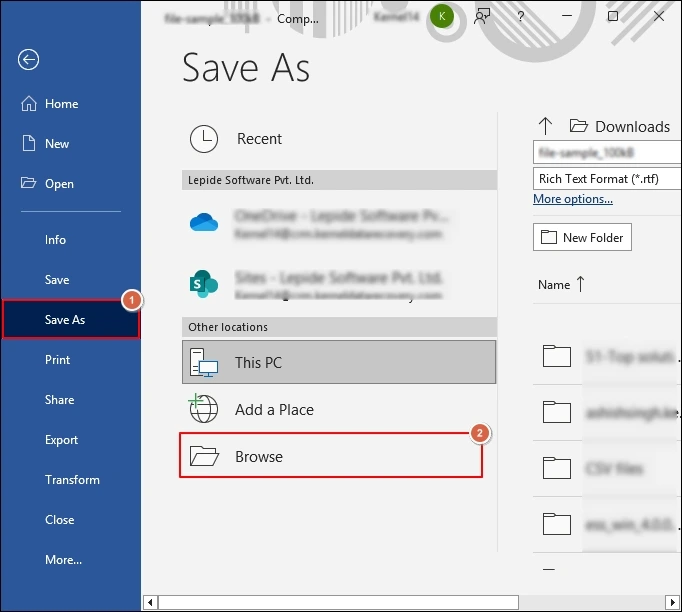
Step 4. Select the PDF format from the file type dropdown. Hit the Save option.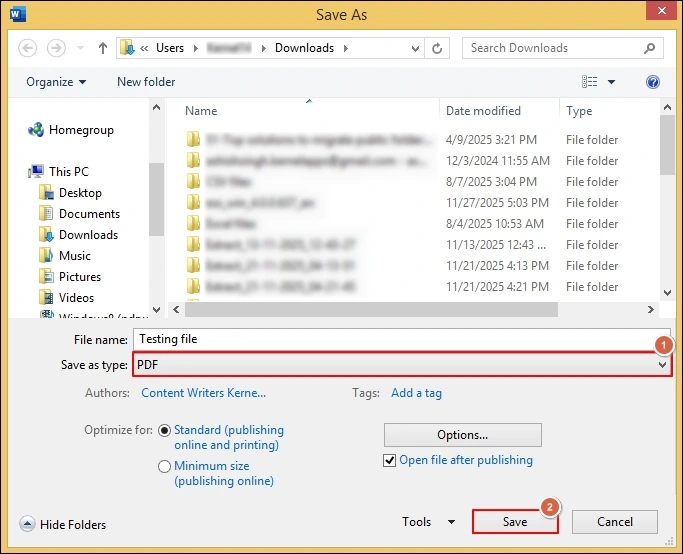
Solution 2. Use the Google Docs (Online Method)
Google Docs’ built-in features help users convert RTF file to PDF format through the Web Browser. It is useful when you don’t have desktop software installed. Check out the steps below to implement the process successfully:
Step 1. Go to Google Drive. Hit the New > File upload option.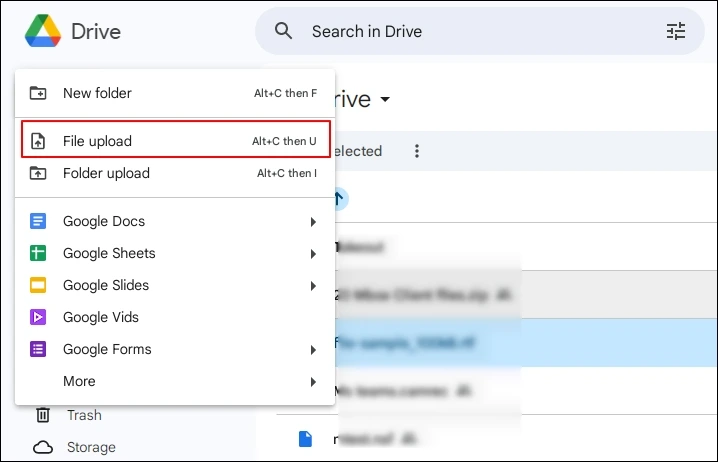
Step 2. Upload the .rtf file. Right-click on the File & select Open With> Google Docs.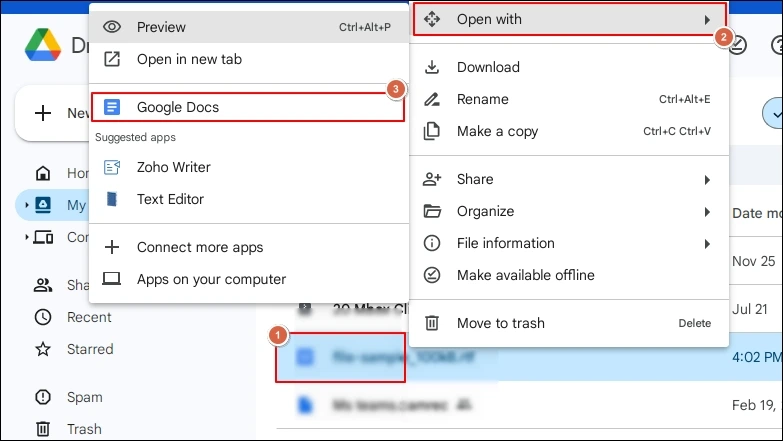
Step 3. Verify the formatting & choose File> Download. Click on the PDF document (.pdf).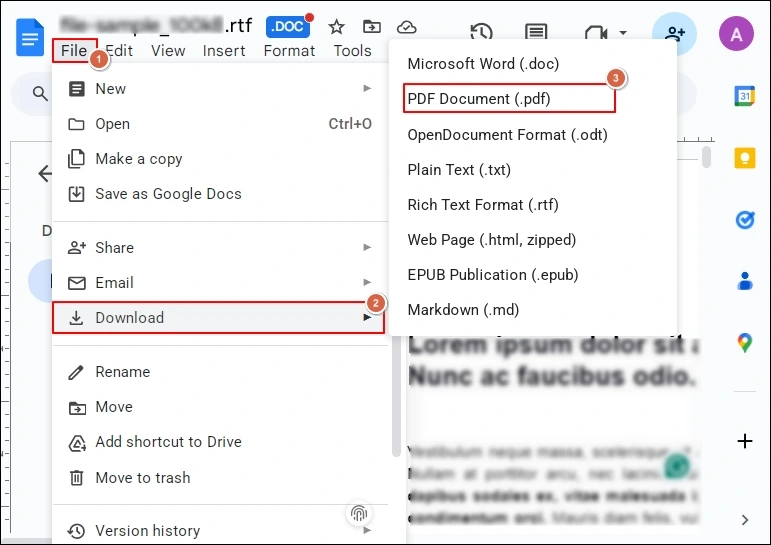
Step 4. It will download automatically at the defined location.
Solution 3. Using Windows “Print to PDF”
Windows 10 or 11 offers a “Microsoft Print to PDF” feature that allows users to convert Rich Text file to PDF. Know the steps to use this method:
Step 1. Open the .rtf file using WordPad or Microsoft Word.
Step 2. Press Ctrl + P keys or tap on the File > Print option.
Step 3. Choose Microsoft Print to PDF and hit Print.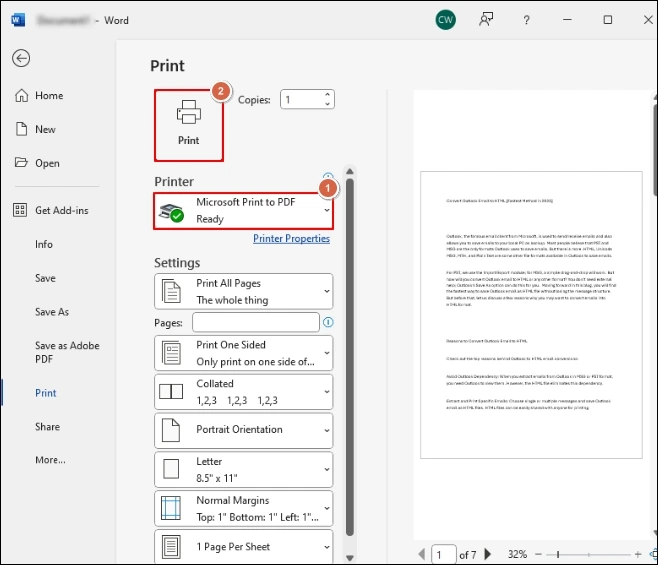
Step 4. Choose the destination and click on the Save option.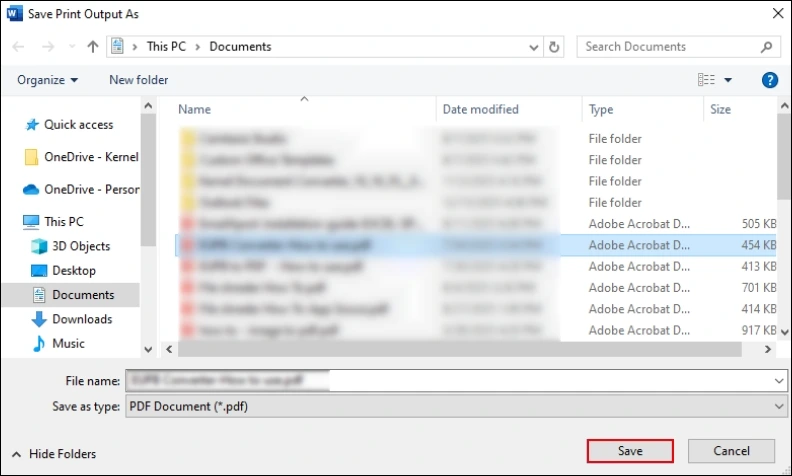
Important to know: You can also take the help of Dropbox to convert RTF file to PDF. You need to log in to Dropbox, then go to the RTF file, click on three dots (…), select Save As > PDF.
Why are Manual Methods not Ideal?
Check out the points that make the manual methods not preferrable for sensitive data:
- High risk of formatting inconsistencies.
- Dependency on internet connectivity.
- Provides limited support for bulk conversions.
- Security & data loss risk with the online tools.
- Time-consuming for large-sized or high-volume RTF files.
Best Method to Convert RTF to PDF [100% Result-Driven]
After considering all the constraints of the manual methods, using them for crucial data might not be a suitable option. Looking towards advanced solutions is the best approach to handle conversion effectively.
Kernel Document Converter software is the one name that leads in this category due to its high-tech features and intelligent framework. Follow the steps below.
Step 1. Download and open the converter.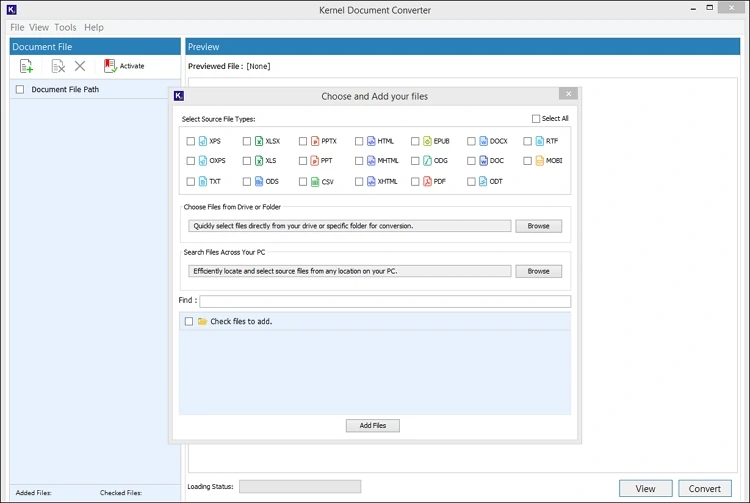
Step 2. Check the RTF format and choose the preferred file or folder. Then, click on the Add files option.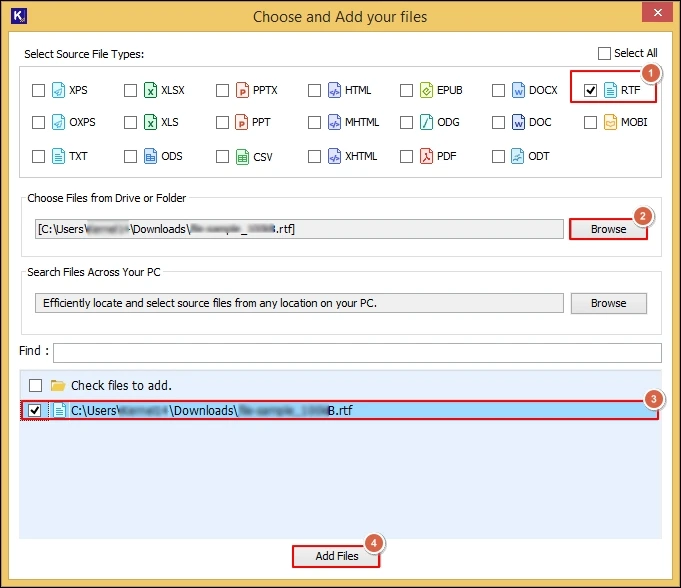
Step 3. Preview the RTF file data and select the desired RTF files for conversion. Tap on the Convert option.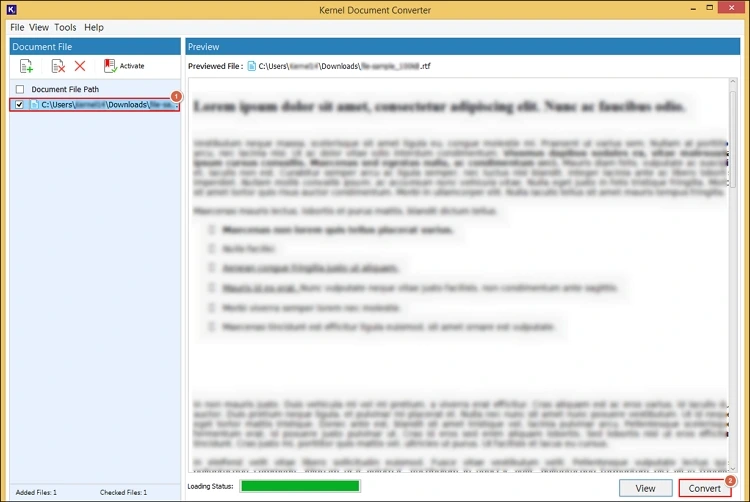
Step 4. Provide the saving location and select the resultant format as PDF with the preferred filters. Select the Convert option.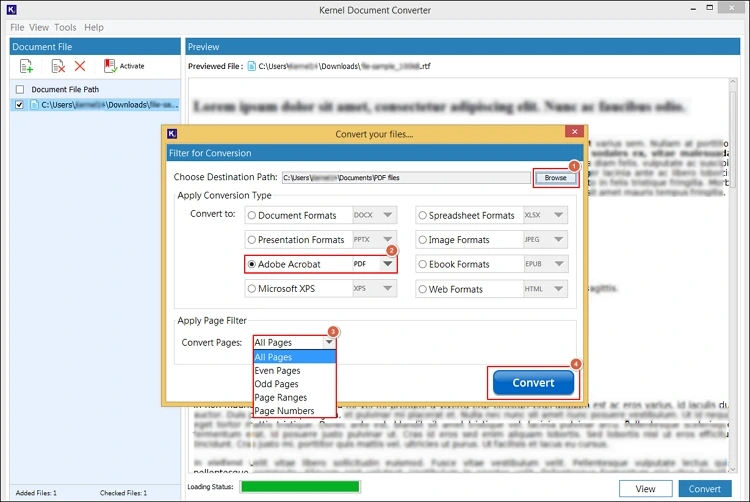
Step 5. It will begin the “convert RTF to PDF” process.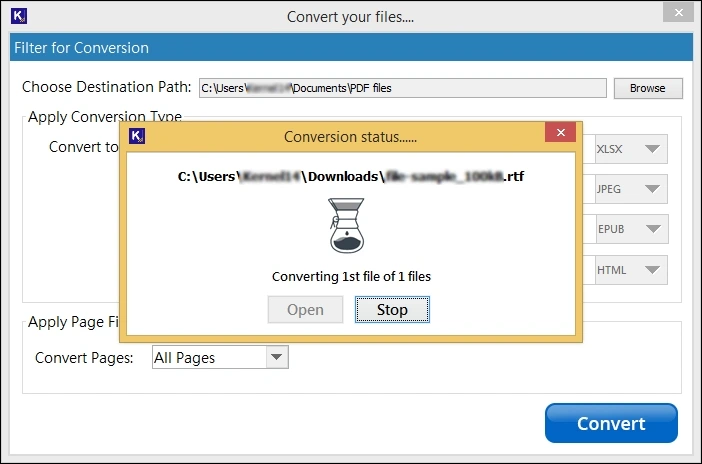
Step 6. Once you get the “Conversion completed” message, hit the Open option to access the converted RTF file location directly. 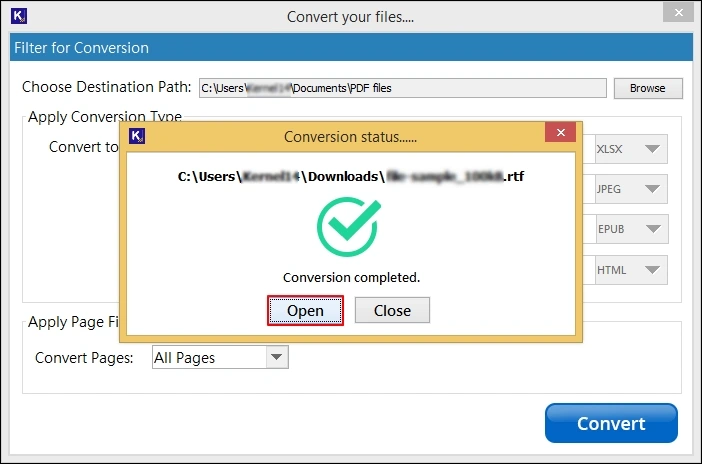
Know the Standout Features of the Converter
Explore the top-quality features of the document converter that can help you make your conversion instant & hassle-free.
- Convert RTF to PDF in bulk without data loss.
- Provides auto-detect feature to load RTF files automatically.
- Retains complete data integrity & hierarchy of RTF file data.
- Allows saving the converted RTF file in more than 20+ formats.
- Provides a complete preview of the RTF data before conversion.
- Permits you to get the desired data with the advanced filters.
Tips to Make RTF to PDF Conversion Flawless
Follow the tips below to get the results 100% error-free with complete accuracy.
- Avoid compressing files excessively.
- Convert one file first to verify the output quality.
- Consider the offline tools for sensitive documents.
- Use the latest version of the software for better results.
Conclusion
Hopefully, this all-in-one write-up has provided complete info to convert RTF to PDF format. The suggested manual and advanced methods can give you satisfactory results if performed precisely. Besides, we have provided some valuable tips to make the conversion process smooth and error-free.