Read time: 9 minutes
Need to convert MOBI to PDF for easier printing and accessibility? The process is simple. You can convert MOBI file to Adobe PDF with no hitch. There are several methods, like Calibre, online converters, & a wide range of professional solutions. The MOBI file to PDF conversion enables MOBI data for wider access and is ideal for easier sharing. If you’re looking to do so, this guide will help you out. It discusses how to convert MOBI to PDF format step by step. Stay with us and get the proven solutions!!
What is a MOBI File and How is PDF Beneficial Over It?
E-books are common among digital readers of all age groups, and they prefer them for reading on devices, like smartphones, eReaders, & tablets. MOBI is a digital ebook format based on the older Mobipocket standard. It was widely used for ebooks because it works well on small reading screens and allows the text to flow based on device size. That means readers can change font size and still read comfortably. But there is a myth that the MOBI file can be shared; it is only for reading.
MOBI files are mainly associated with:
- Ebooks and digital publications.
- Older Kindle-based reading workflow.
- Reflowable text for mobile reading.
PDF file is versatile and widely accessible (across all devices), which presents documents with all text, images, layout, formatting, etc., intact. It offers more flexibility in daily use in education, archiving, and sharing, especially for business. A few characteristics of a PDF file are as follows:
- Smooth compatibility across major devices
- No formatting modification
- Easier printing and sharing.
- Better archiving and edit support.
Just think of it like MOBI files are best for flexible ebook reading, while the PDF files are best for sharing, printing, and fixed layout. So, if your goal is to read like an ebook, MOBI works well, but if you want to distribute, save, print, or present content professionally, PDF is the better format.
Note: Consider these before MOBI to PDF conversion:
- Make sure that the MOBI file is accessible and not damaged.
- Keep a backup copy of the original file.
Ultimate & Fast Way to Convert MOBI to PDF
Not everyone is comfortable with bulky methods to convert MOBI to PDF. If you have multiple MOBI files and want a quick and hassle-free solution, the Kernel Document Converter can help you. It is a powerful solution that efficiently converts MOBI to PDF in a few easy steps. It keeps the original formatting & layout the same as the original. You can preview each MOBI file before conversion and get zero modification in text, images, table, or other items.
Step-by-Step Process to Convert MOBI to PDF
The process to convert MOBI file to Adobe PDF by using the standalone document converter is safe and hassle-free. Here are the steps to follow:
- Download and install tool on your system.
- Launch it and select file type MOBI & tap on Browse to select Text files.
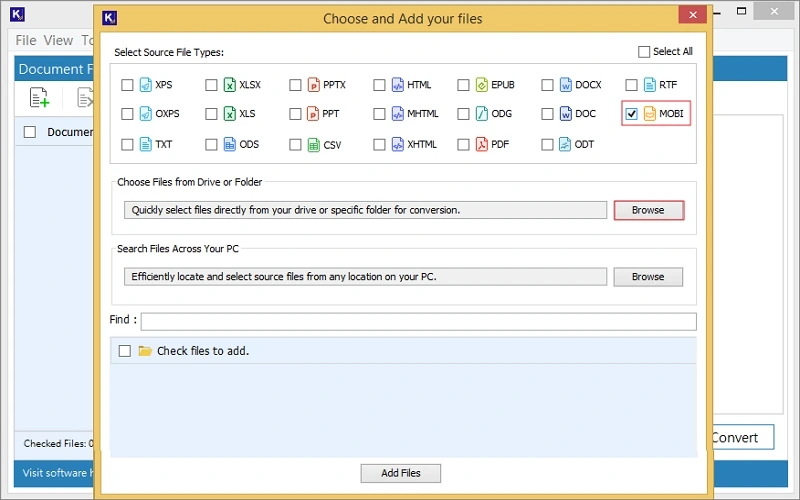
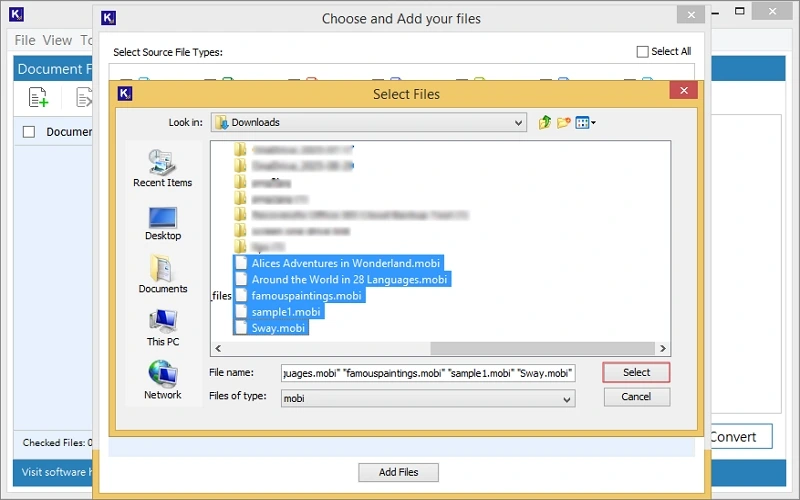
- Choose the MOBI files you want and tap on Select. All files will be listed.
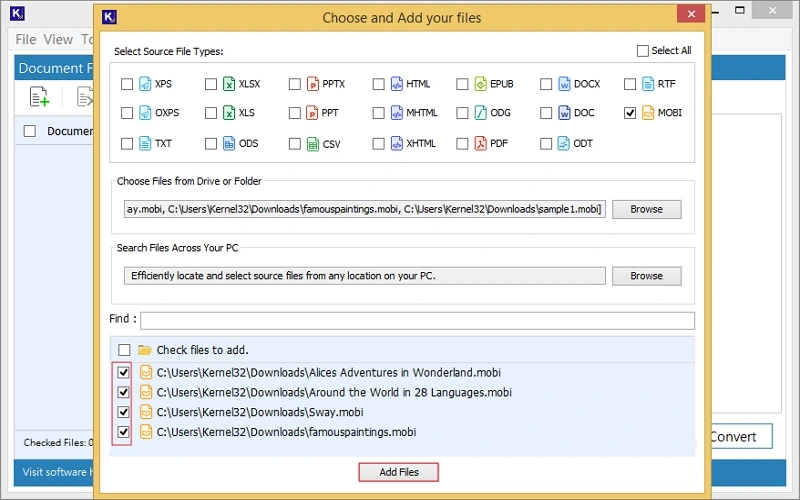
- Select the required MOBI file and tap on Add Files.
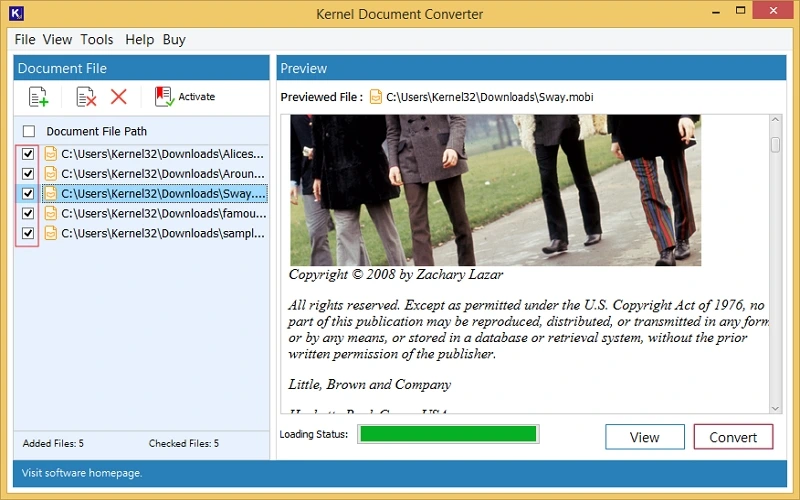
- Select a specific MOBI file and preview it. Once previewed, check the boxes, and click Convert.
- Click Browse and provide the saving location.
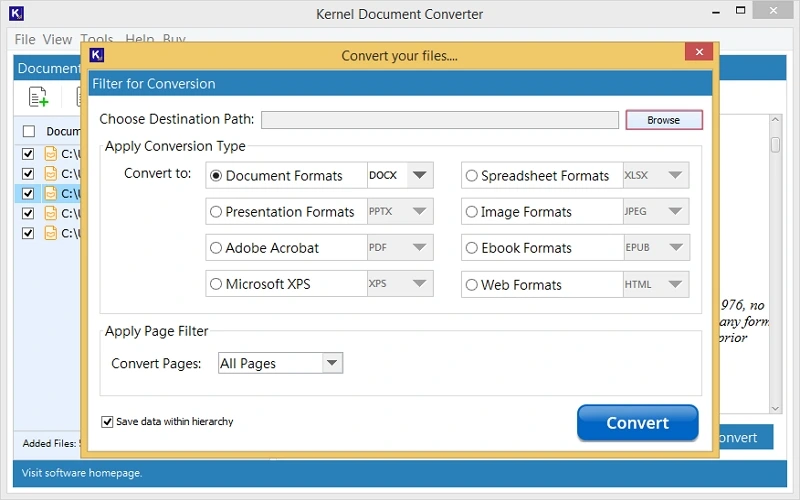
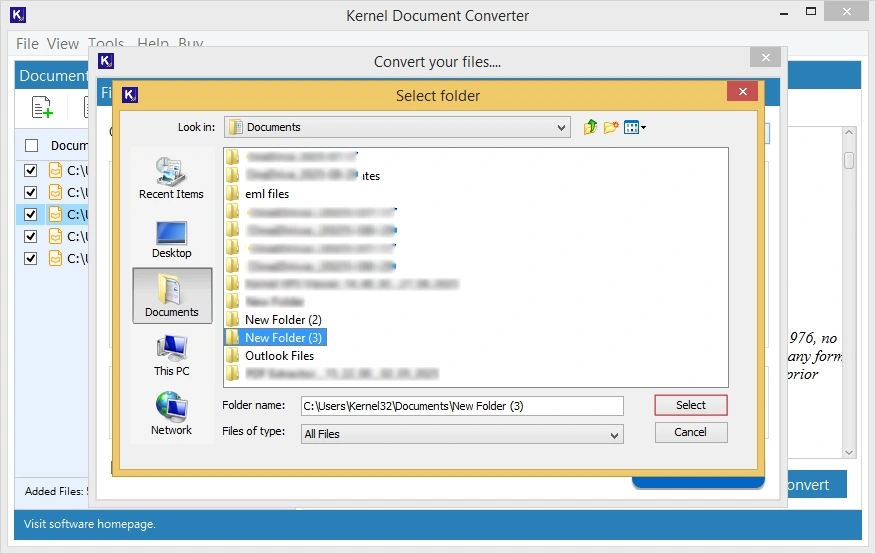
- Specify the saving location for the resultant PDF file.
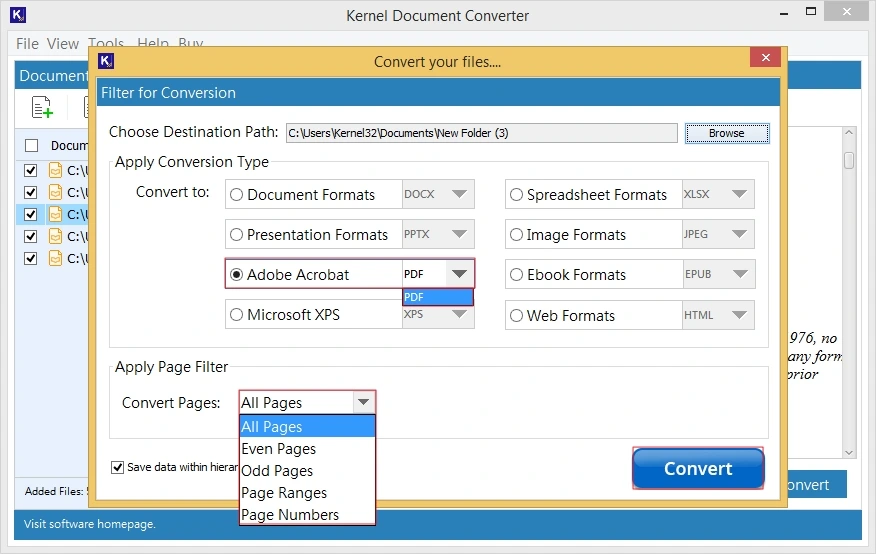
- Now go to Adobe Acrobat and select PDF format. Apply page filter if needed. Click Convert.
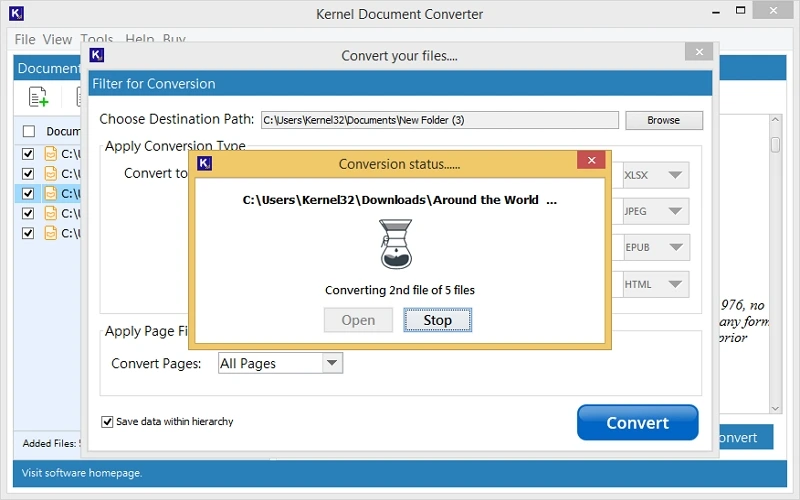
- The MOBI to PDF conversion will start. Wait for a few minutes.
- After conversion, click on Open. You will be redirected to the resultant PDF files.
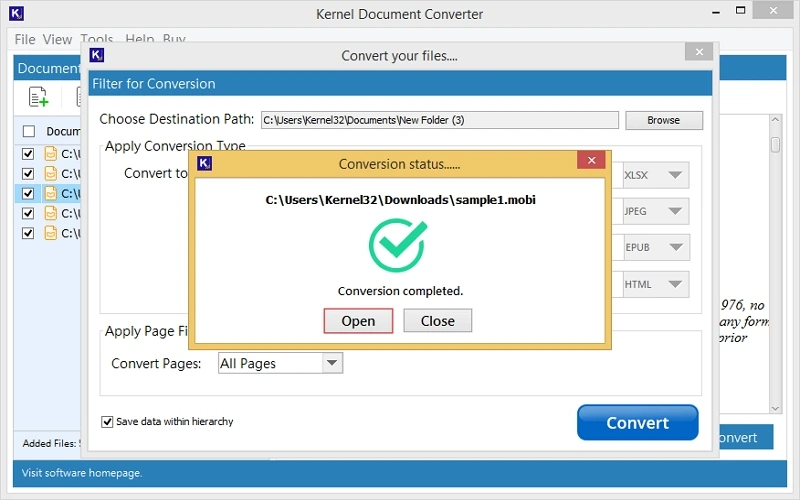
Note: You can also search MOBI files automatically by clicking Browse under Search file across the PC.
Note: If you wish to convert a MOBI file Adobe PDF via manual methods, you can do it. But do remember that manual methods come with limitations and various drawbacks, that results in undesired outcomes.
Manual Ways to Convert MOBI File to PDF Format
Here, you’ll get the top methods that help to convert MOBI files to Adobe PDF files. However, they require you to follow a few crucial steps, which you can perform with guidance. Pick the methods at your convenience:
Method 1: Convert MOBI to PDF via Calibre
Calibre is one of the best-known eBook management and conversion tools. It supports MOBI as an input format and PDF as an output format. The steps to convert MOBI to Adobe PDF in Calibre are as follows:
- Download and install Calibre on your system. Open it.
- Tap on Add books then select the MOBI file you want to convert.
- Once the file is added, select it, & click Convert books.
- Choose the PDF option from the dropdown and apply settings, such as page size, fonts, etc.
- Click OK to start conversion and open or save the PDF, once converted.
All MOBI file content is in the PDF file now.
Method 2: Use an Online MOBI to PDF Converter
Many online conversion tools are available on the internet that you can use when you need a quick MOBI to PDF conversion. But not all online converters are reliable, so opting for a reliable & trustworthy one is crucial. The possible steps to convert MOBI to PDF via an online converter are as follows:
- Figure out a trusted online eBook to PDF converter tool and visit.
- Upload your MOBI file and select PDF as the output format.
- Start the conversion. You’ll be asked to download the new PDF to your device.
- Download that; your MOBI file will now be in PDF format.
Limitations of Manual Methods
As you know, manual methods are not always reliable; they have some shortcomings too. Some of them are:
- Calibre is not suitable for beginner use; it needs assistance.
- Prone to errors due to file size and other factors.
- Online tools may cause data theft or ransomware.
- Original formatting disturbance, watermark special character, etc., may be affixed.
Conclusion
The above methods are quite reliable, and once you convert MOBI to PDF via such working methods, you get satisfactory results. However, layout change, text shift, resized image, and chapter breaks often become the biggest issues. You may need to review the output and customize your PDF before finalizing.
To escape such issues and customization hassle, you can use a professional document converter. The trial is available for free. Download it now, convert your MOBI file to Adobe PDF today!!!
Commonly Asked Questions
A: Yes, with Calibre, Stanza, or many others, you can open MOBI files. But for a safe and easy approach, use only standalone Kernel Document Viewer. It is free to use and opens MOBI files in no time, with all formatting and layout intact.
A: If you want to convert large sized or bulk MOBI files and want hassle-free and accurate formatting & layout, then a specialized MOBI to PDF converter is go to solution. For general conversion, you can use Calibre or online MOBI converters.