Read time: 9 minutes
The convert DOC to PNG process seems complex or irrelevant, but with its multiple advantages, it plays a significant role in the user’s workflow. Like, it enhances document visibility, usability, and sharing flexibility. Besides, PNG format helps users to preserve layout and styling exactly as intended.
Need solutions to convert docx to PNG error-free with zero data loss? Go with this easy walkthrough and get complete information about the conversion, ranging from the reasons, tips to effective solutions.
Important to know: PNG provides lossless quality that makes it a perfect choice for text-based visuals.
Why do I Convert Doc to PNG?
Although the Doc file is good in most aspects, certain things make this conversion necessary for users. Read below to know them:
- Provides 100% data security by restricting any further operations.
- Offers a small or visual snapshot of document pages for quick previews.
- Get easy embedding in blogs, presentations, & websites with the PNG.
- Allows better visual engagement for learning, training, and social media posts.
- Easy sharing of the specific sections or pages as images.
Know Manual Methods to Convert Doc to PNG Image
This section will help those users who need free manual methods to convert single Doc to PNG image. Try to follow the steps provided below to avoid any unusual setbacks.
Solution 1. Use the Microsoft built-in Feature
One of the simplest approaches suitable for those who have MS Word pre-installed. It offers quick, single-page or partial conversion. Here are the steps to know.
Step 1. Open the Doc / Docx file in Microsoft Word.
Step 2. Press Windows + Shift + S keys in Windows or Shift + Command + 3 in Mac for screenshots.
Step 3. Save it as a PNG image format at the desired location.
Note: You can also take a screenshot of the desired page with the Print Screen key. It will save the screenshots in the PNG format at the defined location.
Solution 2. Use Google Docs to Convert Document to PNG
A web-friendly solution that requires no tool installation. It is best for those users who have limited access to MS Word or use ChromeOS. Follow the steps below to get maximum output from the method:
Step 1. Upload the doc file to Google Drive.
Step 2. Open the file with Google Docs.
Step 3. Use screenshots feature (Windows/Mac) to capture the needed section.
Step 4. Save screenshots as a PNG image format.
Why are Manual Methods not Suggested to Convert Doc to PNG?
The manual methods can give satisfactory results, but due to some constraints, they are not recommended. Read below to know below:
- Time-consuming task for multiple-page documents.
- It can display inconsistent results when performed manually.
- Possibility of a cropping mistake or a layout distortion in the output.
- High chances of low-quality output due to display resolution limits.
- Not recommended for professional documentation or large-scale usage.
- Incapable of providing the specific output from the multiple pages instantly.
What Should we Choose then?
If you are dealing with crucial information and professional work, consider the advanced solution. It provides additional security and opens the door for structured output within a few clicks.
On the same parameter, Kernel Document converter stands out as the first choice for industry experts. The tool is equipped with all the needed features related to document conversion that can be helpful for users to complete the process smoothly and error-free. Be it Docx to PNG or something else. It also offers other saving options like Doc to JPG, EPUB, XLS, XPS, PPT, GIF, etc.
To know about the working of the tool, follow the below steps:
Step 1. Download Kernel Document converter, and open the tool.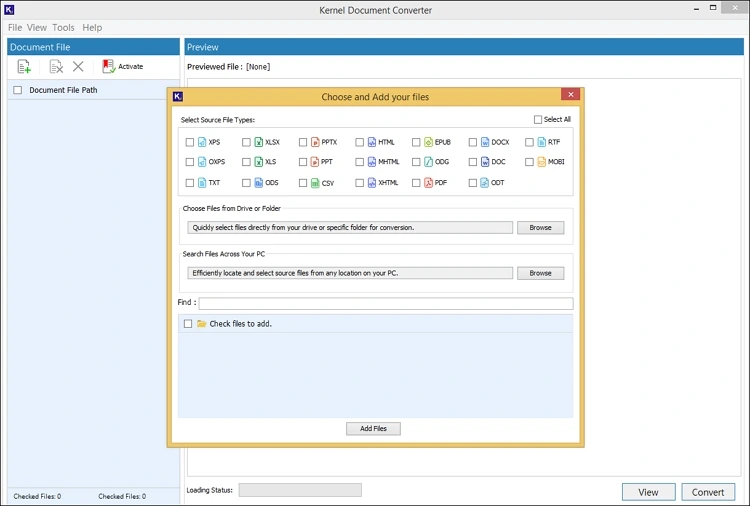
Step 2. Go to the DOCX section and browse the preferred file or folders. Then, tap on the Add files option.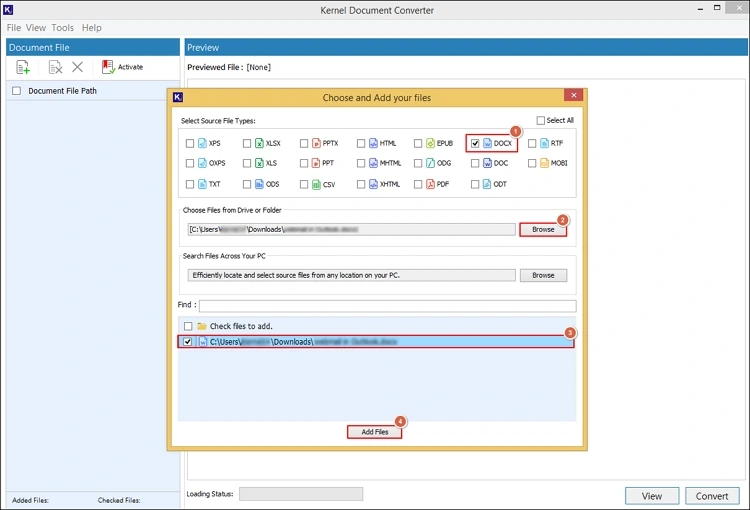
Step 3. Verify the DOCX file data and choose the desired files. Click on the Convert option.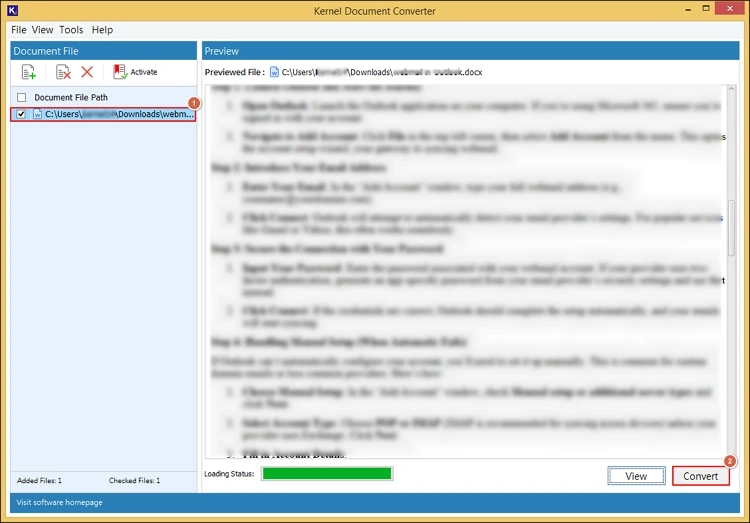
Step 4. Select the saving location and choose the resultant format as PNG with the needed filters. Hit the Convert option.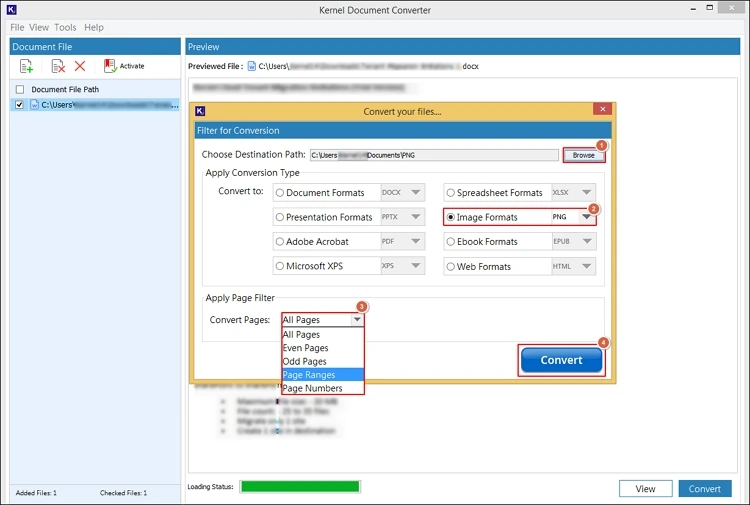
Step 5. It will start the “convert DOCX to PNG” process.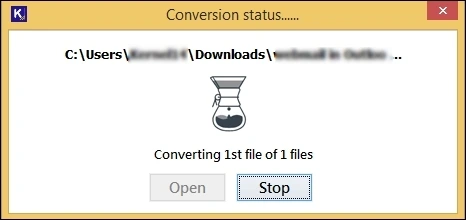
Step 6. After the “Conversion completed”, tap on the Open option to access the converted DOCX file location directly.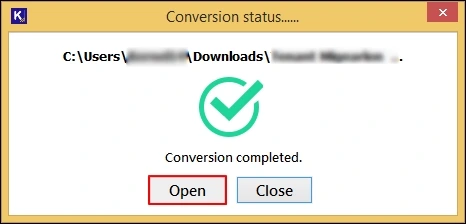
Professional Tips to Convert Document to PNG with Accuracy
Follow the tips below to make your conversion experience hassle-free.
- Set themes or color contrast carefully for clearer output.
- Zoom in to 120-150% before capturing for more clarity of text.
- Verify the images on different devices like mobiles and desktops.
- Align visuals and margins uniformly when capturing multiple pages.
- Avoid compression & save at original PNG quality to maintain readability.
- Always use high-resolution display settings to enhance screenshot quality.
End Thoughts
All the required information to convert Doc to PNG is provided in the blog. It includes reasons, manual methods, advanced solutions, and helpful tips. Check out each detail carefully for the desired output. For any further assistance, you can contact our customer support.


![5 Best Free PDF Readers for Windows and Macintosh [2026]](https://www.nucleustechnologies.com/blog/wp-content/uploads/2022/01/900x416-copy.jpg)