Read time: 9 minutes
Google Workspace is a professional suite of tools that helps businesses with applications like Gmail, Drive, Docs, etc. With G Suite, you get advanced features, ease of access, AI-powered app integration, and much more. Still, sometimes the need arises, and you have to move your emails from Google to Outlook.
Both platforms are built differently, but thanks to the technological advancements and email protocols, you can easily setup Google Workspace email account to Outlook. All you need is a few changes in email settings, an Application Password, and Outlook application. We will discuss the complete process of securely moving your emails without data loss. But before we begin with the email transfer, let’s see a few reasons why an individual user or a whole organization may want to move to Outlook from Google.
What are the Reasons to Setup Google Workspace Email Account to Outlook?
You might be wondering why someone would move from the reliable Google Workspace to another email client. Here are a few key reasons:
- Offline Access: Outlook’s desktop client uses an OST file that allows easy & quick email access even when you are offline. Google is missing such a feature.
- Familiar Features: Some are comfortable with Google’s interface, while some are heavily dependent on the classic Outlook interface. Individual needs and preferences are among the reasons why you may want to shift.
- Unified Inbox: When it comes to accessing multiple mailboxes from a single email client, Outlook clearly wins. If your company uses both Microsoft 365 and Google Workspace, then you can manage all your email addresses (personal and professional) from Outlook without hassle.
Setup Google Workspace Email Account in Outlook: Prerequisites
To make sure the entire process completes error-free, you must do the following tasks:
1. Enable IMAP Access in your Google Workspace Account
We will be using the IMAP protocol to setup Google Workspace email account to Outlook. Therefore, you must enable IMAP in the source Google email account. Follow these steps to enable necessary settings in the Google Workspace console:
Step 1: Sign in to the Google Admin console with an administrator account.
Step 2: Navigate to Menu > Apps > Google Workspace > Gmail > End User Access.
Step 3: Scroll to the “POP and IMAP access” section.
Step 4: Check the box for Enable IMAP access for all users.
Step 5: Click Save.
Note: It may take up to 24 hours for the IMAP changes to take effect
Alternatively, you can try to enable the IMAP for your Google Workspace account from Gmail using the steps given below:
Step 1: Sign in to your Google Workspace (Gmail) account on a web browser.
Step 2: Click the Gear icon (Settings) > See all settings.
Step 3: Go to the Forwarding and POP/IMAP tab.
Step 4: Under the IMAP access section, select Enable IMAP.
Step 5: Click Save Changes at the bottom.
Note: IMAP is enabled by default for a standard Gmail account. You only must enable it for Google Workspace accounts.
2. Generate an Application Password
Most of us are using two-factor authentication, and if you are one of them, you must create an Application Password for such accounts before moving them to a different email client.
Additionally, some applications don’t allow using the standard Google email account password. In such cases, only the special 16-character Application Password will work. You can generate the password with the following steps:
Step 1: Go to myaccount.google.com (sign in if asked)
Step 2: In the search area, type ‘Application Password’ and select the App Password option from the search results.
Step 3: Provide a name for the app and click Create.
Step 4: A 16-digit password will be generated, copy and save it.
3. Backup Emails
Although the method we will be using to add your Google Workspace email to Outlook is 100% safe, you must backup your Google mailbox. There are primarily two ways to back up your Google data:
Google Takeout: It’s a free Google service that lets you easily download a copy of your data from different Google components, including Gmail.
Professional Google Workspace Backup tool: System admins prefer to use an advanced Google Workspace backup tool. It’s fast, accurate, easy-to-use, and allows you to backup multiple Google email accounts in one single operation.
Setup Google Workspace Email Account to Outlook – Quick Steps
To connect Google Workspace email in Outlook, follow these steps:
Step 1: Open Outlook, select the File tab, and click the Add Account button.
Step 2: Enter your Google Workspace email and click on Advanced options. Then, tick “Let me setup my account manually” and click Connect.
Step 3: Click on the Google option.
Step 4: A new Chrome window will open. Enter your Google Workspace email account and click Next.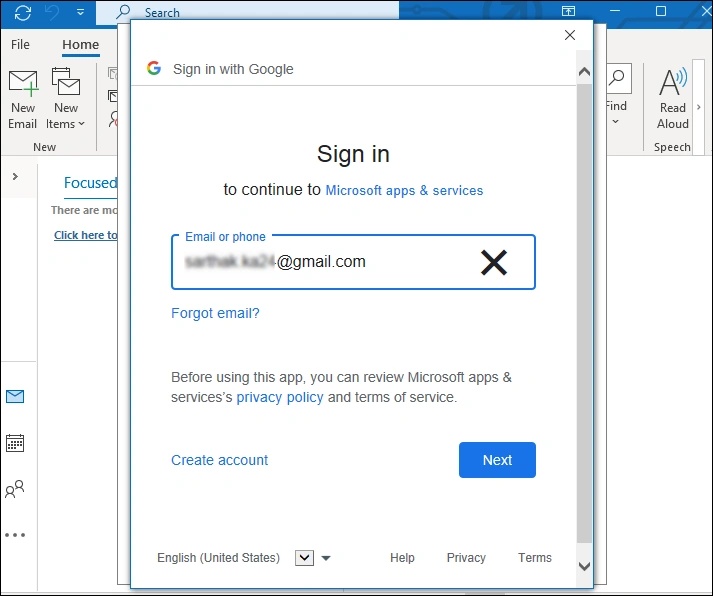
Step 5: Enter the password for your account and click Next.
Note: If the normal password did not work, try the Application Password you created earlier.
Step 6: Click Allow to let Outlook access the emails.
Step 7: The Google Workspace account is added successfully. Click Done to finish.
Step 8: A new folder of your Google Workspace email account will be created on the left pane in Outlook. Click on it to access the emails.
What to Do Post-Migration?
Some minimal tasks to perform when the process of moving Google Workspace email account to Outlook is over are:
- Wait for Sync: You will not see the email from 2020 right away. Wait until Outlook finishes synchronizing all your emails. This can take anywhere from a few minutes to several hours, depending on the size of your mailbox. The new mailbox will appear in the left navigation pane.
- Test Send/Receive: Send a test email from your new Outlook account to a personal email just to make sure everything is OK. You can also reply to this email to check if both send/receive operations are working correctly.
- Clean Up Folders: This step is completely optional; it’s something that I personally do. You can customize the newly added folders from Google as per your requirements. Give it a clean and minimal look to make things simple and easily accessible.
Conclusion
Follow the steps given above to setup Google Workspace email account to Outlook. Make sure you back up the data before transferring. You can use the method discussed above to move emails from any Google account, a normal user, or a super admin. But this approach is not reliable for moving multiple mailboxes simultaneously.
If you want to move multiple mailboxes from Google Workspace to Outlook (Exchange Server), you must use a professional IMAP migration tool like Kernel Migration for IMAP. This tool offers a user-friendly interface and secure environment to connect and migrate emails between any IMAP-supported email server.
Frequently Asked Questions
A. This is due to the 2 Factor Authentication enabled in your Google Workspace account. You have to manually create an application password (16-digit key) and use the new password to setup Google Workspace email account to Outlook.
A. Every folder and email will not be visible immediately after the email transfer. Outlook will take some time to synchronize the Google Workspace emails in the application. If new emails are missing, you must check the auto-forward settings of your Google email account.
Q. After entering the password, I get this message “Connection times out/Manual setup fails”. What to do?
A. This can be due to an incorrect server configuration. Double-check the IMAP/SMTP Server names and Port numbers in the manual setup step. Also, temporarily disable any firewall or antivirus that might be blocking the connection attempts on ports 993 or 465/587.
A. If you are moving emails from a standard Gmail account, you will not find the IMAP enable or disable option. This is because, starting from January 2025, IMAP is enabled by default for all individual Gmail users.