Read time: 5 minutes
Summary: Organizations create and delete thousands of user accounts in Microsoft 365. The deleted users remain in a soft-deleted state for 30 days, which may affect security and compliance. This article explains how to remove deleted users from Office 365 using reliable methods permanently. Moreover, it also suggests backing up users’ data via the professional Office 365 backup solution to protect from issues like data loss or ransomware.
According to Microsoft security guidance, unused or deleted accounts are one of the major identity risks in cloud environments. Even a user account that is not fully removed may cause issues like licensing conflicts, directory mess up, compliance issues, etc, especially in big firms. That’s why it is necessary to delete users from the deleted users Office 365 account, instead of waiting for automated deletion by Microsoft.
If you’re an IT admin or an individual Microsoft user, you must know how to remove deleted users from Office 365. Now, you no longer need to worry about the complexity. This article will help you out. Here, you’ll get detailed step-by-step methods to remove deleted users from Office 365 and the reasons to do this. Let’s get started!!
Why Permanently Delete Users from Office 365 Account?
You may want to delete user Office 365 account in the following situations permanently:
- An employee has permanently left the organization.
- You want to free up the username and license.
- Obey the security policy of full user removal.
- Cleaning up inactive or test Office 365 accounts.
- You want to purge deleted users from Office 365 in bulk.
Methods to Remove Deleted Users from Office 365
Once permanently deleted, the user account won’t be restored. Keeping this in mind, you can follow the method below at your convenience:
Method 1. Permanently Delete Office 365 User via Entra Admin Center
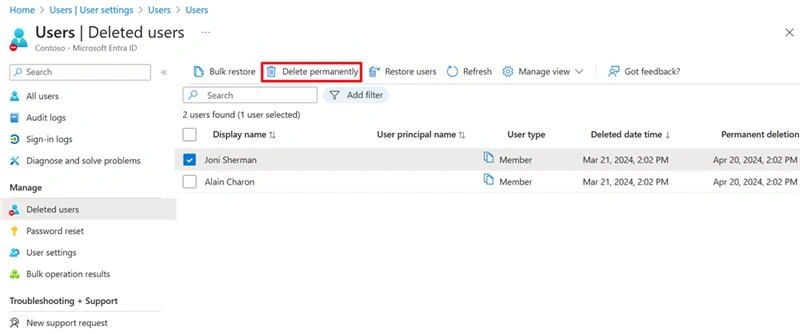
If you want to remove deleted users from Office 365, using Entra Admin Center is recommended. Here are the steps to follow:
- Sign in to the Microsoft Entra admin center as a User Administrator.
- Go to Entra ID (Identity tab), tap on Users, select Deleted users.
- Select the required users from the list of deleted users and tap on Delete Permanently.
Method 2. Permanently Delete Office 365 User via Microsoft Graph PowerShell SDK
As we know, the Azure Active Directory (AzureAD) PowerShell module is no longer in use. So, you can use the Microsoft Graph PowerShell SDK to purge deleted users of Office 365. IT admin prefers this method the most. Here are the steps to follow:
Step 1. Install and open the Microsoft Graph PowerShell SDK.
Install-Module Microsoft.Graph -Scope CurrentUserStep 2. Import the Microsoft Graph module. Execute this:
Import-Module Microsoft.GraphStep 3. Now, connect to Microsoft Graph with the required permissions. Run the command below:
Connect-MgGraph -Scopes "User.Read.All"Step 4. Once connected, run the command below to get the list of deleted users:
Get-MgDirectoryDeletedItemAsUserStep 5. Delete a specific deleted user object with the following command:
Remove-MgDirectoryDeletedItem -DirectoryObjectId 2ba20d9c-6784-4cc4-bdb3-a4a7ef8c2ac1Step 6. Run the below cmdlets to confirm if the user is permanently deleted
Get-MgDirectoryDeletedItemAsUserNote: To remove multiple deleted users from Office 365, follow the steps below:
Step 1. Remove all M365 Deleted users permanently with the below cmdlets.
Get-MgDirectoryDeletedItemAsUser -All | ForEach-Object { Remove-MgDirectoryDeletedItem -DirectoryObjectId $_.Id -Confirm:$false }Step 2. Confirm if all users are permanently removed using the command below:
Get-MgDirectoryDeletedItemAsUserAfter performing all the above steps, you can also cross-check the results from the Entra admin center.
Recommendation: Backup Before You Permanently Delete Users
You cannot restore the user account once it is deleted permanently. As per the shared Responsibility model, Microsoft isn’t liable to protect your data from issues like accidental deletion and data loss. So, it is quite necessary to keep a backup of your Office 365 mailboxes. However, Microsoft’s retention period is 30 days, but what if you need to access deleted user data in the future? You can also use the eDiscovery tool to backup Office 365 user data if you have enough tech skills, enough time, and a casual data recovery intent.
Instead, use a professional solution like Kernel Office 365 Backup tool to get your Office 365 user data in 9+ accessible file formats locally. It makes the Office 365 backup process easy for all kinds of users, whether novice or tech expert. Embedded with advanced algorithms and features, the tool offers a 100% error free and instant backup. A few high-end features of the tool are:
- Backup Microsoft 365, On-premises Exchange & Hosted Exchange mailbox
- Save bulk user data in PST, PDF, MSG, EML, HTML, & other file formats.
- Export data from primary, shared, and archive mailboxes.
- Custom filters for selective Office 365 data backup.
- An incremental backup option to back up new/updated data.
- Free trial version and compatible with major Windows OS.
Ending Note
Leaving your soft-deleted user account in Office 365 may seem normal, but it may create abnormal situations. So, do hard deletion of old/deleted Office 365 user data without waiting for Microsoft 365 action. Now you know both methods (via Entra admit center and cmdlets) to delete a user from the deleted users’ Office 365. You can opt at your convenience.
However, Office 365 backup is also necessary to keep your old data safe and recoverable to fulfill further requirements. Manual methods to back up Office 365 may bother you and may lead to failure & data loss. So don’t waste your time on less reliable methods and go with the recommended Office 365 backup tool. The free trial version is available for you. Try that and purchase the full version if needed.
Frequently Asked Questions
A: Yes, backing up before account deletion is a good practice. With a clean and accessible Office 365 backup, you can prevent your business from important data loss.
A: You can face such issues because the user still has an active license and admin roles in on-premises AD. Remove that and try deleting again.
A: No. Once you delete an Office 365 user’s account permanently, you cannot restore it. You can recover under the retention period (30 days) only if you’ve performed soft deletion.