Read time: 8 minutes
MDaemon is widely used by small to medium businesses as a mail server solution. However, many organizations migrate to Outlook due to many advantages, like Microsoft ecosystem integration, collaboration features, wider scalability, etc. MDaemon users don’t let their important mailbox data fall behind, so they seek to export mailbox folders from MDaemon to Outlook PST.
Since MDaemon does not natively provide direct PST export, users must follow manual workarounds or use a professional conversion tool for the same. This master guide has possible manual methods and an automated solution to help you export MDaemon emails to Outlook PST safely and efficiently. Let’s get started!!!
Why Export MDaemon Mailbox to PST? Reasons Listed
Now everyone needs a faster, modern interface with AI-powered features, improved cross-platform consistency, & many other capabilities in one place. So, many users switch from MDaemon server to Microsoft Outlook for better accessibility and integration. It also helps to create secure backups and facilitates offline email accessibility. PST files are widely supported and easy to manage in Outlook; accessing MDaemon files in PST is the right way to enter the Microsoft environment. Here are other common reasons:
- Backup and archive compliance.
- Server upgrade or decommission.
- Easier MDaemon data portability.
- Fulfill legal and audit requirements.
- Migration to the Microsoft Outlook environment.
MDaemon Mailbox Storage | Explained
Mademon mailbox storage plays an important role when you export its data to other email clients, i.e., Outlook. Before you export MDaemon mailbox to PST, it is important to understand how MDaemon stores data. MDaemon stores mailbox data in MSG and IMAP folders within the server directory. Unlike Outlook, it doesn’t use the PST format by default, which makes direct import impossible. Hence, conversion is needed.
Export MDaemon Emails to Outlook PST via IMAP Method
This method is basic & an easier one that uses Outlook’s IMAP configuration and export feature. You need to configure your MDaemon account in Outlook using IMAP and then export MDaemon mailbox to PST file.
Step 1: Configure MDaemon Account in Outlook
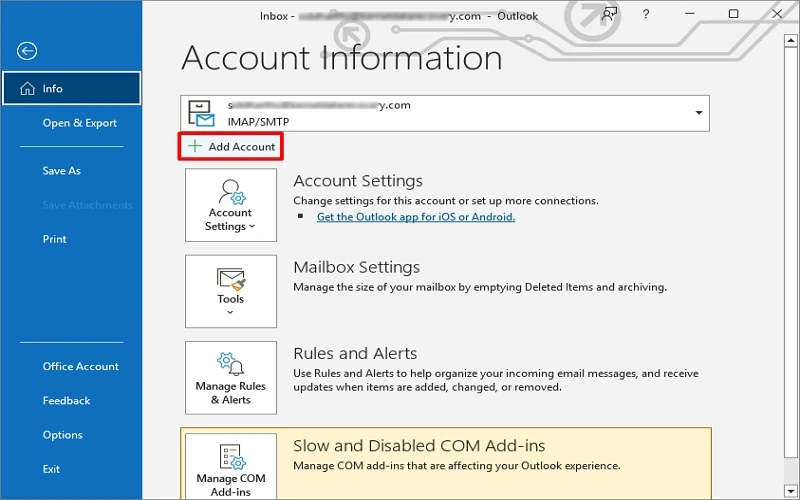
Add your MDaemon email account in Microsoft Outlook using IMAP settings provided by your mail server admin. Here is how to do this:
- Open Outlook and go to File, then tap on Add Account.
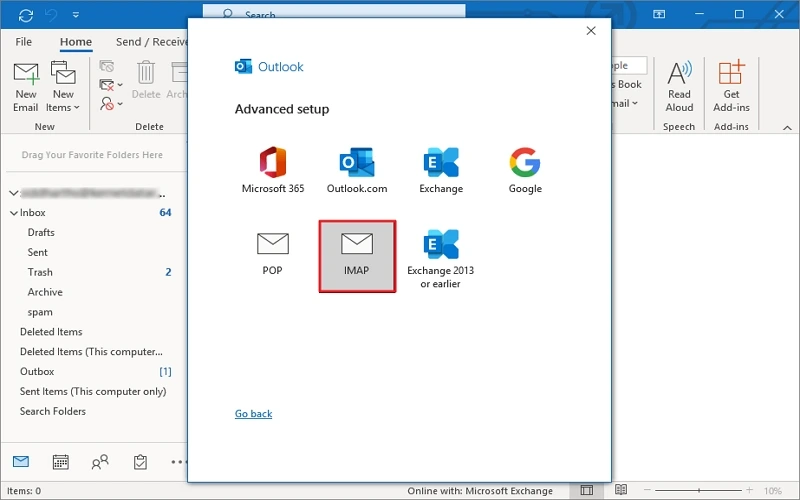
- Choose Let Me Set up Manually in the Advanced option, select IMAP, & enter server details (Incoming and Outgoing server information).
- Complete the login process. Outlook will sync all mailbox folders from MDaemon.
Step 2: Export IMAP Mailbox to PST
Once MDaemon email sync completes, follow the steps given below in Outlook:
- Go to File, tap on Open & Export, then select Import/Export.
- Choose Export to a File. Click Next.
- Select Outlook Data File (.pst). Click Next.
- Choose the IMAP mailbox folder and click Next.
- Click Browse and select the destination location of the PST file. Click Finish.
Outlook will create a new PST file containing your MDaemon mailbox data. You can protect your PST with a password from unauthorized access if asked for it.
Export MDaemon Emails to Outlook PST via Drag & Drop
MDaemon stores emails in MSG format inside the user folder in the system. These can be imported into Outlook manually by drag and drop. Here are the steps to follow:
- Locate the MDaemon mailbox directory, open the user’s mailbox folder & MSG files.
- Open Outlook and create a new folder, and drag & drop MSG files into that.
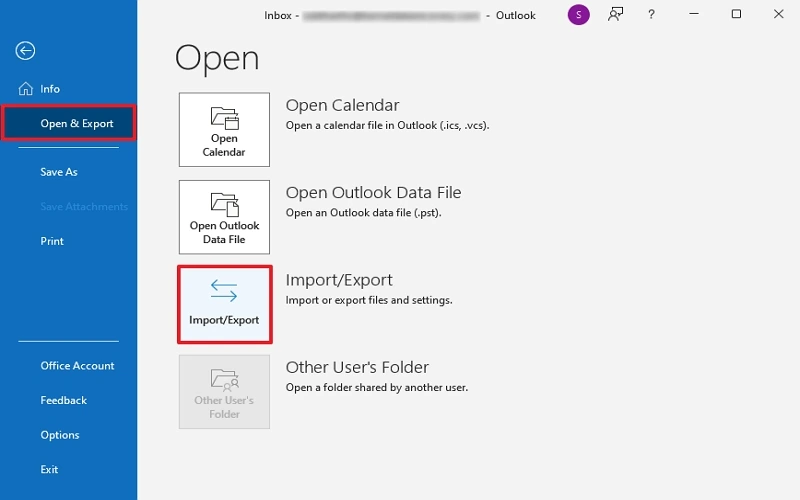
- After importing, click on File, Open & Import, and tap on Import/Export.
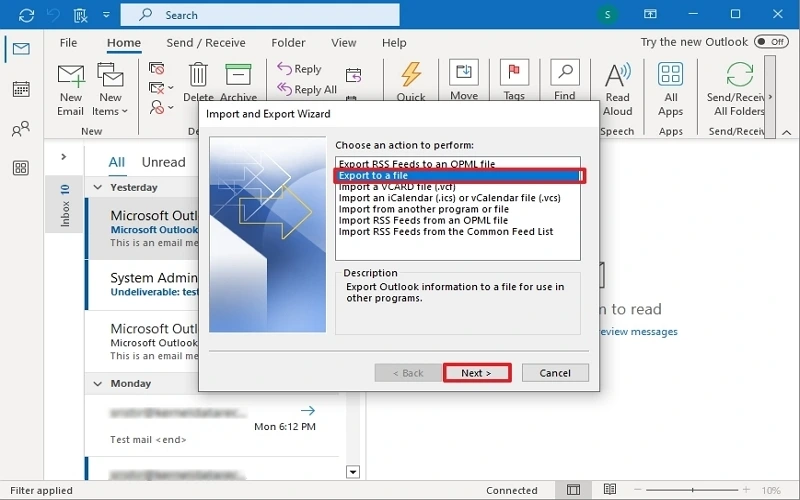
- Tap on Export to a File. Click Next.
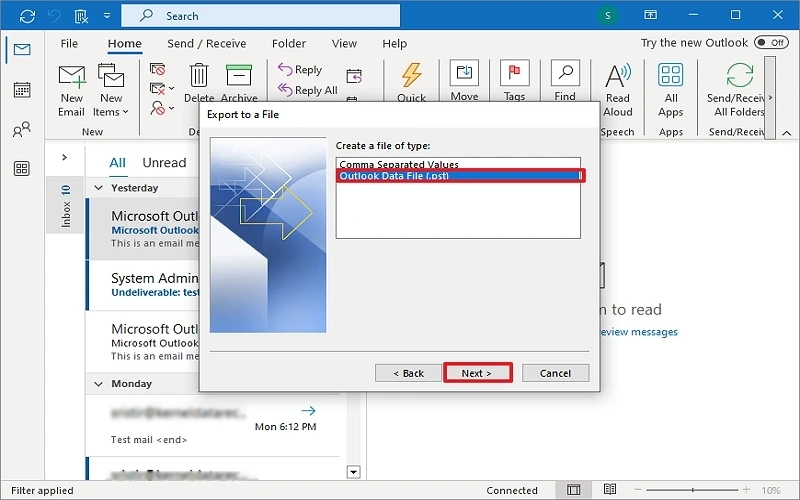
- Choose Outlook Data File (.pst). Click Next.
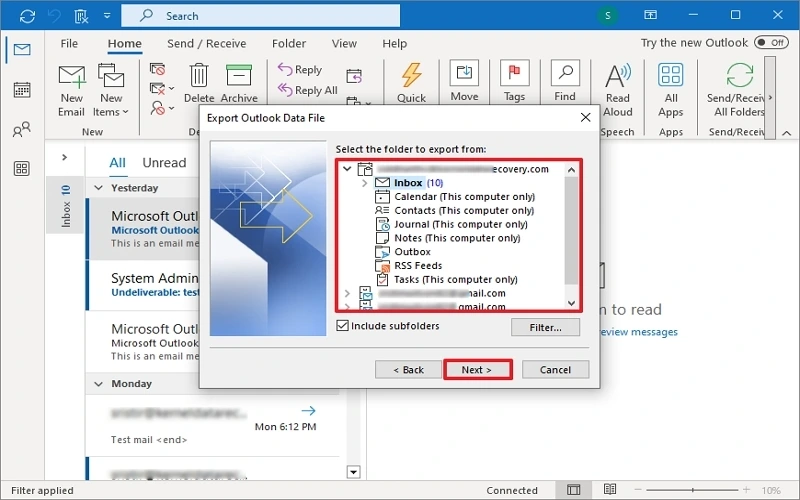
- Select the IMAP mailbox folder and click Next.
- Click Browse and select the destination location of the PST file. Click Finish.
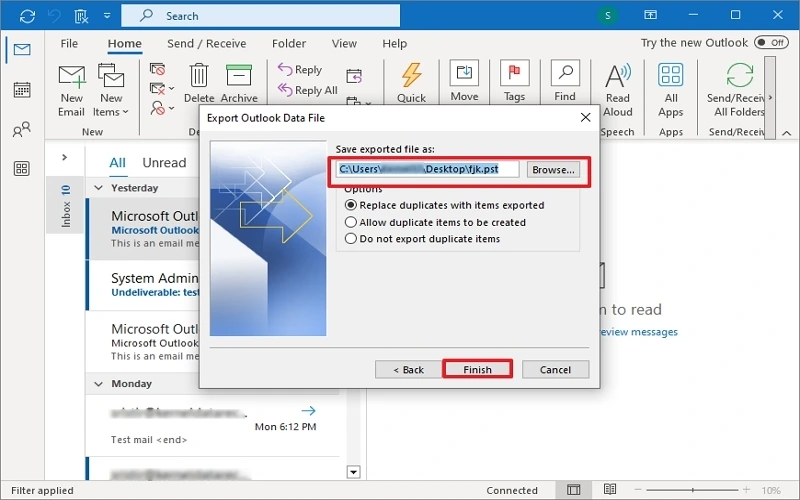
Your MDaemon emails are now in PST format. Outlook may prompt for a password for your PST file.
Alternate Approach to Export MDaemon Emails: MDaemon Connector for Outlook
MDaemon Connector for Outlook is a purchase-based application that provides groupware and collaboration functionality. It connects an MDaemon mail server account directly with Microsoft Outlook and works as a bridge between them. By this, users can access their emails inside Outlook without exporting data manually.
This utility works for account access and syncing; it may not be workable if you want to export mailbox folders from MDaemon to Outlook PST permanently. It helps in:
- Email data sync between the server and Outlook.
- Mailbox management in the Outlook interface.
- Real-time email access.
- Server-based email management.
Note: You can easily utilize the MDaemon Connector for Outlook, but it mainly helps in synchronization. It allows Outlook to connect with the MDaemon Server and display mailbox data in Outlook. Moreover, it may also crash unexpectedly, and most users found it ineffective. However, MDaemon Connector for Outlook does not actually convert mailbox data into multiple formats like a professional tool.
Occurring Issues & Solutions During MDaemon to PST Export
Almost every manual method to export MDaemon email to Outlook PST comes with various drawbacks, and sometimes users face challenges during the process. Here are common problems and their solutions:
|
Issues |
Fixes |
|
Slow email sync |
Use a stable internet and avoid background downloads. |
|
Missing MDaemon emails |
Re-sync IMAP folders before export. |
|
Corrupt PST file |
Use Outlook Inbox Repair Tool (ScanPST). |
|
Permission errors |
Make sure admin rights are protected when accessing the mailbox directory. |
Ultimate Solution to Export MDaemon Emails to PST
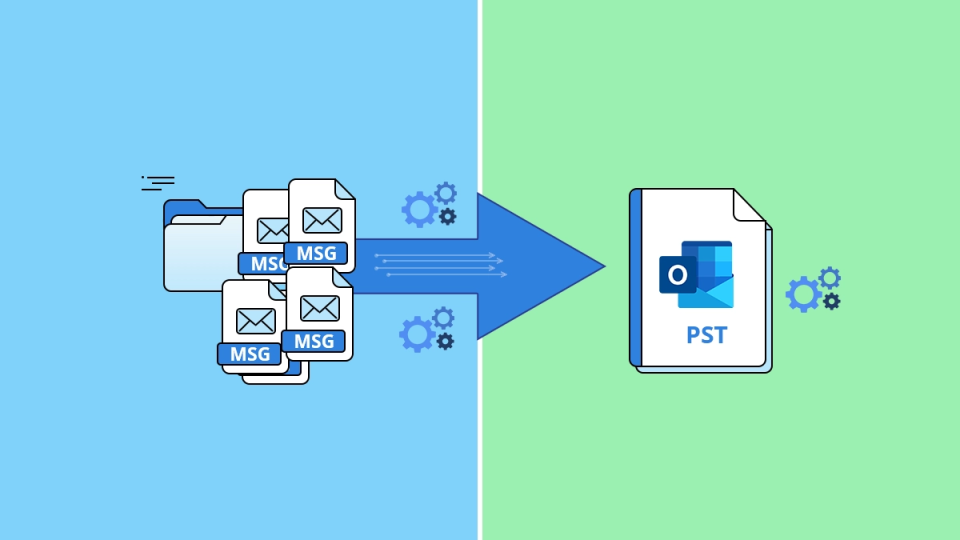
No more reliance on manual methods & no need to face issues like data loss, complex steps, etc. Manual approaches are generally unreliable for bulk MSG to PST conversion (MDaemon to Outlook PST), so we recommend Kernel MSG to PST Converter tool that efficiently extracts the MDaemon files and converts them to Outlook PST directly. It offers a straightforward and hassle-free process to export mailbox folders from MDaemon to Outlook PST. This approach usually reduces conversion & migration time and eliminates risks associated with manual export methods. A few features and capabilities of the tool are listed below:
- Convert MSG file to PST as well as MBOX, DBX, HTML, PDF, DOC, etc.
- Export emails, contacts, calendars, and tasks with all metadata intact.
- Auto scan features to add bulk MSG files from the selected drive or folder.
- Preview MSG file using various filters, like To, CC, BCC, Subject, etc.
- Creates multiple small PSTs via the Split PST file option.
- Easy to use; made for both tech & novice users.
Final Words
You can use the above-mentioned manual methods, such as IMAP configuration, drag-and-drop & MSG import, etc., to export mailbox folders from MDaemon to Outlook PST. However, these manual approaches require a lot of time to perform and are unsuitable for large-scale conversions & migration. Many times, they fail and result in undesirable outcomes.
For firms and IT admins or individuals seeking quick & desired results, a professional tool is the only go-to option. It offers a structured & efficient method to convert MDaemon mailbox data into PST format with data integrity preserved. The trial version is free; you can take a trial today!!
Frequently Asked Questions
A: With Outlook export or drag & drop method, you can export MDaemon Mailbox to PST. But these manual processes can be complex and may result in important email loss. However, a dedicated tool helps you convert multiple MDaemon user mailboxes or folders at once in a few clicks.
A: You can try manual methods, but for large mailboxes, you need more time and effort. But a professional software does it in no time with no effort. It can handle large mailboxes and split large PST files into multiple smaller ones (1GB, 1.5GB, 2GB, etc.)