Read time: 8 minutes
MSG files store a single email with metadata and attachments with formatting. PST files, however, store entire mailboxes, like folders, calendars, contacts, attachments, etc. Therefore, creating PST from MSG files improves accessibility, email management, along with the backup efficiency. If you need to create PST from MSG files, several reliable methods can help.
Mass users store emails as MSG files for backup or sharing, but Outlook works more efficiently when emails are organized in PST format. This guide provides the best manual methods to create Outlook PST from MSG files, along with a professional approach. Let’s begin!!
Need to Create PST from MSG Files: Possible Reasons
Professionals say that saving emails as MSG files is easy, but managing a bulk of individual files becomes difficult. They suggest converting them into PST to organize, import, & manage emails easily within Microsoft Outlook. Common needs to create PST from MSG file are as follows:
- Export MSG email archives into Outlook.
- Merge multiple MSG files into one PST.
- Create a backup PST from individual email files.
- Migrate emails to another Outlook profile or system.
Methods to Create PST from MSG Files Manually | 100% Working
Here are a few of the easiest to use and working methods that you can use to create Outlook PST from MSG files. Go through each and pick the best suitable one for you.
Method 1: Drag and Drop MSG Files into Outlook PST
Outlook supports the drag & drop process, which is the simplest method to open and create PST file from MSG files. You can manually import emails by dragging MSG files directly into a PST folder inside Outlook. Here are the steps to follow:
- Open Microsoft Outlook and create a new PST file if required.
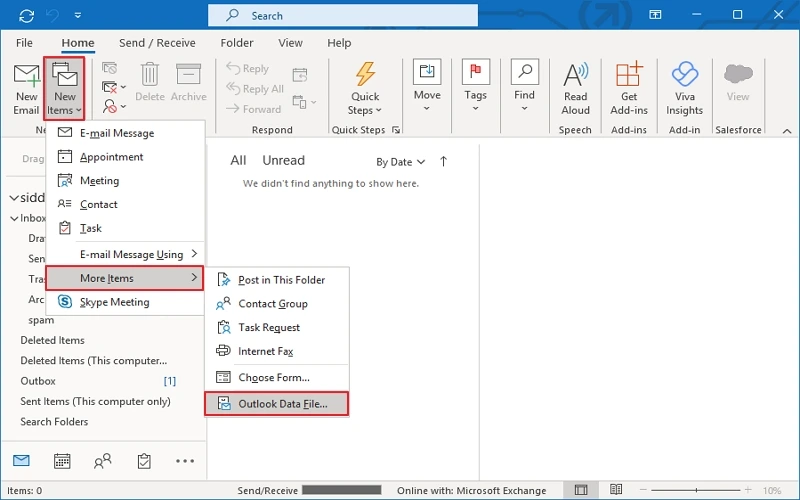
- From the Home tab, tap New Items, select More Items, and click Outlook Data File.
- Specify the saving location for your PST files.
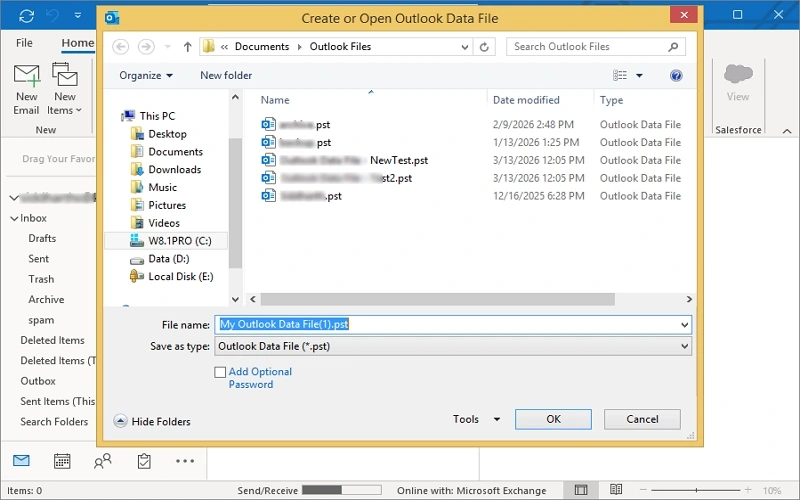
- Once saved, add or open the PST in Outlook, and create a folder inside the PST.
- Open the folder containing MSG files on your computer.
- Select MSG files and drag and drop them into the PST folder in Outlook.
Outlook will automatically import the messages and store them inside the newly created PST file.
Possible limitations:
- Time-consuming for mass MSG files.
- Risk of email structure loss when dragging large batches.
- Attachments or metadata may sometimes fail to import correctly.
- Your important email may get missed.
Method 2: Use Outlook Archive Feature
Another way to create PST from MSG files is by first importing MSG files into Outlook and then archiving them into a PST file using the Archive feature. Follow the steps as given below:
- Open Microsoft Outlook and import MSG files using the drag-and-drop method.
- After that, go to File, then Tools, then Clean Up Old Items.
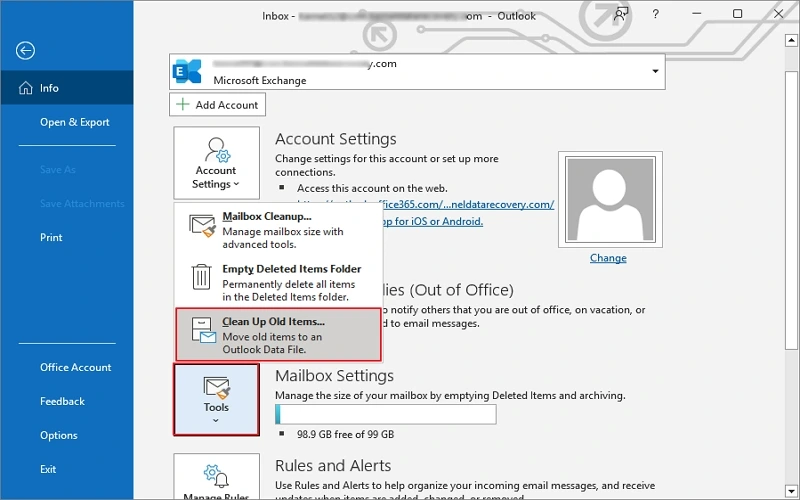
- Choose the folder containing imported MSG emails and browse Archive file location (PST) saving location. Click OK.
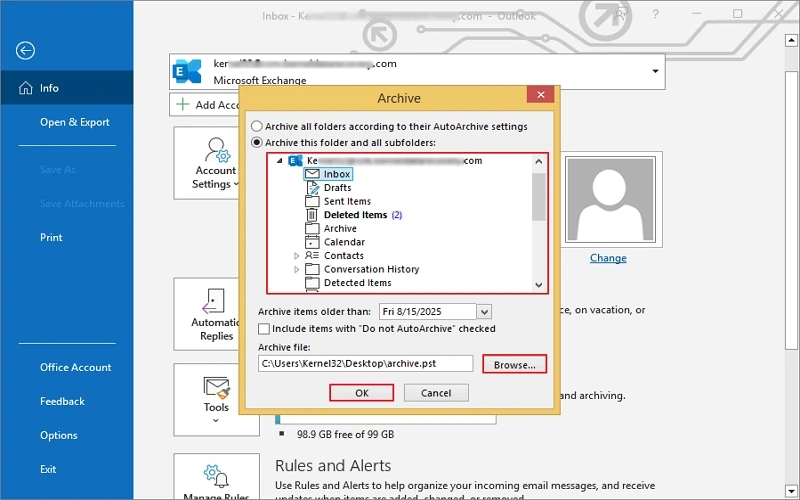
This method helps move imported emails into a separate PST file for backup or storage.
Possible Limitations:
- Requires two separate steps.
- Slow when dealing with thousands of MSG files.
- Cannot directly convert MSG files without importing first.
Method 3: Use Outlook Import/Export Wizard
If you need the direct way to export MSG files to PST, you can use the Import/Export feature. It is another method that helps move emails into PST files after they are added to Outlook. Here is how you can do:
- Open Microsoft Outlook and import MSG files into a folder using drag-and-drop.
- Go to File, tap on Open & Export, then Import/Export.
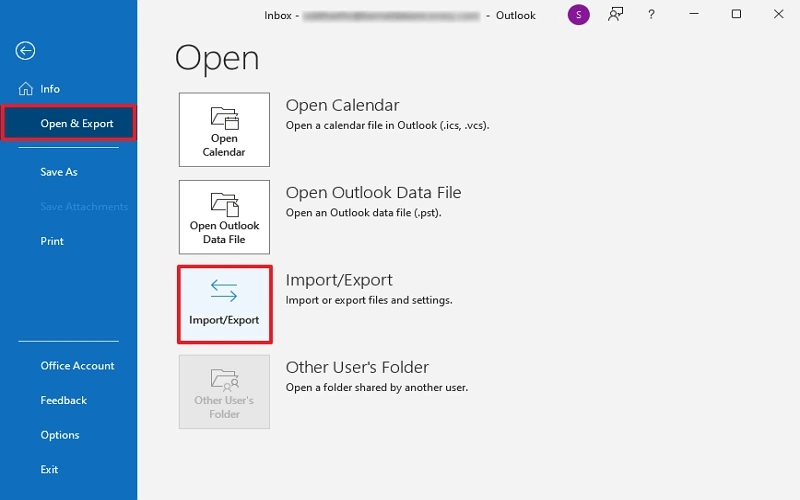
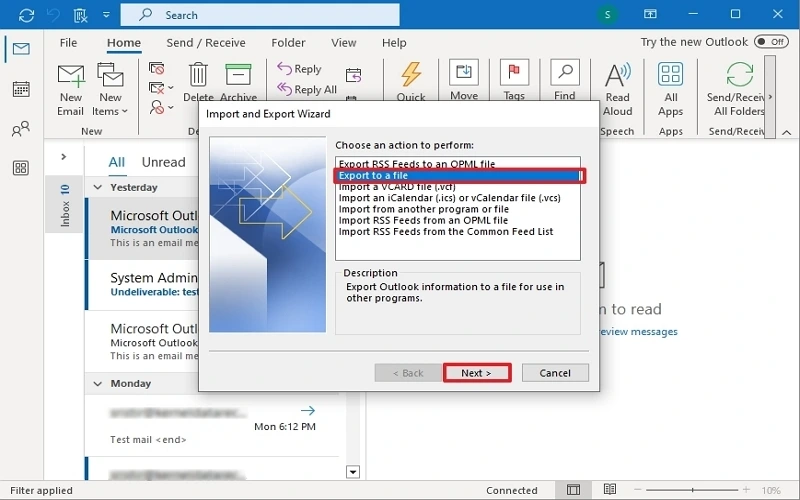
- Select Export to a file. Click Next.
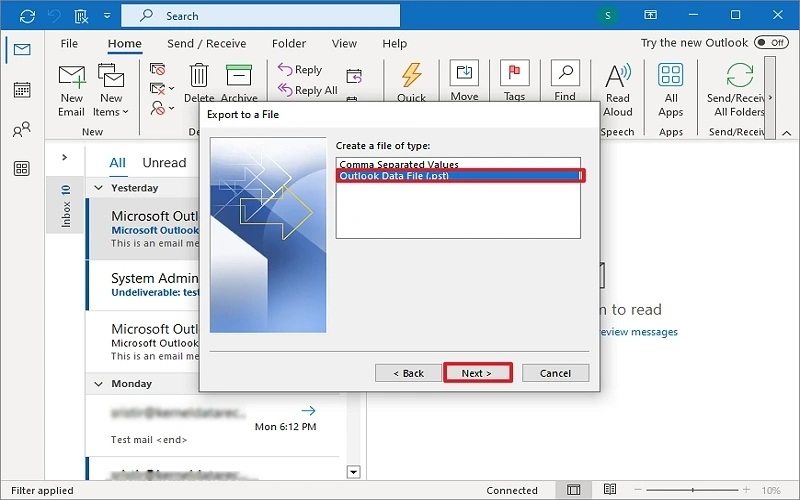
- Choose Outlook Data File (.pst). Click Next.
- Select the folder containing imported MSG emails. Click Next.
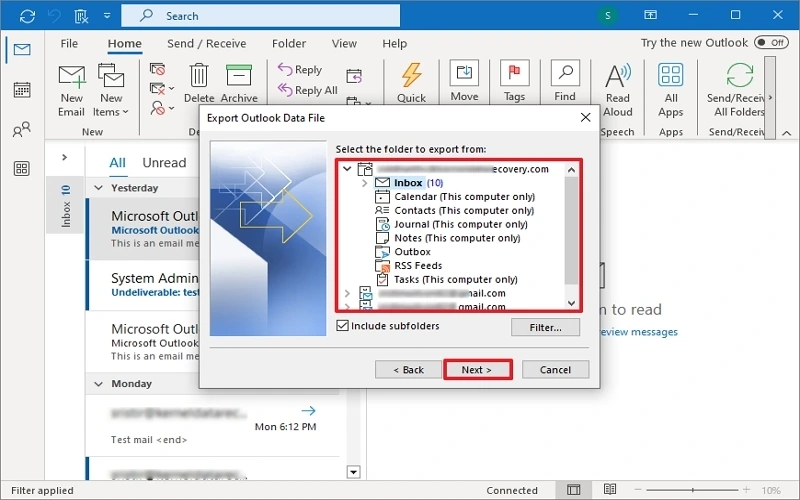
- Choose the saving location and create the new PST file. Click Finish.
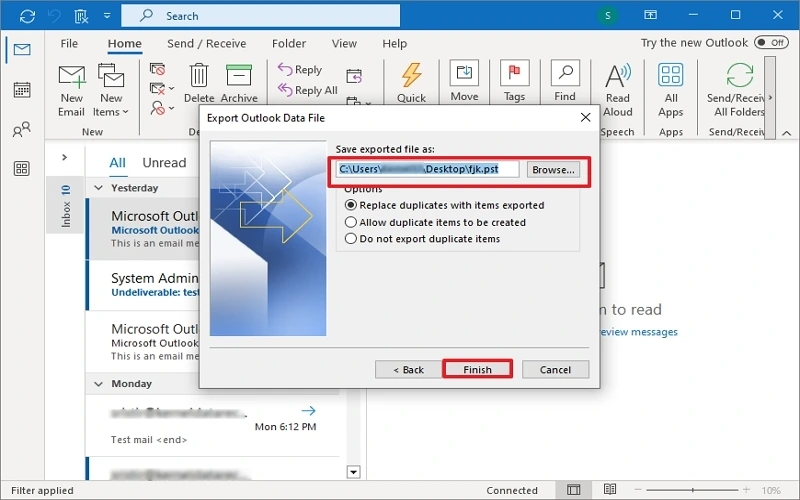
Possible Limitations:
- Requires Outlook installation in the system.
- Manual MSG files import is still required.
- Complex for bulk MSG file conversions.
Most Probable Challenges Users Face with Manual Methods
The above-mentioned manual methods can work for a few MSG files effectively, but they become inefficient as well as unreliable for large-scale conversion process. Here are a few issues that users often face, too:
- Handling thousands of MSG files manually.
- Folder structure or metadata loss.
- Slow processing and time consumption.
- Outlook dependency and system compatibility issues.
When these limitations affect communication and overall productivity, using a professional tool becomes a practical solution.
One-Stop Solution to Create PST from MSG Files
As you already know, manual methods are free and effective to some extent but come with various limitations & drawbacks, and they may feel complicated. Then, using a dedicated, powerful tool is needed.
Kernel MSG to PST Converter is one such tool that provides a faster and more secure process with a guaranteed outcome. It is a result-oriented utility and safe that can directly convert multiple MSG files into PST format with the original email structure protected. It allows users to convert large batches of MSG files into PST files (functional & ready for use) with no complex manual steps.
Prime Features of the Tool:
- Convert single or multiple MSG files to PST.
- Preserve email formatting, attachments, and metadata.
- Maintain original folder hierarchy after conversion.
- Extract email addresses & attachments in separate files.
- Various custom filters for selective MSG export.
- Simple interface; even ideal for non-technical users.
Preventive Strategies for Safe MSG to PST Conversion
Only a successful conversion is not enough; you need to follow some preventive tips to keep your conversion process effective and safe. Here are some best practices for successful email conversion and to prevent data loss during the process:
- Always keep a backup of the original MSG files.
- Test conversion with a small set of files first.
- Ensure sufficient system storage space.
- Use reliable tools for large conversions.
These precautionary tips help you to maintain email integrity with a smooth migration experience.
Get Ready to Create PST from MSG Files
Now you know enough ways, both manual and automated, to create PST from MSG files. However, creating PST from MSG files helps users organize & manage emails more efficiently within Outlook. Manual methods like drag-and-drop, archiving, & the Import/Export feature can work for a couple of MSG files, but they often become slow and complex when converting bulk MSG email.
For faster bulk & more accurate results, use the automated solution. It simplifies the conversion process, preserves email data, along with saving your valuable time. So, choose the right method based on your requirements, and create Outlook PST from MSG files. The trial version of tool is available for free; you can use it today. Once satisfied, go for the licensed version and get unlimited MSG file conversion capabilities.
Frequently Asked Questions
A: You can use the Outlook Import/Export & archive feature to do so. These are free methods that may take more time and consecutive steps to convert MSG to PST.
A: Professional solution, Kernel MSG to PST converter is an intuitive solution that require a few easy steps and time to perform. It also guarantees the utmost data safety and desired results.