Read time: 9 minutes
Rich Text File [RTF] format is well-known when it comes to formatted text. On the other hand, XLS files are helpful for structured data, calculations, and analysis in spreadsheet applications.
But in situations where textual data like tables, reports, or lists need to be analyzed, reused, or sorted in spreadsheet form, users need to convert RTF to XLS.
As you can see, both files serve different purposes, and executing their direct conversion can’t be straightforward. But don’t worry, this easy write-up will explain both the manual and advanced approaches in detail. Go through the blog carefully to avoid any unforeseen results.
Reasons to Convert RTF to XLS: Let’s Understand
Check out this section to know all the possible reasons to convert RTF file to XLS format:
- Perform calculations or data analysis.
- Organize data or information in rows and columns.
- Extract tables or structured data from documents.
- Prepare reports for accounting, research, or audits.
- Share data in a universally accepted spreadsheet format.
Top Manual Methods to Convert RTF to XLS File
The section will help you with the manual methods to convert Rich Text File to XLS format. Since there is no direct solution to execute it, we have mentioned some possible ones through several hits and trials. Let’s try them:
Method 1. Convert RTF to XLSX using Word & Excel
Here we will take the help of Microsoft Word & Excel to convert RTF file to XLS format. This method is suitable for accurate table extraction and professional use as it offers a clean, editable spreadsheet with preserved table data. Follow the steps to know how it works:
- Open Microsoft Word & tap on the File menu.
- Hit Open & Browse the desired RTF file.
- Verify the document and structure the tables or alignment.
- Copy the selected content & open Microsoft Excel.
- Open a new workbook & paste the content that you have copied from Word.
- Adjust data in rows & columns as needed.
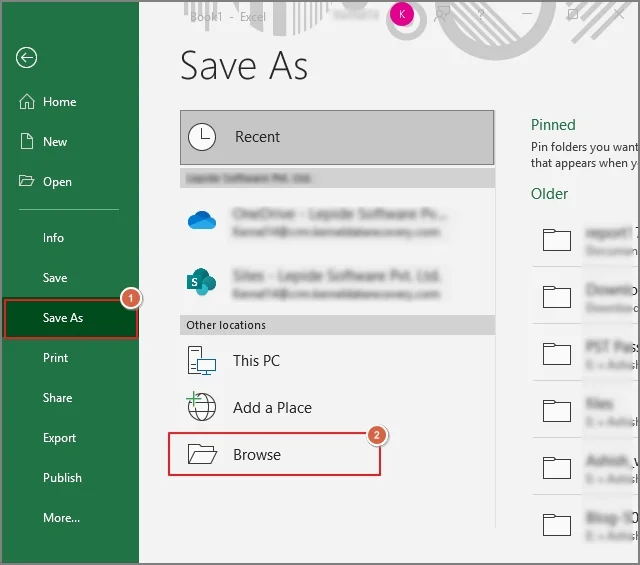
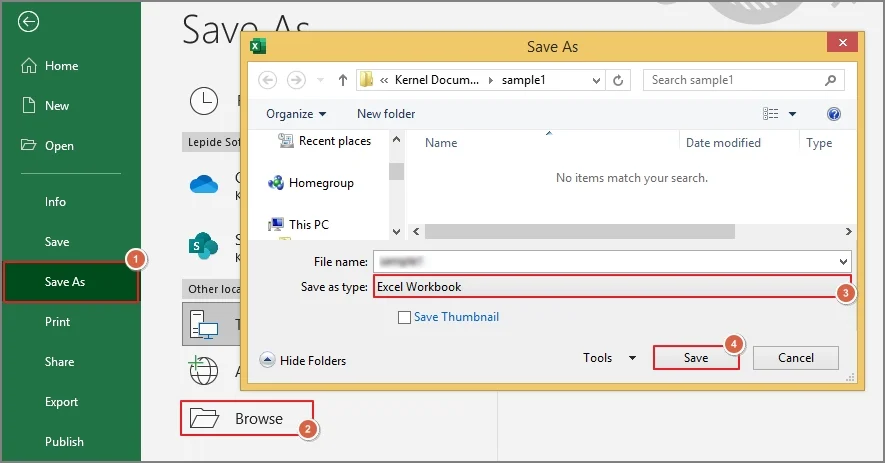
- Tap on File & then hit the Save As > Browse option.
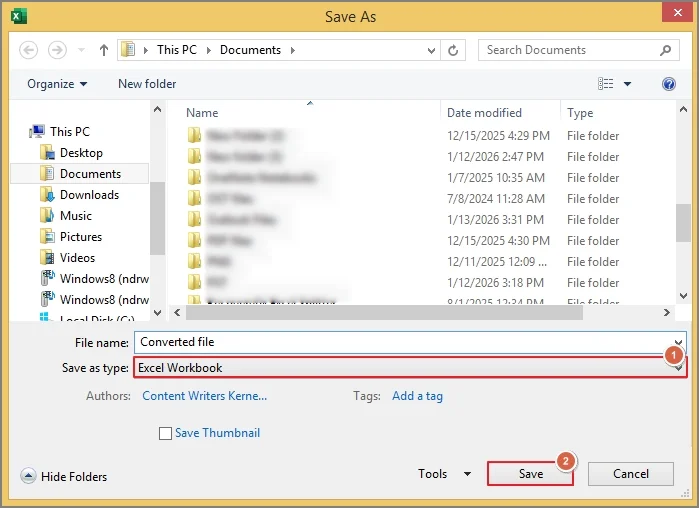
- Choose the Excel Workbook and hit Save.
Note: You can also take the help of LibreOffice Writer for the conversion, as it offers a free & offline solution. Open the RTF file in LibreOffice Writer, copy the content, paste it into LibreOffice Calc & then save it in the XLS format.
Method 2. Take the help of Google Docs & Google Sheets
This method is suitable for those who want cloud-based conversion without any installation. It will help them to convert RTF to Excel sheet online from any device with an internet connection. Go through the following steps:
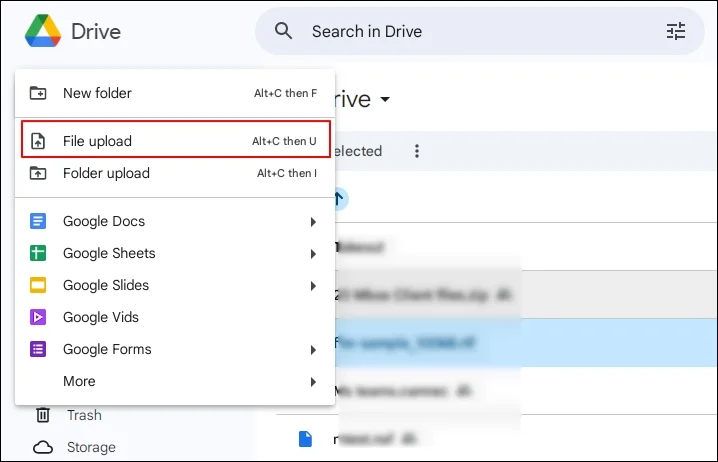
- Upload the RTF file to Google Drive.
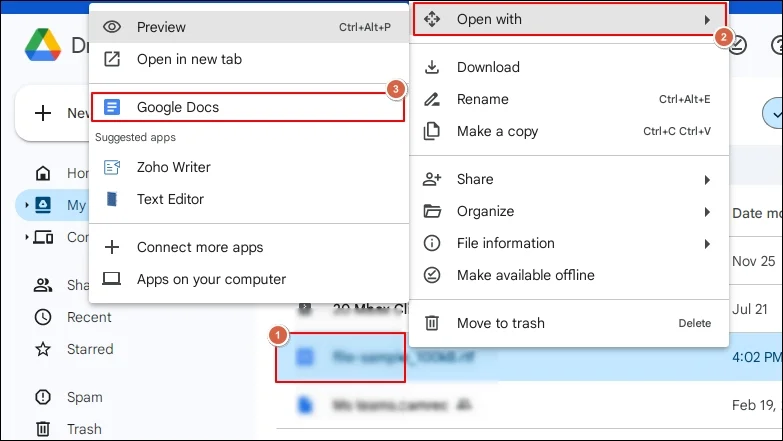
- Right-click on the file, click Open With > Google Docs option.
- Verify the content, select & copy the desired data.
- Open the Google Sheets & paste the copied data.
- Adjust the rows & column accordingly.
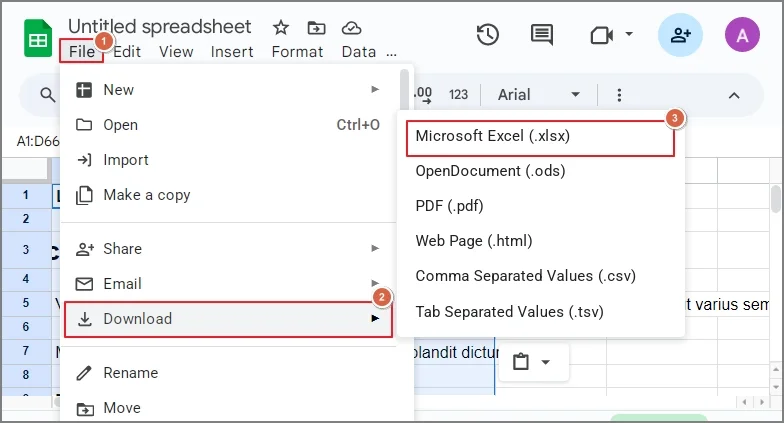
- Choose the File > Download > Microsoft Excel (.xlsx) option.
Method 3. Convert RTF to TXT & Open it in Excel
In this method, we will first save the RTF file in the plain text format, then open it in Excel. It is considered suitable when you need a structured spreadsheet from the raw text content. Follow the guidelines below to understand its stepwise approach:
- Open the RTF file in Word or LibreOffice Writer.
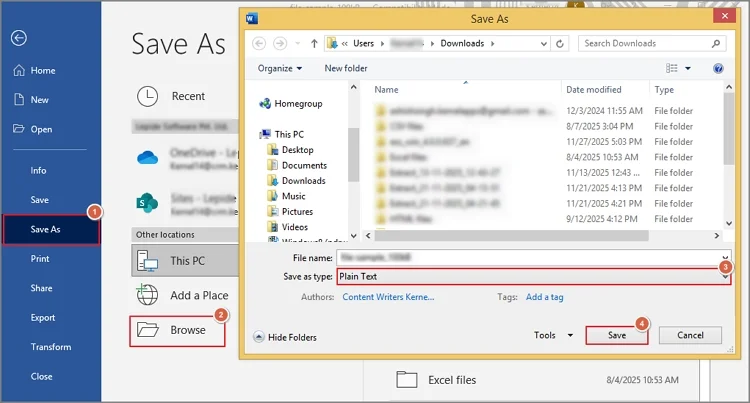
- Tap on the File > Save As > Browse option. Choose Plain Text under the Save as type section & hit Save.
- Launch Microsoft Excel & go to File option.
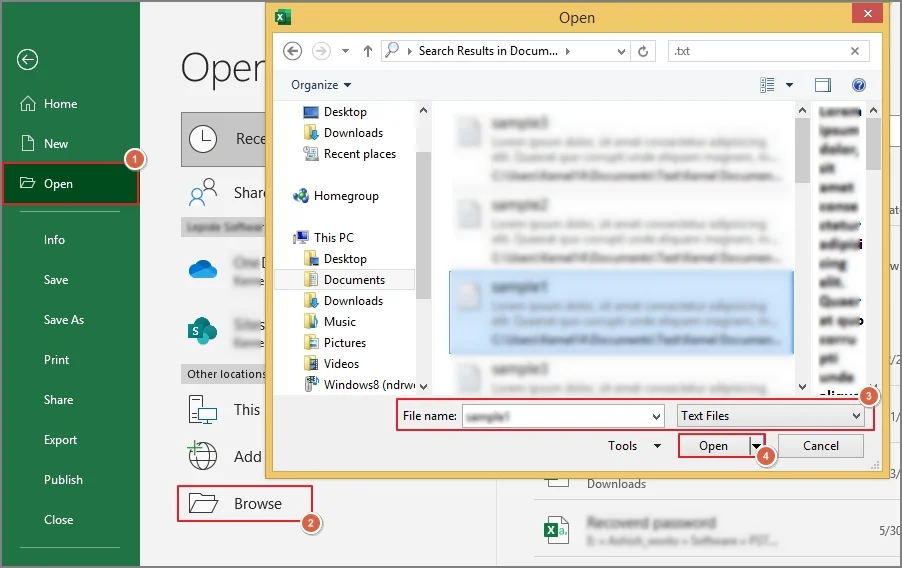
- Click on the Open > Browse option. Select the .txt file & tap on the Open tab. It will open the Text Import Wizard.
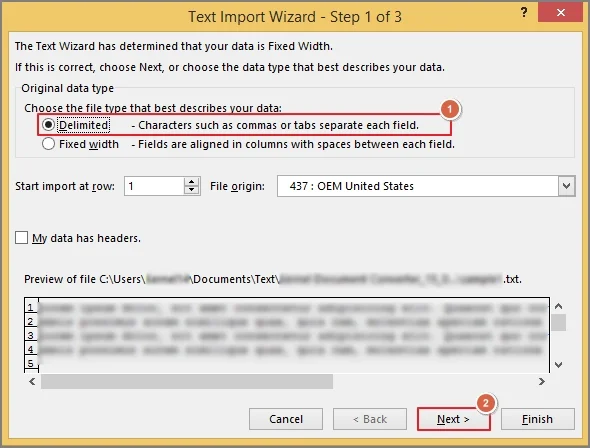
- Choose the Delimited option and click Next.
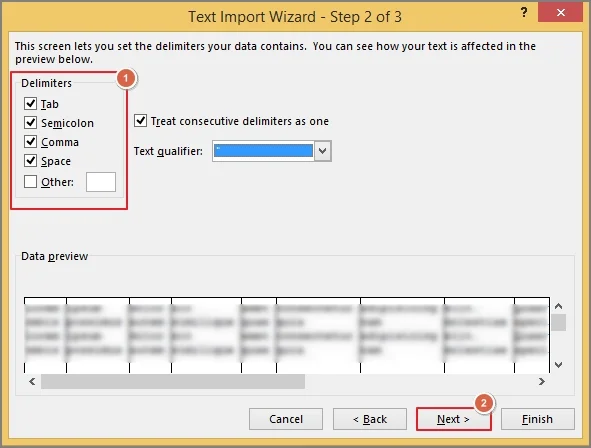
- Check the required Delimiters & tap on Next.
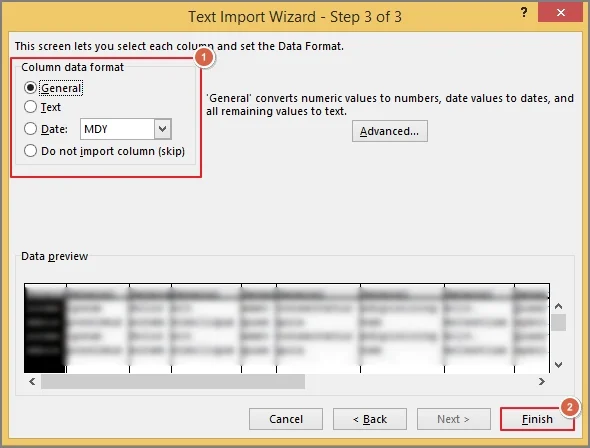
- Select the Column data format & hit Finish to complete the import process.
- Now, go to the File option. Go to the Save As > Browse tab. Select the Excel Workbook & click on Save.
Know the Challenges of the Manual Methods
Manual methods come with specific challenges that we have mentioned below:
- Merged cells and nested tables may break.
- Non-tabular text may not convert cleanly.
- Formatting often requires manual correction.
- Data integrity of headers & footers may not be preserved.
- You need to take the help of at least two software programs.
- Data breaches can occur while uploading confidential data online.
Need a Direct Solution? Try the Advanced One
All the discussed methods need more than one software, which can be time-consuming and frustrating. Besides, these methods have no assurance of getting successful results. In that case, using the best advanced offline solution can be the safest and secure option.
Kernel Document Converter Software is the one choice that professionals often recommend tackling any document conversion-related concerns. It is well-equipped with all the high-tech and innovative features that ensure users 100% data security and successful results.
Let’s understand the steps to run the tool successfully:
Step 1. Download and launch the advanced converter.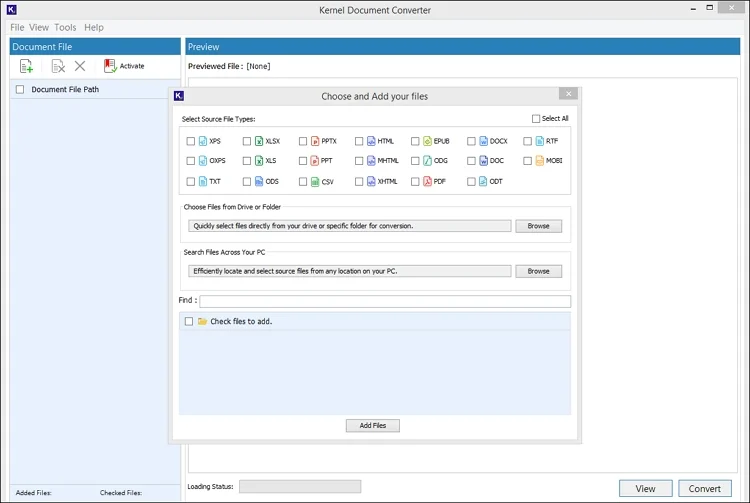
Step 2. Select the RTF format and choose the file or folder that contains the RTF file. Hit the Add Files tab.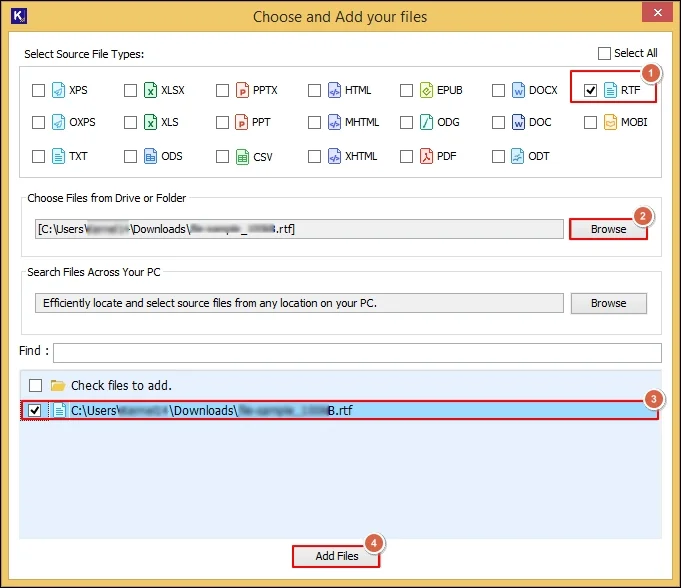
Step 3. Preview the complete RTF file content and select the needed RTF files to convert into XLS format. Then, click on Convert.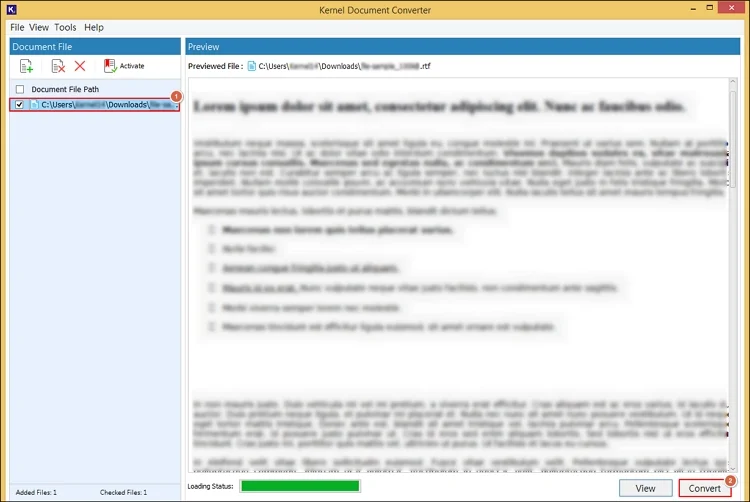
Step 4. Browse the preferred destination and select the resultant format as XLS with the preferred filters. Click on the Convert option.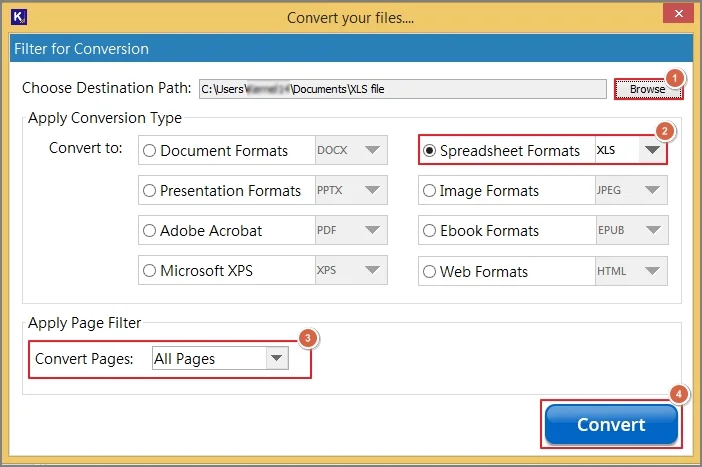
Step 5. It will initiate the “convert Rich Text File to XLS” process.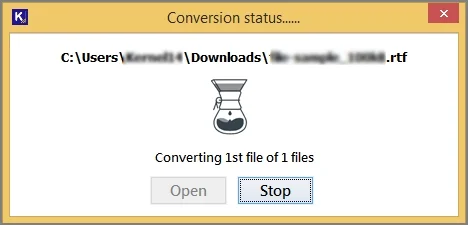
Step 6. Once you get the “Conversion completed “message, choose the Open option to use the saved XLS file location directly. 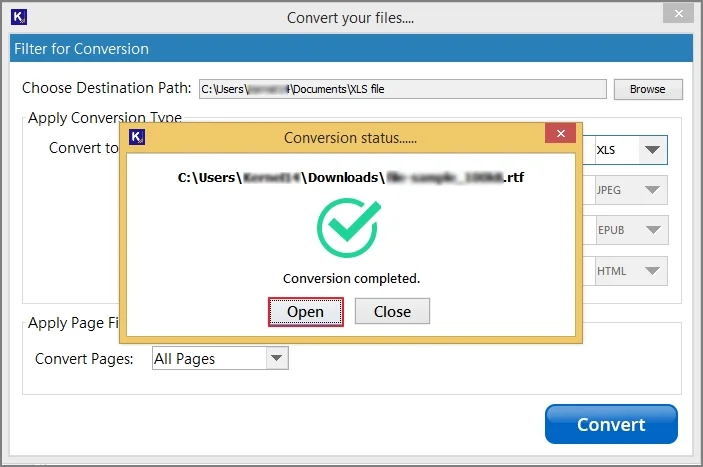
Key Features of the Advanced Converter
Check out the key features of the standalone software:
- Convert RTF to XLS format in batch with zero data loss.
- Automatically load the RTF files with the auto-scan feature.
- Helps to verify or preview complete RTF data before conversion.
- Provides advanced filters to convert RTF to XLSX format specifically.
- Retains complete data hierarchy and integrity during the conversion.
- Permits users to convert RTF to PDF & more than 20 formats accurately.
Must Know Points for Smooth RTF to XLS Conversion
Follow these easy guidelines to make the process smooth, along with the successful results.
- Ensure tables are well-structured before conversion.
- Avoid complex formatting and irregular alignment in RTF files.
- Viewing RTF files carefully can reduce the chances of unwanted results.
- Keep a backup of the original RTF file to protect your data from being lost.
End Thoughts
To convert RTF to XLS file, users need to understand the structural difference between documents and spreadsheets. Hopefully, the blog has provided all the relevant information about the concern, from reasons to practical solutions. But if you need a one-click solution, then you must go with the recommended software.
Frequently Asked Questions
A. Not exactly. Except for the advanced solution, all the manual methods need at least two software programs to convert RTF to XLS file successfully.
A. It is not recommended when you are dealing with sensitive documents like business or confidential data.