Read time: 9 minutes
Rich Text Format [RTF] files are commonly used to store formatted text documents that can be opened across different word processors. However, some situations arise where users need to convert RTF to JPG image format for sharing, embedding, presentation, or visual archiving.
Since RTF is a document format, whereas JPG is an image format, converting it into an image format needs proper scanning visually before saving.
Check out this easy guide to understand the whole topic in a simple way. Besides, it helps you to provide different practical methods for safe & hassle-free conversion.
Reasons to Convert RTF to JPEG [Must-know]
Know the situations where users look to convert Rich Text file to JPG image:
- You need a non-editable visual copy.
- Helps to keep formatting visually fixed.
- When you need compatibility across all devices.
- Need to embed content in the websites, slides, or designs.
- The file must be shared on platforms that don’t support RTF.
Manual Methods to Convert RTF to JPG Image Format
Let’s explore the available manual methods to convert RTF file to JPG.
Method 1. Use Microsoft Word / Google Docs to Convert RTF to JPEG
In this method, we will convert RTF file to PDF first by using Microsoft Word or Google Docs. Once the RTF to PDF conversion is completed, open the PDF files & take the screenshots accordingly to save them in JPG format. Here are the steps to execute the process:
Using Microsoft Word:
It offers high-quality jpg images representing each page of the RTF file.
Step 1. Open the Microsoft Word application.
Step 2. Click on the File > Open option & choose the desired RTF file.
Step 3. Review the document layout and formatting accurately. Tap on the File option.
Step 4. Click on the Save As option. Provide the saving location.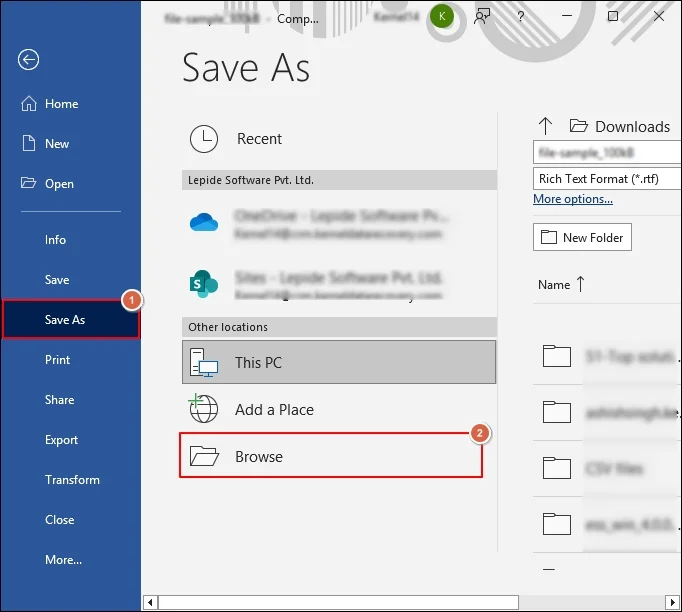
Step 5. Choose the PDF format & select the Save option.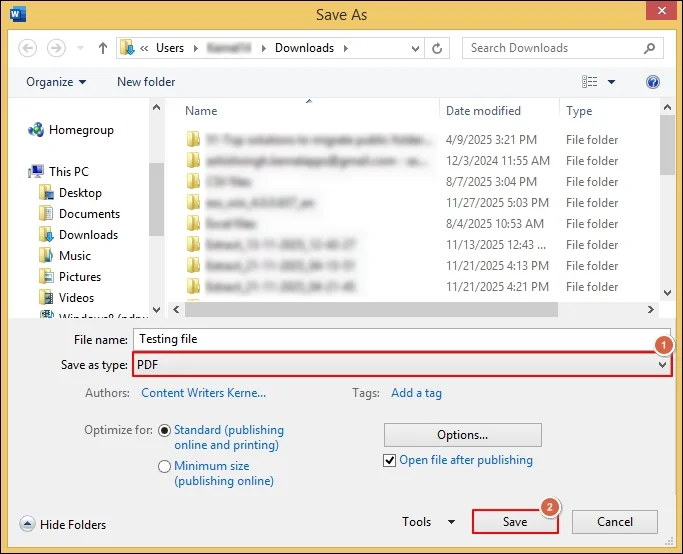
Step 6. Open the saved PDF using a browser or image-friendly application.
Step 7. Use the Save as Image or Screenshot option to save RTF pages as JPEG.
Using Google Docs:
It is helpful in providing a quick RTF to JPG conversion across any device.
Step 1. Upload the desired RTF file to the Google Drive.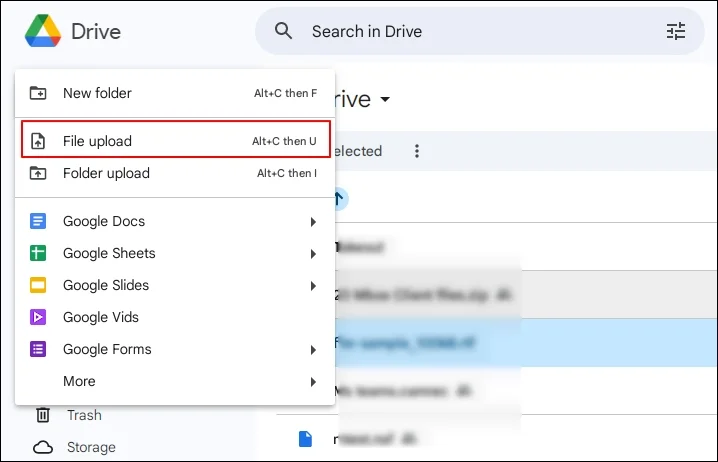
Step 2. Right-click on the file & click on the Open with > Google Docs option.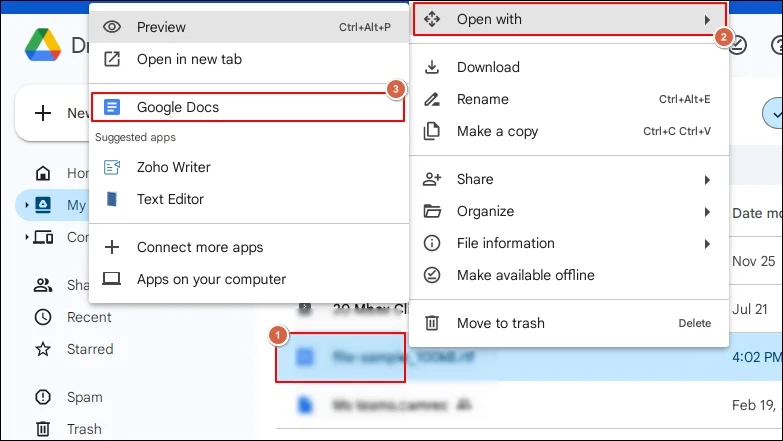
Step 3. Preview the content & its formatting.
Step 4. Go to the File> Download options. Choose PDF Document (.pdf).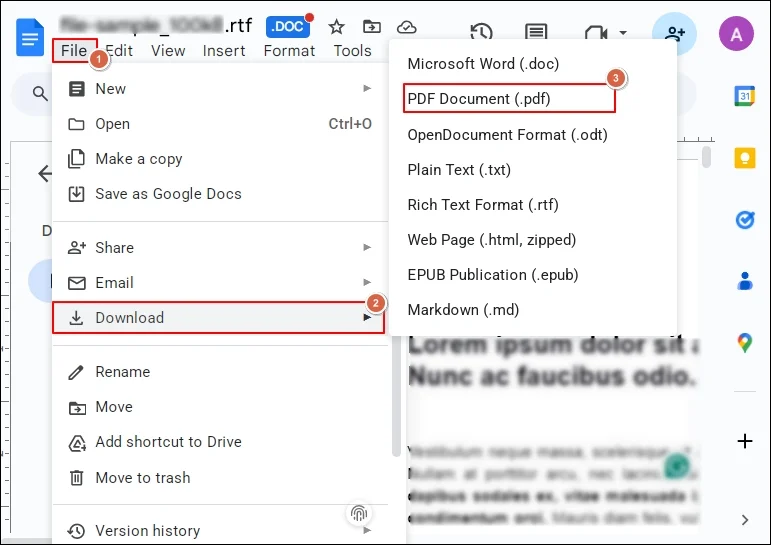
Step 5. Then, take the screenshots to save the RTF document in JPG image format.
Important to know: You can also take the help of Microsoft LibreOffice Writer to save the RTF file in the PDF format offline. Then, take the screenshots to save them in JPG format.
Method 2. Take Screenshots for Single Pages or Sections
It is suitable when you need instant JPG images without executing any prior conversion. You can go with the following steps to execute the process successfully:
- Open the RTF file by using any editor, such as Word, WordPad, or LibreOffice.
- Zoom to fit the page on screen & use the screenshot tools like:
- For Windows: Snipping Tool / Snip & Sketch.
- For Mac: Command + Shift + 4.
- Capture the document page & save the screenshot as JPG format.
Common Challenges to Convert RTF to JPG Manually
This section will help you to understand the challenges that the manual method comes with:
- The manual method may require additional cleanup.
- The direct manual method is not available for conversion.
- Converting multiple-page documents at once is not possible.
- Large files may lose sharpness or formatting if not appropriately handled.
Want Direct & Instant Solution? Try an Advanced One
There is no guarantee of getting successful results with the manual solutions due to their inherent limitations. Hence, using the advanced solution can be the most suitable approach in this scenario. Because it not only eradicates the inconsistencies but also provides flexibility to get the desired result with precision.
Our Kernel Document Converter Software stands out in this category with its top-notch features & smart filters. Let’s check out the stepwise approach to understand how the tool can be helpful in easy & hassle-free conversion:
Step 1. Install & open the document converter.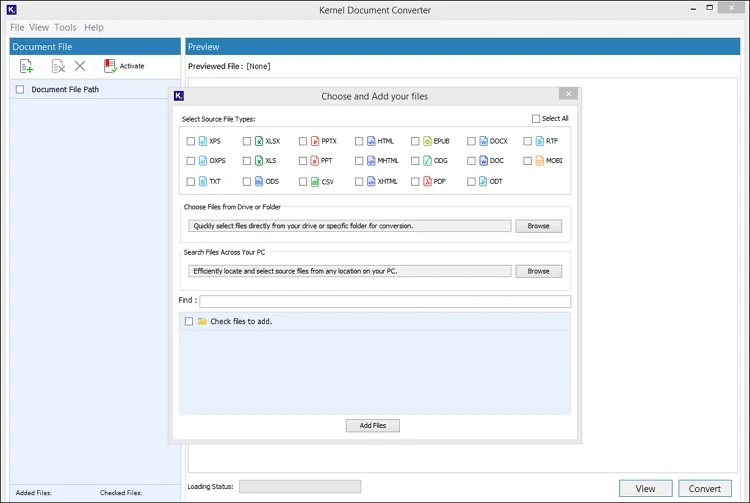
Step 2. Choose the RTF format & select the file or folder that contains the RTF file. Tap on the Add Files tab.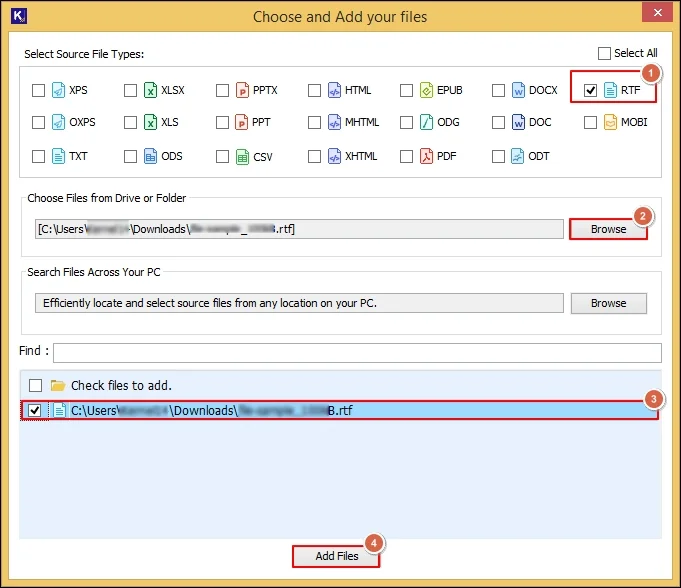
Step 3. Preview the complete RTF file content & tap on the needed RTF files to convert into JPG image format. Then, select the Convert option.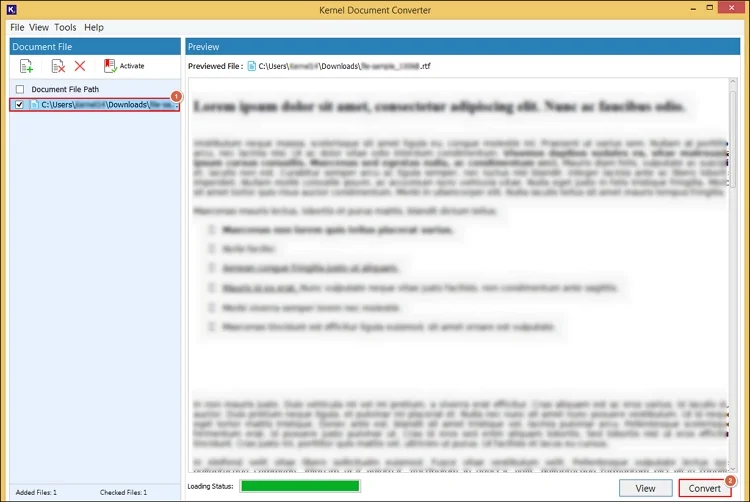
Step 4. Browse the preferred endpoints & choose the resultant format as JPG with the desired filters. Click on the Convert option.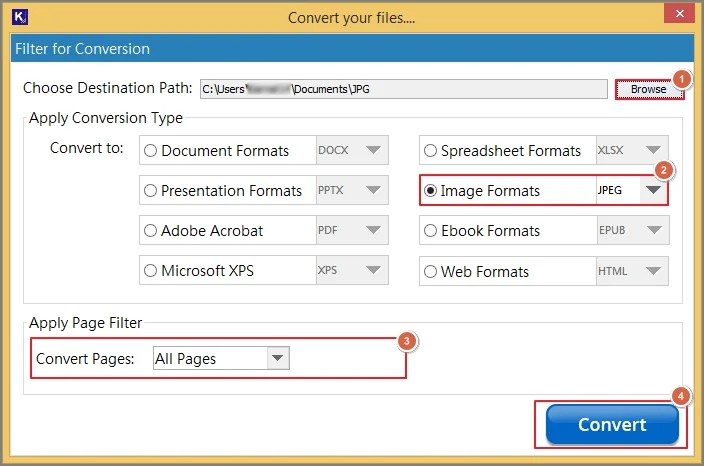
Step 5. It will start the “convert Rich Text File to JPEG Image” process. 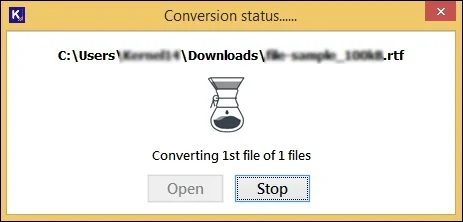
Step 6. Once you get the “Conversion completed “message, choose the Open option to use the saved JPG file location directly.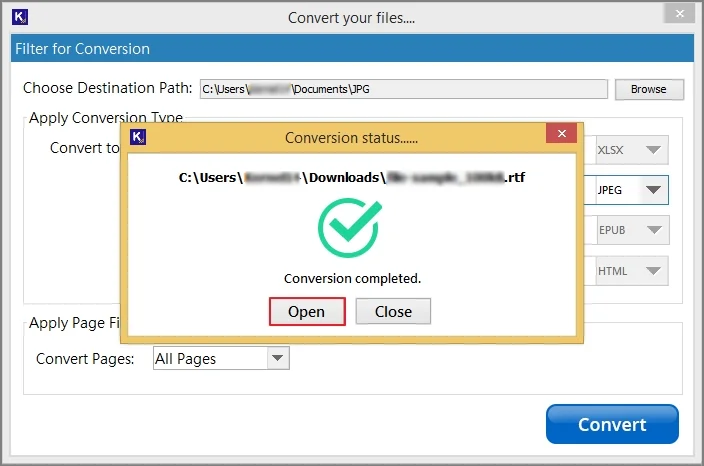
Know the Top Features of the Advanced Tool
Let’s look at the key features of the tool that make it unique from others:
- Offers easy & complete previewing of complete RTF data.
- Converts RTF file to JPG image format in bulk with complete accuracy.
- Provides smart & innovative filters to convert RTF to JPG specifically.
- Equipped with the fast scan feature that loads RTF files automatically.
- Provides 24/7 dedicated free technical support for smooth conversion.
- Permits users to convert RTF files to more than 20+ formats hassle-free.
Final Thoughts
The “convert RTF to JPG image format” is not a single process if you are going with the manual ones. But after using our tool, you can carry out RTF to JPG conversion with a single click, even in bulk. We hope the blog has helped you to make your conversion-related concerns simple with both manual & advanced methods. Besides, it has covered other practical insights that can help you make the conversion flawless.
Frequently Asked Questions
A. No. It is not possible to convert RTF to JPEG image format directly with manual methods. But it can be achievable if you use the advanced tool.
A. Each page of the document is treated as a separate image. Multi-page documents will produce multiple JPG images.
A. No. The JPG image will contain only the visible part of the document. You need to handle the attachments separately.
A. Yes. It helps to keep the visual record for future purposes.