
If you have ever tried to export mailbox from Outlook, you already know it's not that simple as it sounds. It might look like a normal backup or migration task, but it can quickly turn into frustration due to stuck exports, missing folders, corrupted PST files, or Outlook freezing because of a large mailbox.
Acquire knowledge through this write-up and learn how to export mailbox from Outlook effortlessly without compromising the data structure.
What is the Need to Export Mailbox from Outlook?
Outlook emails are important, and thus, users need to export their mailboxes from Outlook. Following we have listed some of its importance in details:
- If you want to switch to another email client or device, you must create a backup of all Outlook files.
- By doing this, you can safeguard the data at the desired and safe location on your system.
- If you are running out of storage, then you can download emails from Outlook and later utilize the space.
Manual Method: Why It Isn’t Enough?
Outlook's built-in Import/Export feature works fine for small, healthy mailboxes with a stable and connected account. But for a large mailbox, corrupted OST, an orphaned file with no server connection, the manual method starts to show its limitations.
Furthermore, there is no error recovery and no way to preview what you are about to export. And also no support for OST files that have lost their connection to Exchange Server entirely.
Export Mailbox from Outlook - Effective Way
To surpass the drawbacks of manual methods, using a tool that specializes in exporting a mailbox from Outlook regardless of corruption and active server connection is suggested. Kernel OST to PST Converter Tool is specially designed to make your migration process simple. This software is a master in converting OST files to PST, MBOX, DBX, and other formats.
- Repair your corrupt or inaccessible OST file and make it healthy.
- Recover your lost/deleted items with the software’s high-end features.
- Get a preview of mailbox data before saving it into PST or another format.
- You can even make a graphical analysis report of all the migrated items.
- There is no Outlook mailbox size limitation with this tool.
- You can apply different filters available to export selective mailbox data from Outlook.
- Export an OST file to Live Exchange Server.

Step-by-step Procedure to Export Mailbox from Outlook
Here are the detailed steps of how the tool works to easily export bulk mailbox from Outlook. Follow them to achieve the desired result:
Step 1. Download Kernel OST to PST Converter Software to export mailbox from Outlook.
Step 2. Follow the instructions and finalize the installation of the tool.
Step 3. Launch the software and click on the Select File option to add the OST file.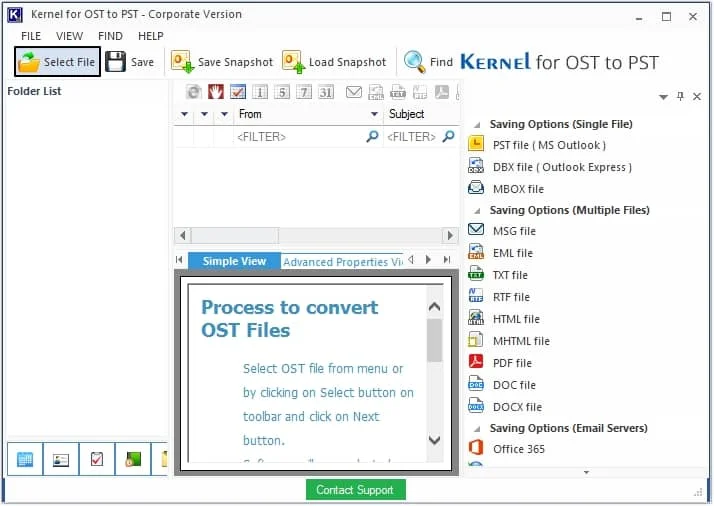
Step 4. Click on the Browse button to locate the OST file and click Next.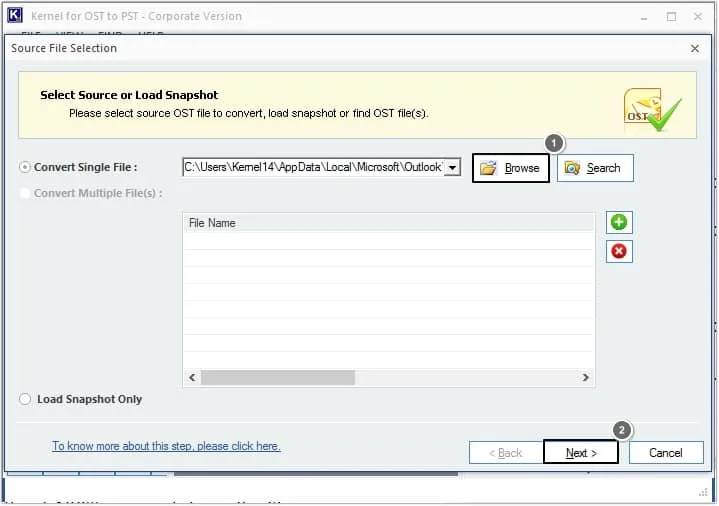
Step 5. You can preview all the email items stored in the mailbox. Once done previewing, click on the Save button.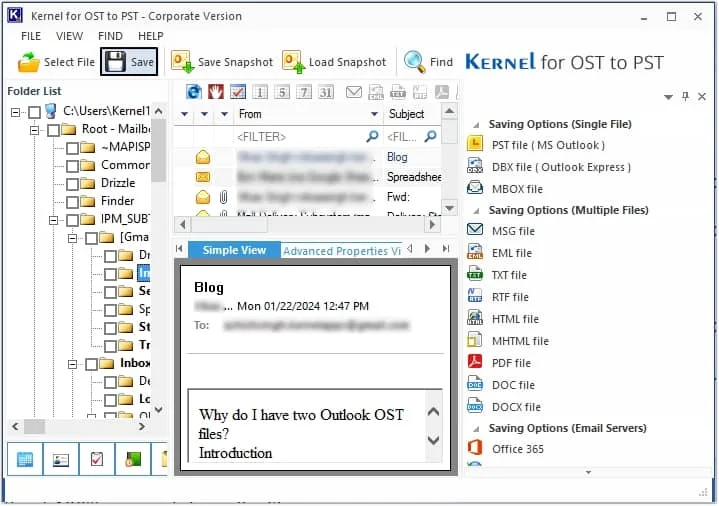
Step 6. Now, select the required file format in which you want to save the data and click on the Next button.
Note: We have selected the PST format here to export mailbox from Outlook.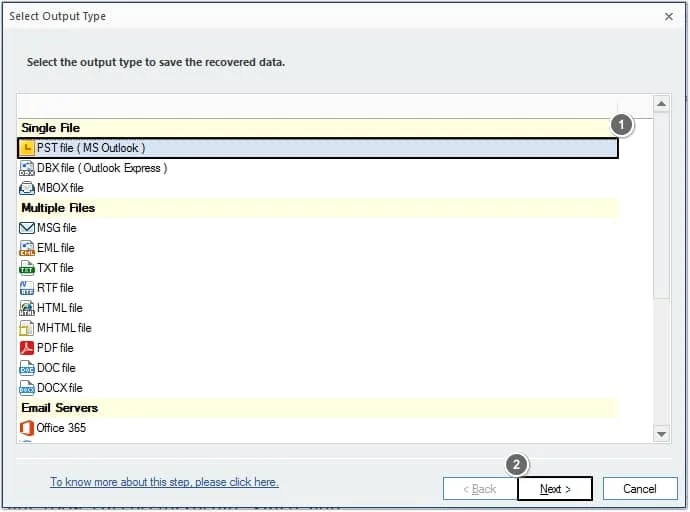
Step 7. You can apply the required filters according to your needs for selective migration such as Folder Name, Item Type, Date Range, etc. and click Next.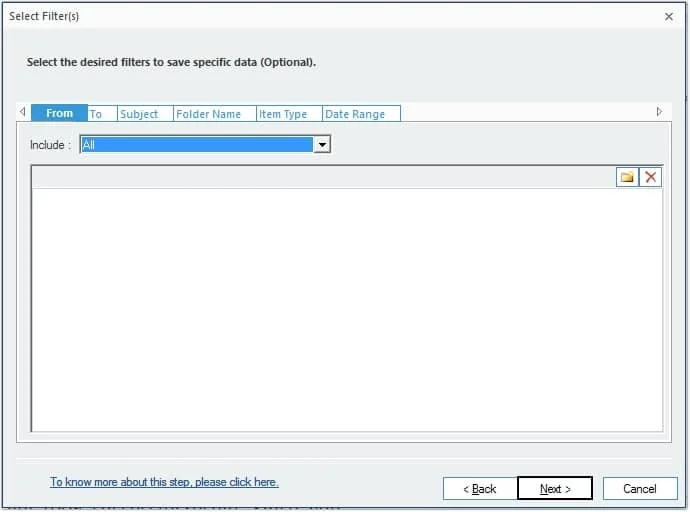
Step 8. If you want to split the file you can utilize the Split option and you can select Attach prefix to store name as per requirements. Once done, click Next.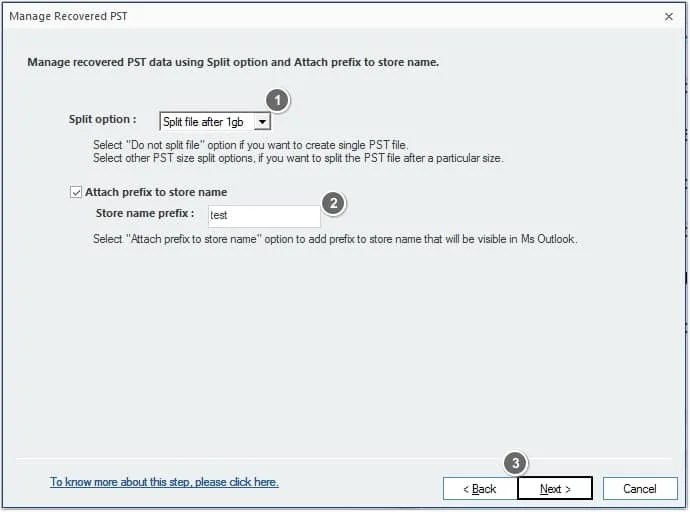
Step 9. Now, click on Browse to provide a saving path and click Next.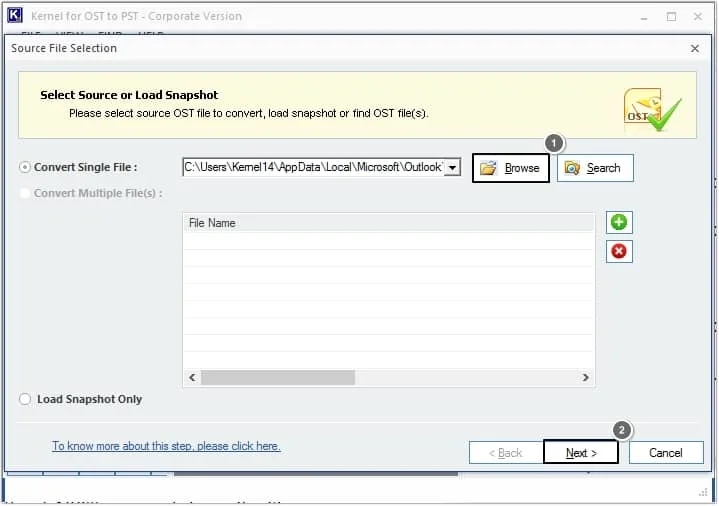
Step 10. The tool will start the migration process, and the file will get saved to the provided location. Click OK to finalize the process.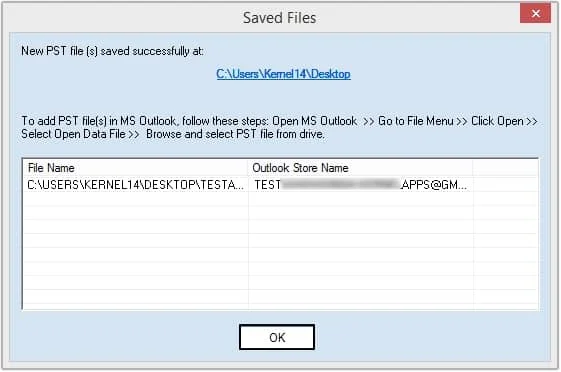
Conclusion
When users look to export mailbox from Outlook, they go for manual methods, which may put their data at risk. Plus corrupted or inaccessible Outlook mailbox data can’t be exported using manual methods. Whatever condition your OST file is in, the correct choice of method can create a big impact.
FAQs
Q1. Can I export email from Outlook OST in PST format?
Yes, you can export the entire mailbox to PST format or some other format without installing the Outlook application on your device.
Q2. Can I download emails from Outlook in bulk by using this software?
Yes, this software allows you to download emails in bulk. The tool offers an excellent feature for downloading bulk emails from Outlook without compromising their structure and hierarchy.
Q3. In what file formats can I export mail from Outlook?
The software offers a wide range of formats, including PST, DBX, MBOX, MSG, EML, TXT, RFT, HTML, MHTML, PDF, DOC, DOCX, and web-based email clients such as Gmail, Yahoo, AOL, iCloud, and Hotmail.com. Additionally, you can export mail to email servers, including Office 365, Group Wise, IBM Domino, and Microsoft Exchange Server.