
Outlook is one of the most versatile email communication platforms that helps users communicate at work and home with ease. It is a trusted email system that keeps messages clear, organized, and secure. Users can read, write, reply, and share emails from one place.
Outlook emails also support contacts, calendars, and tasks, which make daily communication simple. It comes with strong security and smooth access across multiple devices, which makes it suitable for personal use, teams, and large organizations.
But there are some situations where a user or business needs to convert Outlook emails to Word format for specific purpose. This article will guide you with a reliable solution to export Outlook emails to Word document. However, before delving into the step-by-step guide, let’s know the prime reasons for converting Outlook emails to a Word document.
Why convert Outlook email to Word document?
Here are some of the major reasons that prompt users to export Outlook emails to Word document.
- Universal Access: Word documents (.docx) can be opened on almost any device with Microsoft Word (or Google Docs) without using Outlook or a PST file.
- Editing & Formatting: You can easily edit text, resize images, copy/paste content, and add notes, which is difficult within Outlook.
- Archiving & Reporting: Create neat, printable records for legal, business, or personal archives that are easy to search and organize.
- Sharing & Distribution: Share email content with users who don't have Outlook or for printing hard copies.
- Data Management: Quickly manage important email data outside of the PST container, for audits, and regular research.
Best Way to Convert Outlook Email to Word Document?
There are some manual methods available to save Outlook emails to Word documents, like Copy & Paste and Outlook Export option. However, these methods don’t guarantee 100% conversion results, as they are too lengthy and time-consuming.
Now, you are wondering about what you should do to convert Outlook emails to DOC file. In this case, relying on a professional Email to PDF Converter will help you quickly convert Outlook emails to Word documents.
Kernel Email to PDF Converter is a one-stop solution to export Outlook emails to Word document with all the email formatting intact. With this software, you can easily save an entire email with its components, such as Sender name, CC, BCC, Subject, and content with signature.
Advanced Features of Email to PDF Converter Tool
- Convert Outlook email files to EML, PDF, MSG, DOC, DOCX, HTML, and MHT formats.
- Preserve original email structure, layout, and formatting after conversion.
- Apply filters like date range and item type for specific data conversion.
- Batch Outlook emails conversion into separate Word documents.
- Get a detailed log report to track failed conversion data along with the unsuccessful reason.
- Compatible with all Windows versions and supports files from any Outlook edition.
Quick steps to convert Outlook emails to DOC file
Here is the step-by-step guide to convert Outlook Emails to Word Document using the professional tool.
Step 1: Download, install, and launch the Kernel Email to PDF Converter tool.
Step 2: On the software’s home screen, click on Add files.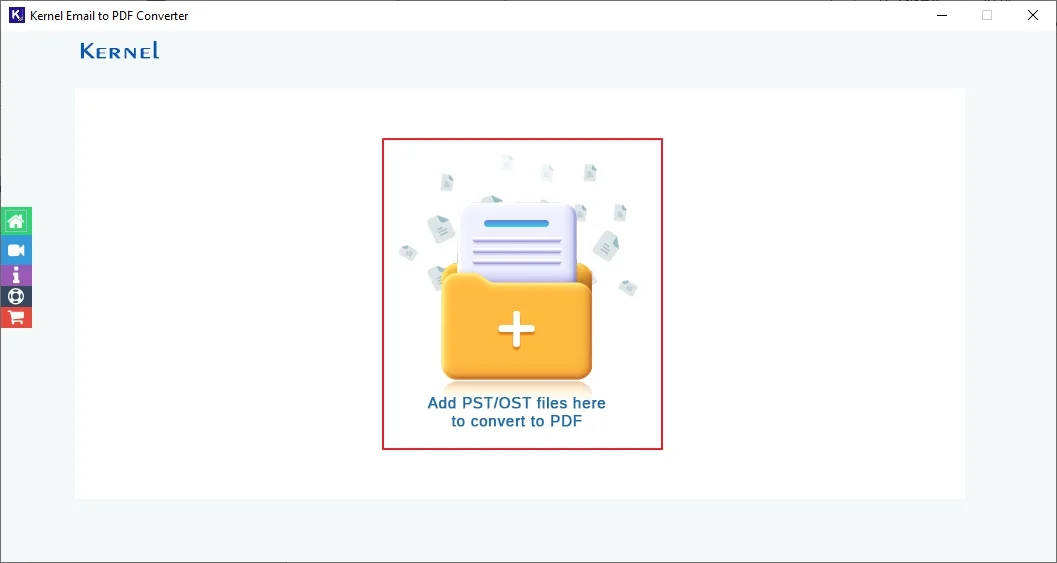
Step 3: In the following window, Select Outlook data files and click Open.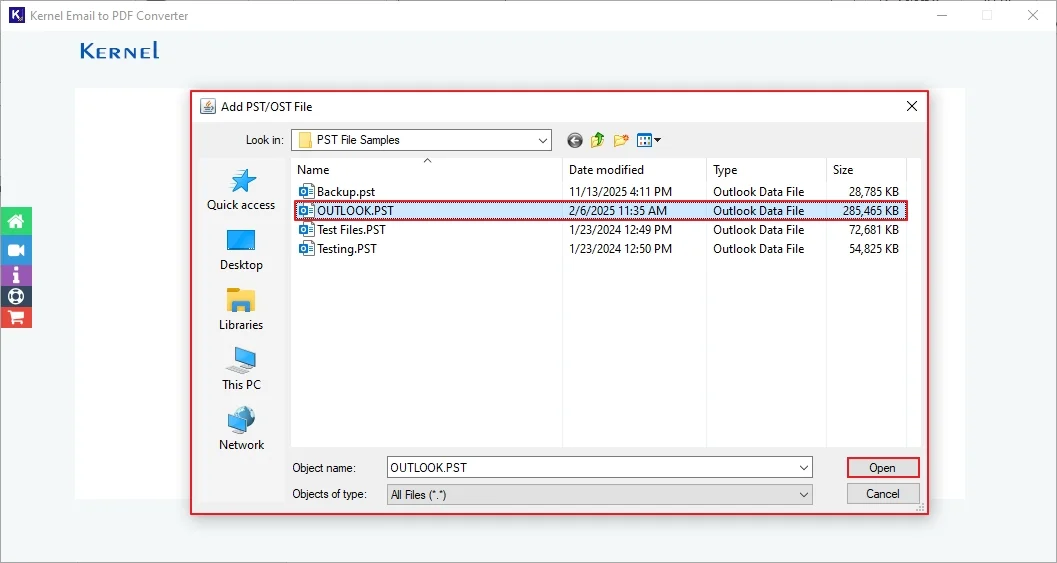
Step 4: After adding Outlook files, click on the Set Filter and Convert option.
Note: Use the + icon to add bulk Outlook files, the - icon to remove a specific file, and the Bin icon to remove all data files.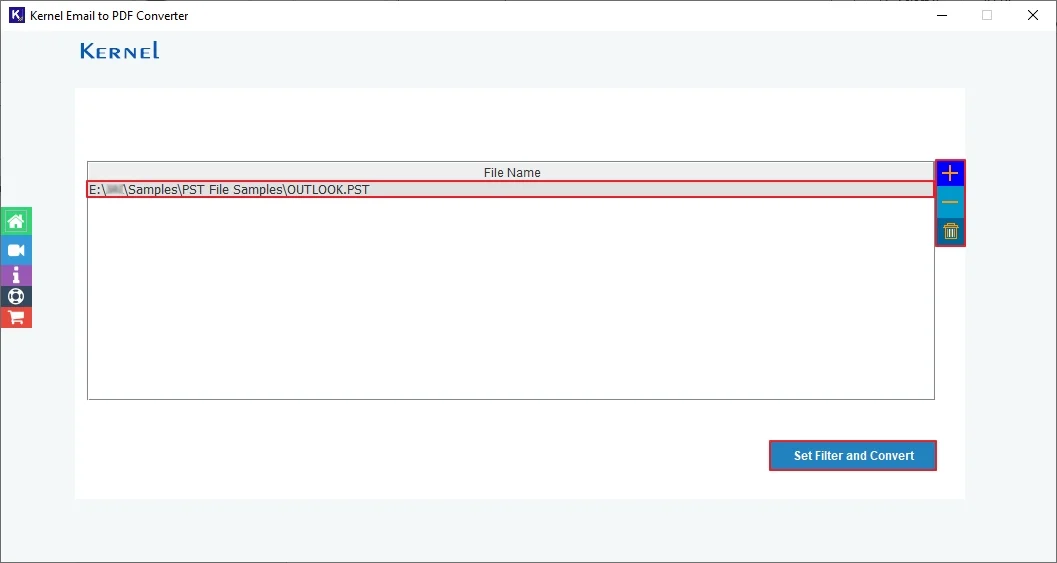
Step 5: In the Filter Selection window, review and select all your emails for specific data conversion. Apply required filters from the given options and click Start Conversion.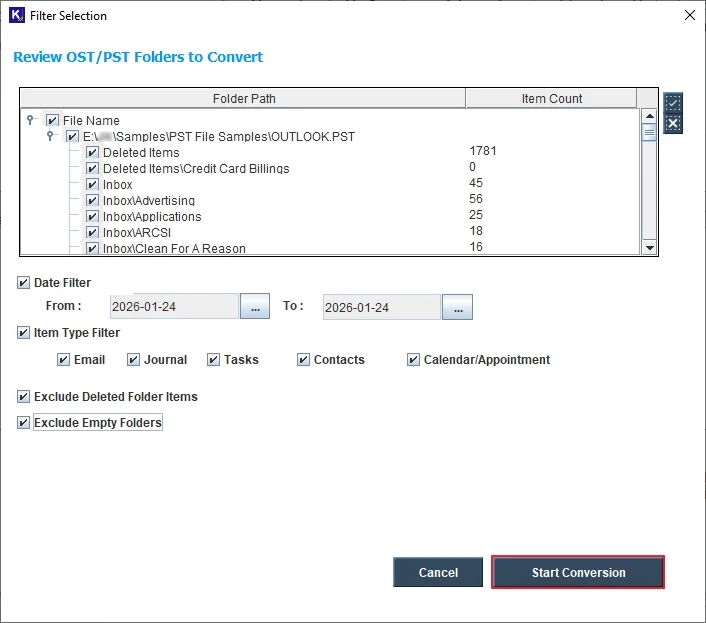
Step 6: In the Save options window, select output type as DOCX, and provide File Naming Convention to save data as a specific name. Also,
- Check Extract Attachments from Emails in Separate Folder to save attachments in a specific folder.
- Logs for the emails not converted: Get a detailed log report of all the failed item conversions along with their reasons.
Browse and select a specific folder or drive to save the output Word document file, and click OK.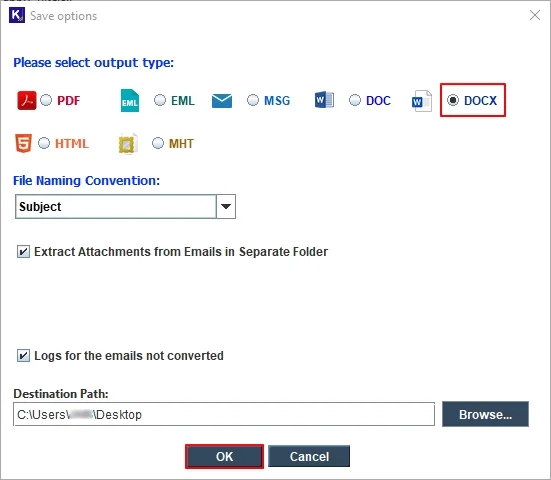
Step 7: The software will start converting emails to word document.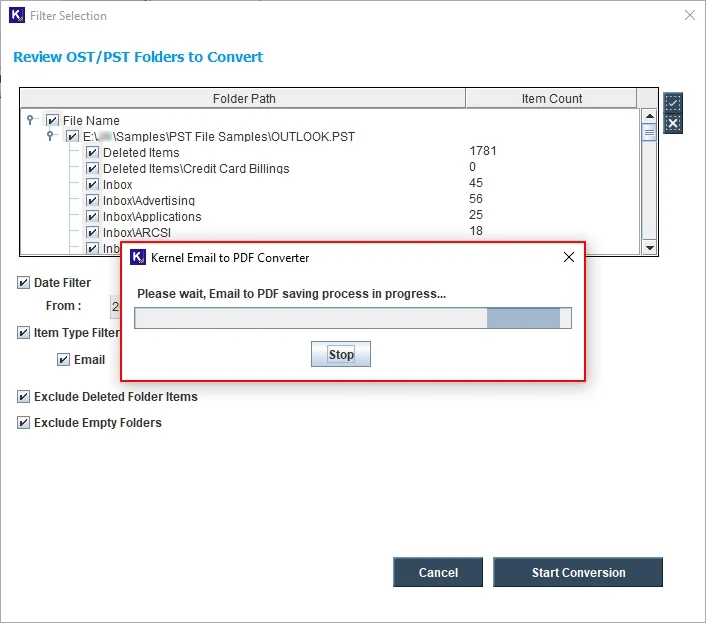
Step 8: After a successful conversion, the software will pop up a “Saving process completed successfully” message. Click OK to exit.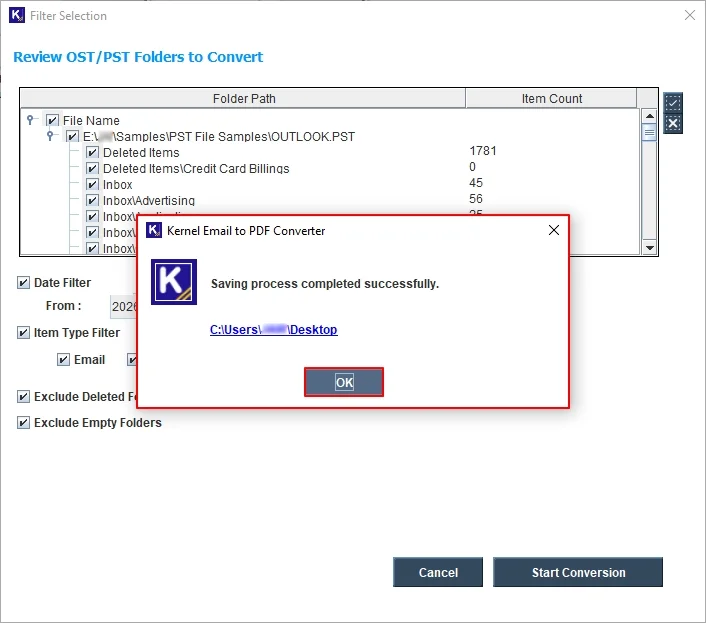
In this way, the software allows you to easily convert Outlook emails to Word documents within few simple steps.
Conclusion
As you know, relying on manual methods to convert Outlook Emails to Word documents is not a wise choice. Thus, try to use the professional-recommended Kernel Email to PDF Converter software to export Outlook emails to Word Document with complete email formatting.
Frequently asked questions
Q: Can I convert Outlook emails to DOC file for free?
A: Yes, using the Outlook Save As option, you can save specific email content in TXT format. After that, you need to open that TXT file in MS Word and save it as a Word File. However, it’s a lengthy process, so you must use an advanced software to save bulk Outlook emails to word document quickly.
Q: How to convert Outlook emails to DOC files in bulk?
A: You can easily convert Outlook emails to DOC in bulk using the software’s + icon. It lets you add multiple Outlook data files for error-free conversion.
Q: Does the software convert Outlook emails into a doc file only?
A: Along with the Word document format, the Kernel Email to PDF Converter tool supports EML, PDF, MSG, DOC, DOCX, HTML, and MHT formats for conversion.
Q: Can I export email attachments separately?
A: Yes, our Email to PDF Converter tool saves all the email attachments separately in a particular folder.