
User Query: I'm stuck with XPS files containing important data (invoices and structured reports), but I require that data in a more usable format like CSV. Can I convert XPS files to CSV on my own?
In short, an XPS (XML Paper Specification) file has a fixed-layout document format, so that the data looks the same on any device. It can contain text, images, and other elements, like PDF. Since XPS protects the document's formatting and design, extracting structured data from these files can be complex, but it can be done with the right approach.
If you want to convert XPS to CSV for analysis or use in other applications, you’ve come to the right place. In this guide, we’ll cover the other reasons for conversion and the most reliable solution to convert XPS files to CSV. Let’s get started!
Why Convert XPS to CSV? Other Prominent Reasons
CSV files are widely used for storing structured data in a simple tabular format. And converting XPS to CSV helps you extract document data into an editable file format. After that, they can be easily read and edited by spreadsheet programs like Microsoft Excel or Google Sheets. Here are some other reasons that might compel users to convert XPS to CSV:
- Easier data analysis: CSV files are compatible with many data analysis tools.
- Data portability: CSV files are lightweight and can be shared across different platforms easily.
- Automation: Structured data in CSV format can be easily imported into databases or other systems for automation.
After analyzing the most prominent reasons, let’s now look at the approach to extract structured data (CSV) from XPS documents.
Methods to Convert XPS Files to CSV | 100% Professional and Reliable
There are several methods available to convert an XPS file to CSV. Below are the most common and effective ways.
- Desktop software like Adobe Acrobat
- Programming and scripts
- Online XPS to CSV converter
- Professional XPS to CSV converter tools
Firstly, desktop software like Adobe Acrobat has strong algorithms for conversion but can be expensive and complex to learn. On the other hand, programming scripts are flexible and save time, but need coding skills. However, online XPS to CSV converters are quick and free, but they contain security issues and may fail to handle large XPS files.
To avoid the limitations of manual methods, opting for an automated tool is necessary. You can use a professional XPS to CSV converter tool instead of depending on unreliable methods. They provide reliable, high-quality conversions in a few easy steps. Kernel XPS Converter is one such tool that many professionals also recommend for XPS file to CSV conversion.


How to Convert XPS to CSV? | Step-by-Step Process
Here is a reliable and complete stepwise process that will help you convert XPS to CSV with ease:
Step 1. Download and install the Kernel XPS Converter tool in your system.
Step 2. Launch it and click on the Add File icon.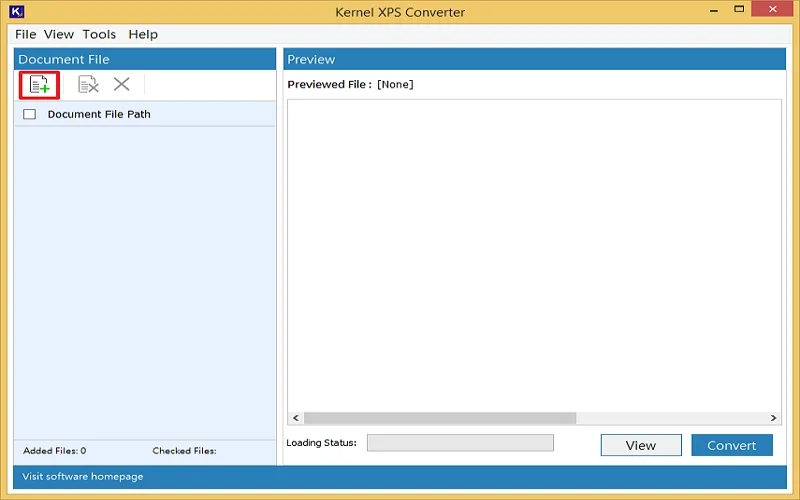
Step 3. Select the XPS file option as source, click Browse, and select your XPS files. The selected file will be listed below. Check them and click on the Add file button.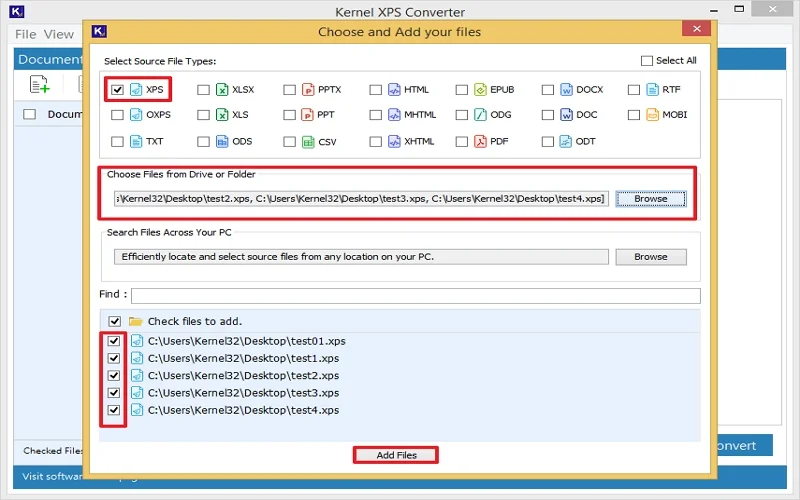
Note: You can add multiple XPS files at once in the tool. Also, the tool fetches the XPS file automatically from the system when you click Browse under Search File Across your PC.
Step 4. Now, select the file and click View if you want to read the content. To export XPS to CSV, select the added files and click Convert.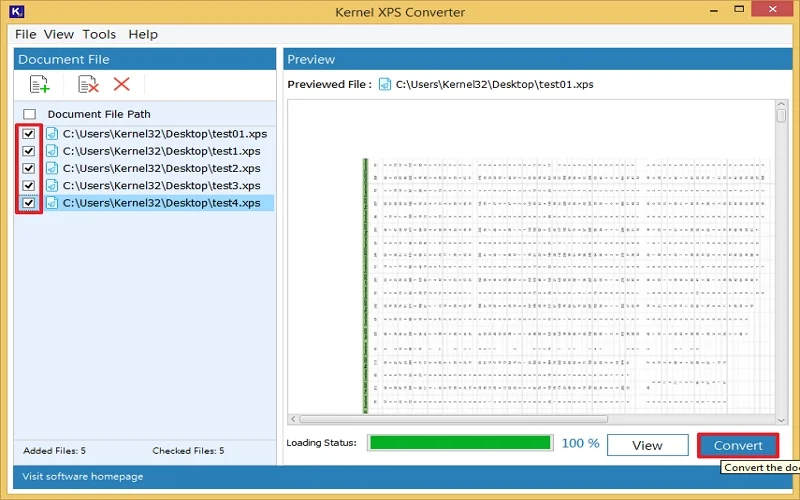
Note: To activate a free trial of the tool, click the Help tab, click Activate License, and tap Continue Trial.
Step 5. Click Browse to choose a saving location for the CSV files. Choose CSV from the Spreadsheet Format dropdown in the Apply Conversion Type section. Click Convert.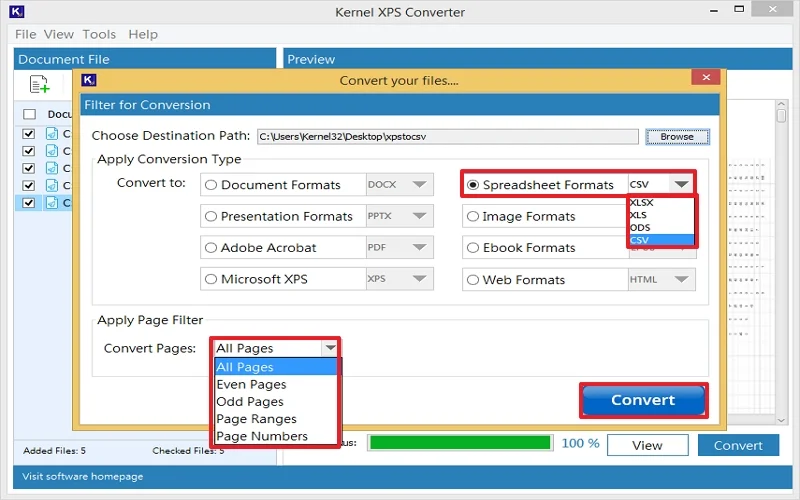
Note: You can also apply filters from the Page Filter dropdown if required.
Step 6. The XPS to CSV conversion will start immediately.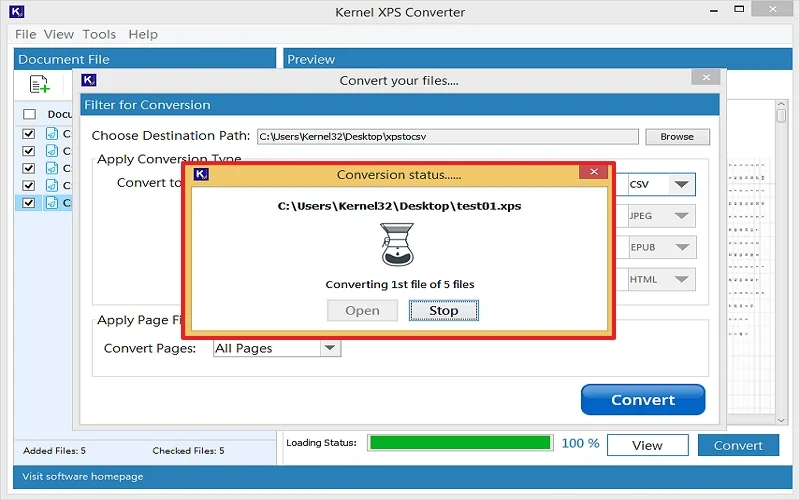
Step 7. Wait for a few minutes; your XPS will be converted into the selected CSV format.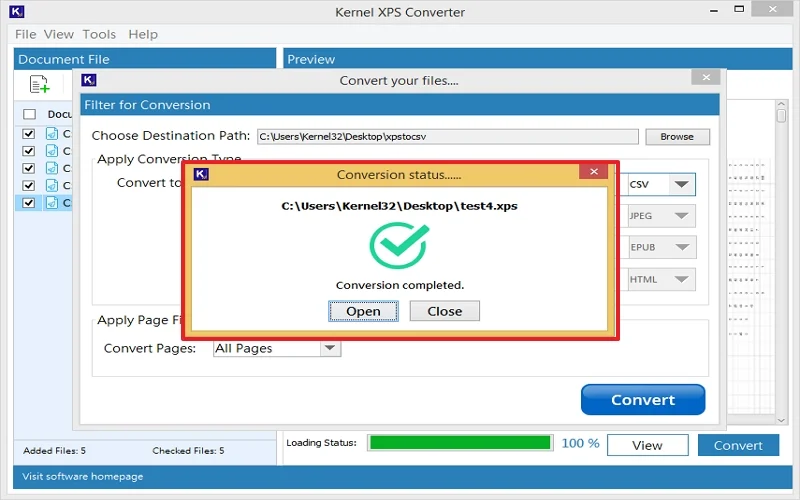
By following the steps outlined above, you can easily export XPS to CSV and start working with your data in a more efficient and accessible format.
Why is Kernel XPS Converter the Best for Converting XPS to CSV?
Kernel XPS Converter is a powerful tool that makes the file conversion smooth and accurate. It stands out for its efficiency, security, ease of use, and ability to handle large XPS files without compromising data quality.
Key Benefits of Kernel XPS Converter:
- Convert XPS to CSV with no data loss or formatting issues.
- Effectively manages large and complex XPS files.
- Convert multiple files simultaneously to save time.
- Preview XPS file data items before conversion.
- Intuitive interface and no technical expertise required.
- Quick and efficient conversion process without manual hassle.
- Convert XPS files to PDF, DOC, HTML, JPEG, etc.
- Eradicate online risks by converting files locally to the system.
These features make XPS Converter a reliable and efficient choice for professional XPS to CSV conversions.
Summing Up
Converting XPS to CSV is the best way to extract structured data from documents and make it more usable for analysis, sharing, and automation. Now you know other significant reasons and the most reliable method to convert XPS to CSV with the step-by-step guide. However, there are other manual methods to export XPS to CSV; they can be troublesome for beginners, and sometimes they give undesirable results.
So, if you want a hassle-free and accurate conversion, use the recommended XPS to CSV converter tool. It is best for all levels of technical expertise, whether professional or beginner. Its advanced features and clean user interface make the XPS conversion smooth as well. Want a hands-on experience? Get the free trial version now!!
Frequently Asked Questions (FAQs)
Q. What is the best tool to convert XPS files to CSV?
A. The best tool depends on your needs, but the desktop XPS converter is more reliable than others due to its security and effectiveness.
Q. Can I convert an XPS file to CSV for free?
A. Yes, many XPS converters offer free options to export XPS to CSV. However, larger files or batch conversions may require a license.
Q. Is there a limit to the size of the XPS file I can convert?
A. Yes, many XPS converters accept limited file size, but Kernel XPS converter supports large XPS files, even multiple at once.