
Need print-ready, secure & easily shareable document format! XPS format leads in this category. The Docx files are designed for the editing & content creation that drives users to convert Docx to XPS format when the concern is to get fixed-layout documents.
Here, we will discuss the concern in detail, including its reasons & advanced solution. Besides, we will provide some extra tips that can make the convert DOC to XPS process smooth & error-free.
Know the Reasons to Convert Docx to Microsoft XPS
Get the most highlighted benefits that compel users to convert document to XPS:
- Boost security by making it non-editable by default.
- Delivers high-quality, print-ready & consistent outputs.
- XPS files are system-friendly & easy to handle across any system.
- Considered the best one for archiving or long-term storage.
- Retains document layout the same as the original.
Why do Users Prefer Automated Solution over the Manual Ones?
This section will help you understand the consequences that users usually face while working with the manual methods.
- Provides inconsistent output quality with less control.
- Not supportive of bulk Docs to XPS conversion.
- Lacks advanced options for customized results.
- Need MS Word installation for manual methods.
- Manual ways can make data vulnerable to mishaps.
- High chances of human errors with the manual techniques.
- No scope for any automation & guaranteed data security.
Use the Best Automated Way to Convert Docx to XPS
Till now, we are aware that going with the manual solutions is not suitable for complex or crucial data. Instead of them, professionals recommend using the advanced tool as a favorable option, as they assure 100% data security with complete intactness.
Kernel Document Converter software is the one choice that industry experts often use. Its intelligent algorithms offer a high success rate in document conversion, including Docx to XPS.

Look at the Stepwise Approach to Run the Converter Smoothly:
Step 1. Download & open the document converter. 
Step 2. Choose the DOCX section & Browse the desired file or folders. Then, click on the Add files option.
Step 3. Preview the DOCX file data & select the desired files. Click on the Convert option.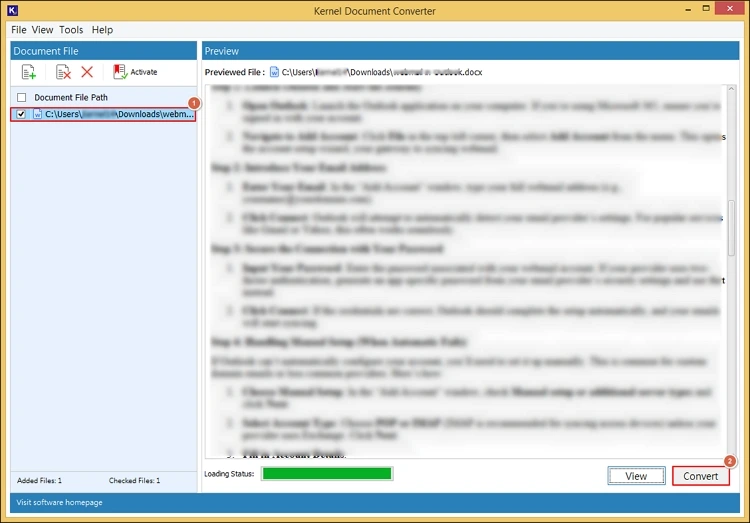
Step 4. Browse the saving location & select the resultant format as XPS with the needed filters. Select the Convert option.
Step 5. It will start the "convert DOCX to XPS" process.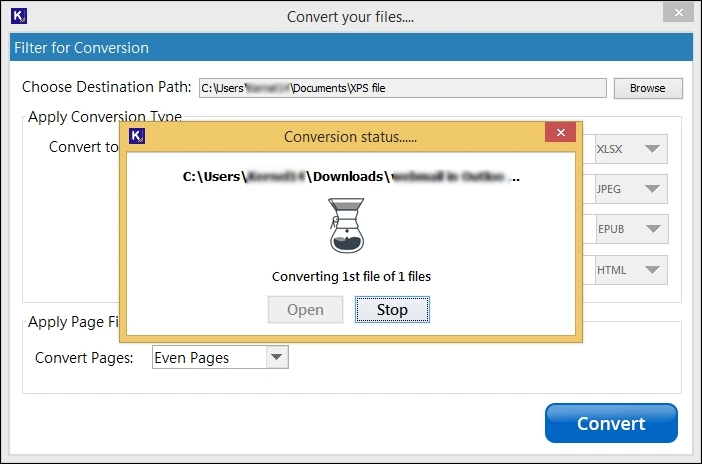
Step 6. Once you are prompted with the message “Conversion completed“, access the converted file location with the Open tab directly. 
Highlighted Features of Document Converter
Here is the list of the top features that users get while using this advanced converter.
- Convert document to XPS with 100% data intactness.
- Allows to save the doc file in more than 20+ formats.
- Provided 24/7 dedicated technical support.
- Preserves the data integrity of each file.
- Convert bulk DOC file into XPS format error-free.
- Run the tool without an internet connection.
- Works with all the latest versions of Windows OS.
Tips to Get the Right Results
Here, we have provided some tips that can help you to get smooth & needed results without data loss.
- Try to use consistent fonts to avoid font issues.
- Verify the margins, orientation, & spacing for intact output.
- Make sure to use the images with better quality in the file.
- Remove unnecessary items from the Docx file for better clarity.
Conclusion
The guide has discussed all the aspects behind the convert DOCX to XPS process, including reason, advanced method, & tips. Try the stepwise approach to get the desired results with the advanced converter. You can even explore the tool’s trial version to convert Docx to Microsoft XPS for free, with certain limitations. Contact us for more information!