
Video corruption on Mac is more common than you think. It can happen due to interrupted file transfers, incomplete downloads, recording errors, sudden shutdowns, or storage errors. All these reasons may lead to issues like video not playing, showing a black screen, missing audio, and other technical errors.
The guide will explain the reasons for video corruption, what you need before starting the repair, and how to repair a corrupted video on Mac using a manual method and a dedicated tool.
Common Reasons Videos Get Corrupted on Mac
While transferring your videos to your Mac device, you will find that your videos are corrupted. But it is essential to know why the videos got corrupted. Below mentioned we will discuss the reasons behind video corruption:
- Storage Device Errors: An external storage device such as an SD card, USB drive, external hard drive, or any other storage device can contain errors. If the video was stored on an affected device, it can be damaged or inaccessible.
- Incomplete Downloads: If a video download is interrupted due to network issues, browser errors, or insufficient storage, the file may not be downloaded completely.
- Sudden Shutdown or Power Loss: If your Mac or any other recording device shuts down while a video is being recorded, copied, or saved. This can damage its structure and make it difficult to play the video.
- Technical Error: An unexpected technical error due to an application failure, system error, incompatible codecs, video card failure, unstable internet, or an interruption while processing the video.
- File Structure or Codec Damage: A video depends on the header, metadata, frames, audio, and codec to play correctly. If one of these components is damaged, the video shows errors, missing audio, distorted frames, and other issues.
What You Need Before Repairing a Video on Mac
While repairing a video, you must consider certain factors discussed below:
- You must provide a reference video in case of severe corruption.
- Supported macOS versions include macOS 27 Golden Gate, Tahoe 26, Sequoia 15, Sonoma 14, and earlier versions.
- Make sure your Mac has enough storage, which requires at least 500 MB of hard-disk space and 4 GB of memory.
- Access to external devices like an SD card, USB drive, external hard drive, or another storage device.
Is There a Manual Way to Repair Corrupted Video Files on Mac?
Yes, you can repair the corrupted video file on Mac manually using a hex editor, built-in file extension, VLC Media Player, FFmpeg, etc., but you will be able to repair a single video file at a time.
The manual method has several limitations, which includes high-risk of permanent data loss, technical complexity, lack of automation, inability to fix severe corruption, and others.
What Is Kernel Mac Video Repair?
Kernel Mac Video Repair is a video repair tool designed to fix corrupted, damaged, or unplayable video files on Mac.
Supported formats: MOV, MP4, ProRes, ProRes RAW, 3GP, WMV, AVI, MKV, MPEG-4, MPEG-2, MPEG-1 and others.
The tool supports individual as well as multiple video files, which allows you to add videos and repair them in a single operation. It supports repairing high-resolution video files, including 4K, 8K, VR, and 360° videos. It resolves audio-visual synchronization errors in damaged files.
Steps to Repair Corrupted Videos on Mac
Kernel Mac Video Repair provides a simple and easy way to repair corrupted videos. Download and launch the software to proceed with the process. The step-by-step process is mentioned below:
Step 1: Open the tool and click on the Add Video Files button.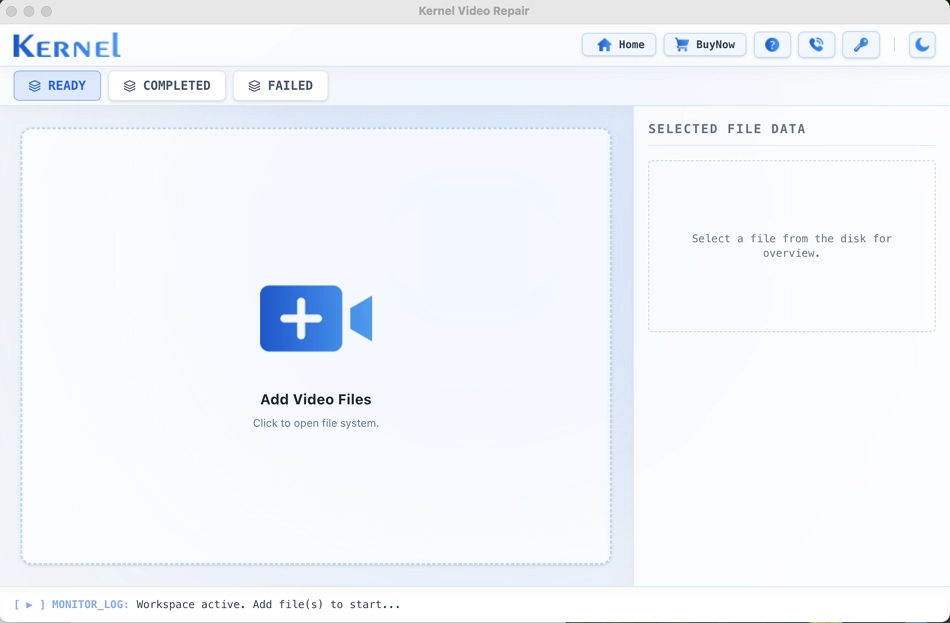
Step 2: Select the damaged videos and add them to the tool. Click Open.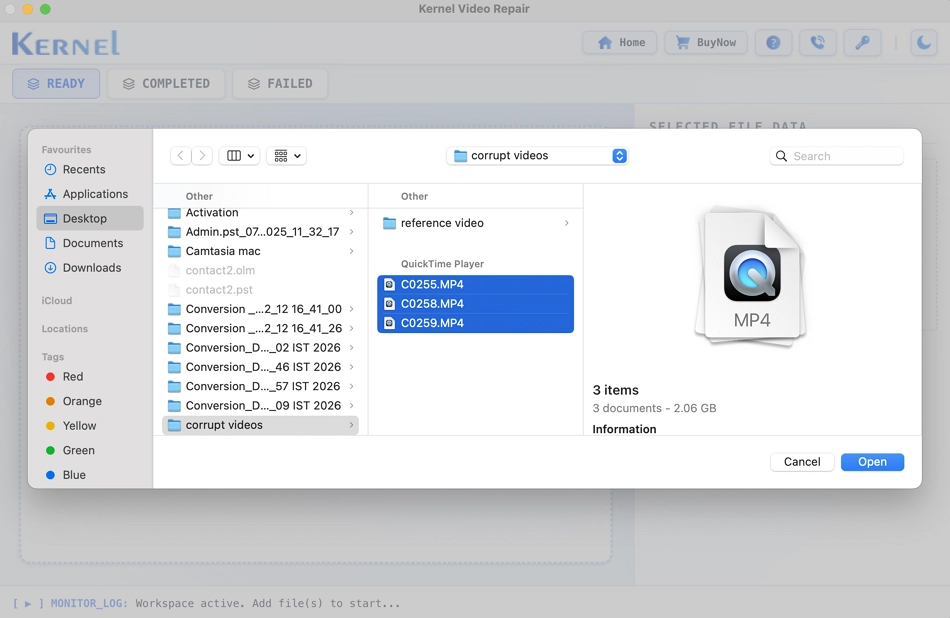
Step 3: All the added files will appear under the READY tab. Click the Repair button to start repairing.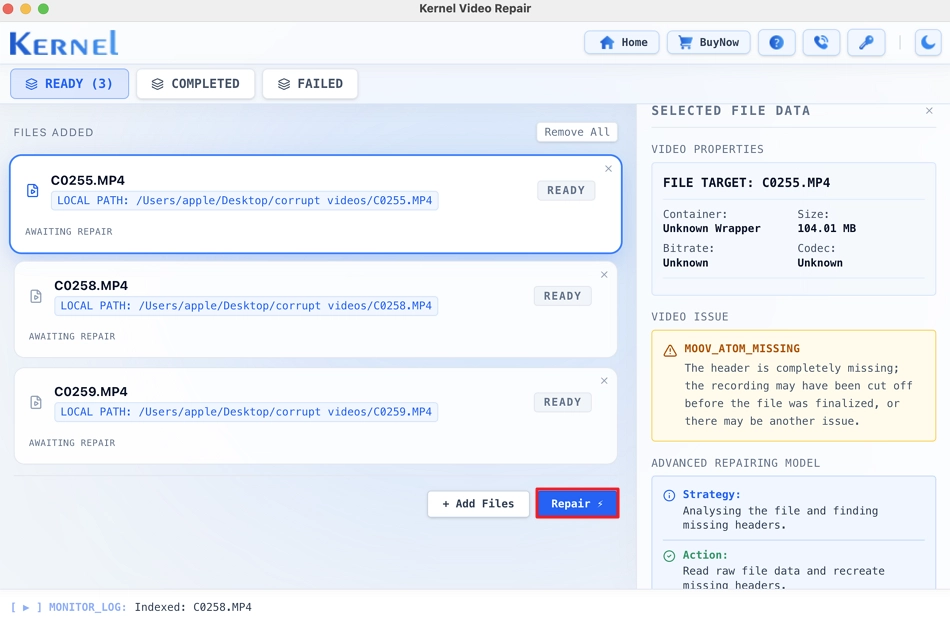
Step 4: The tool starts repairing the damaged video files.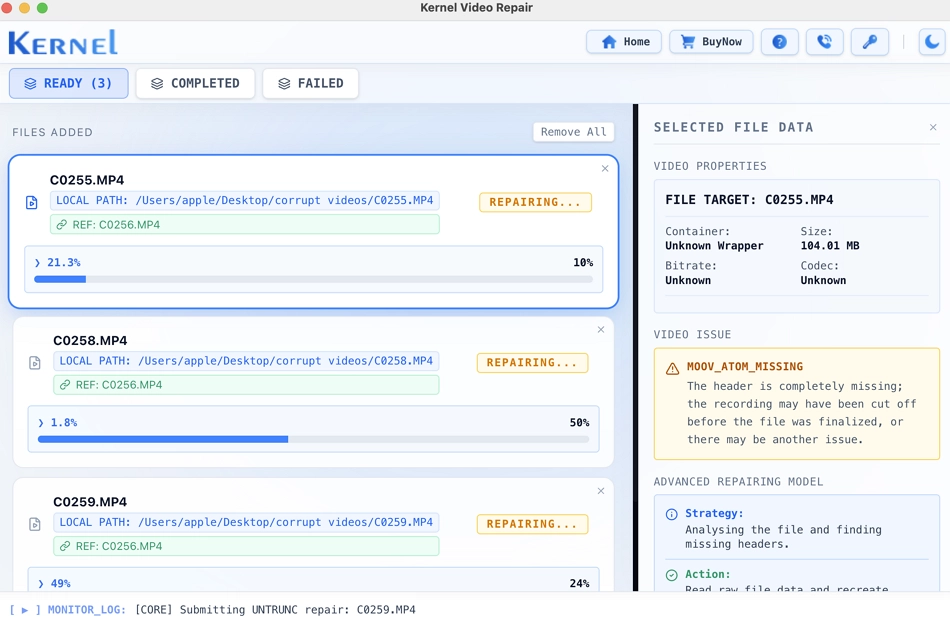
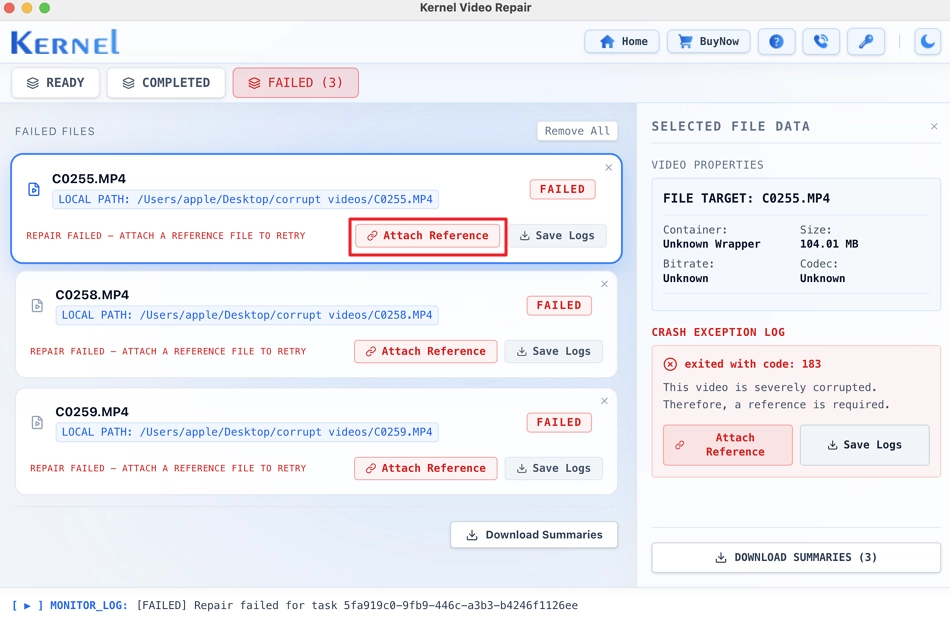
Note: If the repair fails, click the Attach Reference button and add a healthy video file from the same device for each failed video. After adding the reference file, go to the READY tab and click Repair.
Step 5: Video repair is complete. Click Play to preview the repaired video or click the Show in Folder button to open its saved location.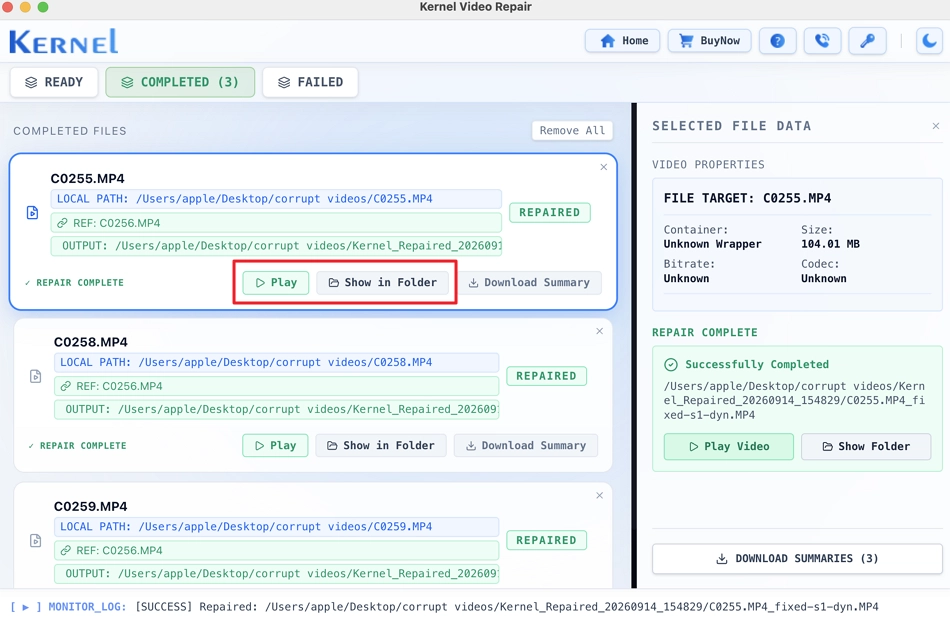
Step 6: Click Download Summary, enter a file name, and choose a location to save the .txt file.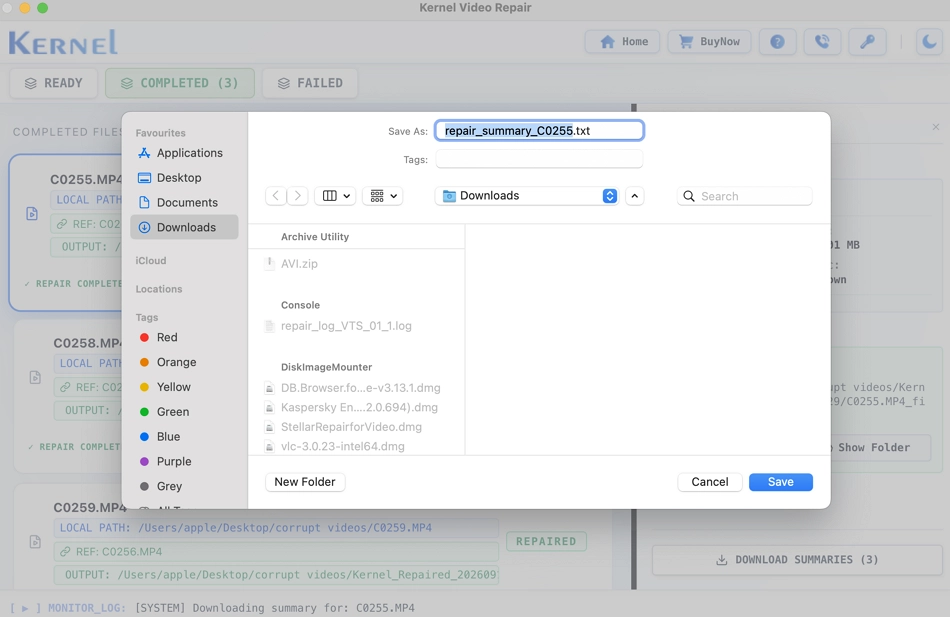
Conclusion
A corrupted video does not always mean that the recorded content is permanently lost. You need to identify whether the problem is with the media player, file transfer, storage device, or the video file itself.
Kernel Mac Video Repair tool is a solution for corrupted or damaged videos. The tool repairs corrupted videos, previews the output, and saves the repaired files on macOS. It supports multiple formats in a single operation and repairs damaged videos.
Frequently Asked Questions
How to repair multiple videos on Mac at once?
Allows you to add multiple corrupted video files and process them in a single operation. It is helpful when several videos are damaged, and you want to repair them in one go.
Can I play the repaired video before saving it?
Yes, you can play the repaired video before saving it. It lets you play the repaired video and verify whether it repaired properly.
Does the repair process modify the original video?
No, the repair process does not modify the original corrupted video. The repaired file is saved separately at the location you select and allows you to keep the original file as a backup.
What if the repaired video still does not play?
If the repaired video still does not play, the problem may lie in your media player, missing software codecs, or deeper file damage. You can retry repairing the original file, ensure that the video format is supported, and check whether the source storage device has errors. Try to keep the original file unchanged.
Is there a trial version available to test software before purchasing?
Yes, the software comes with a free trial version that allows users to repair the damaged video file and verify it by playing the first 30 seconds of the output video file before buying the licensed version.